
Configure Zalo OA
Guide Info
Why Order Matters
If you click OAuth authenticate before entering the correct App ID and App Secret, or test webhook before OA is fully connected, Zalo’s verification process may fail. Your ops team then wastes time backtracking the error when the root cause was simply the order of steps.
The correct workflow is:
Quick Action Checklist (Correct Order)
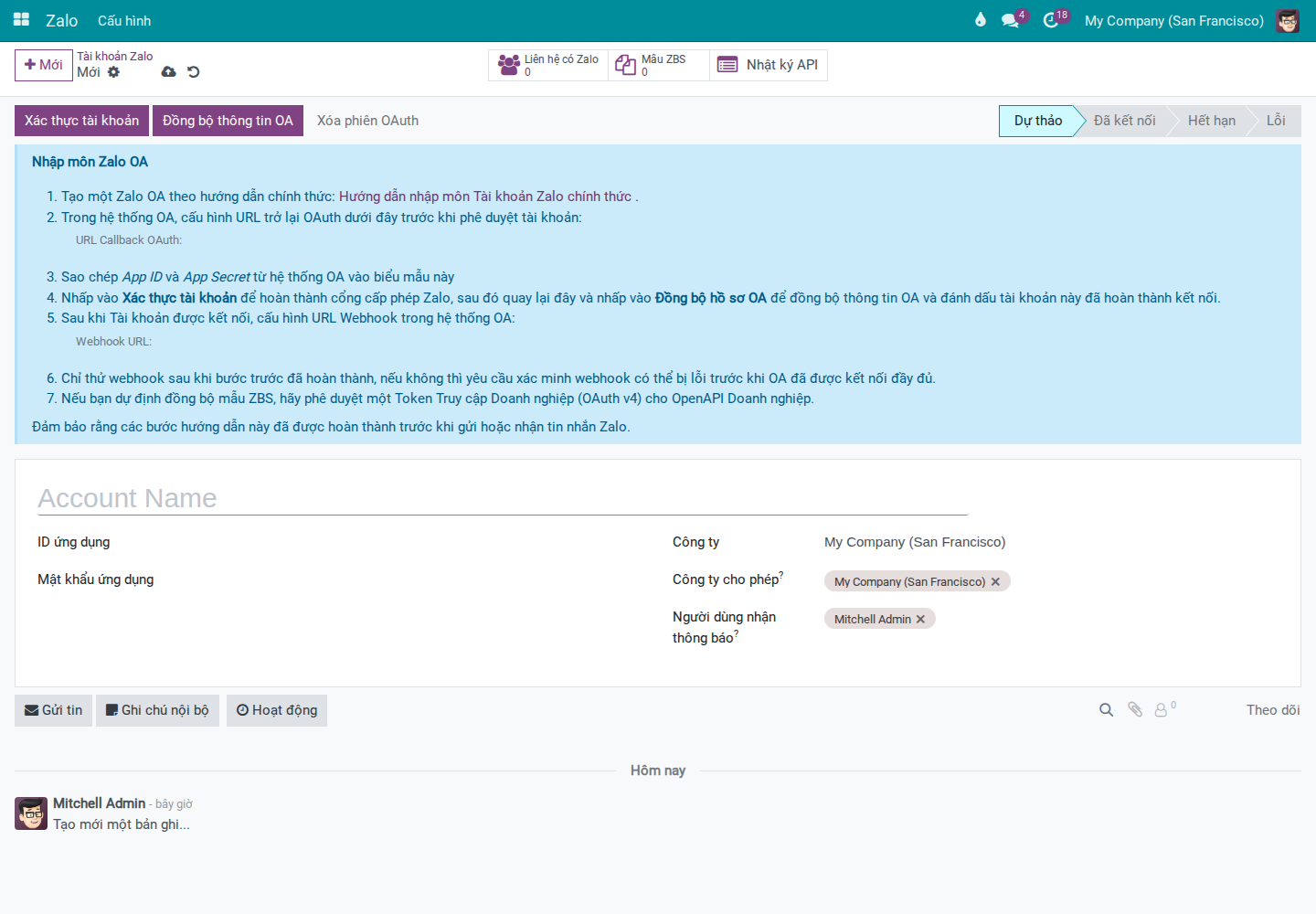
Create OA record Go to Accounts and create a new Zalo Account record.
Enter and save app credentials Fill in App ID + App Secret, then click Save.
Authenticate the connection Click Authorize Account to perform OAuth with Zalo and pick the right OA on Zalo’s page.
Sync OA profile Return to Viindoo and click Sync OA Profile.
Configure webhook last Only configure/test webhook after the account is successfully connected.
Tip
Signs of success: OA status turns Connected right after you press Cấp quyền on Zalo’s permission page, OA profile data appears after Sync OA Profile, and webhook test succeeds after sync.
Prerequisites
User has Zalo Admin permission.
You have an active OA on Zalo with App ID and App Secret already created.
You are in the correct company where the OA will be operated (relevant for multi-company setups).
Required Setup on Zalo OA Platform
Configuring Viindoo alone is not sufficient. For OA to send/receive via OpenAPI, Zalo side must complete account setup and grant permissions first.
Create and authenticate a Zalo Official Account (OA) following Zalo’s official guide.
Create a Zalo App (application on Zalo platform) to obtain
App IDandApp Secret.Complete app authentication and permission grant per Zalo’s developer documentation.
If using ZBS template messages, also prepare a ZBS Account and link it:
ZBS Account ↔ OA
ZBS Account ↔ Zalo App
Ensure admin has permissions on all related accounts (OA/App/ZBS). These may be different admins, but they must coordinate to apply correct permissions.
Note
For first-time integrations, the difficult part usually lies in creating the App, granting permissions, and linking OA-App-ZBS. Verify this setup on Zalo side before returning to OAuth in Viindoo.
Configuration Steps in Viindoo
Go to , create or open a Zalo Account record.
Fill in required fields:
Name
App ID
App Secret
Company and Allowed Companies (if using multi-company setup)
Click Save.
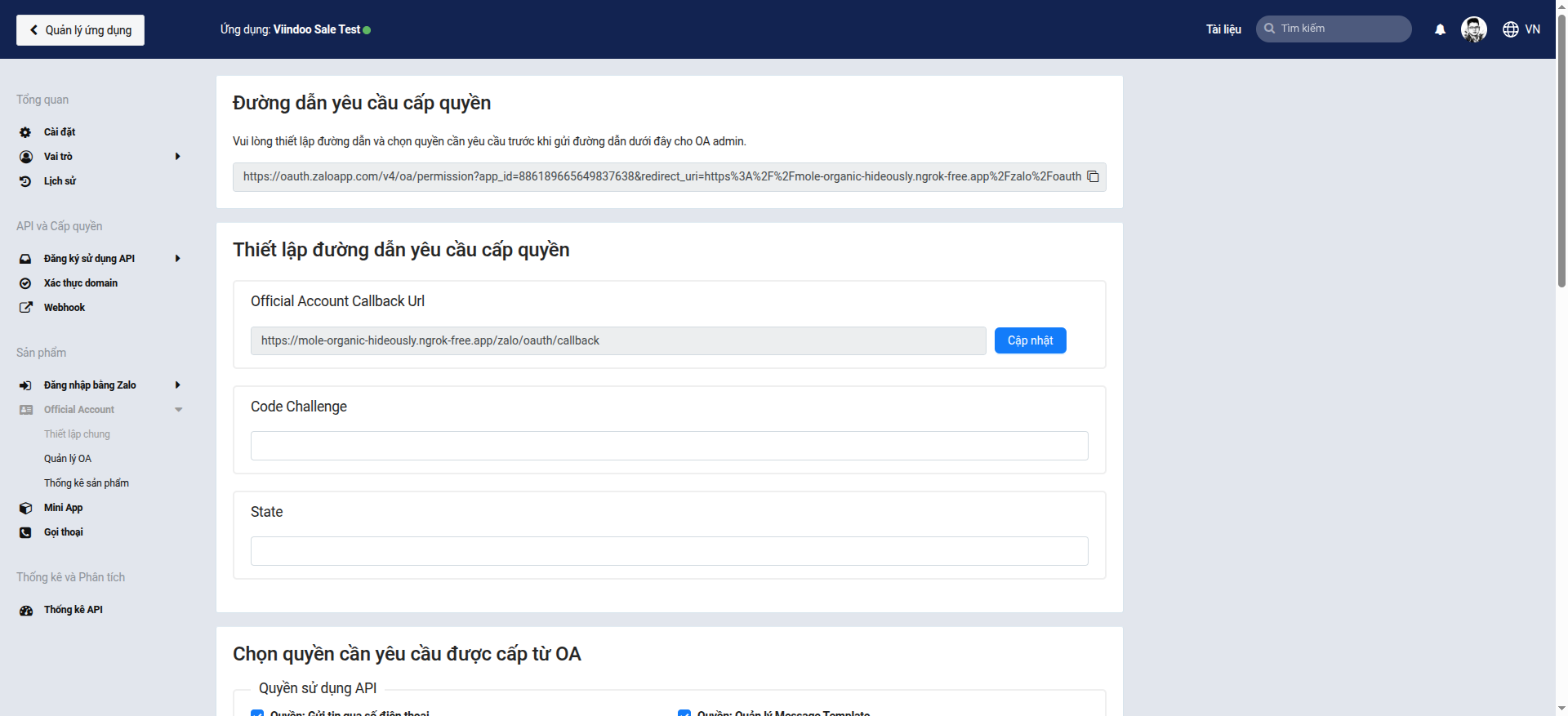
Copy the OAuth Callback URL shown on the form and configure it as callback in OA console.
Click Authorize Account to start OAuth flow. This step grants permission to Viindoo to send/receive on behalf of the OA — without this, Zalo API rejects all requests.
Tip
Choose the OA yourself on the Zalo permission page. It opens in a new tab. Zalo preselects the first OA in your list, which may not be the one you are connecting, and Viindoo learns which OA you mean only from this choice. The link behind Authorize Account works for 10 minutes from the moment it is created (clicking the button again reopens the same link and does not restart the 10 minutes), and logging in to Zalo first, if it asks, uses up part of that time. Within that time:
Open the drop-down next to the OA name in the page header (a small arrow) and select the OA you are connecting. The line under the header names the OA that will grant access: check that it shows the OA you are connecting.
Scroll to the bottom and tick the checkbox that accepts Zalo’s terms of use.
Press Cấp quyền (Vietnamese for “Grant permission”).
Warning
Confirm the OA name before you press Cấp quyền: the sync imports the followers of the OA you picked.
If the wrong OA stays selected, Viindoo connects to that OA: after Sync OA Profile the account shows that OA’s name and OA ID, Viindoo sends every message through it, and the sync imports that OA’s followers into Viindoo as Zalo contacts, one contact per follower (listed under Zalo Partners), up to about 10,000 in one sync. An OA with 3,000 followers adds 3,000 contacts.
To disconnect, use Clear OAuth Session, a deliberate reset explained in Monitor and Troubleshoot Zalo, then authorize again. It deletes the tokens and sets the account back to Draft, but it does not delete the contacts already imported: they stay in Viindoo.
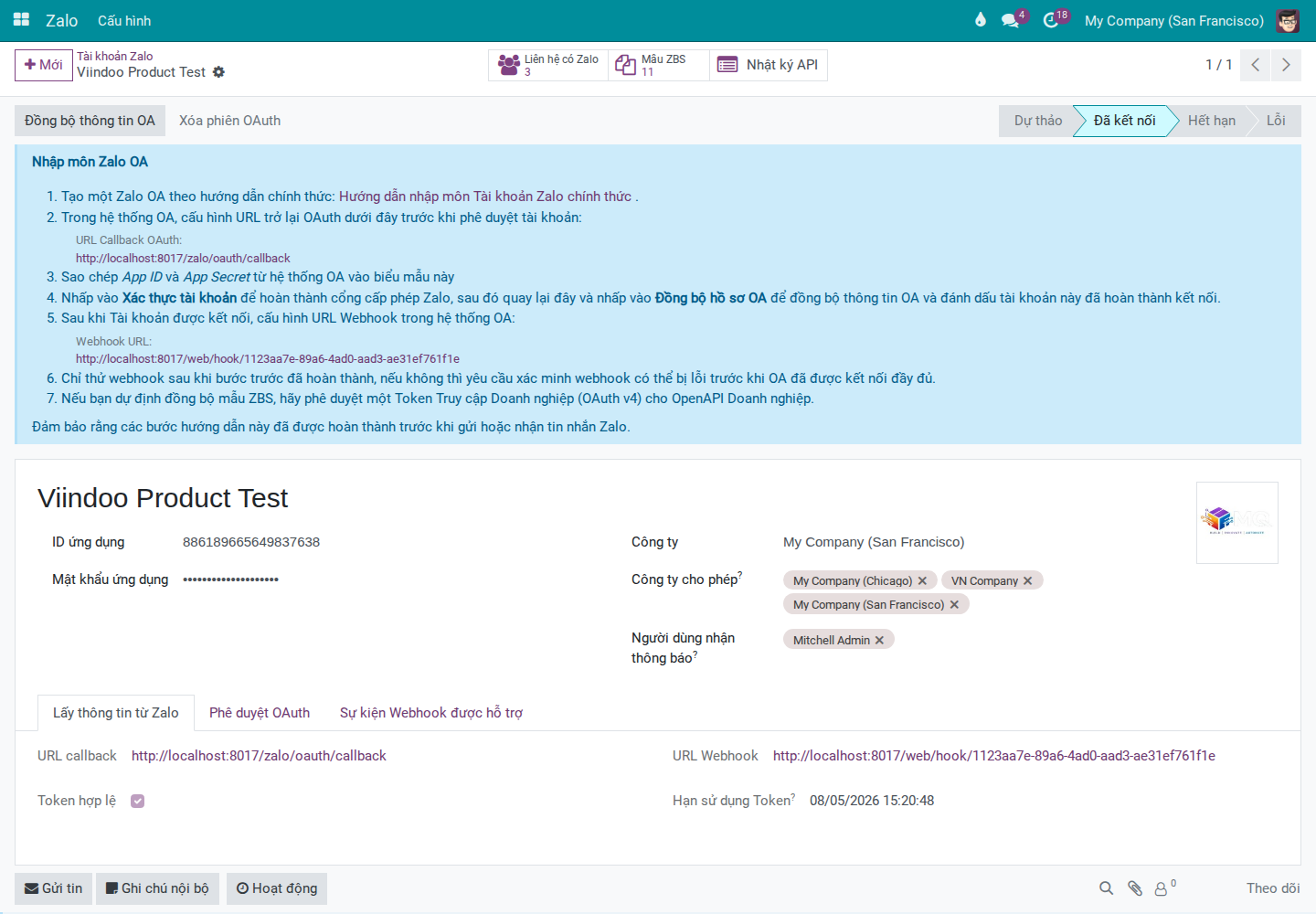
After callback returns to the system, return to the form and click Sync OA Profile - this fills in the OA name, avatar, and other OA details in Viindoo and imports the OA’s followers as Zalo contacts. After successful sync, the tab Profile Get From Zalo shows data and the Zalo Partners button counts the contacts linked to the OA, including the imported followers.
Confirm the status bar shows Connected: it turned Connected right after you pressed Cấp quyền, before the sync.
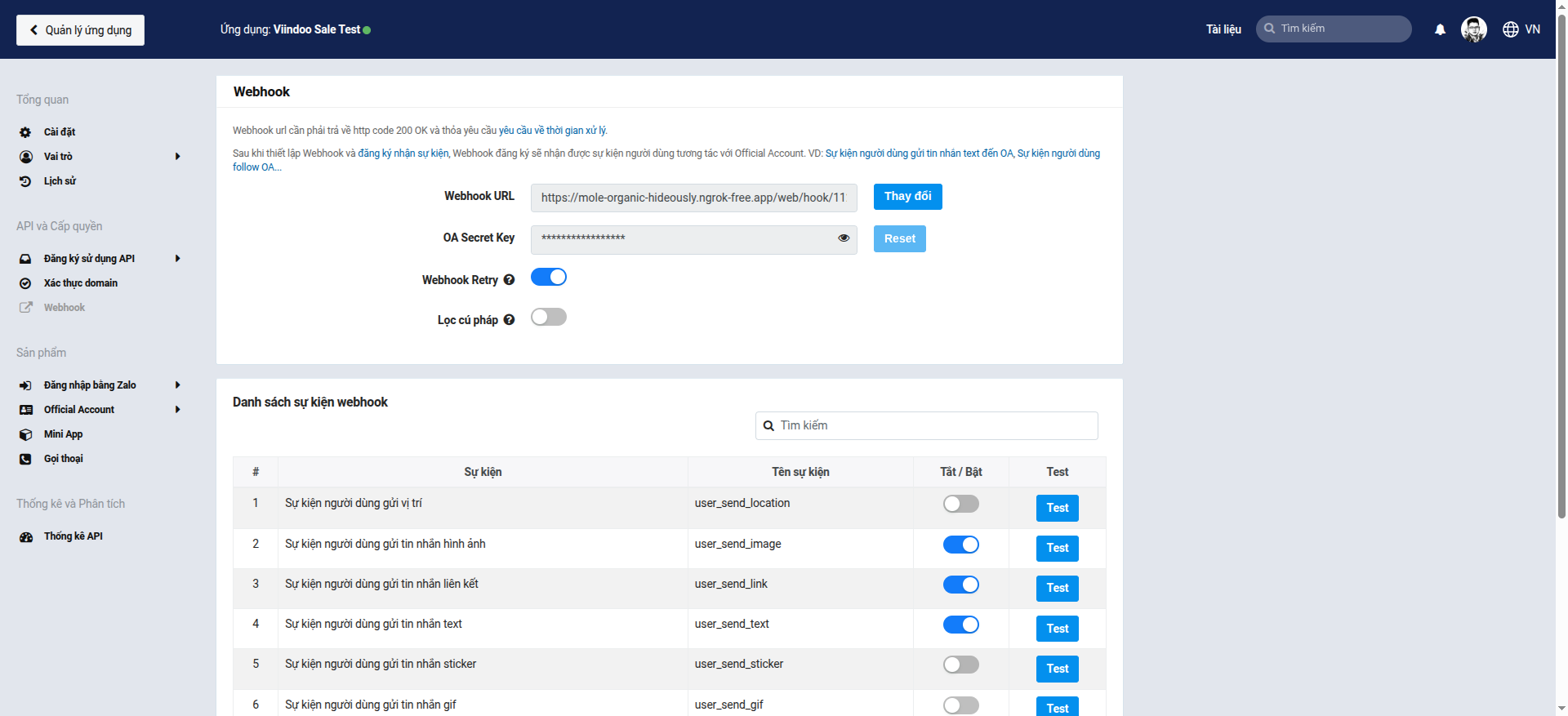
After successful connection, copy the Webhook URL shown on the form and configure it as webhook in OA console.
Note
The onboarding form includes a clear note: only test webhook after OA connection is complete; early testing may fail at the verify step.
Configure Extension Modules in Settings
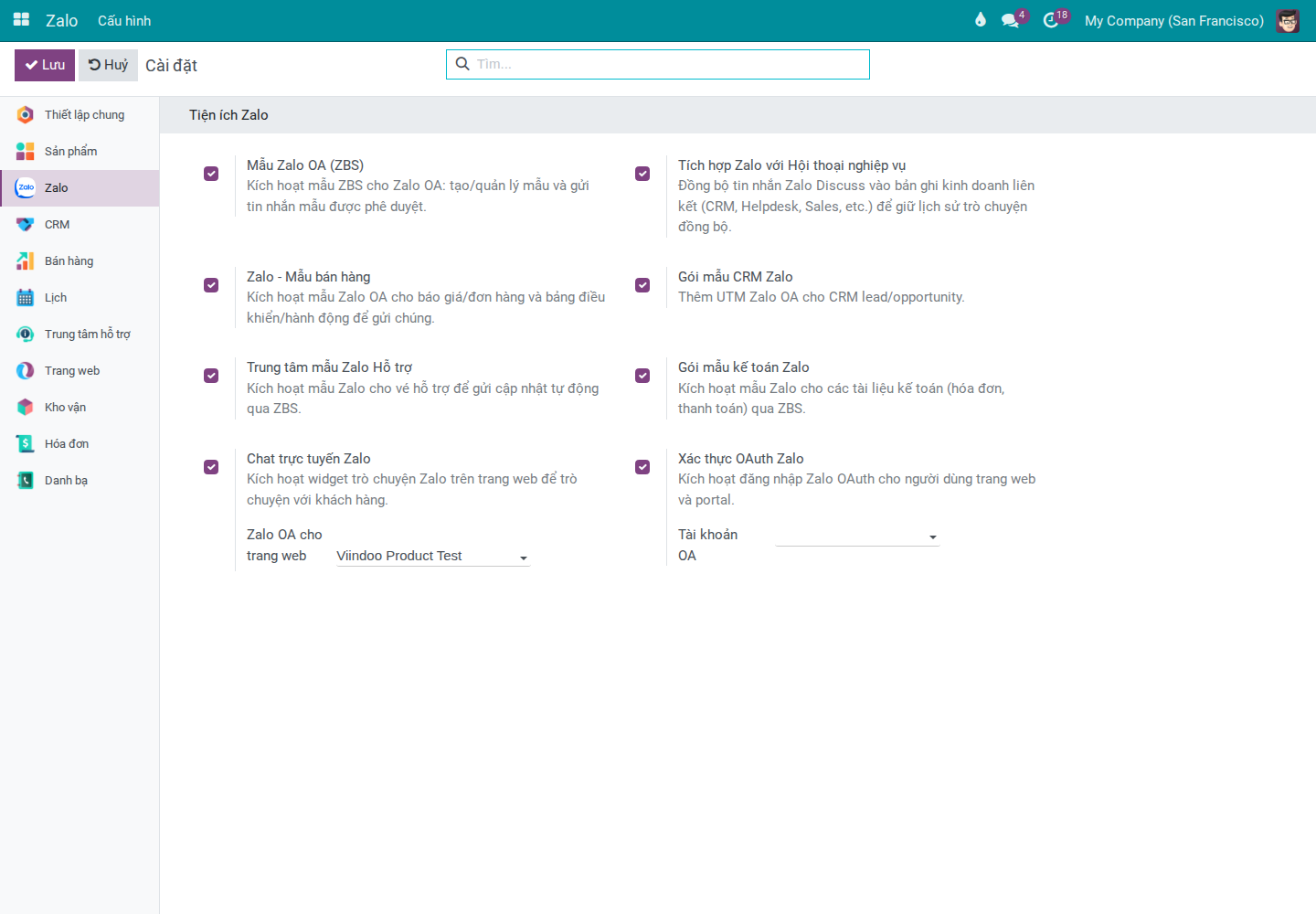
Go to and enable modules based on your operational needs:
Feature |
Enable when |
User Guide |
|---|---|---|
Zalo OA Templates (ZBS) |
CS/Marketing team needs to create, submit for approval, and send ZBS templates to customers. |
|
Zalo Chatter Bridge |
You need to save Zalo chat history to the chatter of business documents (sales orders, invoices, tickets) so all departments can follow along. |
|
Zalo - Sale Templates / Zalo Accounting Template Pack / Zalo Helpdesk Template Hub |
Sales/Accounting/Helpdesk team needs to send notifications via Zalo from their respective documents. |
Send ZBS Message Templates from Sales Orders, Send Payment Request Messages via Zalo from Invoices, Update Helpdesk Tickets via Zalo |
Zalo CRM Template Pack |
You want Zalo conversations to feed CRM — leads created from chat are tagged with the Zalo source for campaign tracking. |
|
Zalo Website Livechat |
Your website needs a floating Zalo chat button so visitors can message directly. |
|
Zalo OAuth Authentication |
Your customer portal needs a login button using Zalo account to reduce login friction. |
After enabling, click Save and verify the screen to confirm the feature is available.
If a module is not yet installed, the screen shows a Purchase or Learn more link.
Success Checkpoint
Tip
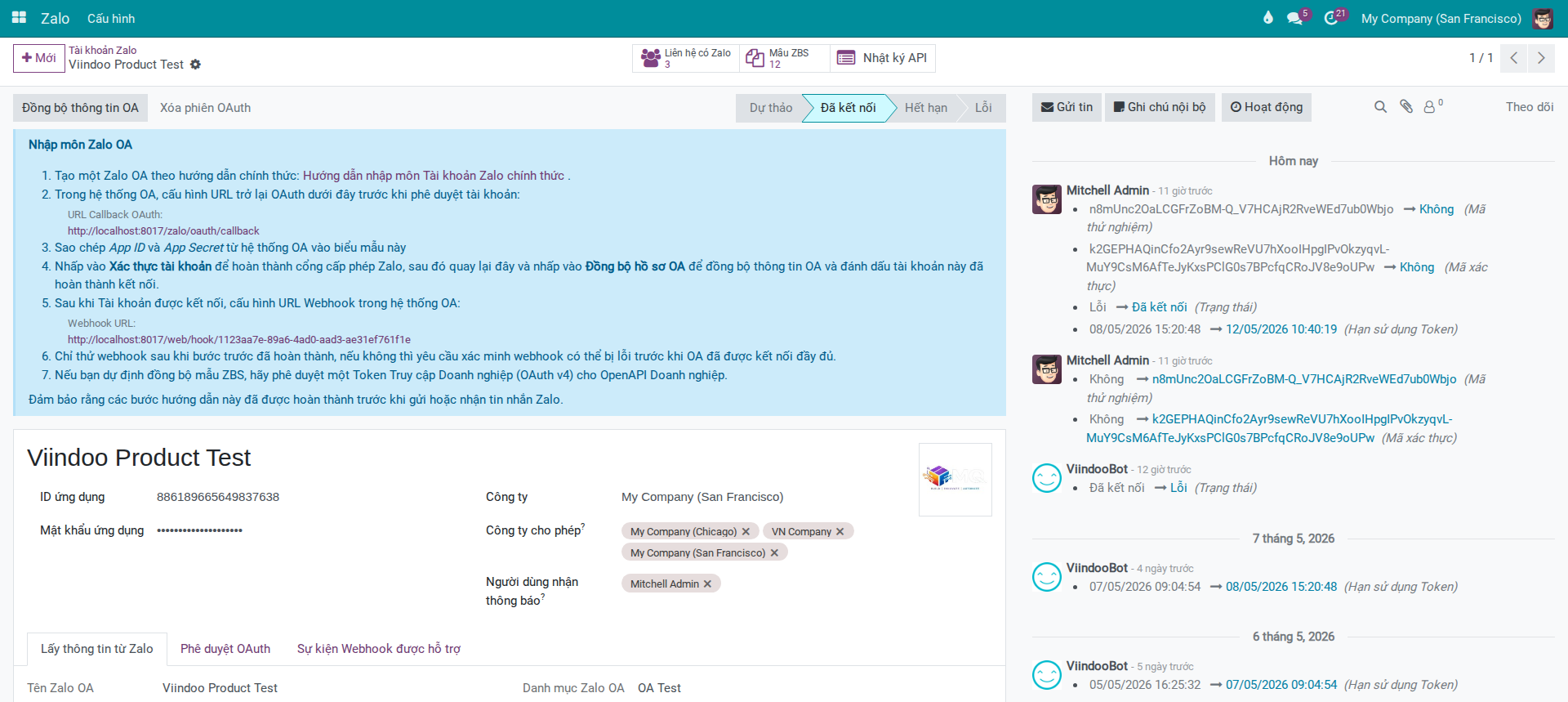
Signs of successful configuration:
After you press Cấp quyền, the Zalo tab returns to the account form with the status bar on Connected. A plain page with a message instead means authorization did not complete: see Common Issues and Solutions below.
OA record is in Connected status and has profile information in the Profile Get From Zalo tab.
After Sync OA Profile, OA Name and OA ID in the Profile Get From Zalo tab belong to the OA you meant to connect. If they do not, the wrong OA was authorized and the sync has already imported its followers as Zalo contacts: see the warning under step 5 above.
OAuth Authorization tab shows Callback URL, Webhook URL, Token Valid, Token Expires At.
Zalo Partners button counts the contacts linked to the OA, including the followers imported by the sync: a number above 0 when the OA has followers. This button and Sync OA Profile are already on the form while the account is in Draft, so seeing them does not prove the sync worked. API Logs button is available regardless of connection status.
Common Issues and Solutions
Cannot see Authorize Account/Sync OA Profile buttons or cannot access Configuration menu:
Common cause: account lacks Zalo Admin permission or system admin permission to open Settings.
Solution: check user role and permissions.
The Zalo tab shows “The authorization request is invalid or has expired.”:
Common cause: more than 10 minutes passed since Viindoo created the link (the 10 minutes do not restart when you click Authorize Account again, which reopens the same link), or the tab was opened from an older link. The account status does not change.
Solution: close the tab, go back to the account form and click Authorize Account again. Viindoo creates a fresh link automatically once the previous one has expired, so there is nothing to reset. Do not use Clear OAuth Session for this: it deletes the tokens and sends the account back to Draft without fixing anything.
The Zalo tab shows “Authorization failed” and the account status turns Error:
Common cause: Zalo returned a refusal instead of a permission, for example because the request was declined on the permission page, or Viindoo could not turn the permission into a token (the message then continues with a reason). Nothing else on the account changes. The only exception is a refusal that reaches Viindoo after the 10 minutes: the tab shows the same message, but the status does not change.
Solution: close the tab, reload the account form and click Authorize Account again, selecting the right OA, ticking the terms checkbox and pressing Cấp quyền. If the same reason comes back, check the App ID, re-enter the App Secret copied from the Zalo app (the field shows dots only, so you cannot compare it by eye) and check that the callback URL registered in the Zalo OA console matches the OAuth Callback URL on the form.
Sync OA Profile fails:
Common cause: wrong App ID/App Secret or invalid token.
Solution: verify app info, re-authenticate OAuth, then sync profile again.
Webhook verify fails immediately after declaration:
Common cause: testing webhook before OA is truly connected.
Solution: confirm status is Connected first, then test webhook again.
Scope of This Guide
This guide covers OA connection setup and extension enablement only. For subsequent operational tasks, see:
Send ZBS Message Templates from Sales Orders — Send ZBS templates from sales orders (Sales)
Send Payment Request Messages via Zalo from Invoices — Send payment requests from invoices (Accounting)
Update Helpdesk Tickets via Zalo — Update ticket status via Zalo (Helpdesk)
Zalo Chat Button on Website — Zalo chat button on website (after enabling Zalo Website Livechat)
Log In to Portal with Zalo — Portal login with Zalo (after enabling Zalo OAuth Authentication)