
Monitor and Troubleshoot Zalo
Guide Info
Zalo channel failures often lack clear error messages — messages don’t reach customers, ZBS templates get rejected, or webhooks go silent. This guide helps Admin/IT pinpoint the exact error category from the start, avoiding wasted time escalating when you can handle it.
Error Categories
Error Group |
Symptom |
Where to Check |
|---|---|---|
Token / Authorization |
OA account status is Error, or the account card shows Token invalid with a red warning icon |
|
Webhook not receiving |
Customer messages do not appear in Discuss |
Zalo OA Developer Console → Webhook settings |
Send failure |
Zalo State = Failed in the Zalo Events list |
Zalo Events list (Admin grants access) |
ZBS template rejected / disabled |
Template status is Rejected or Disabled |
→ ZBS Templates button |
Recipient not identified |
“no valid phone was found” error; message cannot send |
Contact form in Viindoo → check phone number |
Check Failed Messages
Access: Open the Zalo Events list — access is granted by Admin (this list has no default menu item; Admin makes it reachable). Then filter by customer/OA to check.
Two status columns on the list:
Processing State — Received / Queued / Processing / Processed / Error (Viindoo failed to process)
Zalo State — On Queue / Sent / Delivered / Received / Read / Failed (Zalo failed to deliver)
Quick filter: search bar → filter Errors (processing error) or Failed Deliveries (Zalo reported failure).
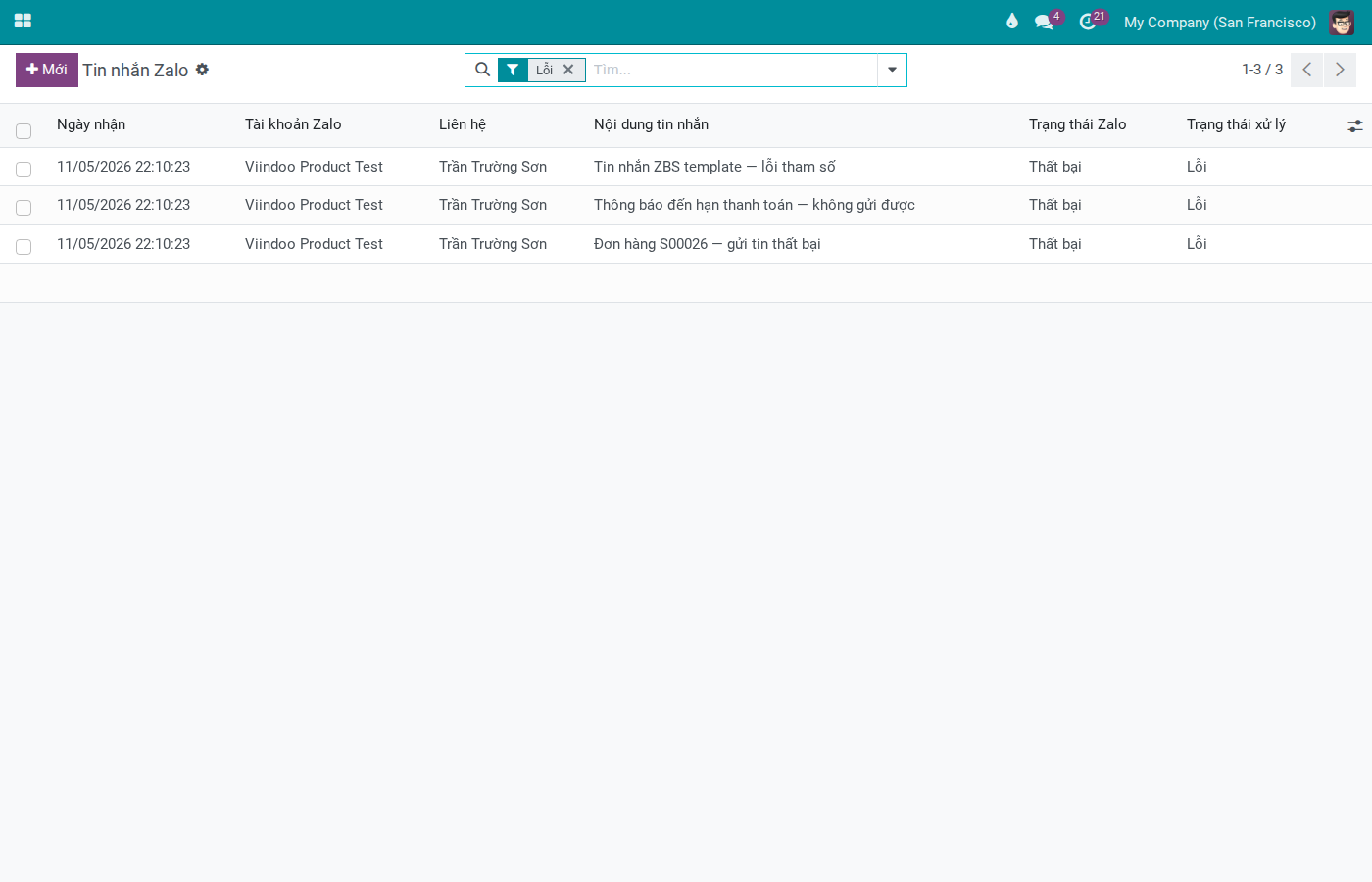
Recover from message form:
Open failed message → check Processing State and Zalo State.
If Processing State = Error → click “Retry Processing” to have Viindoo process again from the start.
If Zalo State = Failed (outbound message) → click “Resend” to resend to Zalo.
If message is stuck with unclear status → click “Mark Error” to manually flag it, then retry.
Check OA Token and Webhook
Menu:
Open the OA account record and check:
Field / Indicator |
Meaning |
|---|---|
Account status bar |
Draft / Connected / Error - needs re-authorization if not Connected. The bar also lists Expired, but Viindoo does not set it by itself: a token problem shows as Error. |
Token Expires At |
In the OAuth Authorization tab, which appears only while the account is Connected. When the token expires; if past this date → re-authorize immediately |
Token Valid |
In the same tab: ticked = Viindoo holds a token that has not reached its expiry. The account card in the Accounts view shows the same as Token valid (green check) or Token invalid (red warning); invalid also covers an account that was never authorized. |
OAuth Callback URL |
Read-only — must match exactly the URL registered in Zalo OA Developer Console |
Webhook URL |
Read-only — copy and paste into Webhook configuration in Zalo OA Developer Console |
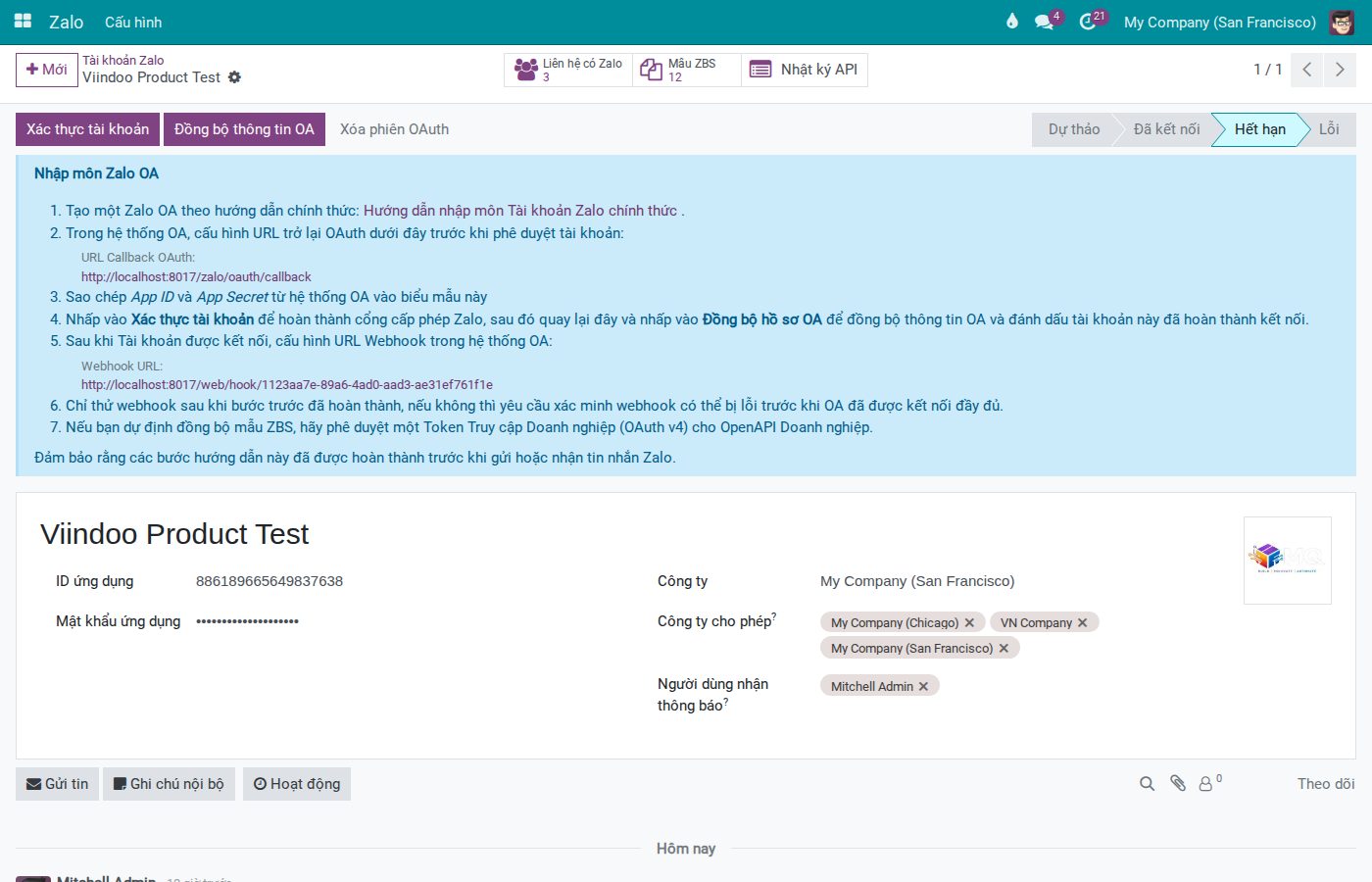
Recover token:
When authorization does not complete, either the Zalo tab ends on a plain page with a short message, or the tab never opens. Find what you see below: in every case the fix is to click “Authorize Account” again - you never need to reset the account first.
Symptom |
Cause |
Solution |
|---|---|---|
“Authorization failed. You can close this tab.”; the account status is Error (unchanged if the refusal came after the 10 minutes) |
Zalo returned a refusal instead of a permission, for example because the request was declined on the permission page. Viindoo marks the account Error and stores no new token. If the refusal reaches Viindoo after the 10 minutes, the tab shows the same message but the status does not change. |
Close the tab, reload the account form and follow the steps below. |
“The authorization request is invalid or has expired.”; the account status does not change |
More than 10 minutes passed since Viindoo created the link (the 10 minutes do not restart when you click “Authorize Account” again, which reopens the same link), or the tab was opened from an older link. |
Follow the steps below. Viindoo creates a fresh link by itself, so no reset is needed. |
“Authorization failed:” followed by a reason, or “Authorization failed due to an unexpected error.”; the account status is Error |
Viindoo received the permission but could not turn it into a token. The reason after the colon says why. |
Follow the steps below. If the same reason comes back, check App ID, re-enter the App Secret copied from the Zalo app (the field shows dots only, so you cannot compare it by eye) and check that the OAuth Callback URL registered in the Zalo OA Developer Console matches the one on the form. |
Nothing opens after you click “Authorize Account”; a warning says a popup window has been blocked |
The browser blocked the new tab that holds the Zalo permission page. |
Allow popups for your Viindoo address, then click “Authorize Account” again. |
Open the account and click “Authorize Account” to restart OAuth. Viindoo opens the Zalo permission page in a new tab. Its link works for 10 minutes from the moment it is created (clicking again within that time reopens the same link and does not restart the 10 minutes), and a click after that creates a fresh link automatically.
On the Zalo page, select the OA you are connecting (Zalo preselects the first OA in your list, which may not be yours) and check that the line under the page header names it, tick the checkbox that accepts Zalo’s terms of use and press Cấp quyền.
After authorization completes → click “Sync OA Profile” to confirm successful connection.
Tip
You know it worked when the browser returns to the account form with the status bar on Connected. After “Sync OA Profile”, OA Name and OA ID in the Profile Get From Zalo tab belong to the OA you meant to connect; if they do not, the wrong OA was authorized and the sync has already imported its followers as Zalo contacts (see the warning below). A plain page with a message instead of the form means authorization did not complete: use the table above.
Note
“Authorize Account” is shown only while the account has no valid token. If you cannot see it, Viindoo still holds a token that has not reached its expiry: click “Sync OA Profile” to re-check the connection, and read the API log if it fails again (see View API Logs below). If you already know the account is connected to the wrong OA, skip the sync and use “Clear OAuth Session” below.
Warning
“Clear OAuth Session” is a deliberate reset, not a repair step. Never use it to fix a failed or expired authorization: click “Authorize Account” again instead.
It deletes the OAuth session and the access and refresh tokens, and sets the account back to Draft (it can turn Error once something tries to call Zalo). From that moment Viindoo cannot call Zalo: every send stops with the error “Missing access token. Please authorize this account.”, Viindoo can no longer renew the token by itself, and a Zalo tab still open from an earlier click stops working. Only a completed “Authorize Account” restores the connection; it needs someone who administers the OA on Zalo to press Cấp quyền, and the deleted tokens cannot be recovered.
Use it only when you want to disconnect the OA on purpose and connect again from scratch, for example after authorizing the wrong OA. It disconnects the account but does not delete the Zalo contacts that “Sync OA Profile” already imported from that OA. If you are unsure, click “Authorize Account” or “Sync OA Profile” instead: neither deletes the tokens.
Webhook not receiving events:
Copy the Webhook URL field value → paste into Zalo OA Developer Console → Webhook settings.
Ensure you have enabled all necessary event groups: conversation (user_send_*), delivery status, follow/unfollow, ZBS status (change_template_status, change_template_quota, user_feedback).
Check ZBS Templates
Access: → select the OA account to check → click ZBS Templates button at top of form.
Template statuses: Draft → Pending → Approved / Rejected / Disabled
Rejected template:
Open template → read the Reject Reason field — Zalo states the reason clearly.
Edit template content per the feedback.
Click Reset to Draft → make changes → click Submit to Zalo to resubmit for approval.
Disabled template:
Disabled status = Zalo has deactivated the template due to quota exceeded or quality policy violation.
Template Quality field shows the quality score from Zalo (read-only).
Note
Detailed quota tracking and ZBS quality scoring inside Viindoo are still under development. For now, templates disabled because the quota was exceeded simply show Disabled status — check quota limits directly in the Zalo OA Developer Console.
Recipient not identified:
Symptom |
Cause |
Solution |
|---|---|---|
“no valid phone was found” |
Contact has no phone number or wrong format |
Update phone number in format 84xxxxxxxxx in contact record |
Send via UID does not arrive |
Partner has no Zalo UID link in Viindoo |
Change Route policy to Phone or UID + Phone; check partner’s Zalo link at Manage Zalo Partner Links |
View API Logs
API logs record every request Viindoo sends to Zalo and every response Zalo returns — the most accurate source when you need to know the exact error code.
Three access points:
From OA account form → “API Logs” button
From message form in Zalo Events → “API Logs” button
From ZBS template form → “API Logs” button
Read a log entry:
HTTP status code — 200 = success; 401 = token expired; 429 = rate limit exceeded
Error message — description when request fails
Duration — processing time (seconds); unusually high = Zalo timeout
Open the log form to see complete request body and response data
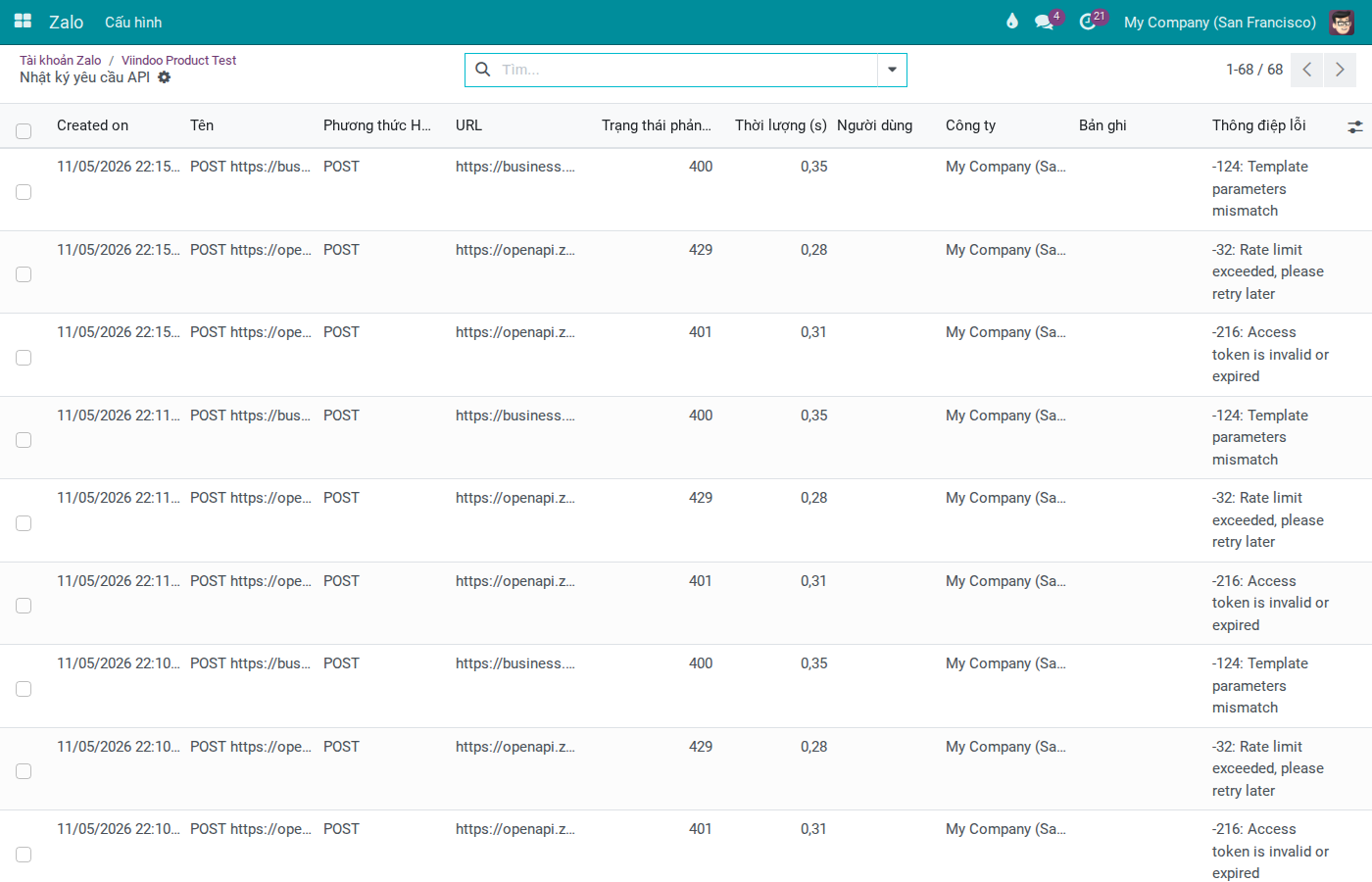
Pre-Escalation Checklist
Complete all steps below before reporting to dev or contacting Zalo support:
Open API log of the failed action → note HTTP status code and error message.
Check OA account status and the Token valid / Token invalid line on the account card → re-authorize if the token is invalid.
Go to Zalo Events → filter failed messages → note Processing State and Zalo State.
For ZBS templates: read the Reject Reason and Template Quality fields.
Check Zalo OA Developer Console: quota limits, webhook URL, OA account status.
Summarize for escalation: OA name, account status, error message timestamp, API log entry, error message content.