


Payroll Payment ACB bank Templates
| Lines of Code | 463 |
| Technical name | to_payroll_payment_acb_templates |
| License | OPL-1 |
| Website | https://viindoo.com/apps/modules/19.0/to_payroll_payment_acb_templates |
| Read description for | v 13.0 v 14.0 v 15.0 v 16.0 v 17.0 v 18.0 |
| Required Apps | Time Off (hr_holidays) Discuss (mail) Calendar (calendar) Employees (hr) |
| Included Dependencies | Payroll Employee Relatives Viindoo Base Advanced HR Management HR Contracts (Viindoo) Work Entry Work Entry - Contract Viin Time-Off Base Addendum Viin - Holiday Work Entry Viindoo Holiday & WorkDay Manager Safe IR Metadata Proxies |
The ACB salary payment list, ready from your verified payroll in one click
For companies that pay salaries through Asia Commercial Bank (ACB), Vietnam
Download the ACB salary payment sheet in Excel straight from the verified payslip batch.
ACB is a Vietnamese bank, and this app produces the salary transfer list in the layout it asks for, so payroll does not retype every payslip into a spreadsheet. Extends Payroll.
Is this you?
Every month someone retypes the net salary of each employee into the bank's spreadsheet.
One wrong digit in an account number or an amount delays salaries or sends them to the wrong person.
The payroll team and the finance team work from different files that must be reconciled by hand.
Payday closes in a hurry and the bank list is the last step still done manually.
What changes
Retyping every payslip
→ Download the ACB list in one click from the verified batch.
Typos in accounts and amounts
→ Account numbers and net salaries come straight from the employee records and payslips.
Two files to reconcile
→ The list is built from the same payslip batch the payroll team approved.
Last-minute manual work
→ Send the file to the bank right after verification, and record the payments in Accounting from the same screen.
How it works
Prepare
The payroll officer makes sure each employee with a salary to pay has an ACB bank account, then creates and verifies the payslip batch.
Download
The payroll officer downloads the ACB payment list from the verified batch and sends it to the bank.
Record
A person with payroll and accounting rights records the salary payments in Accounting (optional).
Key Features
ACB layout in Excel
One line per employee with order number, name, account number, amount, transfer description, ID number, employee code and job title.
Only payable salaries
Payslips with a zero or negative net amount are left out of the file.
Missing accounts caught
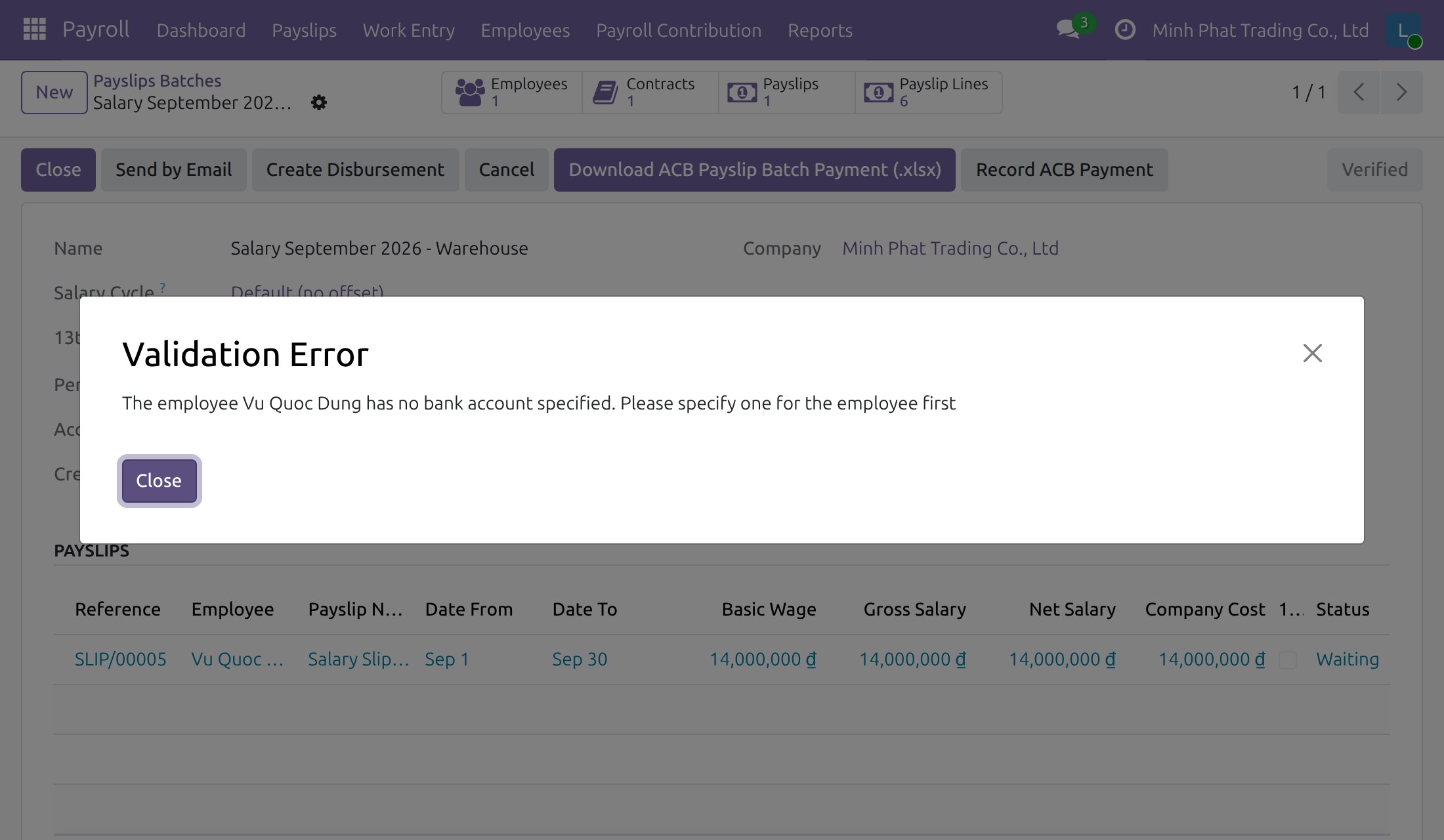
If an employee with a salary to pay has no bank account, the download stops and names the employee.
Accent-free names
Employee names, company name and job titles are written without accents, ready for the bank.
Payments recorded in Accounting
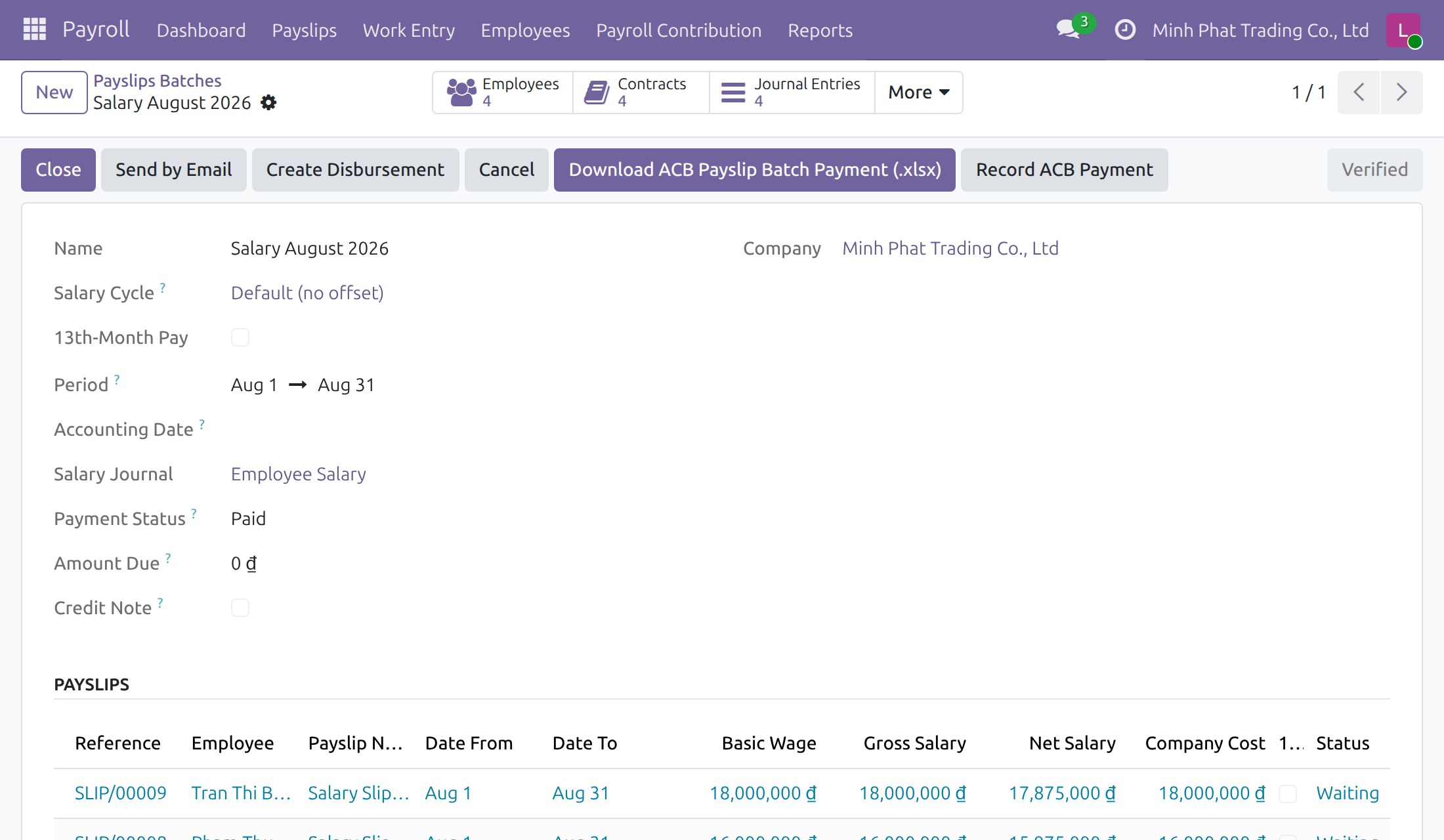
With HR Payroll Accounting installed, one button records the salary payments of the batch; paying twice is skipped.
Role-based access
Only payroll officers and administrators can download the file; the Record ACB Payment button is shown only to users allowed to create payments in Accounting.
Who it is for
Payroll officer
Prepares the monthly payroll and wants the bank list without retyping.
Finance and accounting lead
Wants salary payments recorded against the same batch the bank receives.
HR manager
Wants payday to be on time and employee bank details kept in one place.
Business owner
Wants fewer payment errors and less last-minute work at month end.
Best for: Companies in Vietnam that pay employees through ACB accounts.
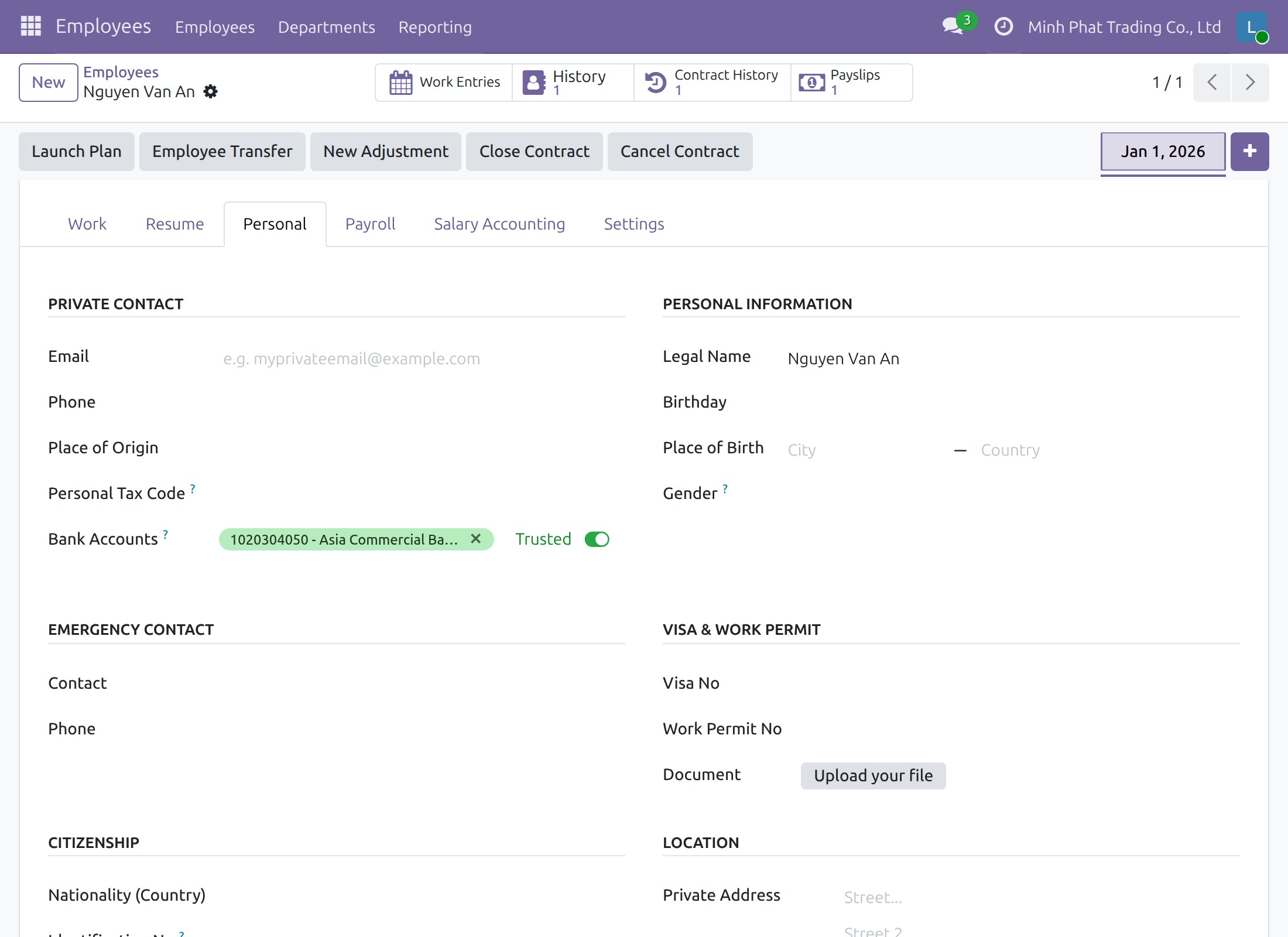
Prepare employee bank accounts
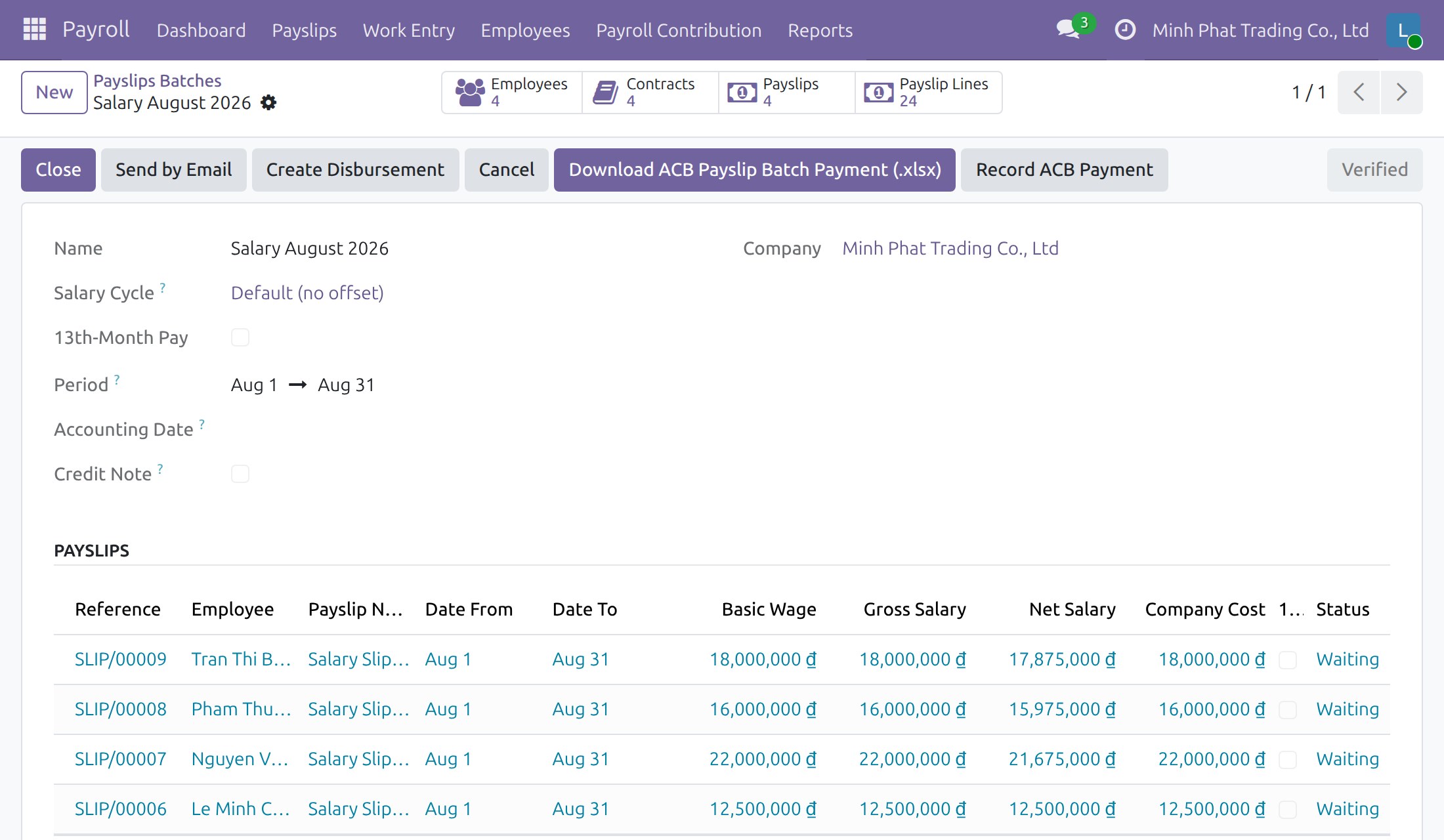
Download the ACB payment list from a verified batch
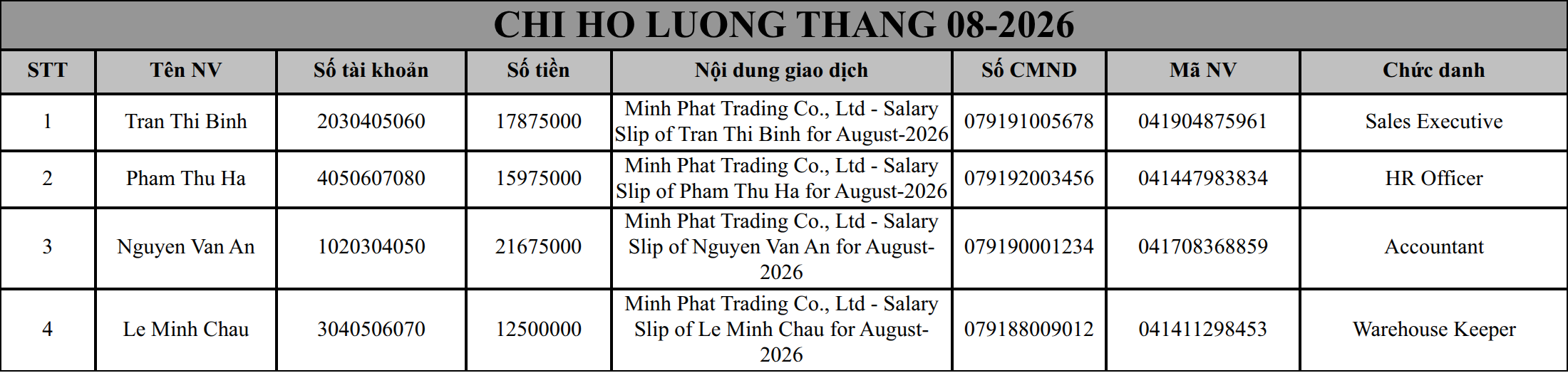
The generated ACB payment list
Get told which employee has no bank account
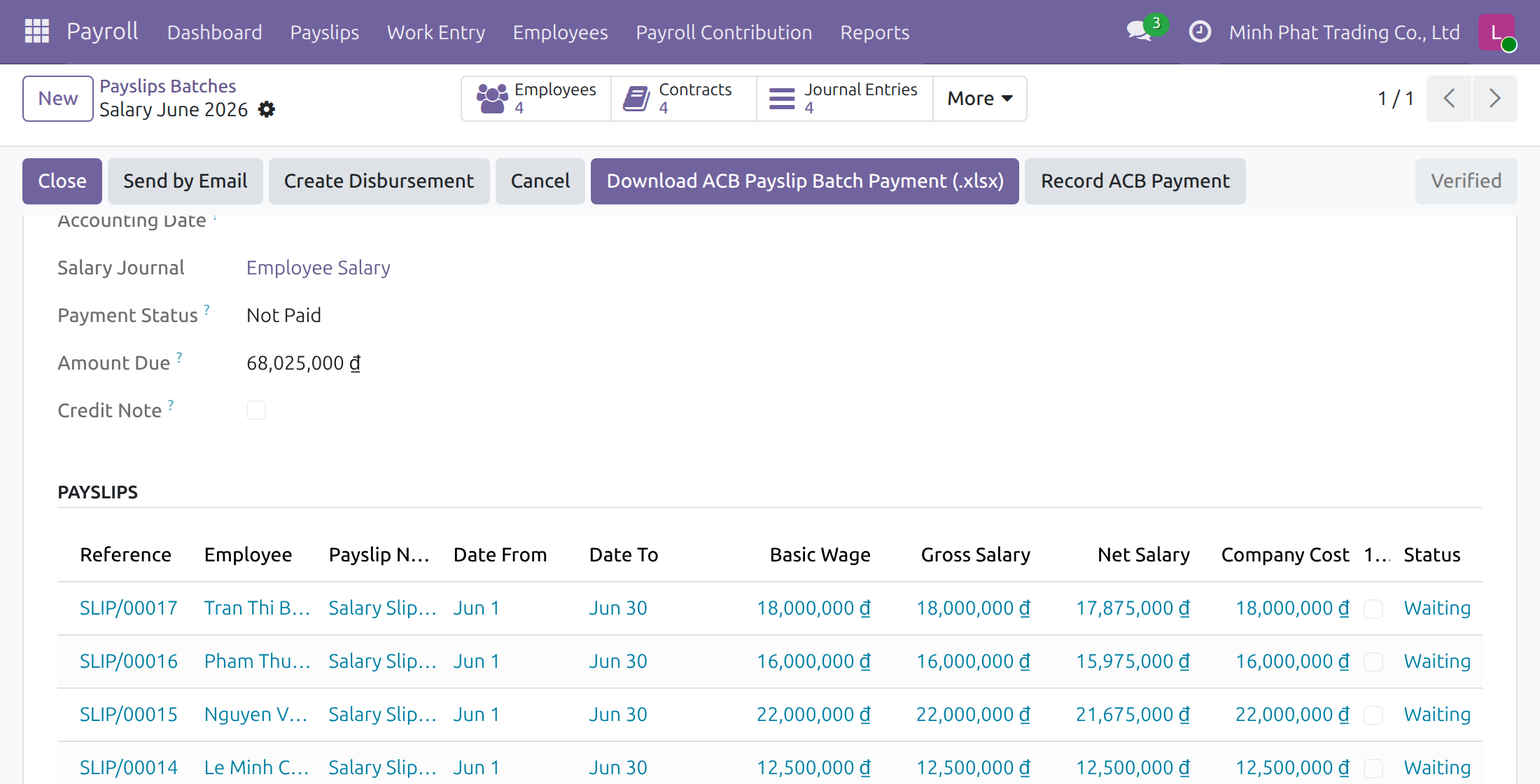
Record the salary payments in Accounting
Frequently asked questions
Which bank does it support?
Asia Commercial Bank (ACB) in Vietnam. The list follows the ACB layout.
Who can download the file?
Payroll officers and payroll administrators. Team leaders, employees and accountants without a payroll access right cannot.
Is accounting required?
No. The download works with Payroll alone. Recording the payments needs HR Payroll Accounting, its salary accounts configured, and an accounting right for the person who records them.
What is the file called?
"DS Chi ho luong ACB - ", the batch name without accents, " - Xuat file " and the download date and time in your timezone, for example "DS Chi ho luong ACB - Bang luong thang 11-2026 - Xuat file 22-10-2026 21h2637.xlsx".
Which employees are in the file?
Every payslip of the verified batch with a positive net salary. Each of those employees needs a bank account first; employees with a zero or negative net salary need none.
Support
Technical Requirement
Payroll Payment ACB Bank Templates
Who this guide is for: the payroll team and the finance staff of companies that pay salaries through Asia Commercial Bank (ACB), and the administrator who sets them up.
Note
Extends Payroll - see the to_hr_payroll documentation.
Overview
Banks ask companies to submit the salary transfer list as a spreadsheet in the bank's own layout. Retyping the amounts of every payslip is slow and one wrong digit delays the payment. This module adds to a verified payslip batch a button that produces the ACB salary payment list as an Excel file in one click, with the account numbers, amounts and transfer descriptions taken from the payslips and the employee records.
The process runs in three stages:
- Preparation - the payroll team makes sure every employee has an ACB bank account, then creates and verifies the payslip batch.
- Bank file - the payroll officer downloads the ACB payment list and sends it to the bank.
- Payment record (optional) - a person who has both payroll and accounting rights records the salary payments in Accounting.
| Role | What they do | Access right to assign |
|---|---|---|
| Payroll Officer | Prepares and verifies the payslip batch and downloads the ACB payment list. | Payroll / Officer |
| Payroll Administrator | Everything the Payroll Officer does, and the payroll configuration. | Payroll / Administrator |
| Salary Payer | Records the salary payments of a batch in Accounting after the bank transfer is prepared. | Payroll / Officer plus an Accounting right such as Accounting / Invoicing |
Payroll Team Leaders and employees without a payroll access right cannot download the file. Accountants without a payroll access right do not see salaries and therefore do not use this module.
Setup (for the Administrator)
Installation
- Open Apps.
- Search for Payroll Payment ACB bank Templates.
- Press Install. The Payroll app is installed with it if it is not yet there.
To record payments in Accounting, the HR Payroll Accounting app must also be installed and its salary journal and salary rule accounts configured (see its documentation). Without it the file download works and the Record ACB Payment button only shows a notification asking for that app.
Access rights
- Open Settings ‣ Users & Companies ‣ Users and select the user.
- Under Payroll, choose Officer (or Administrator).
- For the person who records payments, also grant an Accounting right such as Invoicing. The Record ACB Payment button is shown only to users whose Accounting right allows them to create payments, so Payroll Officers without such a right do not see it.
- To let that person also see the journal, Payment Status and Amount Due of the batch, grant Bookkeeper instead of Invoicing.
Employee data
The file reads each employee's details from the employee form, so the payroll team keeps them complete:
- Bank Accounts (tab Personal): the account number at ACB. The first account of the employee is the one written in the file.
- Identification No (tab Personal): printed in the ID number column.
- The employee code is filled in automatically the first time the file is generated when the employee has none.
Payroll Officer: prepare and send the ACB payment list
Create and verify the batch
- Open Payroll ‣ Payslips ‣ Payslips Batches.
- Create the batch, generate the payslips, press Compute Payslip Batch and then Verify Payslips.
The ACB buttons appear when the batch is in the Verified status.
Download the ACB payment list
- Open the verified batch.
- Press Download ACB Payslip Batch Payment (.xlsx). The Excel file is downloaded.
- Check it and send it to ACB.
The file is named "DS Chi ho luong ACB - " followed by the batch name without accents, then " - Xuat file " and the date and time of the download in the user's timezone (day-month-year, then hours, "h", minutes and seconds). For example: DS Chi ho luong ACB - Bang luong thang 11-2026 - Xuat file 22-10-2026 21h2637.xlsx. Characters a file name cannot contain are replaced with "-".
The file has one title row ("CHI HO LUONG THANG" followed by the month and year of the batch) and one line per employee. The column titles are in Vietnamese because they follow the ACB layout, whatever the language of the user:
| Column | Content |
|---|---|
| STT | Order number of the line. |
| Tên NV | Employee name without accents. |
| Số tài khoản | ACB account number of the employee. |
| Số tiền | Net salary of the payslip. |
| Nội dung giao dịch | Company name and payslip name, without accents. |
| Số CMND | Identification number of the employee. |
| Mã NV | Employee code. |
| Chức danh | Job title of the payslip, otherwise of the employee, without accents. |
Note
Payslips whose net salary is zero or negative are left out of the file, and their employees do not need a bank account.
If an employee has no bank account
The download stops with a message naming the employee when a payslip with a positive net salary belongs to an employee without a bank account. Add the account on the employee form (see Employee data) and press the button again.
Salary Payer: record the payments in Accounting
When the transfer is prepared, a person with both payroll and accounting rights can record the salary payments without leaving the batch. The accounting entries of the payslips must be posted first; they are posted on the accounting date of the batch. If some are not yet posted, a message lists those payslips.
- Open the verified batch.
- Press Record ACB Payment.
- A notification confirms how many payments were recorded (one per employee, with the description "ACB - " followed by the batch name) and the batch shows Payment Status Paid and Amount Due zero (both fields are visible with the Bookkeeper access right).
Pressing the button again is harmless: payslips already paid are skipped and a notification tells that there is nothing to pay.
This software and associated files (the "Software") may only be used (executed, modified, executed after modifications) if you have purchased a valid license from the authors, typically via Odoo Apps, or if you have received a written agreement from the authors of the Software (see the COPYRIGHT file).
You may develop Odoo modules that use the Software as a library (typically by depending on it, importing it and using its resources), but without copying any source code or material from the Software. You may distribute those modules under the license of your choice, provided that this license is compatible with the terms of the Odoo Proprietary License (For example: LGPL, MIT, or proprietary licenses similar to this one).
It is forbidden to publish, distribute, sublicense, or sell copies of the Software or modified copies of the Software.
The above copyright notice and this permission notice must be included in all copies or substantial portions of the Software.
THE SOFTWARE IS PROVIDED "AS IS", WITHOUT WARRANTY OF ANY KIND, EXPRESS OR IMPLIED, INCLUDING BUT NOT LIMITED TO THE WARRANTIES OF MERCHANTABILITY, FITNESS FOR A PARTICULAR PURPOSE AND NONINFRINGEMENT. IN NO EVENT SHALL THE AUTHORS OR COPYRIGHT HOLDERS BE LIABLE FOR ANY CLAIM, DAMAGES OR OTHER LIABILITY, WHETHER IN AN ACTION OF CONTRACT, TORT OR OTHERWISE, ARISING FROM, OUT OF OR IN CONNECTION WITH THE SOFTWARE OR THE USE OR OTHER DEALINGS IN THE SOFTWARE.
