

HR Contracts Suspension & Payroll
by Viindoo
| Lines of Code | 203 |
| Technical name | viin_hr_contract_suspension_payroll |
| License | OPL-1 |
| Website | https://viindoo.com/apps/modules/19.0/viin_hr_contract_suspension_payroll |
| Read description for | v 17.0 v 18.0 |
| Required Apps | Time Off (hr_holidays) Discuss (mail) Calendar (calendar) Employees (hr) |
| Included Dependencies | Payroll Employee Relatives Viindoo Base Advanced HR Management HR Contracts (Viindoo) Work Entry Work Entry - Contract Viin Time-Off Viin - Holiday Work Entry Base Addendum HR Contracts Suspension Work Entry & Contract Suspension Viindoo Holiday & WorkDay Manager Safe IR Metadata Proxies |
Pay only for the days an employee is actually under contract
For payroll officers and HR teams who run monthly payslips in Odoo
Payroll skips fully suspended employees and prices partial suspensions correctly.
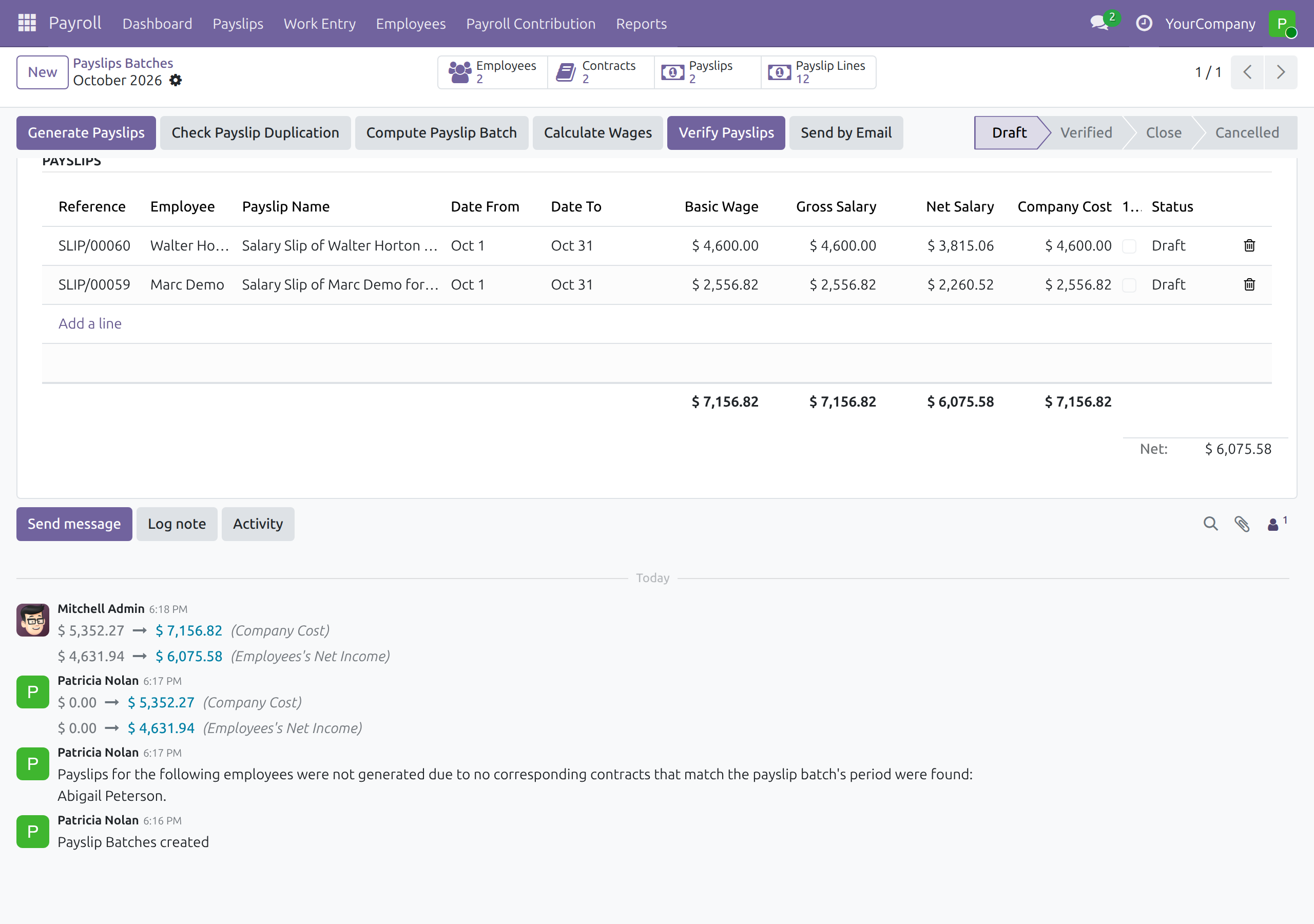
Is this you?
You correct payslips by hand every time someone is on an unpaid contract suspension.
A suspended employee gets a full month of pay because nobody remembered to exclude them.
Partial months are calculated in a spreadsheet, outside payroll.
Warnings about unvalidated work entries pile up for days that should not be paid at all.
What changes
Suspended employees keep appearing in the batch
→ Generate the batch once: employees suspended for the whole period are left out and named for you.
Partial months need a calculator
→ Payslips count only the days outside the suspension, so pay follows the days due.
Nobody knows who was skipped
→ The batch tells you who was left out, right where you generated the payslips.
Warnings about suspended days
→ Suspended days no longer raise the warning for unvalidated work entries.
How it works
Approve
The Time Off Officer approves the Contract Suspension request.
Generate
The Payroll Officer generates the payslips of the period.
Review
Fully suspended employees are skipped and listed on the batch.
Confirm
Payslips of the others are computed on the days due and confirmed as usual.
Key Features
No payslip for a fully suspended period
If an approved suspension covers every day of the period, the employee is left out of the batch.
Fair pay for partial suspensions
Suspended days are left out of the worked days, so pay follows the days actually due.
Skipped employees are listed
The batch names every employee left out and the suspension behind it, and a payslip computed by hand gives the same reason.
Cleaner work entry warnings
Suspended days do not trigger the unvalidated work entry warning.
Nothing to configure
It works as soon as it is installed, for batches and for payslips generated by employee.
Who it is for
Payroll Officer
Stops correcting payslips by hand and sees who was skipped.
Payroll Administrator
Keeps one payroll process without special cases per suspension.
Time Off Officer
Approvals now flow straight into payroll.
Employee
Pay on the payslip matches the days under contract.
Best for: Companies with unpaid leave or contract suspensions that run payroll in Odoo.
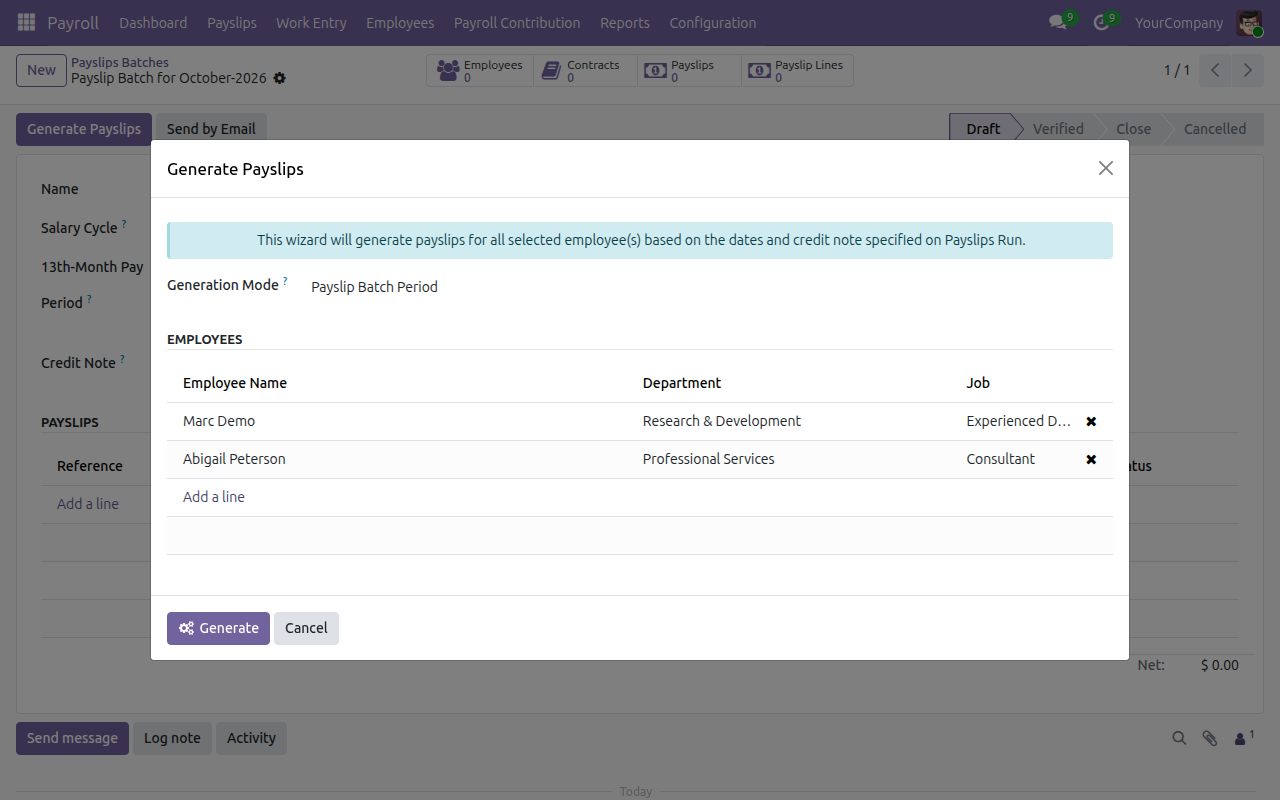
Generate the payslips of a period
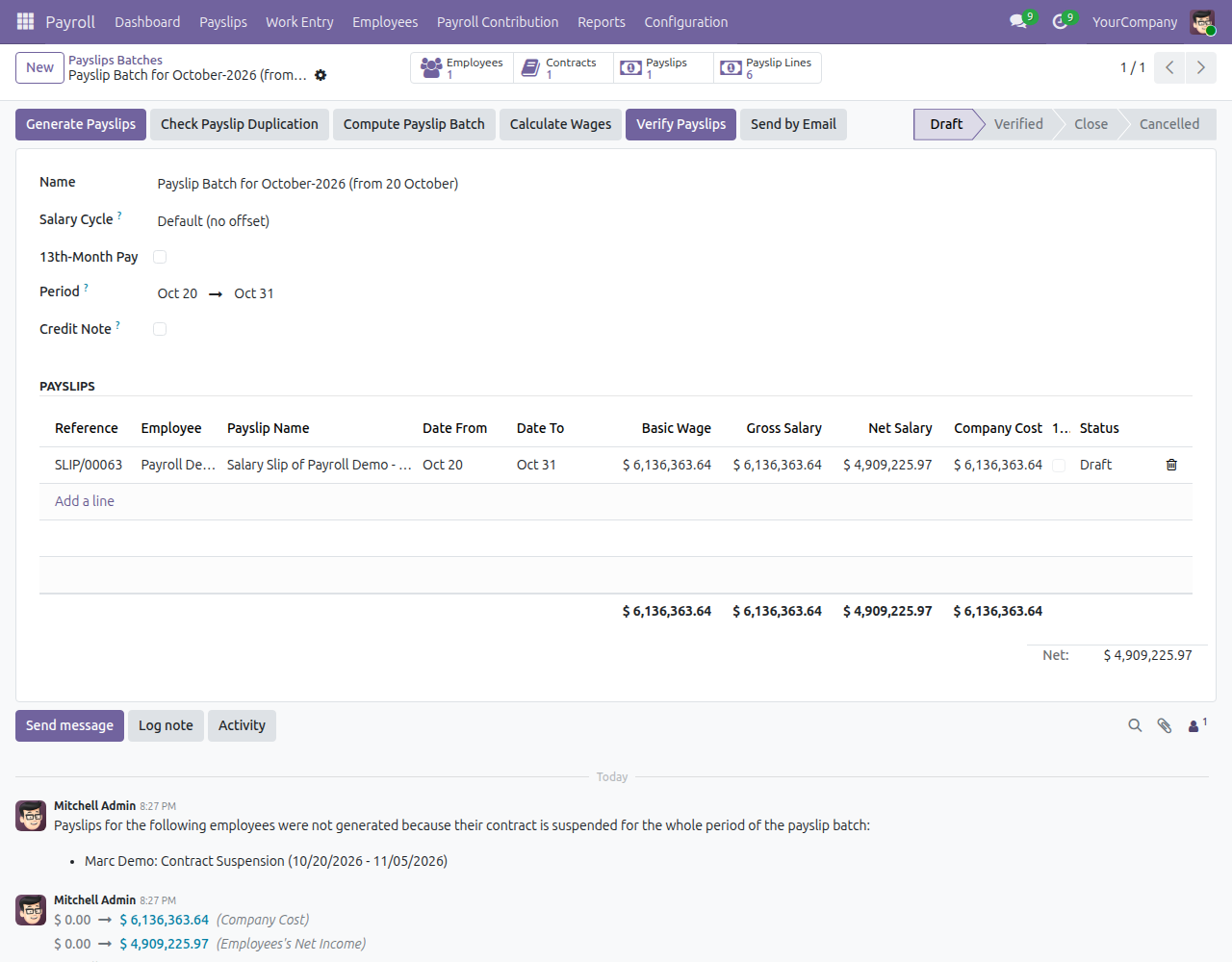
See who was skipped
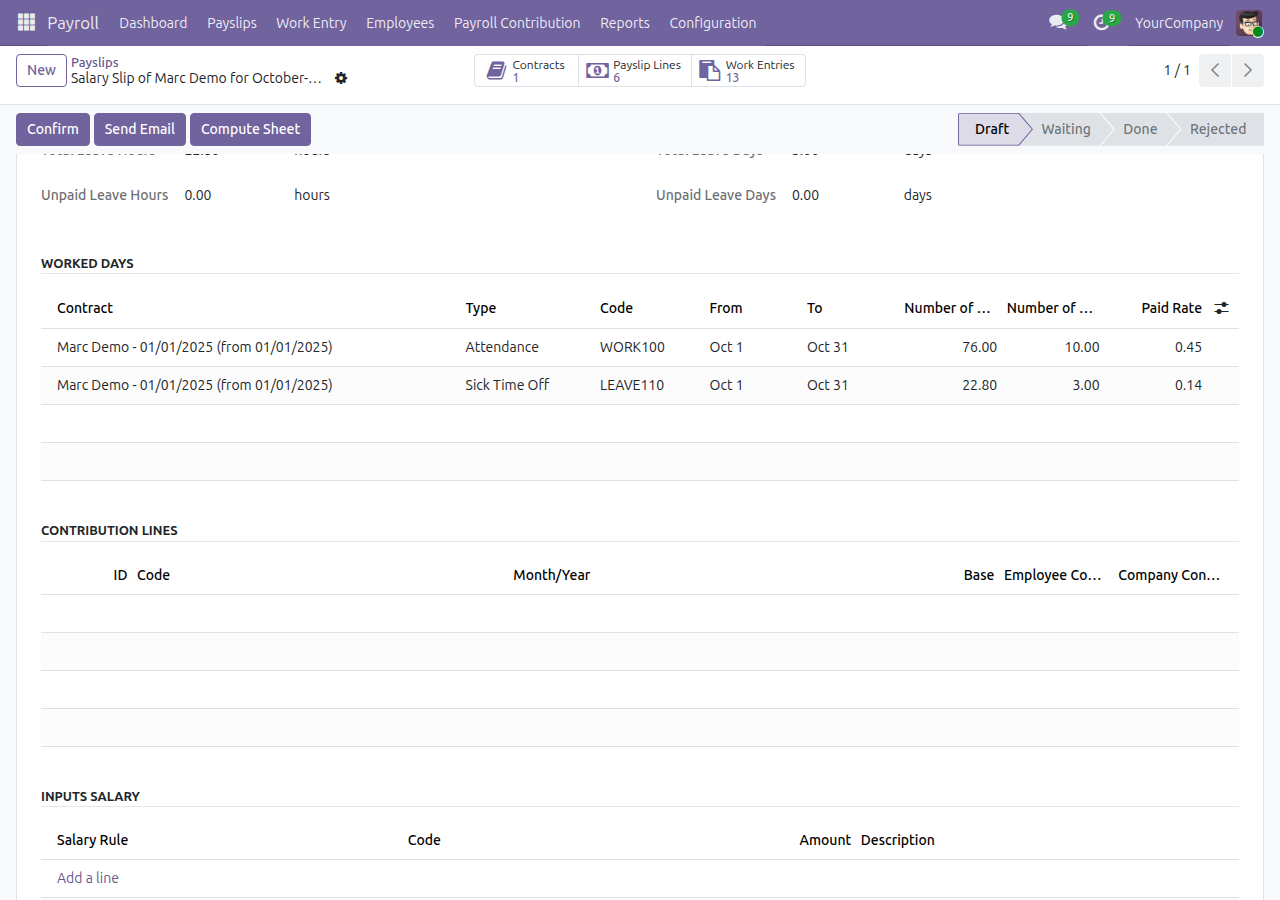
Pay only the days due
Approve the suspension
Employees read their own payslip
Frequently Asked Questions
Does it change normal time off?
No. Only approved requests of the Contract Suspension type affect payroll.
What if a suspension covers only part of the month?
The payslip is generated and the suspended days are left out of the worked days.
How do I know who was skipped?
The batch shows a message naming every employee left out and the suspension that caused it.
Do I need to configure anything?
No. Install it and generate payslips as usual.
Need help with HR Contracts Suspension & Payroll?
Pre-Sales & Partnership
Contact usTechnical Support
Open a ticketTechnical Requirement
- Odoo version: 19.0
- Editions: Odoo Community, Odoo Enterprise, Viindoo Cloud
- Required modules: Work Entry & Contract Suspension; Payroll
- License: OPL-1
HR Contracts Suspension & Payroll
Note
Who this guide is for: the people who run payroll in a company - the Payroll Officer who generates the payslips of each period, the Payroll Administrator who looks after the payroll set-up and access rights, the Time Off Officer whose approvals decide what payroll sees, and the employees who read their own payslips.
Note
Extends HR Contracts Suspension and Work Entry & Contract Suspension - see their documentation for requesting, approving and recording a suspension. This guide covers only what this module adds to payroll.
Overview
When an employee's contract is suspended, the company does not pay salary for those days. This module makes payroll follow that without anybody correcting payslips by hand:
- If an approved suspension covers the whole period of a payslip, no payslip is generated for that employee in that period.
- If a suspension covers only part of the period, the payslip is generated and the suspended days are left out of the worked days, so pay is calculated on the days actually due.
- Suspended days do not raise the warning that a payslip has work entries to validate.
The process, from approval to payslips:
- The Time Off Officer approves the employee's Contract Suspension request (see the guide of HR Contracts Suspension).
- The Payroll Officer creates the payslip batch of the period and generates its payslips.
- Employees whose suspension covers the whole period are skipped; the batch tells the Payroll Officer who they are.
- The Payroll Officer computes, checks and confirms the payslips as usual; employees see their own payslips.
| Role | What they do | Access right to assign |
|---|---|---|
| Payroll Officer | Generates and computes the payslips of a period and reads the list of skipped employees. | Payroll / Officer |
| Payroll Administrator | Does everything the Payroll Officer does, keeps the payroll set-up and assigns access rights. | Payroll / Administrator |
| Time Off Officer | Approves or refuses suspension requests; only approved suspensions affect payroll. | Time Off / Officer: Manage all requests |
| Employee | Reads their own payslips. | Internal user |
Setup (for the Payroll Administrator)
Installation
Open Apps, search for HR Contracts Suspension & Payroll and click Install. It is installed automatically when Payroll and Work Entry & Contract Suspension are both present. There is nothing to configure: the behaviour is active as soon as the application is installed.
Then give each person the access right of their role (table above) in Settings > Users & Companies > Users.
Note
Legal and tax values (statutory amounts, personal tax rules) stay where the Payroll Administrator already keeps them in Payroll; this module changes only which days and which employees a payslip covers.
Payroll Officer: generate the payslips of a period
Generate payslips for a batch
- Open Payroll > Payslips > Payslips Batches and open (or create) the batch of the period, for example October 2026 from 1 October to 31 October.
- Click Generate Payslips.
- In Employees, click Add a line and select the employees to pay.
- Click Generate.
An employee whose approved Contract Suspension covers every day of the batch period gets no payslip. The window closes without any error and the other employees are processed normally.
Note
"Every day" means every calendar day of the period, from its first date to its last. A suspension from 1 to 31 October covers an October batch; one from 2 to 31 October does not, and that employee receives a payslip. A suspension that is still waiting for approval or was refused is ignored.
See who was skipped
- Stay on the batch after generating. The payslips created are listed in the Payslips list of the batch.
- Read the latest message in the chatter below the batch: Payslips for the following employees were not generated because their contract is suspended for the whole period of the payslip batch. It lists each skipped employee with the suspension that caused it: the time off type and its dates, for example Marc Demo: Contract Suspension (10/20/2026 - 11/05/2026).
- To pay someone anyway, change or refuse the suspension request first; do not add the payslip by hand.
Note
The message names the suspension, so you can open that time off request straight away. An employee who simply has no contract in the period is reported in a separate message that speaks of "no corresponding contracts that match the payslip batch's period".
Check a payslip with a partial suspension
- In the batch, click Compute Payslip Batch to compute every payslip.
- Open the payslip of an employee who was suspended for part of the period.
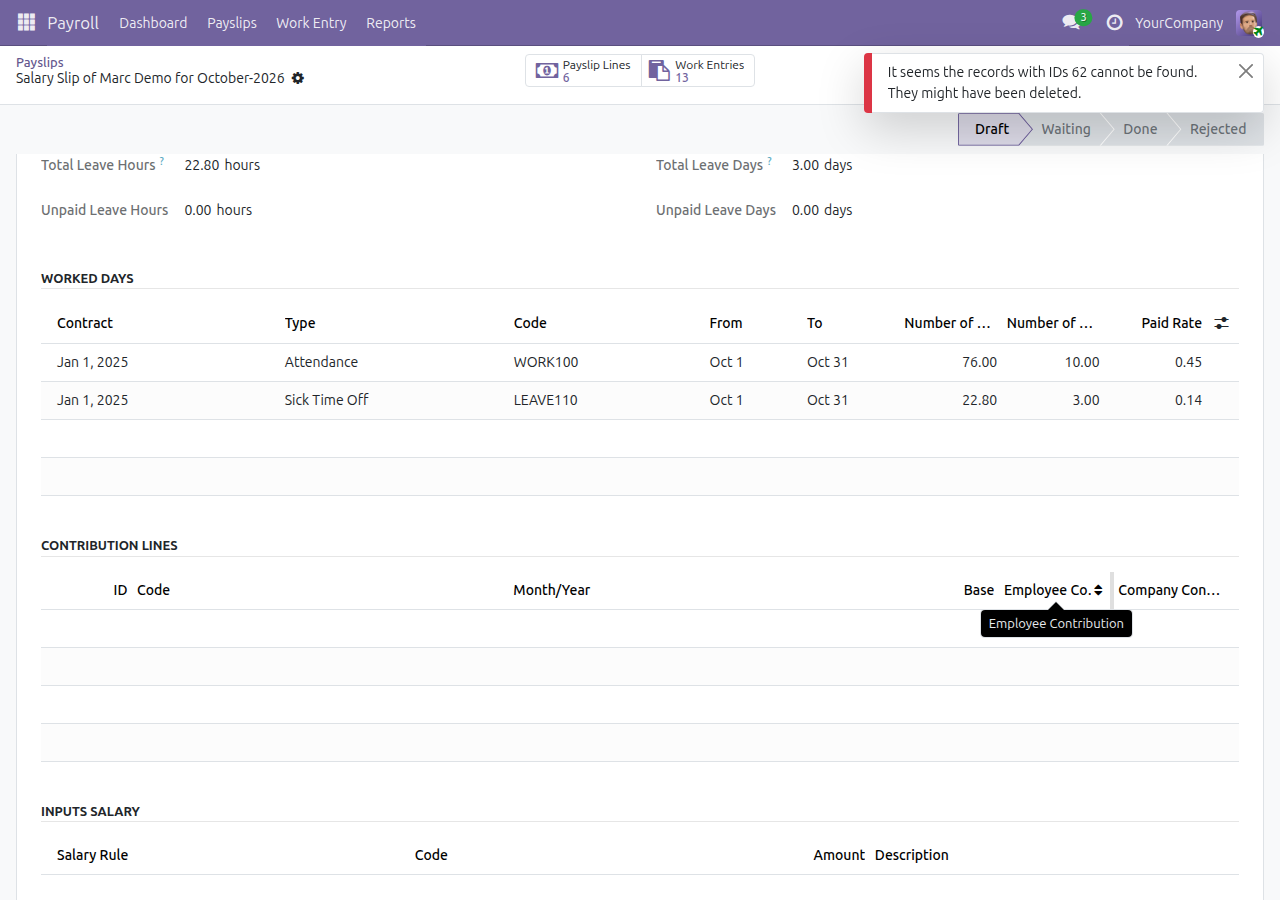
- In the Work Information tab, look at Worked Days: the days of the suspension appear neither as attendance nor as time off, and the basic salary is proportionate to the days left.
For example, in a month of 22 working days an employee suspended for 9 of them is paid for 13 days: 10 days of attendance and 3 days of sick time off.
Time Off Officer: approve the suspension
Payroll reads the suspensions you approve, so approve before the payslips are generated.
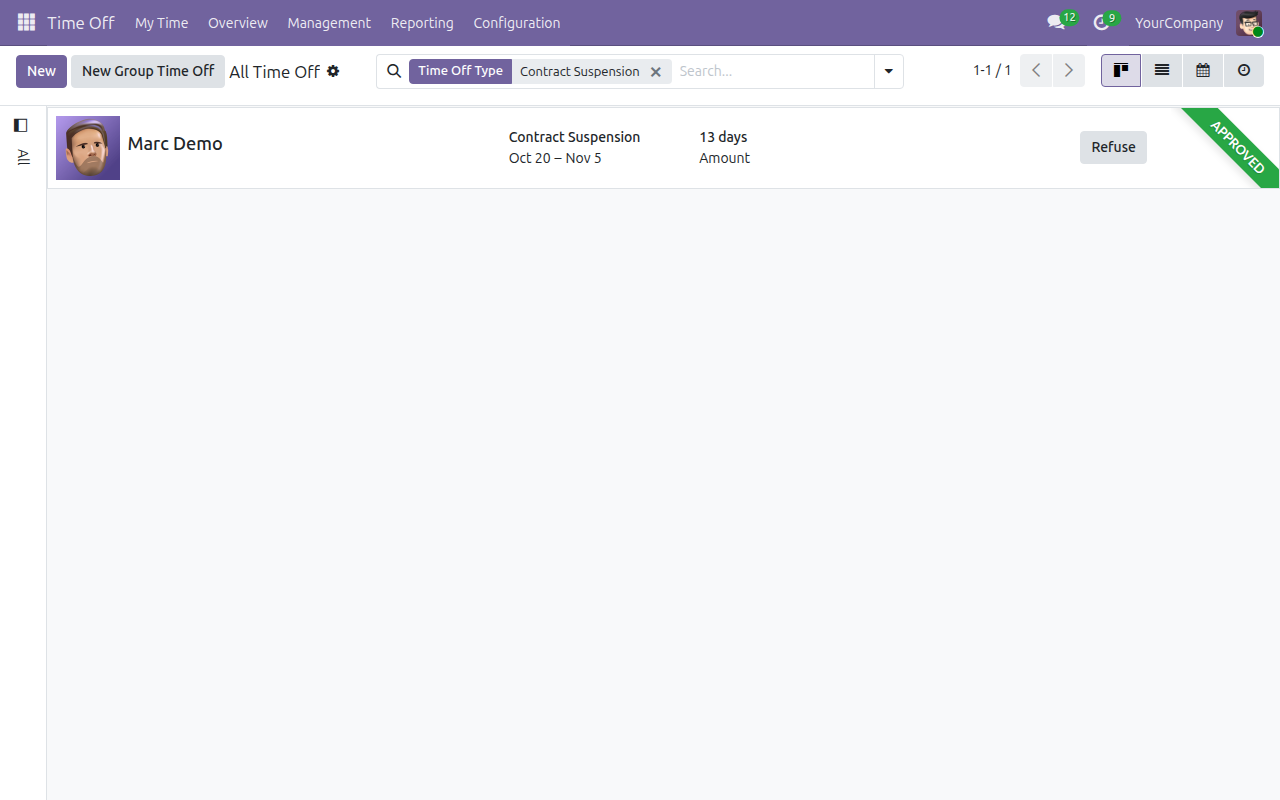
- Open Time Off > Management > Time Off and filter on the type Contract Suspension.
- Check the dates of each request, then approve it. An approved request shows the Approved mark and a Refuse button.
If a suspension is approved after a batch was generated, delete the affected payslip of the batch if needed and generate it again.
Note
When a suspension is about to end, the employee receives a reminder email to return to work. It is sent to the employee's private email or, when there is none, to the work email. Without either address no reminder is sent, so keep them filled on the employee record (see the guide of HR Contracts Suspension).
Employee: read your own payslip
- Open Payroll > Payslips > Payslips. You see only your own payslips.
- Open the payslip and read Worked Days in the Work Information tab. Days of an approved suspension are not counted there.
- If no payslip exists for a period during which your whole contract was suspended, that is expected: ask the Payroll Officer.
Troubleshooting
An employee is missing from the generated payslips. Read the message in the batch chatter. If the employee has an approved Contract Suspension covering the entire period, the payslip is skipped on purpose. Otherwise check that the employee has a contract valid during the period.
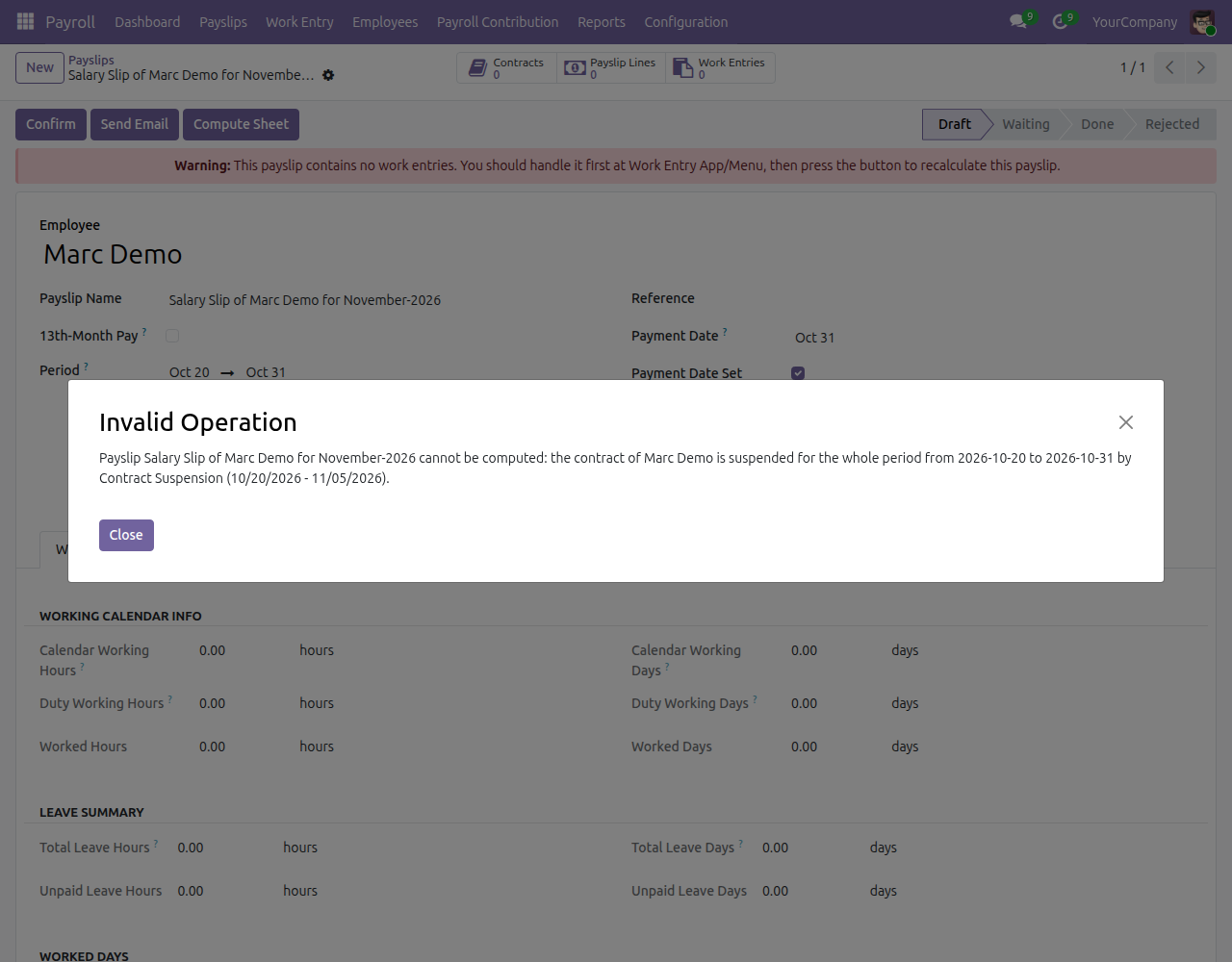
Computing a payslip created by hand says the contract is suspended for the whole period. A payslip created manually for an employee whose suspension covers the whole period has no contract to compute. The message names the employee, the period and the suspension (time off type and dates) that causes it. Delete the payslip, or change or refuse the suspension request.
A partially suspended employee was paid for suspended days. Check that the request is of the type Contract Suspension, that it is approved, and that its dates include those days. Then click Compute Sheet on the payslip again.
FAQ
Does a normal time off request stop a payslip? No. Only approved requests of the type Contract Suspension do.
Can a suspension that begins in one period and ends in the next be paid in both? Each period is judged on its own: the period where the suspension covers every day gets no payslip, the other one gets a payslip for the days outside the suspension.
Who sees the skipped employees? Whoever opens the batch, in its chatter; there is no separate report.
Need help?
For support, open a ticket at https://viindoo.com/ticket. For pre-sales questions, use https://viindoo.com/contactus.
This software and associated files (the "Software") may only be used (executed, modified, executed after modifications) if you have purchased a valid license from the authors, typically via Odoo Apps, or if you have received a written agreement from the authors of the Software (see the COPYRIGHT file).
You may develop Odoo modules that use the Software as a library (typically by depending on it, importing it and using its resources), but without copying any source code or material from the Software. You may distribute those modules under the license of your choice, provided that this license is compatible with the terms of the Odoo Proprietary License (For example: LGPL, MIT, or proprietary licenses similar to this one).
It is forbidden to publish, distribute, sublicense, or sell copies of the Software or modified copies of the Software.
The above copyright notice and this permission notice must be included in all copies or substantial portions of the Software.
THE SOFTWARE IS PROVIDED "AS IS", WITHOUT WARRANTY OF ANY KIND, EXPRESS OR IMPLIED, INCLUDING BUT NOT LIMITED TO THE WARRANTIES OF MERCHANTABILITY, FITNESS FOR A PARTICULAR PURPOSE AND NONINFRINGEMENT. IN NO EVENT SHALL THE AUTHORS OR COPYRIGHT HOLDERS BE LIABLE FOR ANY CLAIM, DAMAGES OR OTHER LIABILITY, WHETHER IN AN ACTION OF CONTRACT, TORT OR OTHERWISE, ARISING FROM, OUT OF OR IN CONNECTION WITH THE SOFTWARE OR THE USE OR OTHER DEALINGS IN THE SOFTWARE.
