


Work Entry - Attendance
by Viindoo
| Lines of Code | 872 |
| Technical name | viin_hr_work_entry_contract_attendance |
| License | OPL-1 |
| Website | https://viindoo.com/vi/apps/modules/19.0/viin_hr_work_entry_contract_attendance |
| Read description for | v 16.0 v 17.0 v 18.0 |
| Required Apps | Attendances (hr_attendance) Discuss (mail) Employees (hr) |
| Included Dependencies | Viindoo Base Advanced HR Management HR Contracts (Viindoo) Work Entry Work Entry - Contract Base Addendum Viindoo Holiday & WorkDay Manager Safe IR Metadata Proxies |
| Extensions | Payroll Attendance |

Pay for the hours people actually worked
For HR and payroll teams that run on an attendance clock
Work entries built from real check-in and check-out, kept in step with every correction.
Works with Attendance Data Validation (HR): validated attendance hours feed the same work entries.
Is this you?
Someone retypes check-in times into work entries every month before payroll can start.
A corrected or deleted attendance leaves a stale work entry behind.
A time off and a check-in overlap, and the same hours are counted twice.
When an employee disputes their hours, nobody can say which attendance a work entry came from.
What changes
Someone retypes check-in times into work entries every month before payroll can start.
→ The work entry appears on its own when the employee checks out.
A corrected or deleted attendance leaves a stale work entry behind.
→ The entry follows every correction: rebuilt from the new times, or archived when the attendance is deleted.
A time off and a check-in overlap, and the same hours are counted twice.
→ Hours covered by a time off keep their own entry and are never counted twice.
When an employee disputes their hours, nobody can say which attendance a work entry came from.
→ Every entry shows the attendance behind it, and one click regenerates it.
How it works
HR Manager
Sets the contract of each employee to take its work entries from Attendances.
Employee
Checks in and checks out. Nothing else to do.
Attendance Manager
Corrects or deletes a wrong attendance. The work entry follows.
Work Entry officer
Reviews the entries and validates them for payroll.
Key Features
Entries at check-out
A work entry is created from the working-schedule hours the attendance covers, as soon as the employee checks out.
Follows corrections
Change or delete an attendance and its work entry is rebuilt or archived. Validated entries are left as payroll took them.
Chosen per contract
Only contracts set to Attendances are affected. Every other contract keeps its working schedule.
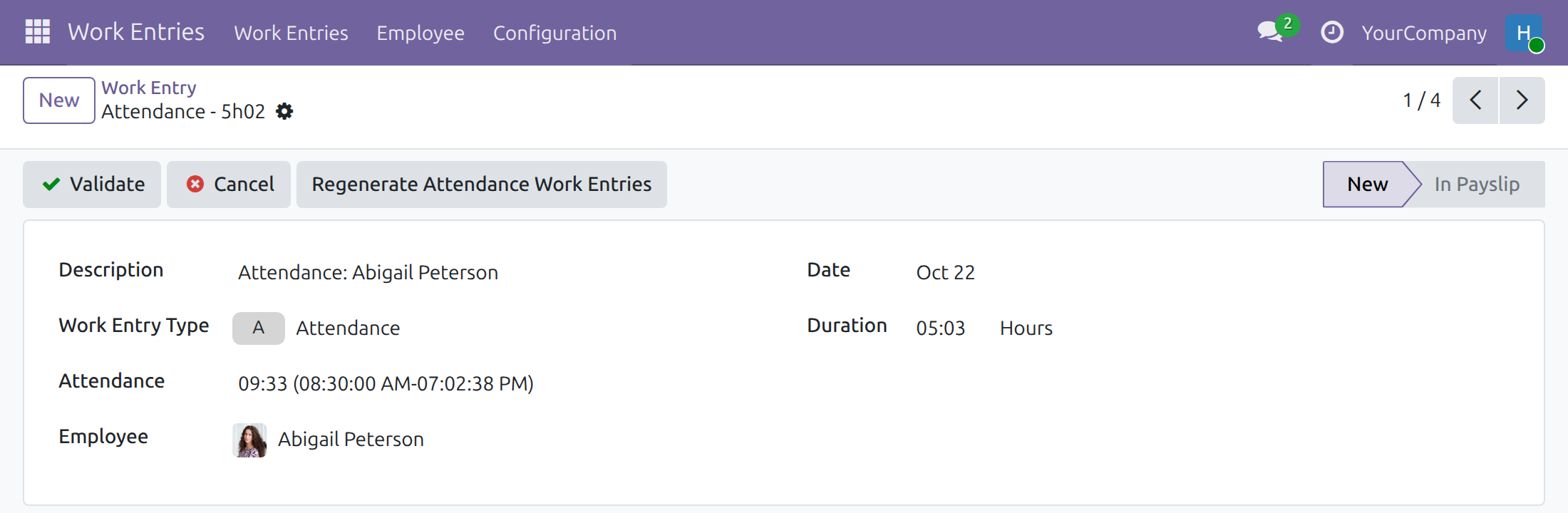
Attendance on every entry
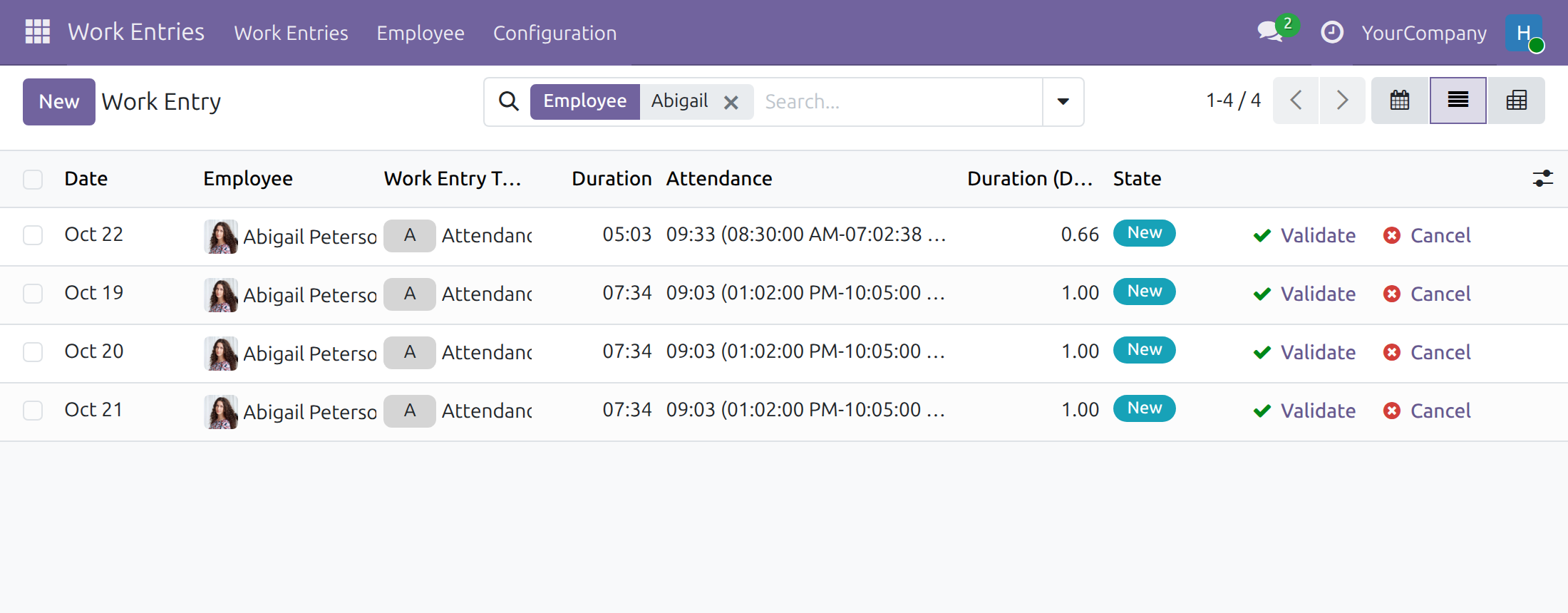
The work entry list shows the attendance behind each entry, so a disputed day is traced in seconds.
One-click regeneration
Rebuild all the entries of an attendance from the work entry itself.
Protected links
An entry that comes from an attendance cannot be cancelled or deleted by hand, so it cannot drift from the clock.
Who it is for
HR Manager
Wants hours from the clock, not from a roster. Chooses the source contract by contract.
Attendance Manager
Fixes forgotten or wrong check-ins and trusts that the work entries follow.
Work Entry officer
Reviews and validates entries with the attendance in view.
Employee
Checks in and out as usual. No extra step.
Best for: businesses with an electronic attendance system that prepare payroll from hours worked.
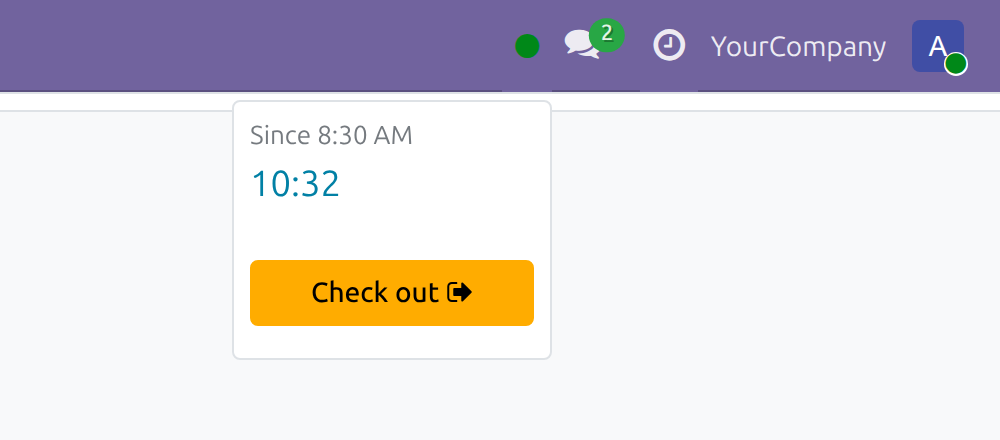
Check out at the end of the day
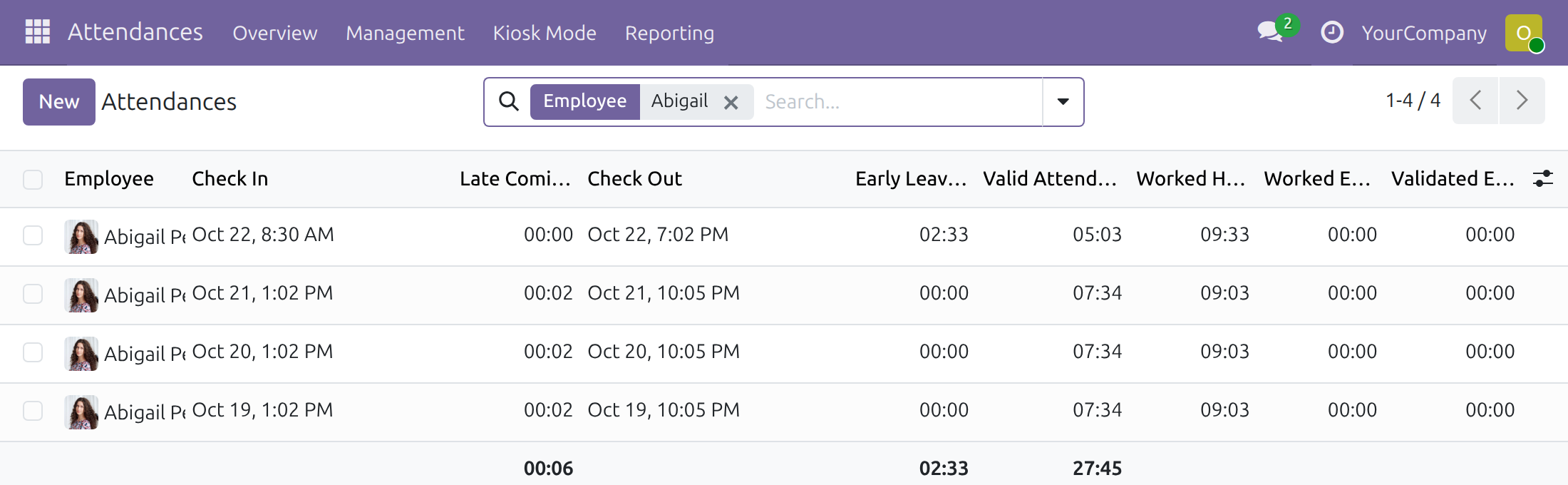
Review and correct attendance
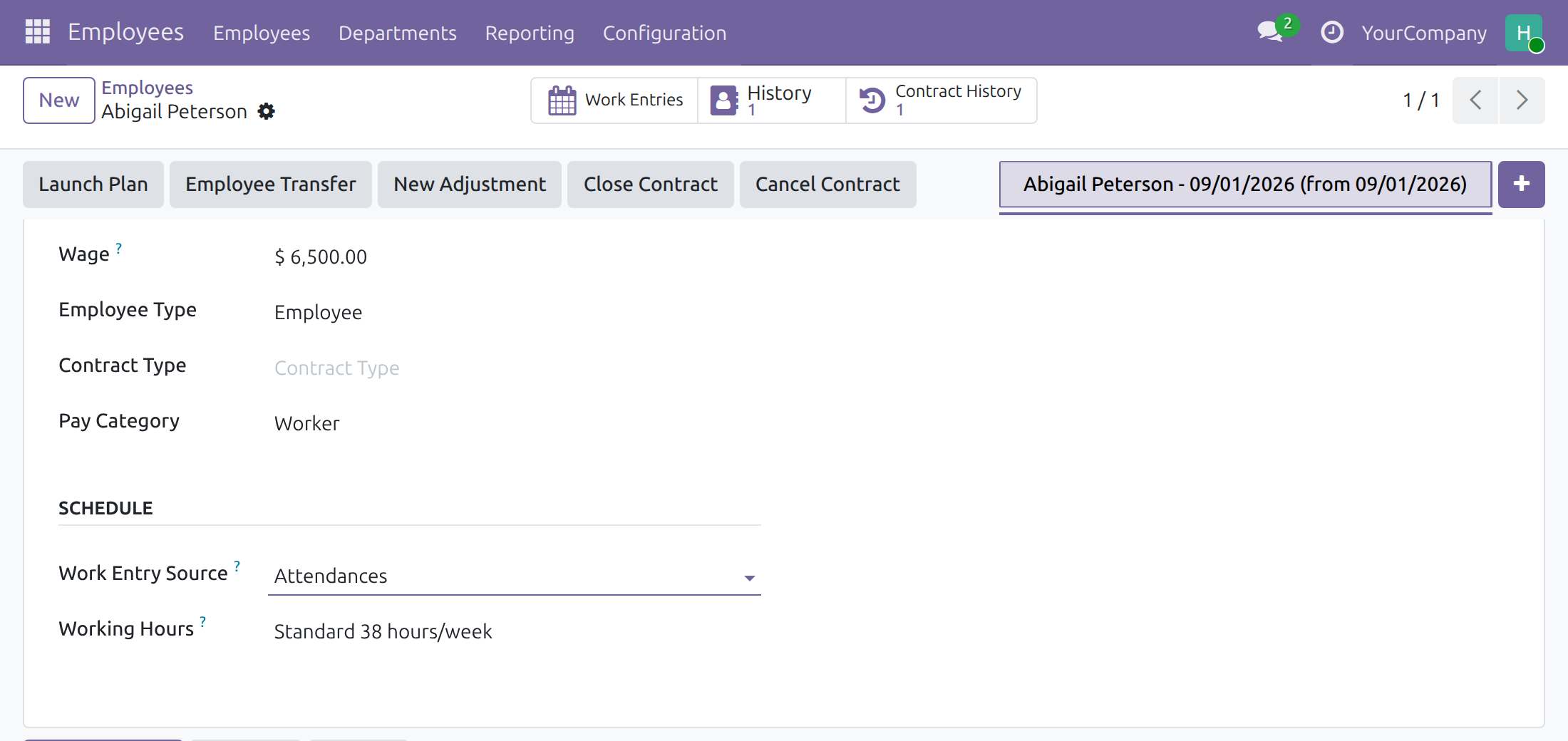
Choose the source on the contract
Work entries with their attendance
Frequently Asked Questions
Does it change contracts that use the working schedule?
No. Only the contracts whose Work Entry Source is set to Attendances take their entries from check-ins.
What if an employee forgets to check out?
No work entry is created until the check-out is recorded. The Attendance Manager can enter the time, and the entry follows.
What happens to days payroll has already validated?
They are left exactly as payroll took them.
What happens to the entries generated from the working schedule?
When a contract is switched to Attendances, or the entries of a period are regenerated, the schedule drafts of those days are archived and replaced by the entries of the attendances. Validated entries and time off entries are kept.
Does it compute salaries?
No. It prepares the work entries that payroll uses. Pair it with Payroll from attendance to turn those hours into pay.
Need help with Work Entry - Attendance?
For questions, implementation support or a custom feature, contact Viindoo.
Pre-Sales & Partnership
viindoo.com/contactusTechnical Support
viindoo.com/ticketTechnical Requirement
- Odoo version: 19.0
- Editions: Odoo Community, Odoo Enterprise
- Required modules: Attendances (hr_attendance), Work Entry - Contract (viin_hr_work_entry_contract)
- License: OPL-1
Work Entry - Attendance
Who this guide is for: the Administrator who installs the module and assigns access rights, the HR Manager who decides which contracts take their work entries from attendance, the Work Entry officer who reviews the entries before payroll, the Attendance Manager who corrects attendance records, and the Employee who checks in and out.
Note
Extends Attendance Data Validation (HR) - see its documentation: Attendance Data Validation (HR).
Overview
Payroll pays for hours worked. With this module, the hours of an employee whose contract takes work entries from Attendances come from the real check-in and check-out times instead of from the working schedule. No one types the entries in: they appear when the employee checks out, and they follow the attendance record when it is corrected or deleted.
The process runs in five steps:
- The HR Manager sets the Work Entry Source of the employee's contract to Attendances.
- The Employee checks in and checks out.
- When the check-out is recorded, the system creates a work entry of the working-schedule hours that the attendance covers. Hours of a time off already have their own work entry and are not counted twice. A day that already has a validated work entry is left as it is.
- The Attendance Manager corrects or deletes a wrong attendance. The system archives the work entry and builds a new one from the corrected times.
- The Work Entry officer reviews the entries and validates them, so that payroll can use them.
| Role | What they do | Access right to assign |
|---|---|---|
| Employee | Checks in and out. | Attendances: User: Read his own attendances |
| Attendance Manager | Corrects or deletes attendance records of every employee. | Attendances: Officer: Manage all attendances |
| HR Manager | Chooses the work entry source of each contract. Sees the contract found for an attendance when also holding an Attendances access right. | Employees: Administrator |
| Work Entry officer | Reviews, validates or cancels work entries and regenerates the entries of an attendance. | Employees: Officer: Manage all employees |
| Administrator | Installs the module and assigns the access rights. | Administration: Settings |
Setup (for the Administrator)
Installation
- Open Apps, remove the default filter and search for Work Entry - Attendance.
- Click Install.
The module needs the apps Attendances and Work Entry - Contract. It installs together with them when both are present.
Access rights
- Open Settings ‣ Users & Companies ‣ Users and open the user.
- On the Access Rights tab, choose the access right of the role from the table above in the Attendances or Employees line.
- Save.
Work entries and contracts are payroll data. An accountant or any user without the Employees access rights does not see them, and this is intended.
Contracts
Only the contracts whose Work Entry Source is Attendances are affected. Every other contract keeps producing its work entries from the working schedule. The HR Manager makes this choice, see the chapter HR Manager below.
Employee: check in and out
Check in and check out
- Click the clock icon in the top bar.
- Click Check in when the work starts.
- At the end of the work, open the same menu and click Check out.
The work entry is created when the check-out is recorded. An attendance without a check-out creates no work entry yet. The employee does not need to know about contracts or work entries: the system finds the contract in force on the day of the attendance.
Attendance Manager: review and correct attendance
Correct or delete an attendance
- Open Attendances ‣ Management ‣ Attendances and search for the employee.
- Change the Check In or Check Out time of the record, or delete the record.
- Save.
The work entry of the attendance follows: after a change the entry is archived and a new one is created from the new times, and after a deletion the entry is archived. A work entry that payroll has already validated is not touched, and a day that has a validated work entry keeps it.
The contract found for each attendance is not shown to this role. It is shown only to an HR Manager who also holds an Attendances access right.
HR Manager: choose the source of the work entries
Take the work entries of a contract from attendance
- Open Employees ‣ Employees and open the employee.
- Open the Payroll tab.
- In the Schedule group, set Work Entry Source to Attendances.
- Save.
When the contract takes its work entries from Attendances, the draft work entries that the working schedule generated for those days are archived and replaced by the entries of the attendances recorded on them. Validated work entries and the work entries of time off are kept as they are. The same happens when the work entries of a period are regenerated: the schedule drafts of the days an attendance contract covers are archived, the entries of the attendances of the period are rebuilt, and the employees who already have a validated work entry in the period are skipped.
Work Entry officer: review the entries
Find the entries generated from attendance
- Open Work Entries ‣ Work Entries ‣ Work Entries, switch to the list view and remove the default My Work Entries filter.
- Search for the employee.
- Click the column selector at the right end of the list header and tick Attendance to show the attendance behind each entry.
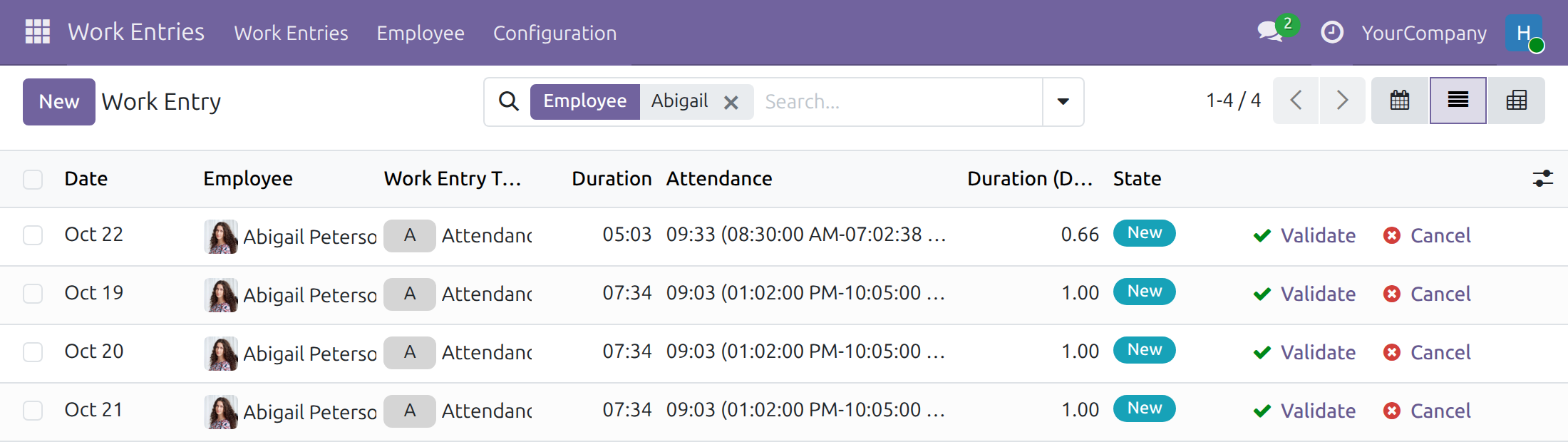
Click Validate on a line, or on the form, when the entry is correct. Click Cancel on a draft entry that must not count. An entry that comes from an attendance is handled through its attendance instead (see below).
Regenerate the entries of a period
- Open Employees ‣ Employees and open the employee.
- Click the Work Entries button at the top of the form.
- Click Reset. The Work Entry Regeneration window opens.
- Choose the employees and the period, then click Regenerate Work Entries.
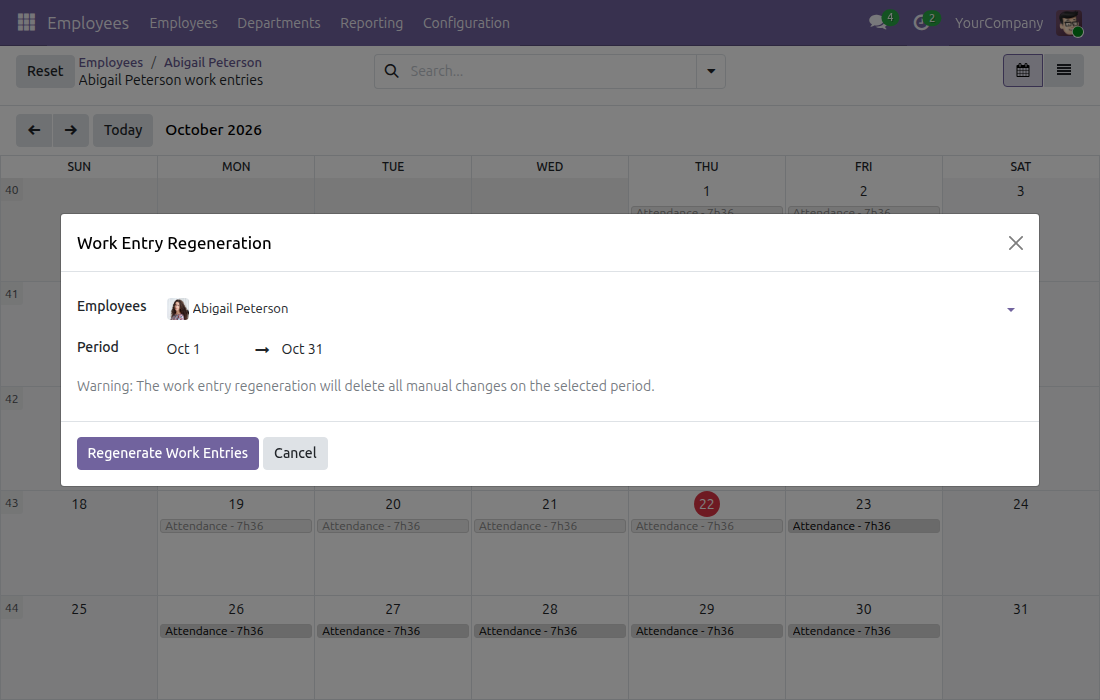
The window warns that manual changes of the period are deleted. For the days covered by a contract that takes its work entries from Attendances, the schedule drafts are archived and the entries are rebuilt from the attendances; validated entries and time off entries are kept, and the employees who already have a validated work entry in the period are skipped.
Regenerate the entries of an attendance
- Open the work entry.
- Click Regenerate Attendance Work Entries. The entries of this attendance are archived and rebuilt from its check-in and check-out times.
An entry that follows an attendance cannot be cancelled or deleted
The system refuses to cancel or delete a work entry that comes from an attendance, because the next change of the attendance would bring it back. Handle the attendance instead (see the chapter Attendance Manager).
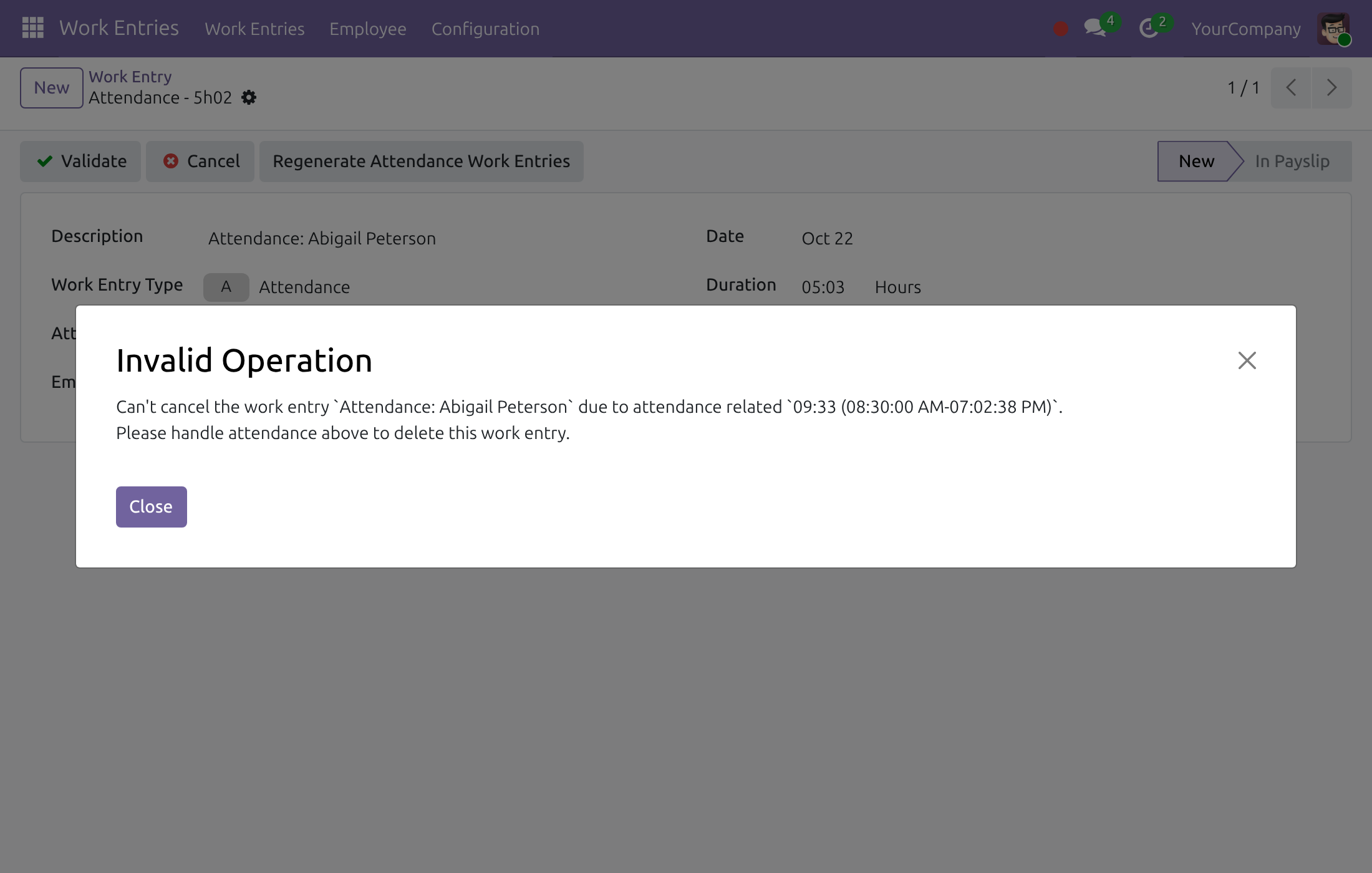
The Work Entry officer sees this message without needing an Attendances access right: it names the attendance to handle, and the entry stays unchanged.
This software and associated files (the "Software") may only be used (executed, modified, executed after modifications) if you have purchased a valid license from the authors, typically via Odoo Apps, or if you have received a written agreement from the authors of the Software (see the COPYRIGHT file).
You may develop Odoo modules that use the Software as a library (typically by depending on it, importing it and using its resources), but without copying any source code or material from the Software. You may distribute those modules under the license of your choice, provided that this license is compatible with the terms of the Odoo Proprietary License (For example: LGPL, MIT, or proprietary licenses similar to this one).
It is forbidden to publish, distribute, sublicense, or sell copies of the Software or modified copies of the Software.
The above copyright notice and this permission notice must be included in all copies or substantial portions of the Software.
THE SOFTWARE IS PROVIDED "AS IS", WITHOUT WARRANTY OF ANY KIND, EXPRESS OR IMPLIED, INCLUDING BUT NOT LIMITED TO THE WARRANTIES OF MERCHANTABILITY, FITNESS FOR A PARTICULAR PURPOSE AND NONINFRINGEMENT. IN NO EVENT SHALL THE AUTHORS OR COPYRIGHT HOLDERS BE LIABLE FOR ANY CLAIM, DAMAGES OR OTHER LIABILITY, WHETHER IN AN ACTION OF CONTRACT, TORT OR OTHERWISE, ARISING FROM, OUT OF OR IN CONNECTION WITH THE SOFTWARE OR THE USE OR OTHER DEALINGS IN THE SOFTWARE.
