


Viindoo AI - Brain Bridge
| Lines of Code | 4705 |
| Technical name | viin_ai_brain |
| License | OPL-1 |
| Website | https://viindoo.com/apps/app/17.0/viin_ai_brain |
| Read description for | |
| Required Apps | Discuss (mail) |
| Included Dependencies | Viindoo Brain Viindoo AI Viindoo AI - Editor Viindoo Web Editor Viindoo Base API Request Logger |
| Extensions | Viindoo AI - Test/Demo Module (mock provider) Viindoo Brain - Knowledge Suite Viindoo AI Suite |

Keep the AI's best answers as knowledge your team can trust
Gives the AI assistant read and write access to your knowledge base: one-click Save to Brain, semantic search, an in-page AI block and a reviewable authorship trail.
Viindoo AI - Brain Bridge (technical name viin_ai_brain) is an Odoo 17.0 app for Odoo Community and Viindoo Cloud, built for the people who ask the AI assistant, write in Brain and review what the AI wrote.
At a Glance
The facts of Viindoo AI - Brain Bridge, version 1.0.4, in one place. Published by Viindoo.
How It Works
Ask the assistant in Discuss and keep the answers worth keeping; write and review in Brain.
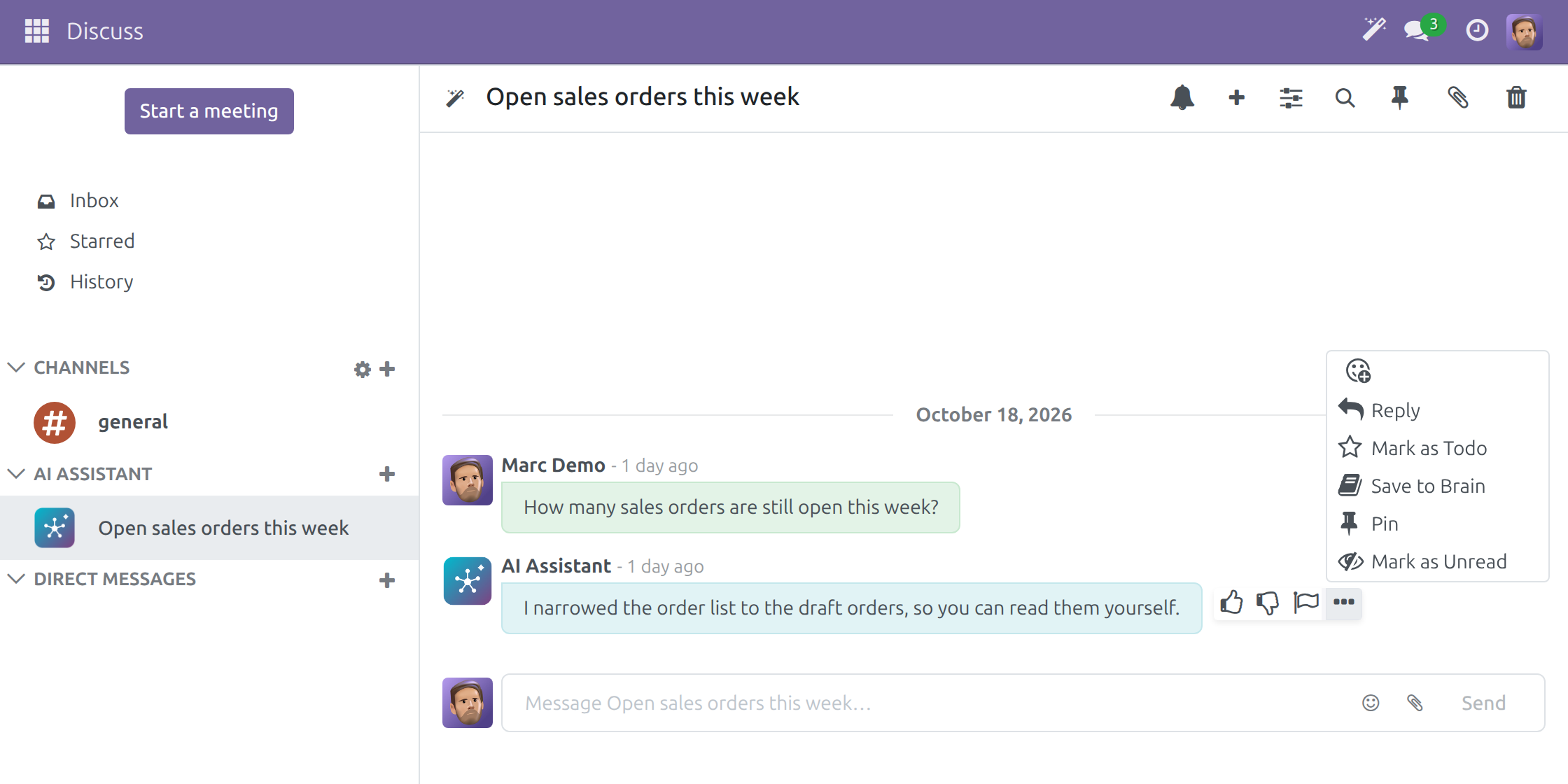
Save to Brain
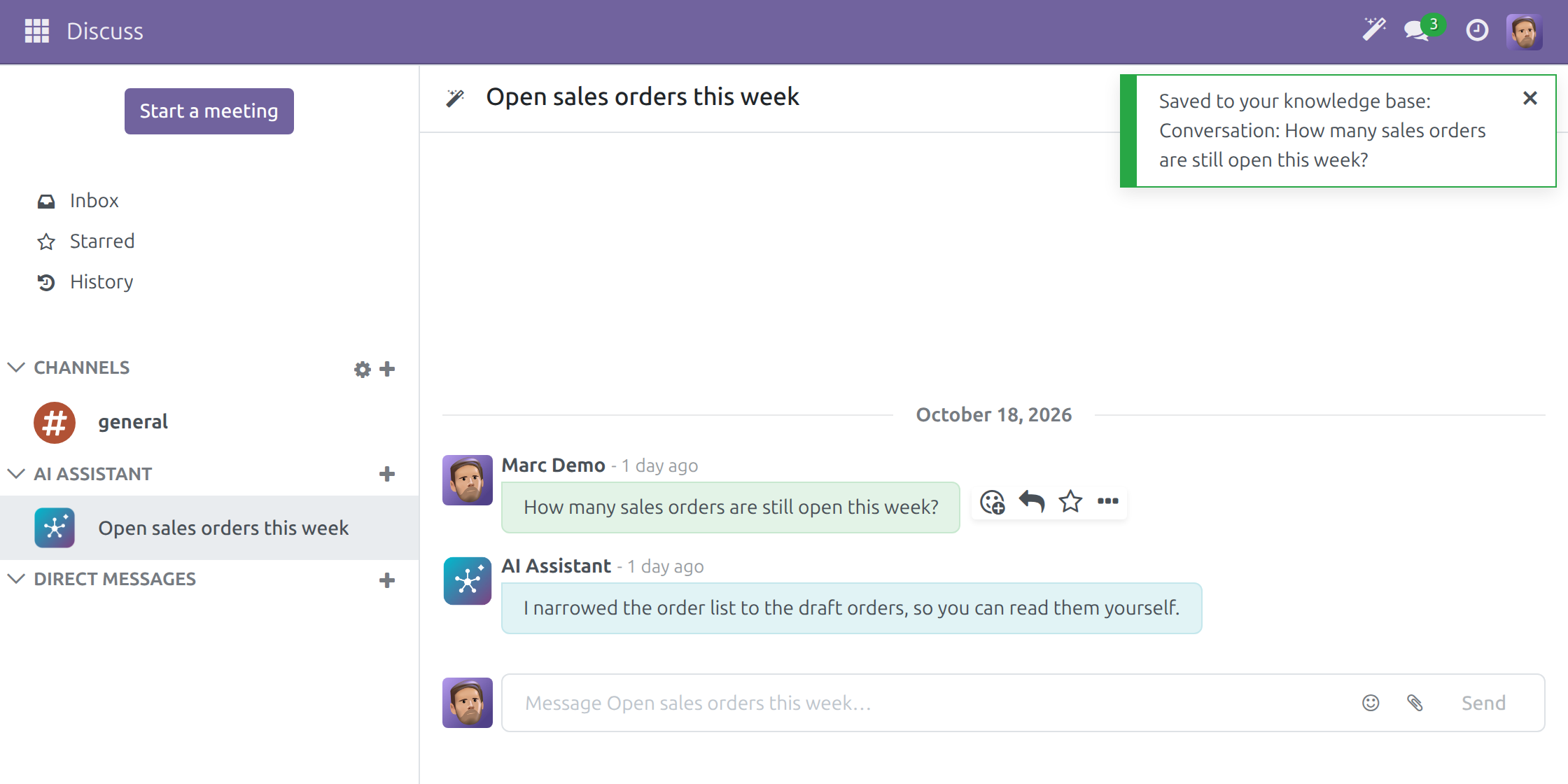
Open the actions of an assistant answer in Discuss and choose Save to Brain.
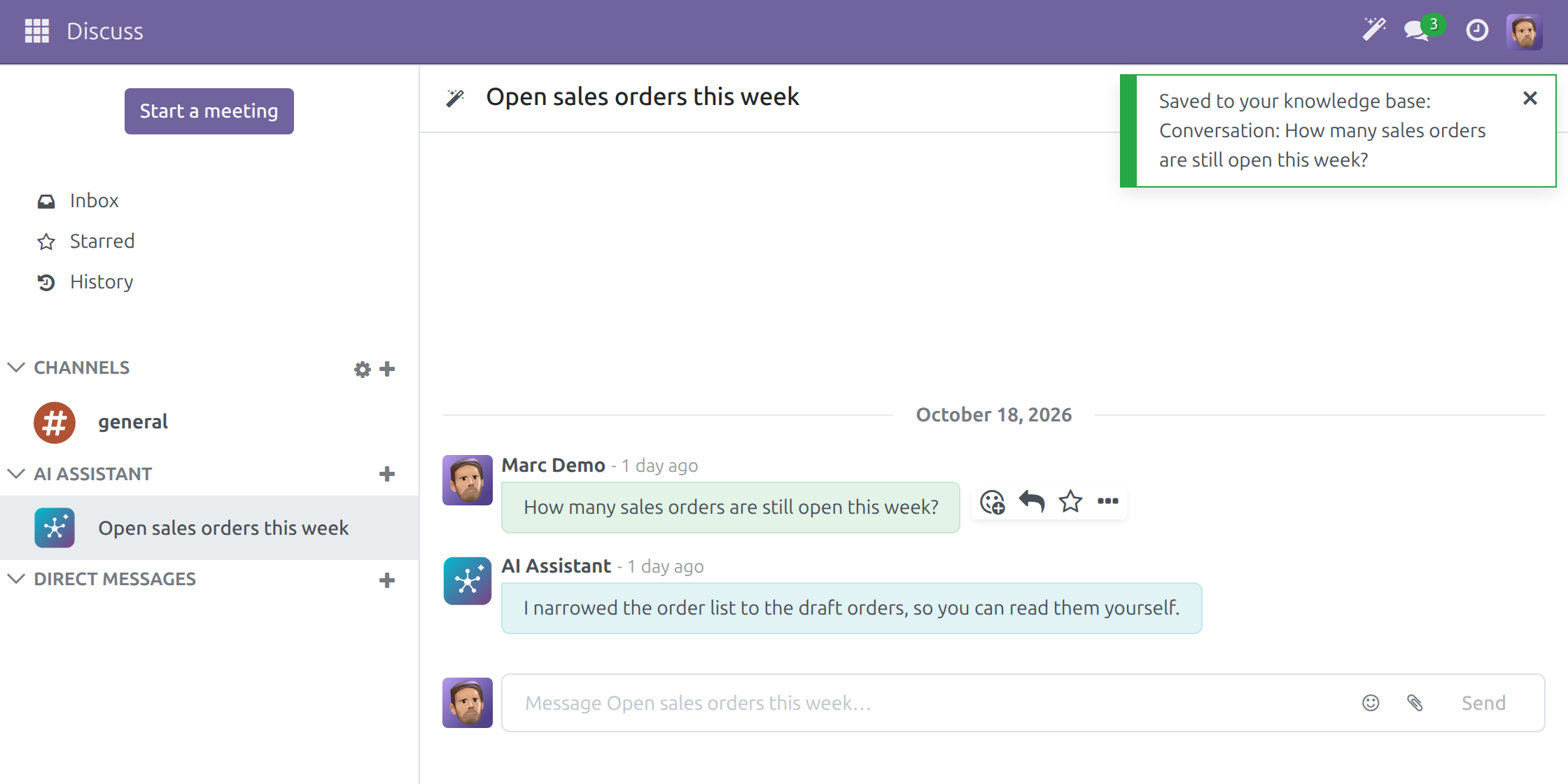
Named, saved once
A notification names the knowledge page. Saving the same answer again returns the same page.
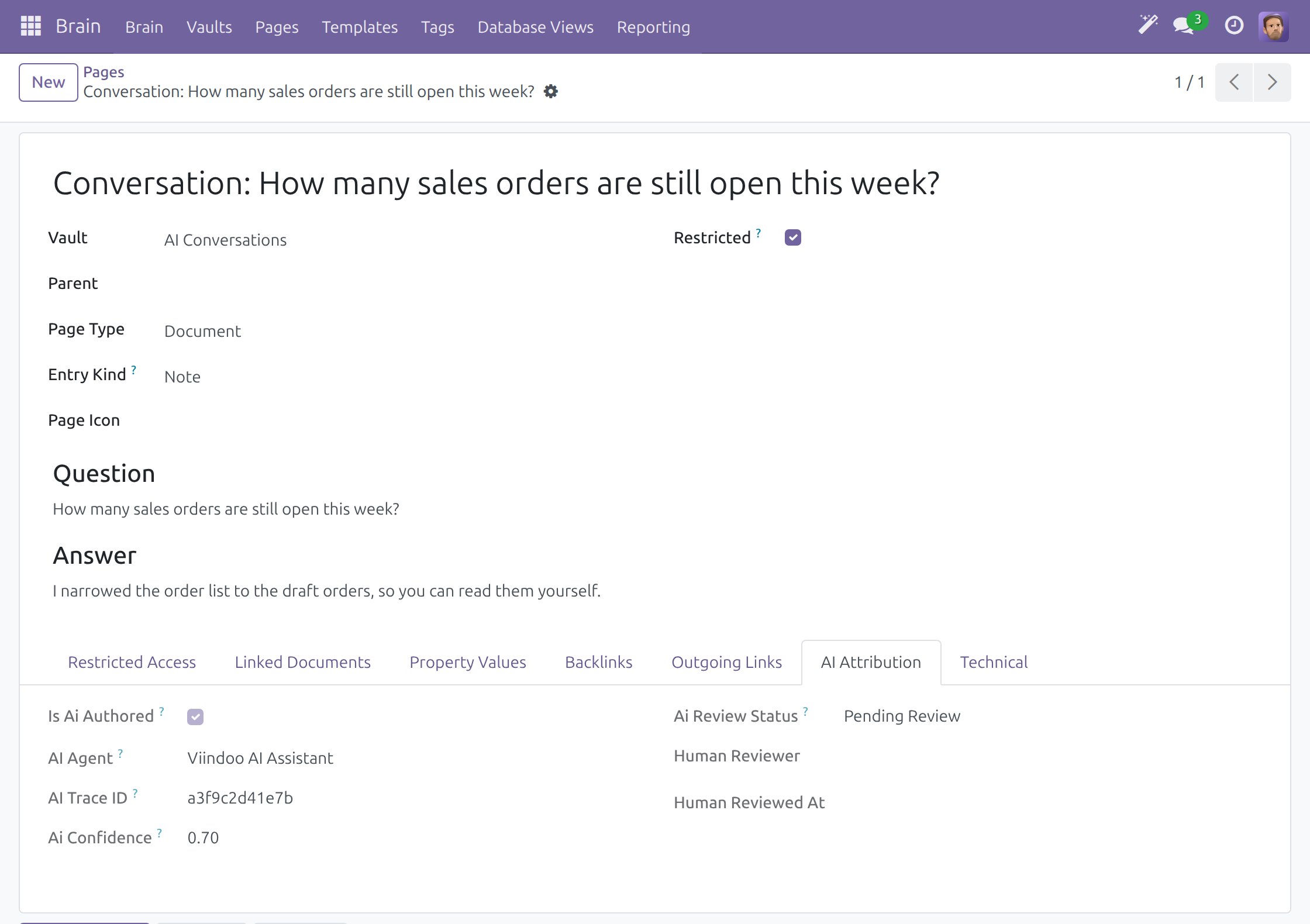
An attributed, private page
Question, answer, agent, trace and confidence - restricted to you and pending review.
Write with AI in a page
Type a slash in any Brain page: AI block, AI: Write or AI: Chat.
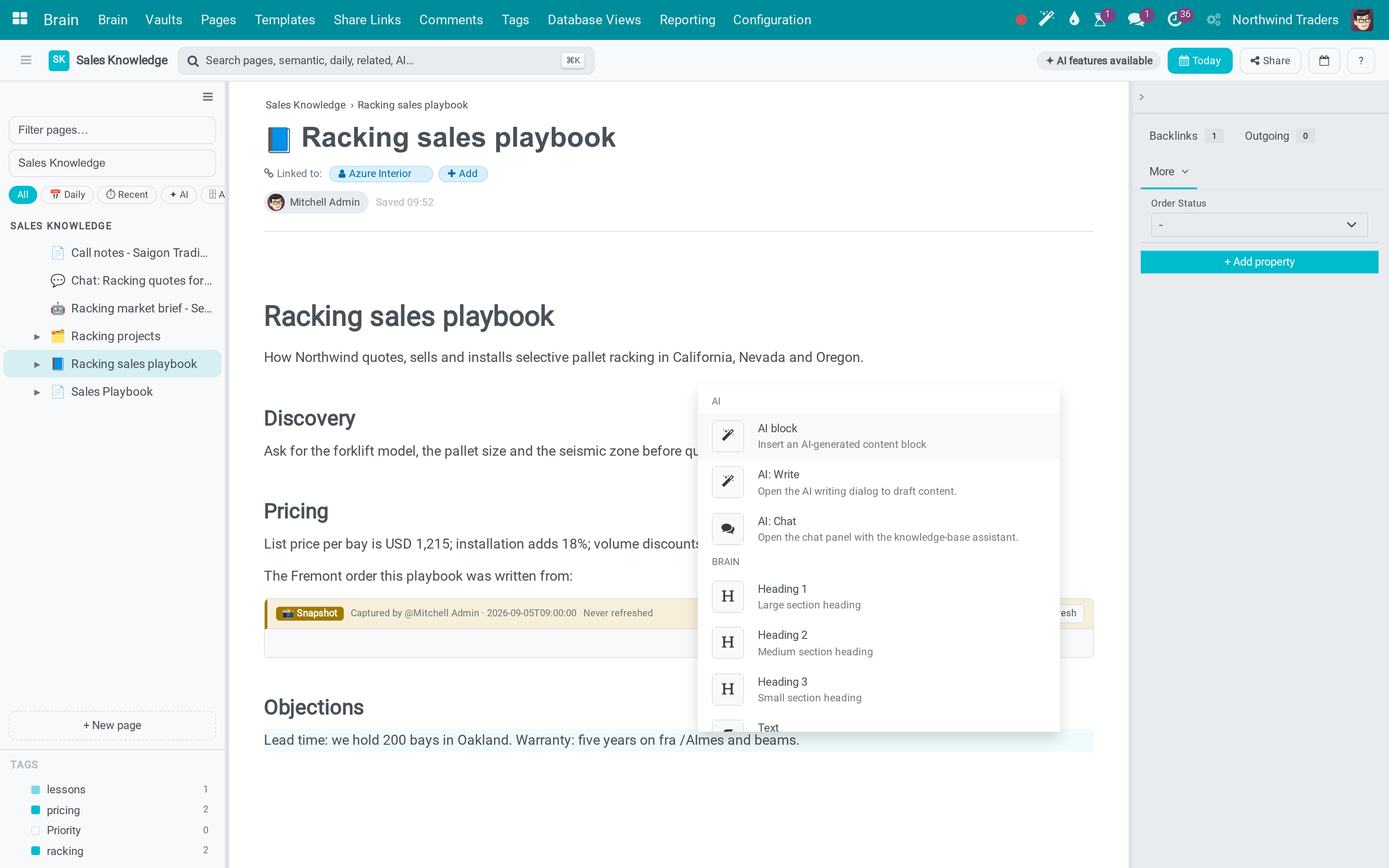
AI draft page
Pending review, 81% confidence.
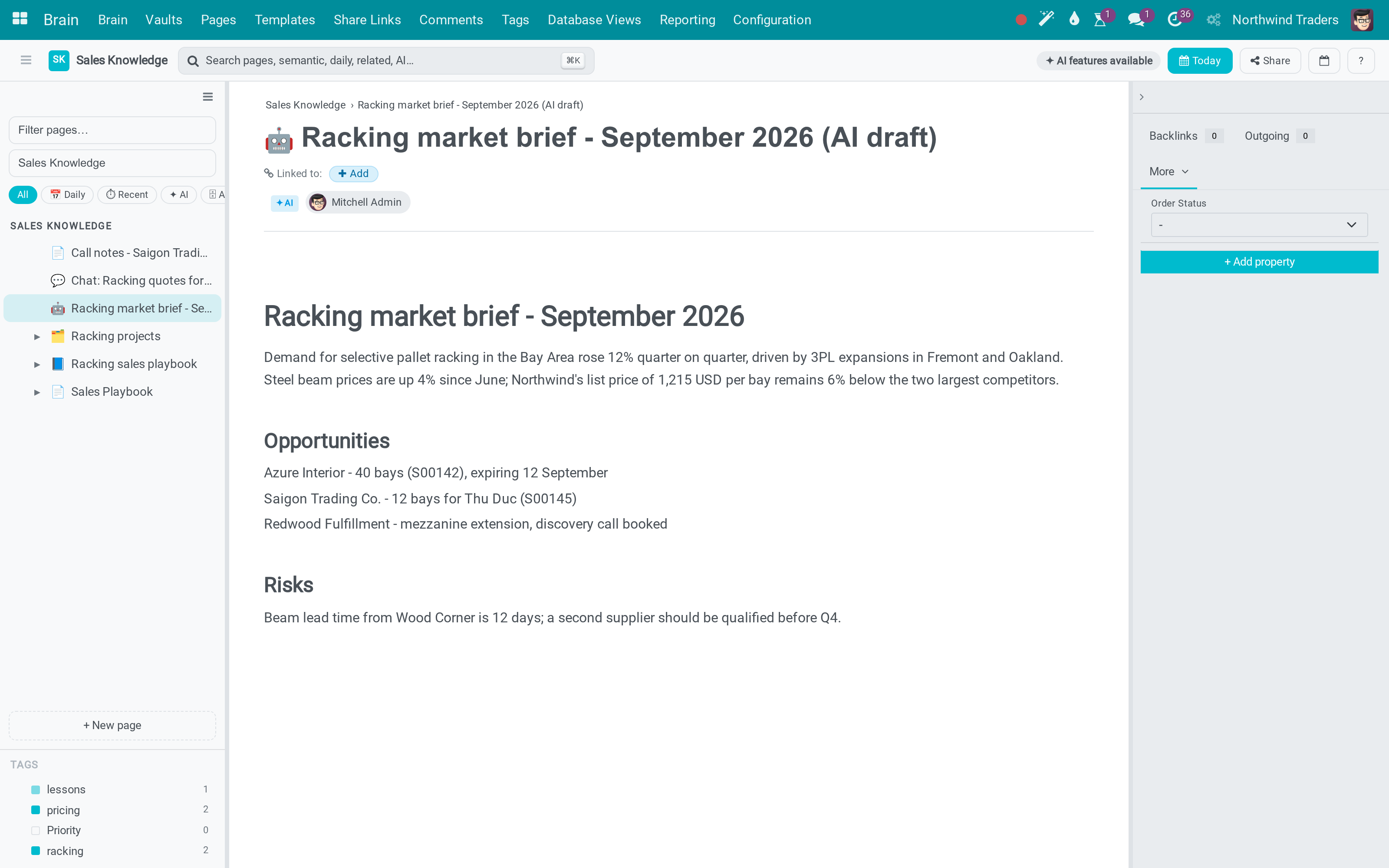
AI contributions
Pages by review status.
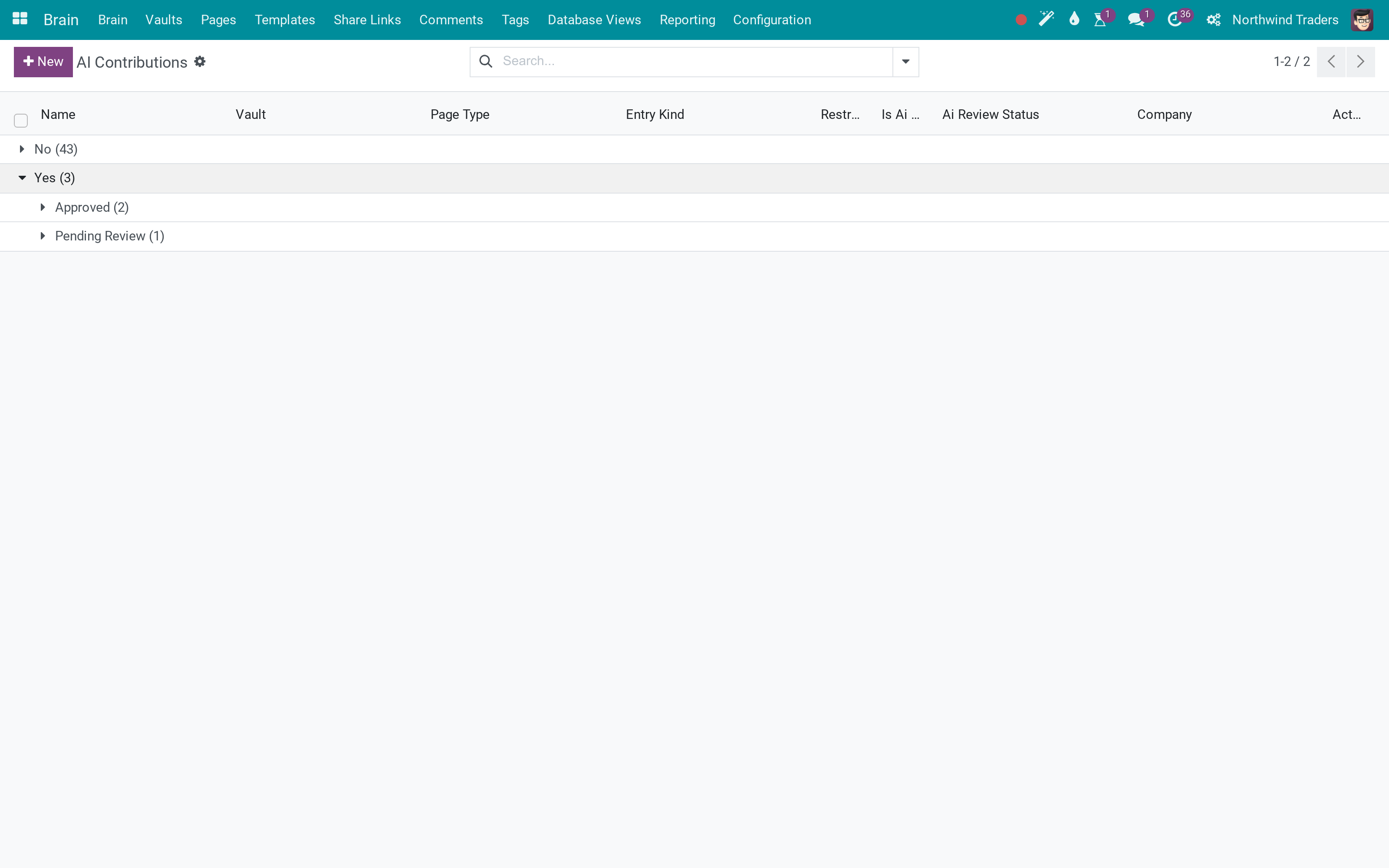
Approved page
Reviewed by a person.
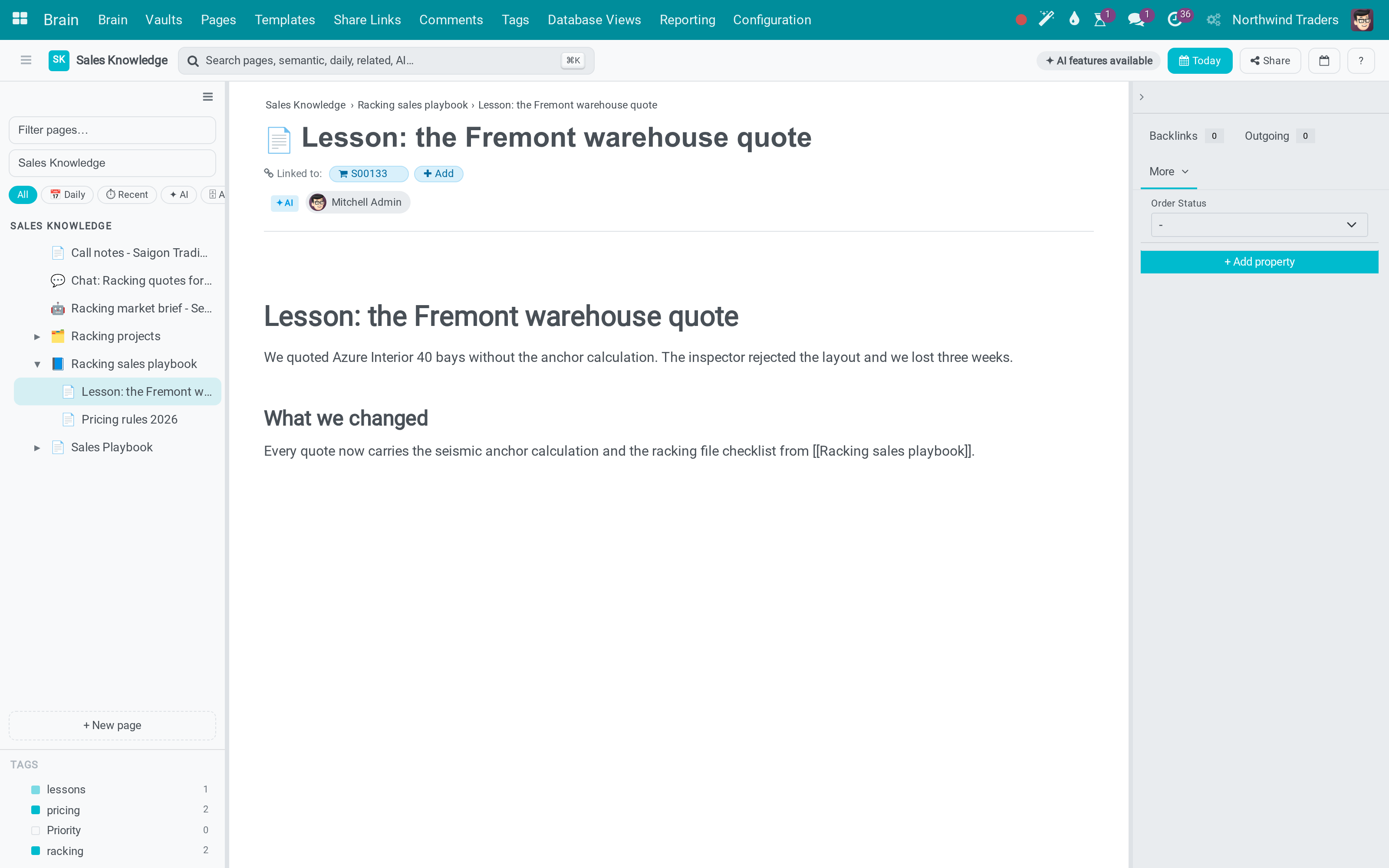
What You Get
Save to Brain on every finished assistant answer, in one click, never automatically
Saved answers are attributed, private to the person who saved them and wait for review
Pages as RAG sources
11 Brain tools for agents
AI: Write with alternatives
Attribution and review status
Fact history
What This App Does Not Do
Read this before you buy. Everything below is something the app deliberately leaves to another app or to you.
You bring the key of your AI provider; Viindoo does not proxy your prompts. The screens shown here come from a demonstration database.
AI pages start pending review unless the vault is set to approve AI content on arrival.
A conversation reaches the knowledge base only when a person presses Save to Brain.
Works Well With
Apps from the same stack, built to fit this one:
Viindoo AI
Required - the AI Assistant conversations in Discuss, vendors, providers, agents, cost caps and the audit trail.
Viindoo AIWho Should Use Viindoo AI - Brain Bridge?
Employee
Ask the assistant, keep the answers worth keeping as knowledge pages, and write in Brain with AI.
Knowledge reviewer
A market brief written by the agent waits for review; approve or reject it page by page or for the whole vault.
Administrator
Choose per vault whether AI-written pages arrive approved or for review, and decide which pages the agent answers from.
Frequently Asked Questions
What does Viindoo AI - Brain Bridge do?
It gives the AI assistant read and write access to the knowledge base. A finished assistant answer can be kept as an attributed knowledge page with Save to Brain; Brain pages become retrieval sources for the agents; eleven Brain tools let an agent search, traverse the graph, read a timeline, create pages, blocks, properties, links and record links, and ask what a record looked like at a date; the AI: Write command opens a writing dialog with alternatives; pages the AI wrote carry author agent, trace, confidence and a review status, and a fact-history panel shows how a value changed.
What does Save to Brain do?
In an AI conversation of Discuss, Save to Brain on an answer saves exactly that answer, with the question it replied to, as a page in the AI Conversations vault of your company. The page is marked as written by the AI, restricted to the person who saved it and pending review. Saving the same answer twice returns the same page.
What does Viindoo AI - Brain Bridge not do?
Nothing answers without a vendor key. Nothing is published without a reviewer: AI pages start pending review. Nothing is saved on its own: only a click on Save to Brain writes a page.
Who is Viindoo AI - Brain Bridge for?
Employees who ask the AI assistant and write in Brain, knowledge reviewers who approve what the AI wrote, and administrators who set up the provider, the agent and the vaults.
Which Odoo version and editions does it support?
Odoo 17.0 - Odoo Community, Viindoo Cloud. Upgrades to a newer Odoo series are a separate purchase for that series.
What does it depend on?
It installs on top of: viin_ai, viin_ai_editor, viin_brain, viin_web_editor. Odoo installs them with it. The AI Assistant conversations in Discuss come with Viindoo AI.
How do I set it up?
Configure an AI provider with your own key, index the vault, then ask the assistant in Discuss and use Save to Brain; type a slash in a Brain page for AI: Write; review what the agent wrote.
What works well with it?
Viindoo AI (viin_ai): Required - the AI Assistant conversations in Discuss, vendors, providers, agents, cost caps and the audit trail. Viindoo Brain (viin_brain): Required. AI - Editor (viin_ai_editor): Required.
Can I try it before buying?
Yes - the Live Preview button at the top of this page opens the module's own screen on a working database.
How do I get support?
Write to apps.support@viindoo.com with your Odoo version and the technical name viin_ai_brain; pre-sales questions go to sales@viindoo.com.
See Viindoo AI - Brain Bridge in Action
Keep the AI's best answers as knowledge your team can trust
Need help with Viindoo AI - Brain Bridge?
For questions, implementation support, or consulting services, contact Viindoo.
Pre-Sales & Partnership
sales@viindoo.comWhen contacting us, please include:
- Odoo/Viindoo version (Odoo CE / Viindoo Editions).
- Number of users and business scope.
- Other modules currently in use.
Technical Support
apps.support@viindoo.comFor faster troubleshooting, please provide:
- Order number or app reference.
- Odoo/Viindoo version & edition.
- Steps to reproduce the issue.
- Screenshots/logs if available.
Upgrades to a newer Odoo series are a separate purchase for that series.
Technical Requirement
Changes log
1.0.4 - Latest on the 17.0 line
- Save to Brain on every finished answer of the AI assistant in Discuss: the answer becomes an attributed, private knowledge page in the AI Conversations vault of the company.
- Saving the same answer twice returns the same page.
- Every company has its AI Conversations vault, including companies created later.
- When the vault is missing, the error names this app.
1.0.2 - Brain tools and review
- Brain write tools run only inside an assistant turn; the assistant and run recorded as author come from that turn, and confidence must be a number above 0 and at most 1.
- Review decisions are limited to approve, reject and human edit, and need the right to review the page's AI content.
- Brain tools check block types, payloads and property values before storing them; page content also returns a block outline.
- Semantic search reports an outage instead of passing it off as a keyword match.
- Show alternatives in the writing dialog returns suggestions.
- The AI badge, the review panel and the block styling are part of this module.
1.0.0 - Aligned with 17.0
- Aligned with the 17.0 models and views.
Viindoo AI - Brain Bridge (viin_ai_brain)
Note
Who this guide is for. Everyone who works with the AI assistant and the Brain knowledge base (the Employee), the people who review what the AI wrote (the Knowledge Reviewer), and the person who installs the module and looks after the knowledge base (the Administrator).
Note
Extends Viindoo AI and Viindoo Brain - see their documentation.
Overview
Viindoo AI - Brain Bridge connects the AI assistant to your company's Brain knowledge base in both directions. The assistant reads the knowledge base to answer from it, and writes into it - but never anonymously: everything the AI writes is marked with the agent that wrote it, the trace it came from, how confident it was and whether a person has approved it.
With it you can:
- keep a good answer of the AI assistant as a knowledge page in one click, with Save to Brain;
- write inside any Brain page with the AI block and AI: Write;
- find pages by meaning in the quick switcher;
- review what the AI wrote, page by page or vault by vault;
- look at a record as it was on a past date.
The process, stage by stage:
- Employee - asks the assistant in Discuss and, when an answer is worth keeping, chooses Save to Brain; or drafts a page with the AI block.
- Knowledge Reviewer - opens the pages the AI wrote and approves or rejects them.
- Administrator - sets up the provider, the agent and the knowledge sources once, and decides whether AI-written pages arrive approved or wait for review.
| Role | What they do | Access right to assign |
|---|---|---|
| Administrator | Installs the module, configures the AI provider, the agent and the knowledge sources, and sets the review choice of each vault. | Administration / Settings |
| Employee | Asks the assistant, saves answers to Brain, writes with AI in Brain pages and searches by meaning. | User types / Internal User |
| Knowledge Reviewer | Approves or rejects pages and blocks the AI wrote, and reads a record's history. | Editor or Admin role on the vault |
Setup (for the Administrator)
Installation
- Go to Apps.
- Search for viin_ai_brain.
- Click Activate.
The module installs itself once Viindoo AI, Viindoo Brain and their editor modules are installed. The AI Assistant conversations in Discuss come with Viindoo AI: nothing else needs to be installed for them.
Configuration
Before anything works
- An AI provider with your own key. Configure it under AI > Configuration > Providers. Viindoo does not proxy your prompts; the provider record carries your key and talks to your provider.
- A Knowledge Base Assistant agent. This module ships one, ready to use. If your company removed it, recreate one under AI > Agents and give it the Knowledge Base Assistant topic - without an agent every AI entry point in the editor refuses with a message telling you so.
For semantic search, additionally
- PostgreSQL with the pgvector extension.
- An active embedding model under AI > Configuration > Models.
- At least one indexed source (below).
The knowledge vault for saved answers
Every company has an AI Conversations vault, including a company created later. Answers saved with Save to Brain go into the vault of the company the person is working in.
- Go to Brain > Vaults.
- Check that AI Conversations is listed for your company.
Reviewing AI content per vault
Open a vault and find the AI section:
- Auto-approve AI Content - off by default. Off means agent-written pages arrive as Pending Review; on means they arrive approved.
Keep it off in AI Conversations: a saved answer is generated text that nobody has verified, so it waits for a reviewer.
Indexing pages for search
- Go to AI > Agents and open the agent that should answer from the knowledge base.
- On its Knowledge Sources tab, add a line with Source Type = Brain Page or Brain Vault.
- Pick the page or vault.
A Brain Page source is chunked block by block, so a search result points at the paragraph that answers rather than at a whole document. Editing a page marks every source attached to it - page-level and vault-level - back to draft, so the scheduled re-index picks it up. Search does not quietly drift out of date.
Giving people access
Every employee who can use the AI assistant can save its answers: no extra access right is needed. In Settings > Users & Companies > Users, give each person the Internal User user type. Give the people who review AI-written pages an Editor or Admin role on the vault.
Employee: keep an answer worth keeping
Save an answer to Brain
A good answer of the AI assistant is usually lost the moment the conversation scrolls away. Save to Brain turns exactly that answer into a page of your company's knowledge base, together with the question that led to it.
- Open Discuss and choose your conversation with the assistant in the AI Assistant section of the sidebar.
- Wait for the answer to finish.
- Move the pointer over the answer and click the ... button of its message actions.
- Choose Save to Brain.
A notification names the page that was created, for example Saved to your knowledge base: Conversation: How many sales orders are still open this week?
The action is offered only on a finished answer of the assistant. It never appears on your own questions or on a colleague's message, and an answer that failed cannot be saved - ask again and save the answer that succeeds. Nothing is ever saved by itself: finishing, closing or leaving a conversation idle writes no page, only your click does.
Save the same answer again
You cannot make a second copy. The answer remembers the page it produced: choosing Save to Brain again tells you that the answer is already in your knowledge base and names the same page.
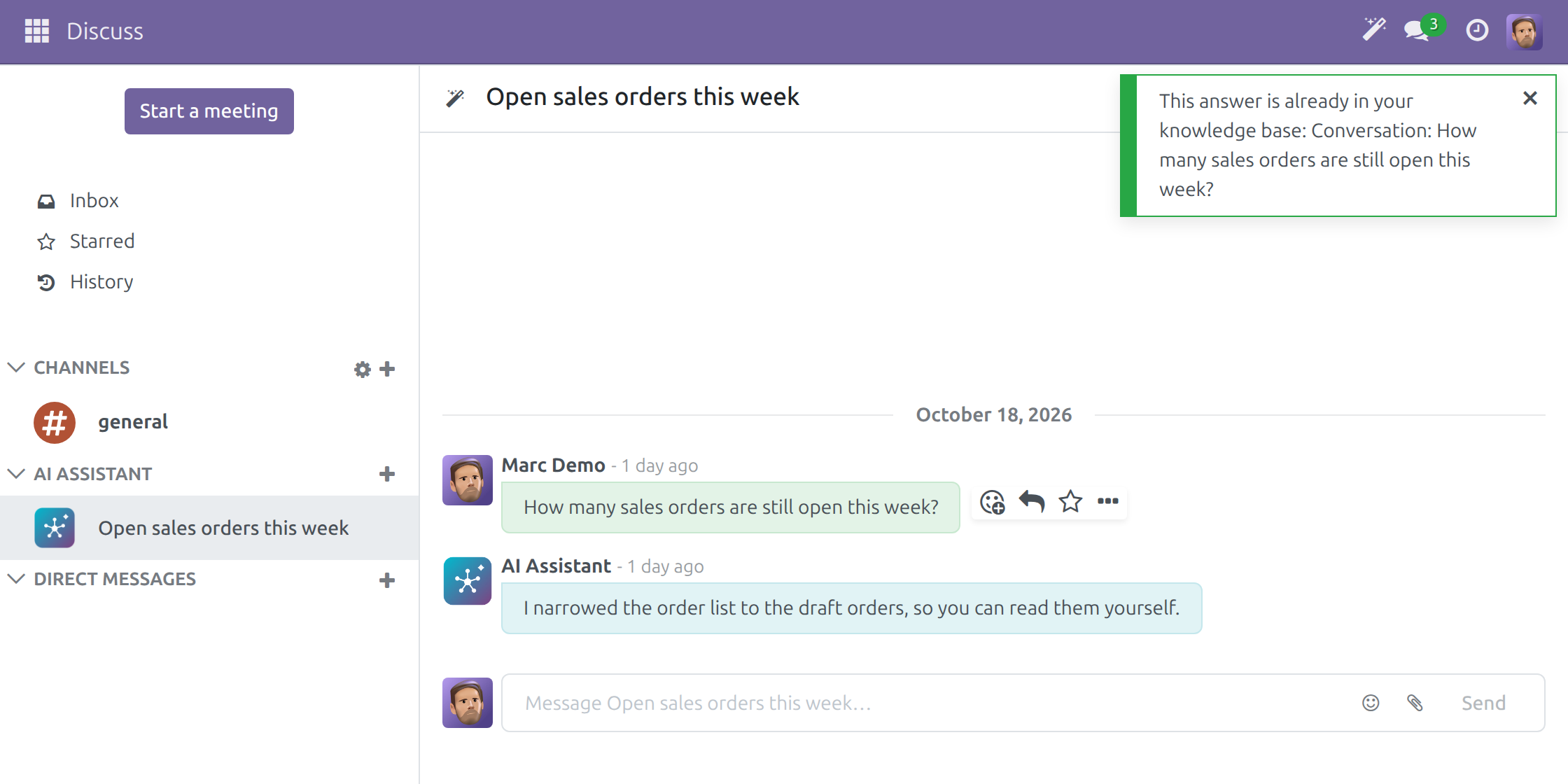
Deleting the page later does not touch the conversation.
Find and read the saved page
- Go to Brain > Pages.
- Open the page named Conversation: followed by the start of your question.
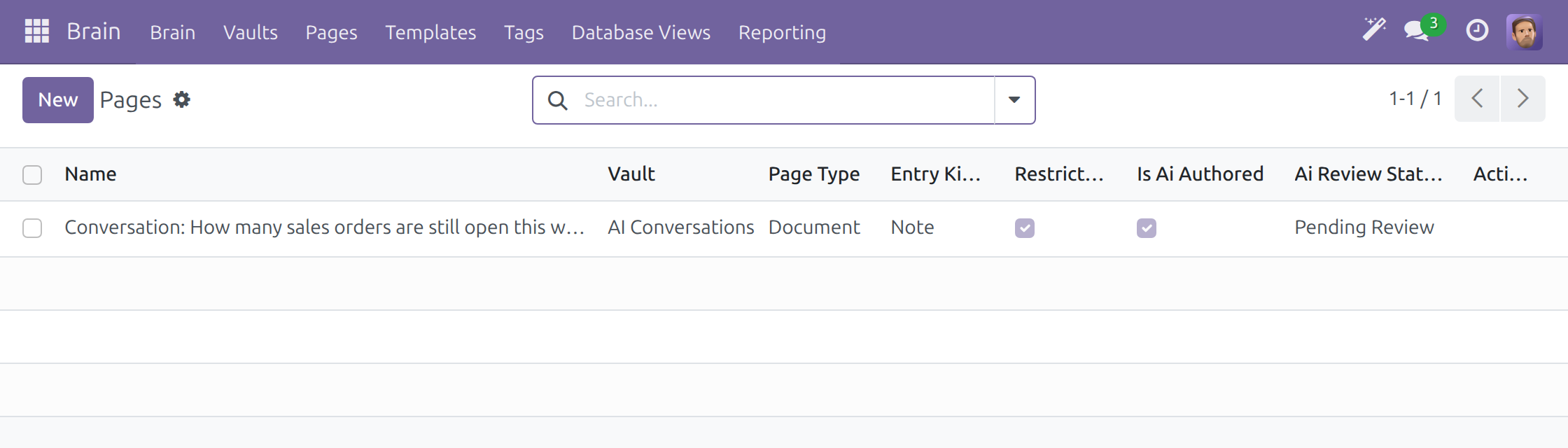
The page is in the AI Conversations vault of your company and carries:
- a title taken from the first part of your question,
- your question under a Question heading,
- the assistant's answer under an Answer heading, as readable text - only the answer you pressed the action on,
- in the AI Attribution tab, the agent that answered, the reference of that exact exchange and a confidence of 0.70. The confidence stays short of certainty on purpose: the content is model output, not established fact.
The page is Restricted to you: saving a conversation does not make it company-wide reading. Share the page deliberately if you want colleagues to read it. It arrives as Pending Review while the vault keeps Auto-approve AI Content off, so it is kept without being presented as approved knowledge; a Knowledge Reviewer can approve it later.
The AI block
- Open a Brain page and click into the body.
- Type / and choose AI block.
- Write a prompt, or click one of the offered starts: Summarize, Extract action items, Draft follow-up email.
- Click Generate.
The result arrives for review, not as a finished fact. The block then offers:
- Approve - accept it.
- Edit - open it in a plain text box, change it, save. The page is then marked as human-modified rather than agent-written.
- Reject - remove the block.
- Re-open review - go back to the pending state after approving.
A failed generation says so and offers Retry; it does not fail silently.
Note
AI block only appears inside a Brain page. Installing this module deliberately removes it from every other editor, because the block needs a saved Brain page to write into.
Writing with AI over the whole page
- Type / and choose AI: Write.
- Write a prompt, or click one of the suggested ones.
- Choose where the result goes:
- Insert at cursor
- Replace selection
- Insert as AI block (with attribution)
- Click Generate.
Show alternatives... asks the assistant to rephrase your prompt several ways and lets you pick one before generating. If the request fails, the dialog says so rather than showing an empty list.
If the text cannot be placed - usually because the cursor is not inside the page body - the dialog stays open, keeps the generated text, and offers Copy text. Generated content is never discarded silently.
AI: Chat in the same menu opens the chat with the knowledge-base assistant.
Searching by meaning
Press Ctrl+K in the Brain app. With this module installed and an index built, the quick switcher gains a Semantic matches section alongside the name matches.
What the assistant can do with your knowledge base
The Knowledge Base Assistant is given tools to search by meaning, walk the link graph between pages, query by edit time, read a page, create a page, append a block, set a property, create a link, attach an Odoo record, diff the graph between two moments, and reconstruct a record's state as of a past date.
Every tool runs with your own access: a page you could not open by hand is not readable or writable through the assistant either. Every write carries the agent and the trace, so nothing the assistant writes is anonymous.
Knowledge Reviewer: review what the AI wrote
Every agent-written page carries an AI badge next to its title. Click it to see who wrote it, with what confidence, under which trace, and who reviewed it. An editor or vault admin can approve or reject straight from the badge.
The context panel's More menu has an AI Review tab, shown on agent-written pages:
- For the page you are on: its status, agent, confidence and reviewer, with Approve and Reject.
- For the whole vault: Review all pending lists every page awaiting review in that vault, with select-all, Bulk Approve and Bulk Reject.
Only an editor or admin on that vault may review. Everyone else sees the information and a note saying the action needs a higher role.
Looking at a record as it was
The Fact History tab in the context panel reconstructs what a record's tracked fields said on a chosen date.
Note
Only fields with change tracking enabled can be reconstructed, and only on models that keep a message history. The panel says plainly when a model is not supported instead of guessing.
Troubleshooting
| What you see | What to do |
|---|---|
| Save to Brain is not in the actions of a message | Only a finished answer of the assistant offers it. Pick the answer, not your own question, and ask again if the answer failed. |
| Only an assistant answer can be saved to the knowledge base... | You pressed the action on a message that is not an answer of the assistant. Pick the answer you want to keep. |
| This answer did not complete, so there is no result worth keeping. | Ask again and save the answer that succeeds. |
| This answer carries no traceability reference... | An answer that cannot be traced back to the conversation that produced it cannot be saved. Ask again and save the new answer. |
| No completed answer of yours matches this message, so there is nothing to save. | Only the owner of a conversation can save from it. Open your own conversation. |
| The AI Conversations knowledge vault is missing. Reinstall or upgrade the "viin_ai_brain" module to restore it. | The vault of your company is not there. Ask the Administrator to reinstall or upgrade the module, as the message says. |
| AI block and AI: Write are missing from the slash menu | They appear only inside a Brain page. In another editor they are not offered. |
| A semantic search returns nothing | Check that an embedding model is active and that the vault or page is a source of the agent (see Setup). |
Summary
viin_ai_brain provides:
- Save to Brain: one answer of the AI assistant becomes an attributed, private knowledge page in the company's AI Conversations vault - saved once, never duplicated, never automatic
- An in-page AI block with review states, not blind insertion
- An AI writing dialog with three insertion modes
- Semantic search over pages and vaults, re-indexed as pages change
- Knowledge-base tools for the assistant, run with the user's own access
- Per-vault choice of whether AI-written pages arrive approved or for review
- An audit trail: agent, confidence, trace, reviewer - per page and per vault
This software and associated files (the "Software") may only be used (executed, modified, executed after modifications) if you have purchased a valid license from the authors, typically via Odoo Apps, or if you have received a written agreement from the authors of the Software (see the COPYRIGHT file).
You may develop Odoo modules that use the Software as a library (typically by depending on it, importing it and using its resources), but without copying any source code or material from the Software. You may distribute those modules under the license of your choice, provided that this license is compatible with the terms of the Odoo Proprietary License (For example: LGPL, MIT, or proprietary licenses similar to this one).
It is forbidden to publish, distribute, sublicense, or sell copies of the Software or modified copies of the Software.
The above copyright notice and this permission notice must be included in all copies or substantial portions of the Software.
THE SOFTWARE IS PROVIDED "AS IS", WITHOUT WARRANTY OF ANY KIND, EXPRESS OR IMPLIED, INCLUDING BUT NOT LIMITED TO THE WARRANTIES OF MERCHANTABILITY, FITNESS FOR A PARTICULAR PURPOSE AND NONINFRINGEMENT. IN NO EVENT SHALL THE AUTHORS OR COPYRIGHT HOLDERS BE LIABLE FOR ANY CLAIM, DAMAGES OR OTHER LIABILITY, WHETHER IN AN ACTION OF CONTRACT, TORT OR OTHERWISE, ARISING FROM, OUT OF OR IN CONNECTION WITH THE SOFTWARE OR THE USE OR OTHER DEALINGS IN THE SOFTWARE.
