

Viindoo AI
| Lines of Code | 64489 |
| Technical name | viin_ai |
| License | OPL-1 |
| Website | https://viindoo.com/apps/app/17.0/viin_ai |
| Read description for | |
| Required Apps | Discuss (mail) |
| Included Dependencies | Viindoo Base API Request Logger |
| Extensions | Viindoo AI - Brain Bridge Viindoo AI - Voice Assistant Viindoo AI - Operating Layer Viindoo AI - Website Viindoo AI - Live Chat Viindoo AI - Editor Viindoo AI - Test/Demo Module (mock provider) Viindoo AI Suite |

Bring AI into your Odoo on your terms: pick the vendor, set the spending limit, see every call
For business owners, IT managers and administrators who want their teams to use AI without losing track of cost or data
Connect your Odoo to any AI vendor with spend limits, an audit trail, and data-residency control.
An AI assistant inside Odoo that can answer from your own documents, ready to try today with the Viindoo connection that comes with the app: free to start and try, within a daily usage limit.
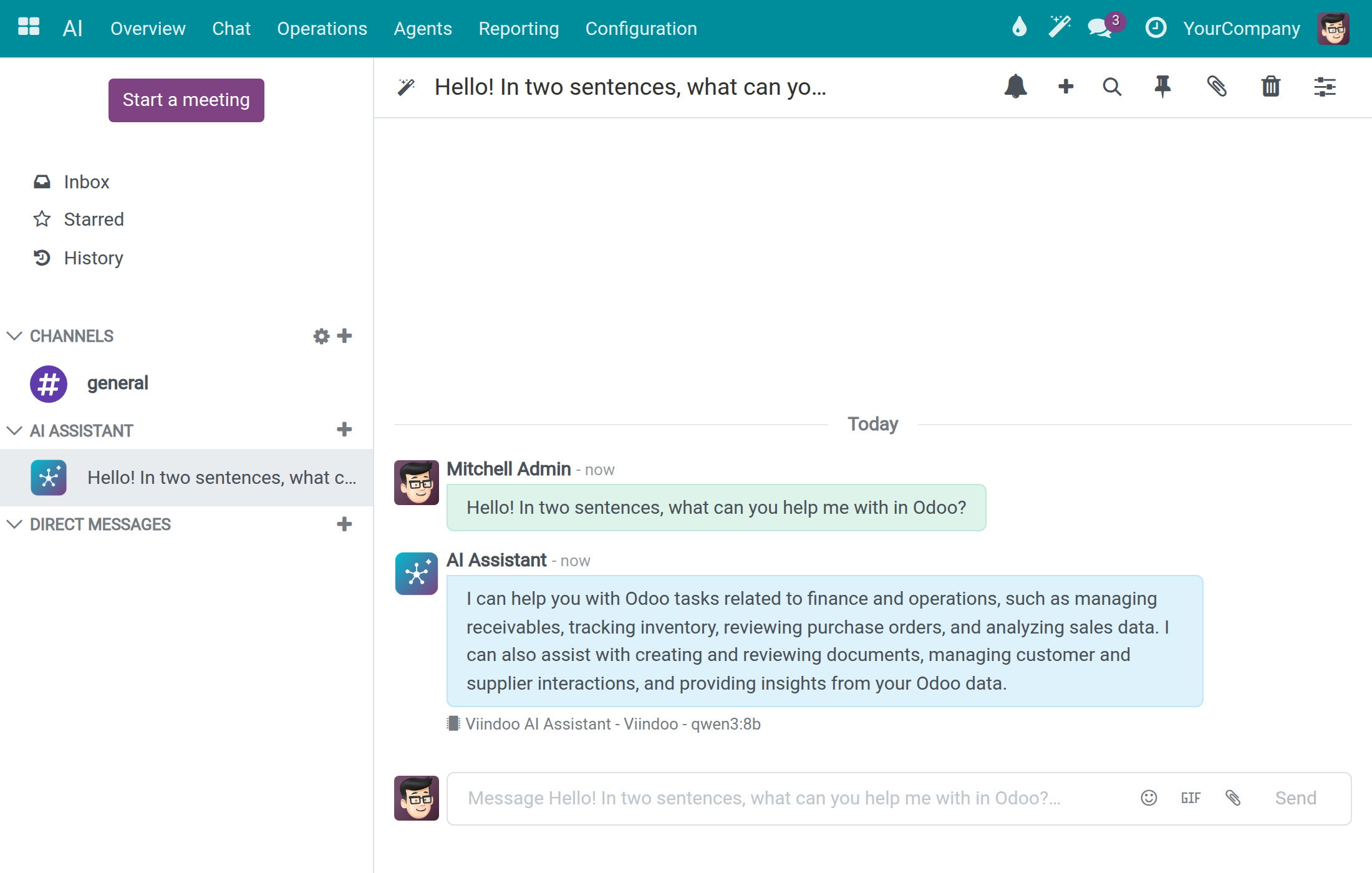
See it in 90 seconds
Watch the 90-second overview: ask from any screen, answers from your documents, any vendor, spend limits and a record of every call.
Is this you?
Your team already pastes company data into public chatbots, and you cannot tell what was shared.
You are afraid of an open-ended AI bill: nobody can tell you what a month of use will cost.
You are tied to one AI vendor, and you cannot say in which region your data is processed.
Generic answers: the assistant knows nothing about your own documents, your website or the way your company works.
You want an assistant inside Odoo that you stay in control of: which tools it can reach, what it remembers, and whether its answers are any good.
What changes
Your team already pastes company data into public chatbots, and you cannot tell what was shared.
→ Every call is recorded: who asked, which vendor and model, how many tokens, what it cost, and the exact text that was sent.
You are afraid of an open-ended AI bill: nobody can tell you what a month of use will cost.
→ Daily limits per user and per company, plus a cap on each run. A call that would go over is refused before it reaches the vendor, with a clear message to the person.
You are tied to one AI vendor, and you cannot say in which region your data is processed.
→ Connect OpenAI, Anthropic, Google Gemini, Mistral, DeepSeek, Qwen and more, or a server of your own, and choose which one answers. Each connection states where the vendor processes data (EU, US, Asia-Pacific or self-hosted), and automatic fallback to another connection stays in the same region and is off until you switch it on.
Generic answers: the assistant knows nothing about your own documents, your website or the way your company works.
→ Add typed text, PDF files, web pages, scanned documents or audio as knowledge, and refresh website pages on a schedule. An assistant can answer only from the sources attached to it, and ready-made skill packs for marketing, legal, research, productivity and more give it a head start.
You want an assistant inside Odoo that you stay in control of: which tools it can reach, what it remembers, and whether its answers are any good.
→ The assistant is in Discuss, in the top bar and under AI → Chat, and keeps your working context in notes only you can see. External tool services are contacted only at addresses an administrator has approved, and people rate answers so quality can be compared with cost. Try it now on the Viindoo connection that ships with the app.
How it works
Connect
System administrator keeps the included Viindoo connection or connects another vendor, then tests it in one click.
Govern
System administrator sets the spending limits, checks where each vendor processes data, adds the documents and websites the assistant may draw on and approves any external tool address. Employees can now ask.
Chat
Employee asks the assistant in Discuss or from any screen and reads the answer in Odoo.
Review
System administrator reads cost and answer ratings on the reports and opens any call to see exactly what was sent.
Key Features
Any vendor, in the region you choose
Pick from ready-made AI vendors, paste your own key and test the connection before anyone uses it. Each connection states where the vendor processes data.
Spending limits that hold
Set daily limits per user and per company and a cap on each run, with a warning as spending nears the limit. Calls over the limit are refused before the vendor is called.
Every call on record, quality next to cost
See tokens and cost per month, open any call to read the exact prompt and reply, and compare answer ratings with what they cost.
An assistant inside Odoo that remembers
Ask in Discuss or from any screen, choose the model per conversation, and let the assistant keep private notes of your working context.
Answers from your own knowledge
Teach the assistant your documents and website pages, and set an assistant to answer only from the sources attached to it.
Ready-made skills, tools you approve
Start from ready-made skill packs, and connect external tool services only at addresses an administrator has approved.
Who it is for
Owner or director
Wants AI productivity without an open-ended bill. Gains spending limits and a record of what the company sends.
IT or ERP manager
Wants to choose and change vendors without rebuilding anything. Gains one place for every connection and an assistant staff already know how to reach.
System administrator
Owns keys, knowledge and tool approvals. Gains a one-click connection test, masked keys, retention periods you set and an address pattern that decides which external services are contacted.
Employee
Wants quick answers while working. Gains an assistant in Discuss and in the top bar, answering in English or Vietnamese, with notes of their own working context.
AI operator
Watches the company's AI use. Gains a company-wide list of calls with their cost and status, and answer quality compared with cost.
Best for: companies that run Odoo, first in Vietnam, and want to bring AI to their teams under spend, audit and data-location rules they set themselves.
Connect the AI vendors you choose
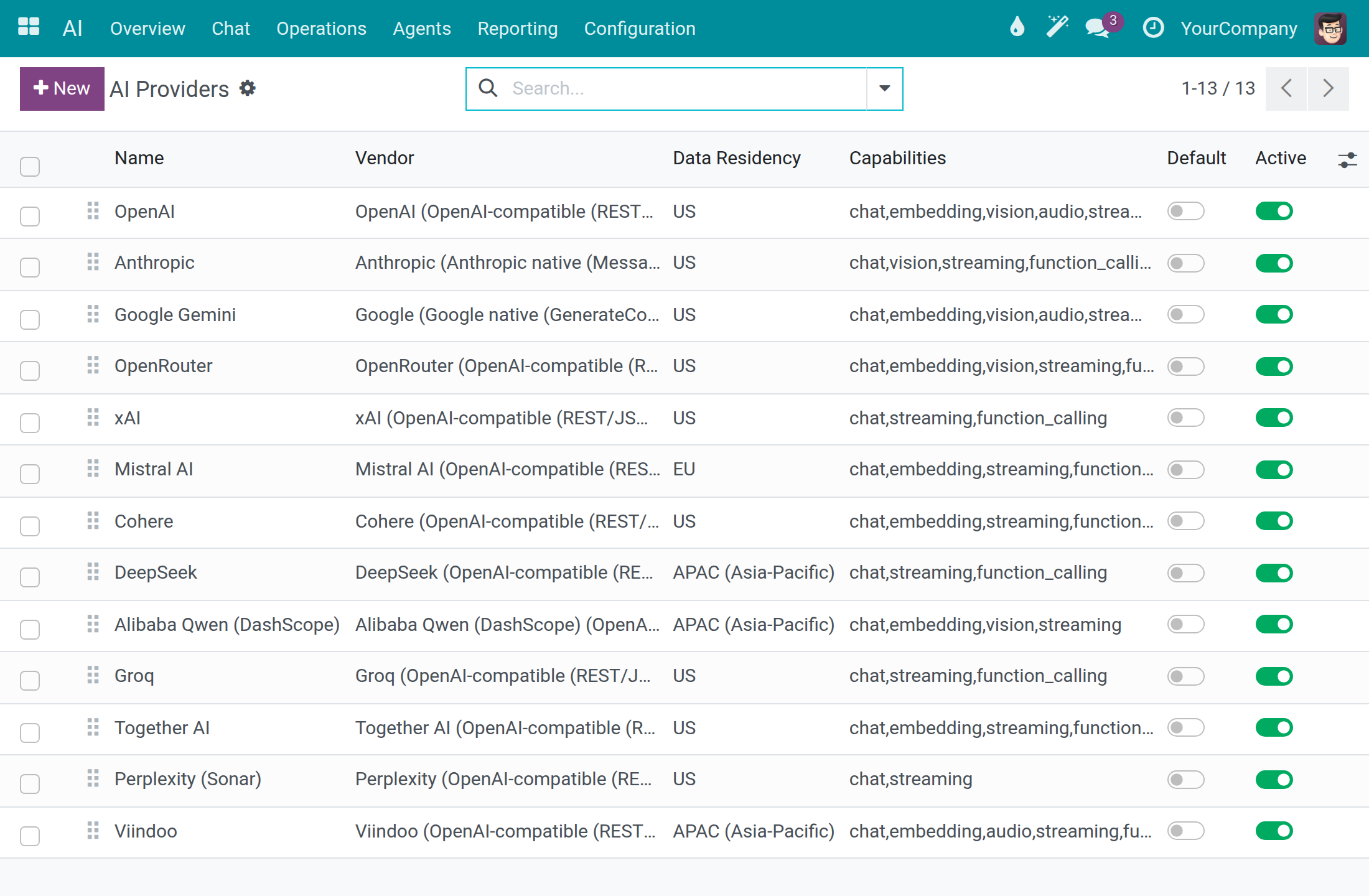
Ready-made connections for the major AI vendors, and more, each showing where the vendor processes data: EU, US or Asia-Pacific.
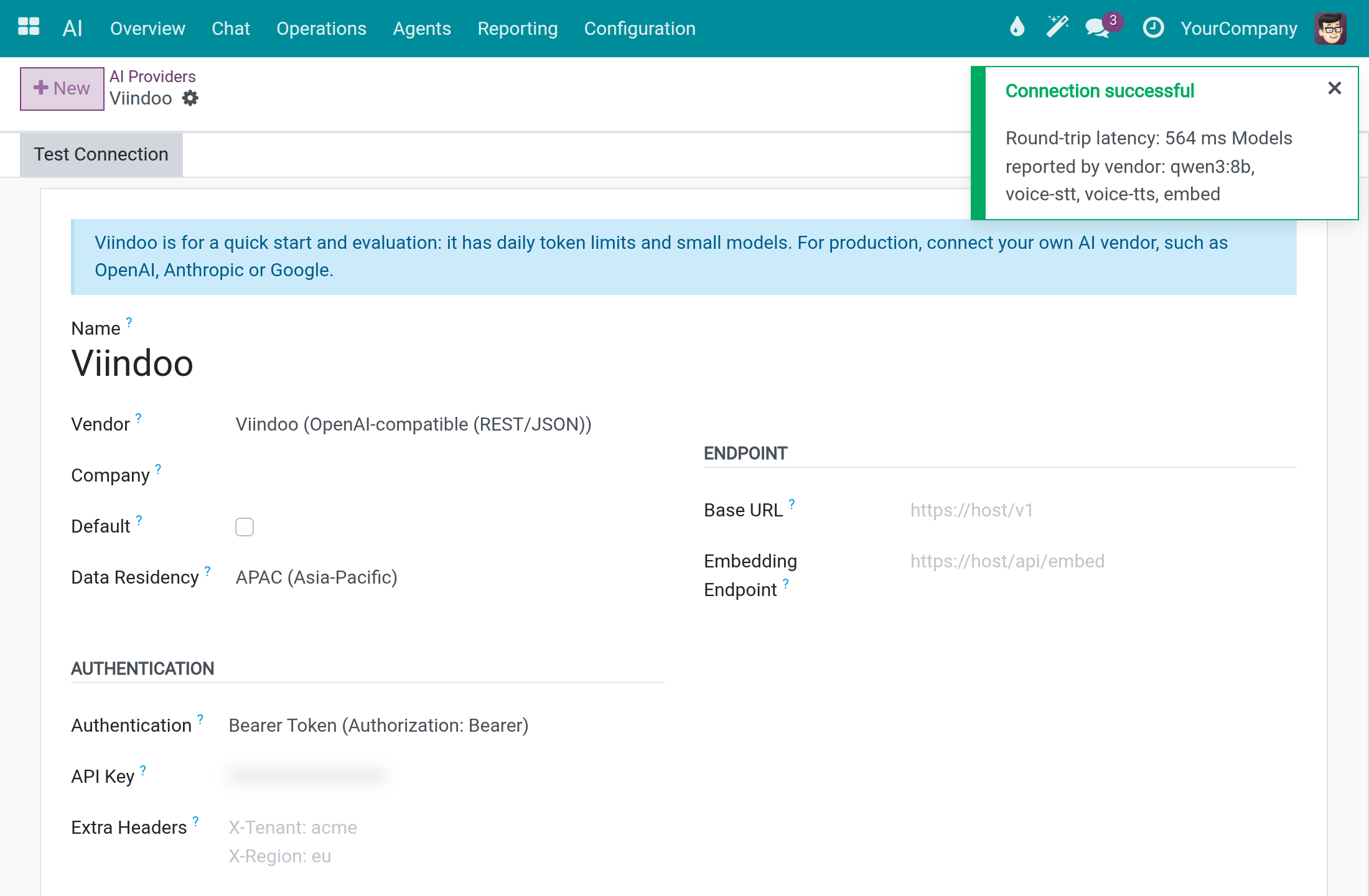
Test a connection in one click
The included Viindoo connection suits a quick start and evaluation. For production, connect your own vendor; the API key stays masked.
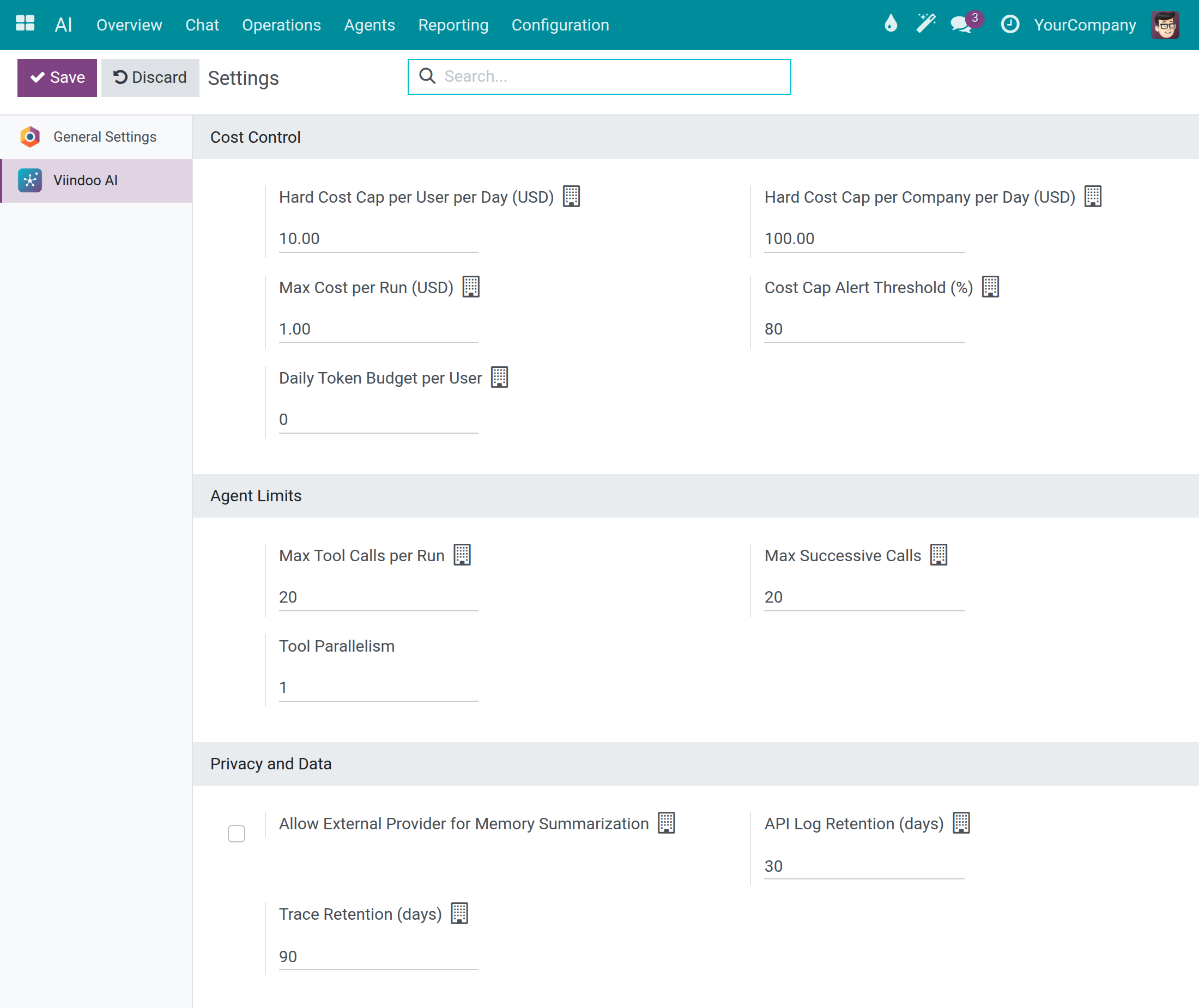
Set spending limits and decide what leaves
Daily limits per user and per company, a cap on each run, an alert threshold, and how long records are kept.
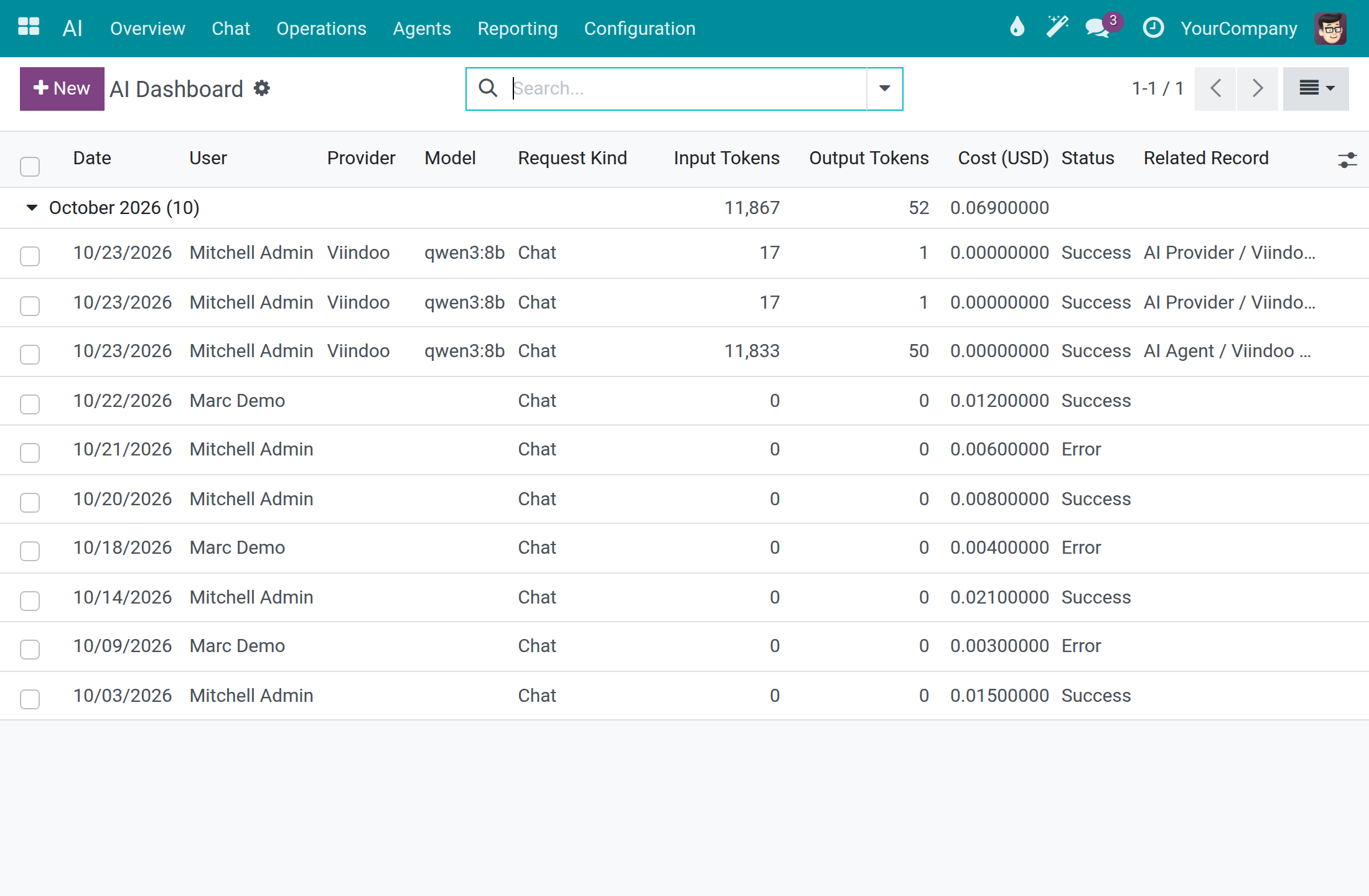
See every call, its cost and its status
Date, user, vendor, model, tokens, cost and status for each call, grouped by month.
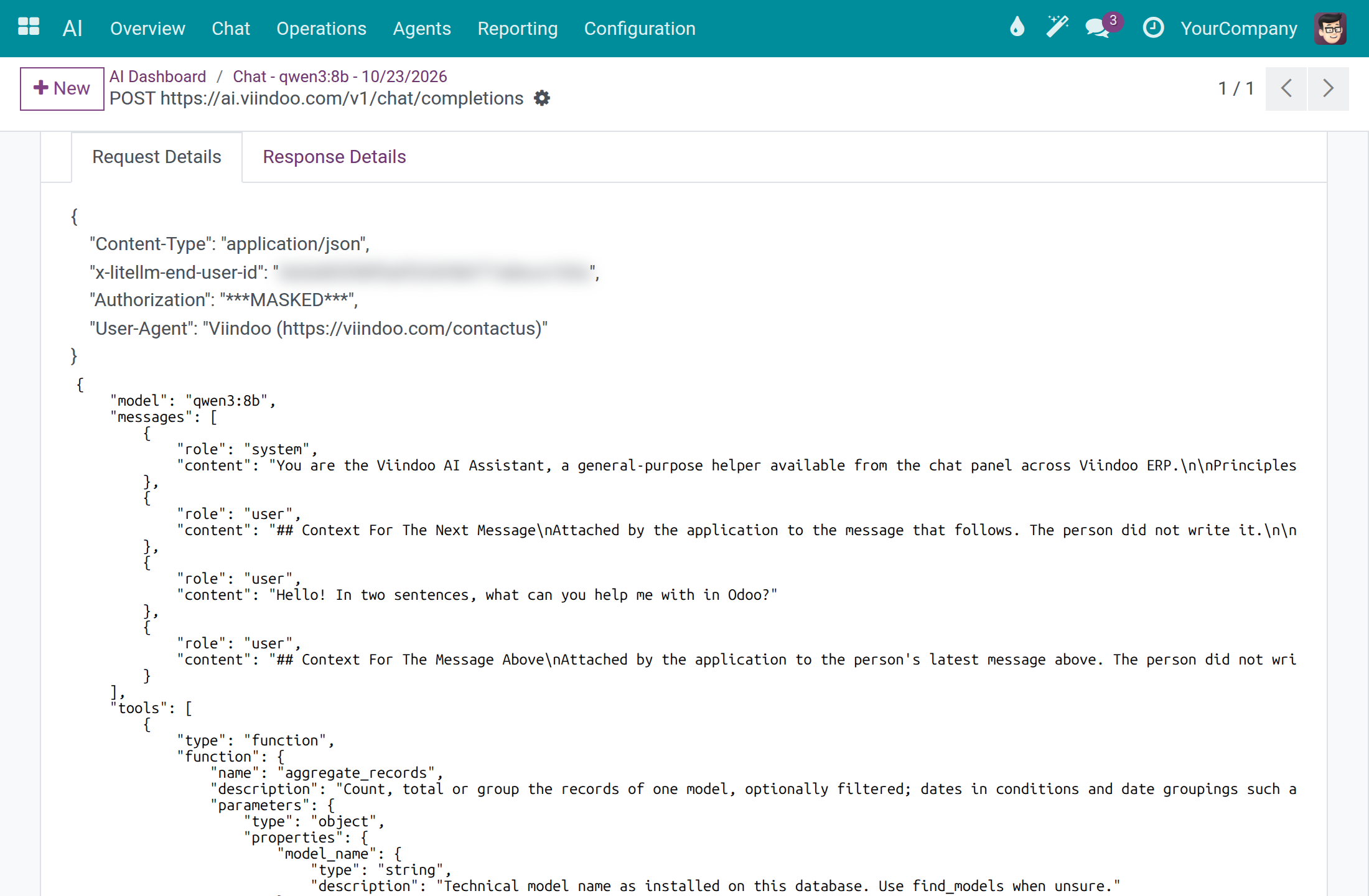
Read exactly what was sent
The raw request and response of a call. The Authorization header shows as masked.
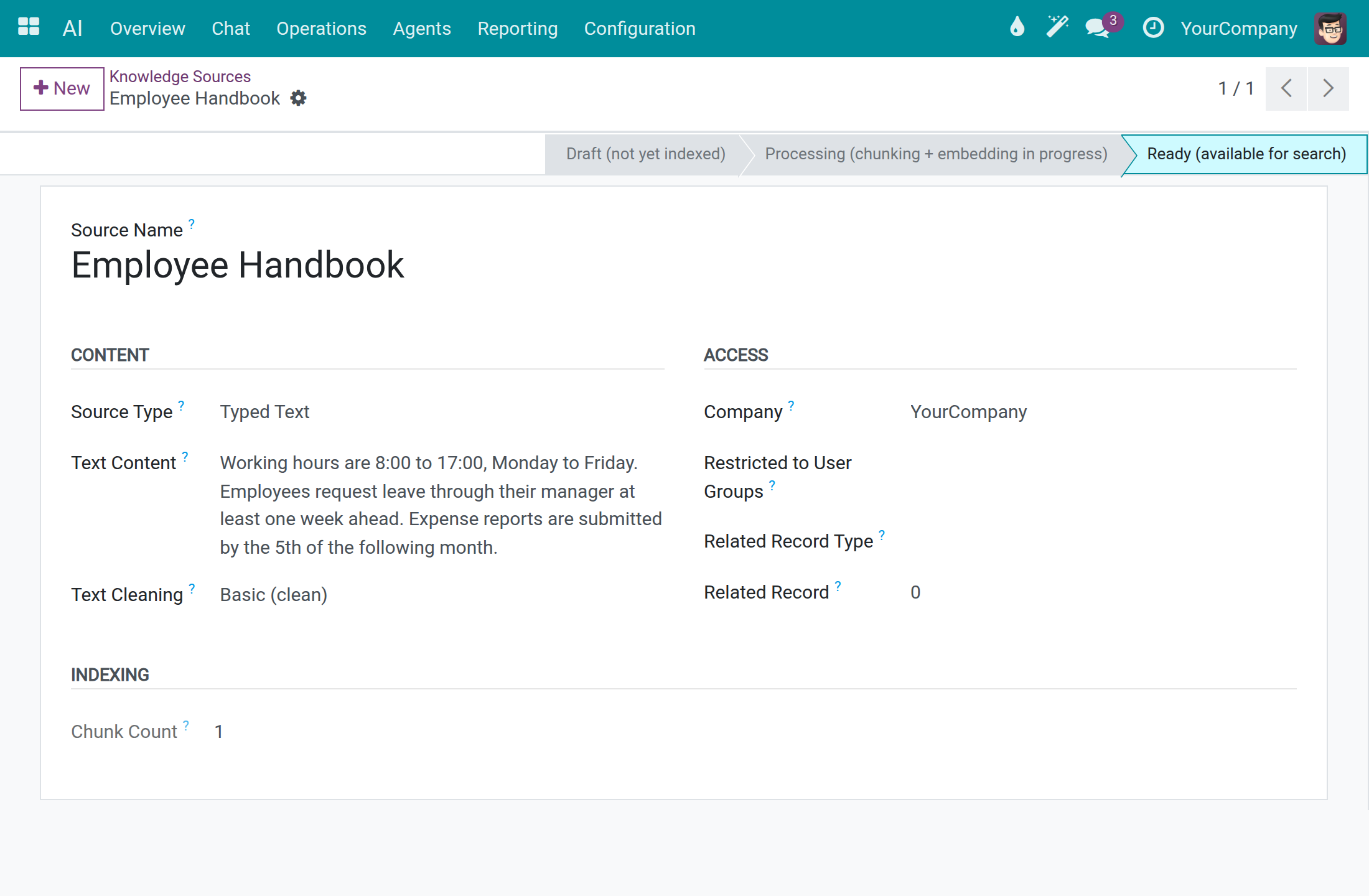
Teach the assistant your own documents
Add typed text, PDF files, web pages, scanned documents or audio. A source moves from draft to ready, and the assistant draws on it once it is ready.
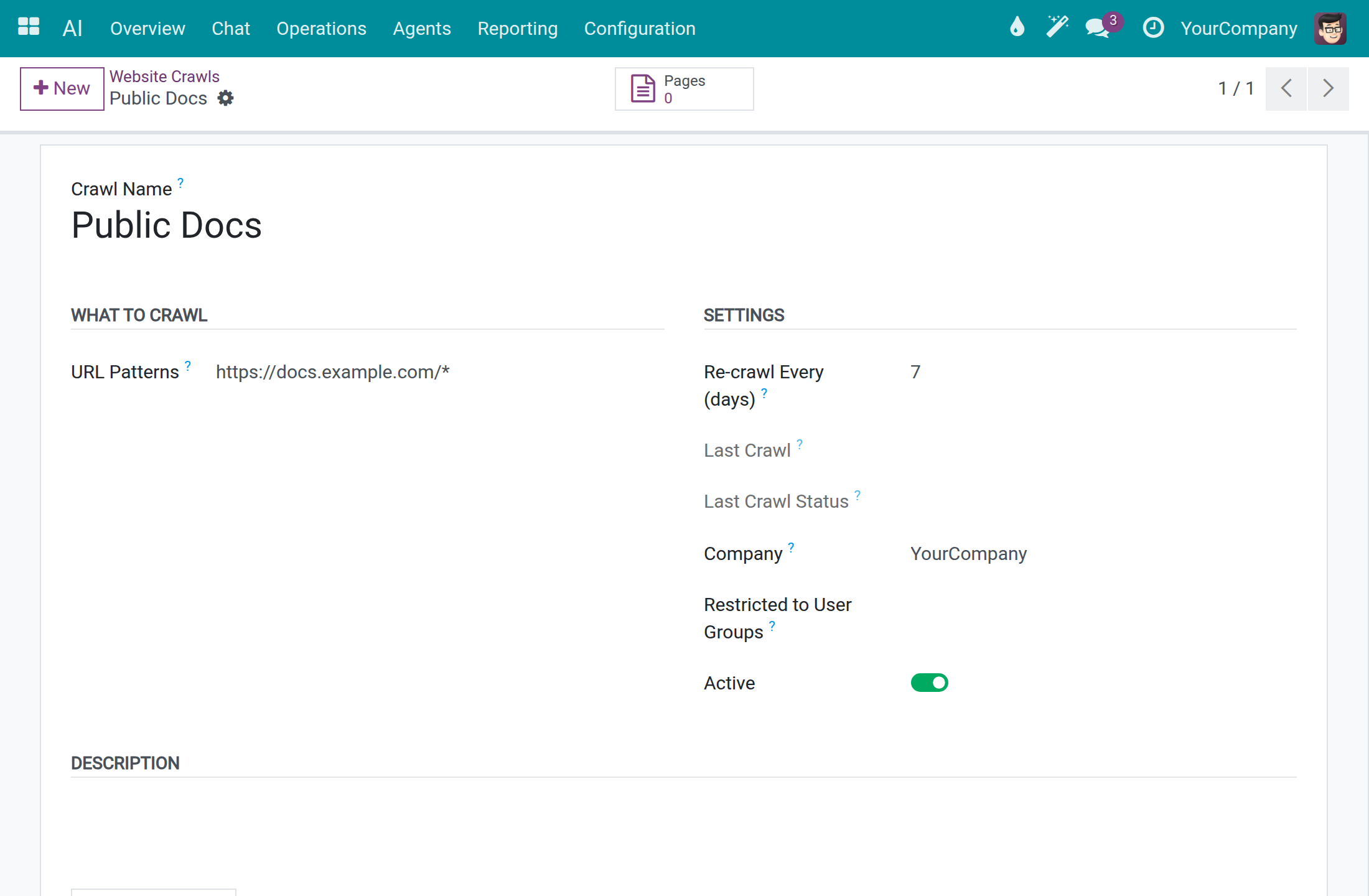
Keep website knowledge fresh
Name the pages to learn from with an address pattern, choose how often to refresh them and limit who can use them.
Shape the assistant
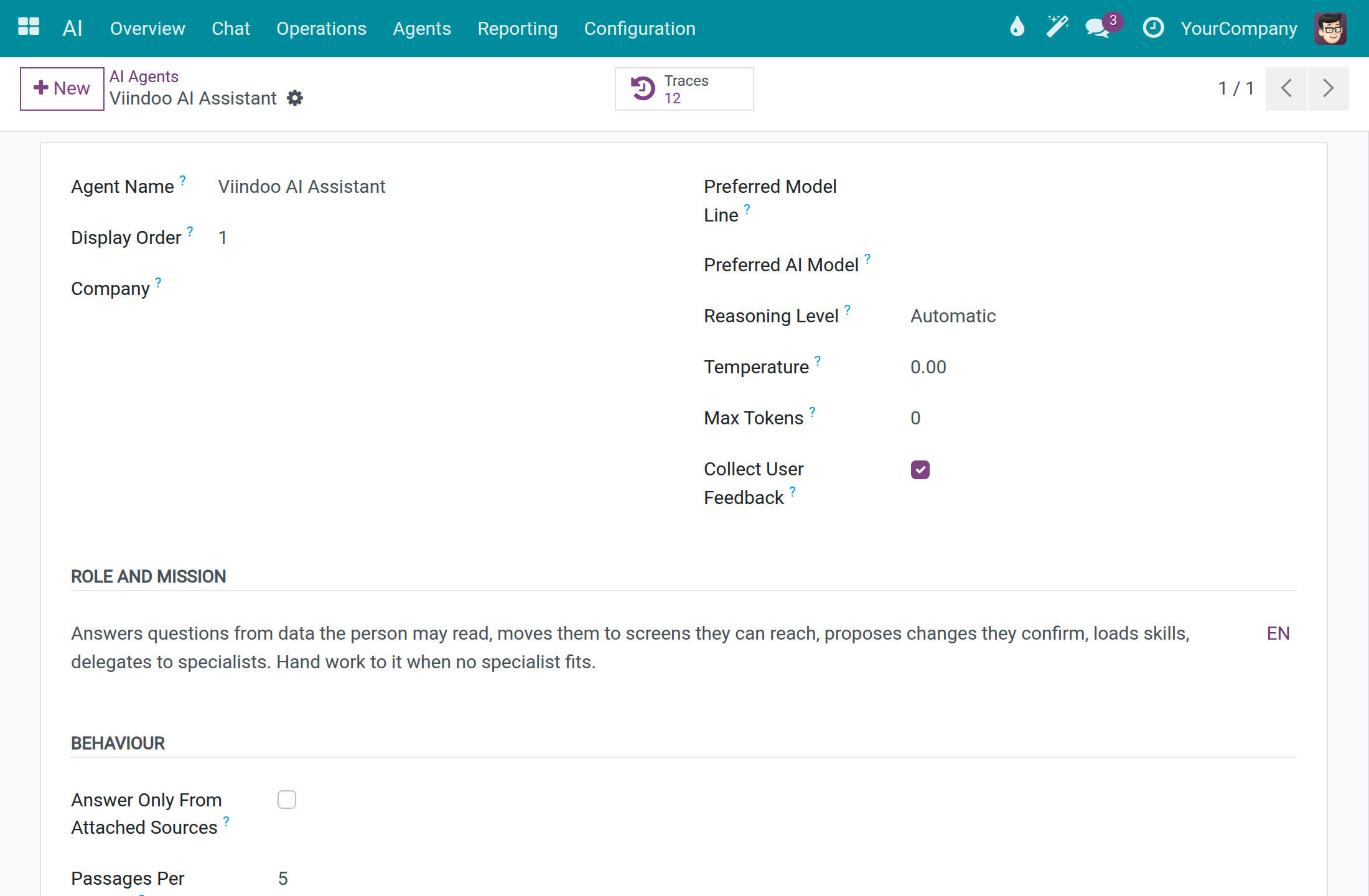
Give it a role and mission, choose its model, ask it to collect feedback, attach knowledge sources, skills and tools, and make it answer only from the sources attached to it.
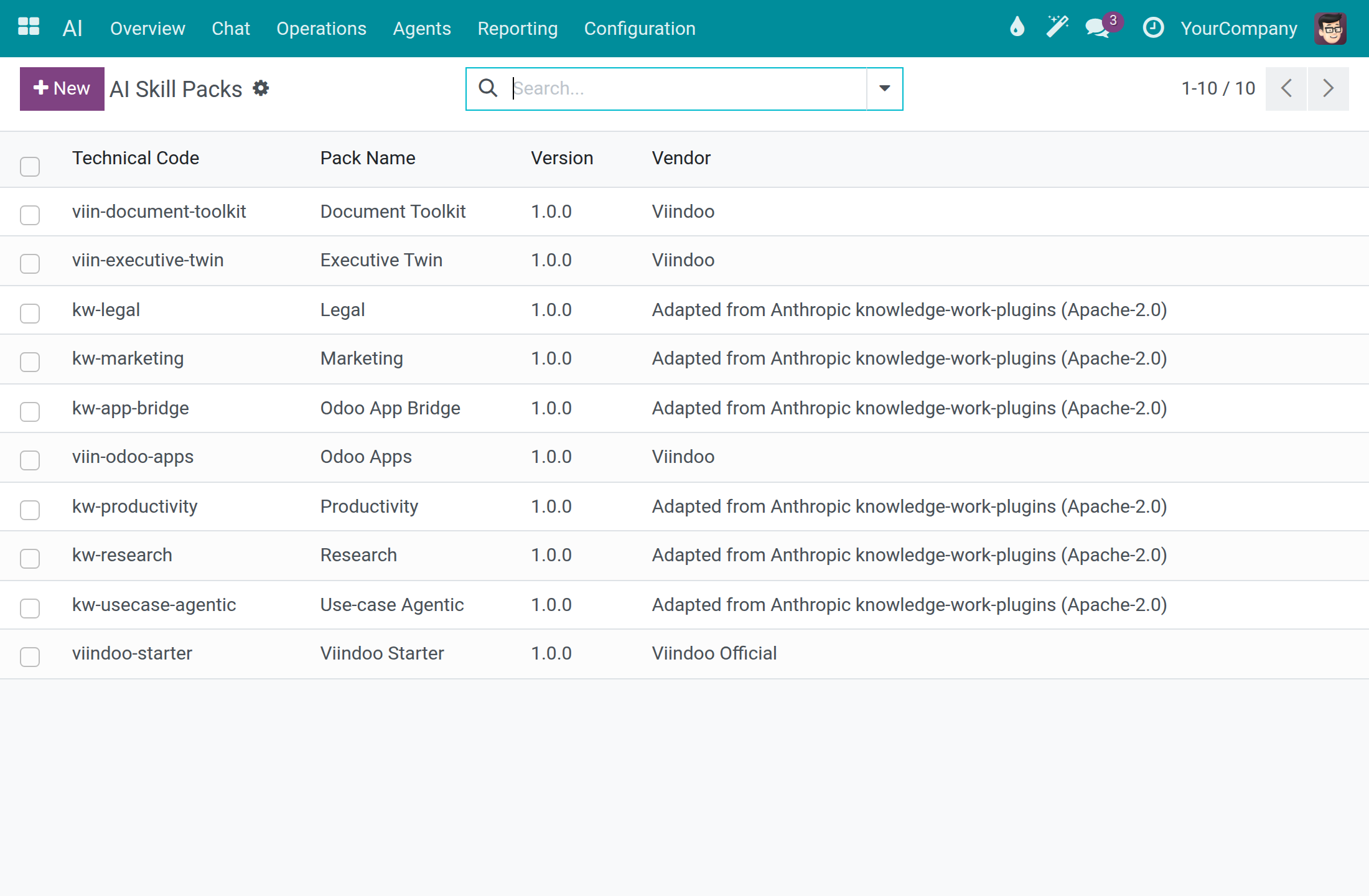
Start from ready-made skill packs
Install bundles of skills for marketing, legal, research, productivity, documents and more.
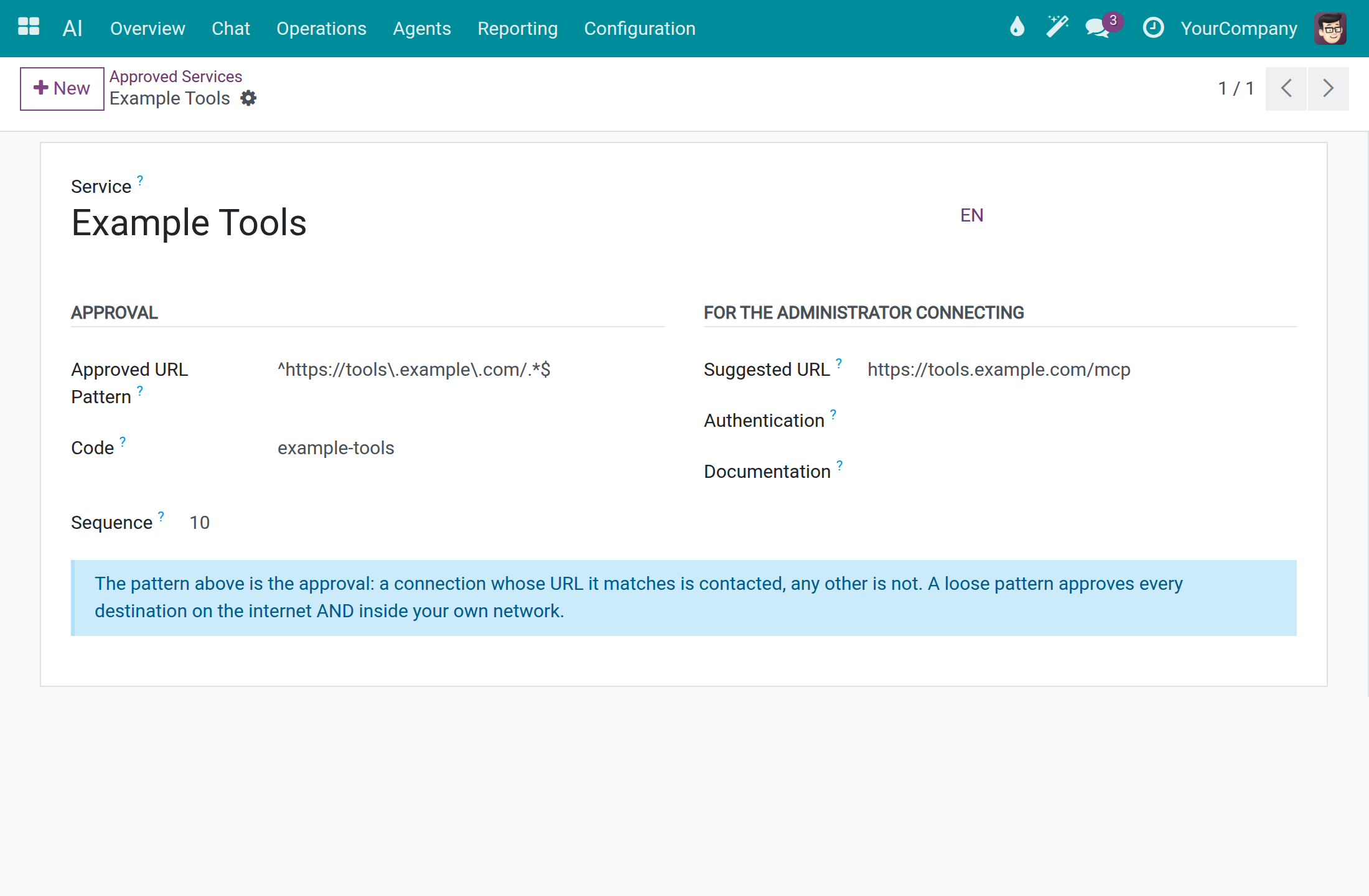
Connect outside tools only where you approve
An approved address pattern decides which external tool services are contacted; any other address is not.
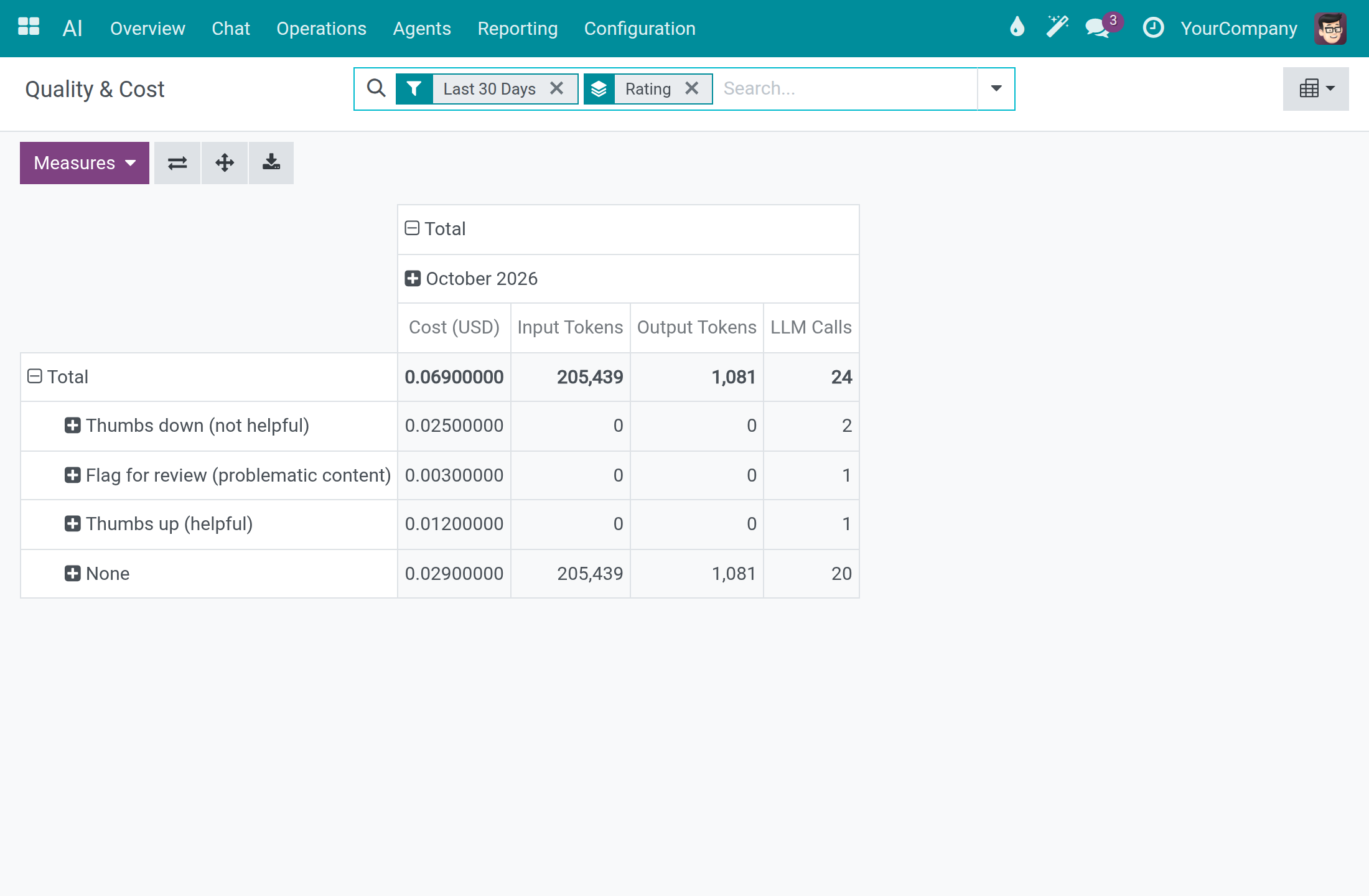
Compare answer quality with cost
Group cost, tokens and calls by the rating people gave to answers over the last 30 days.
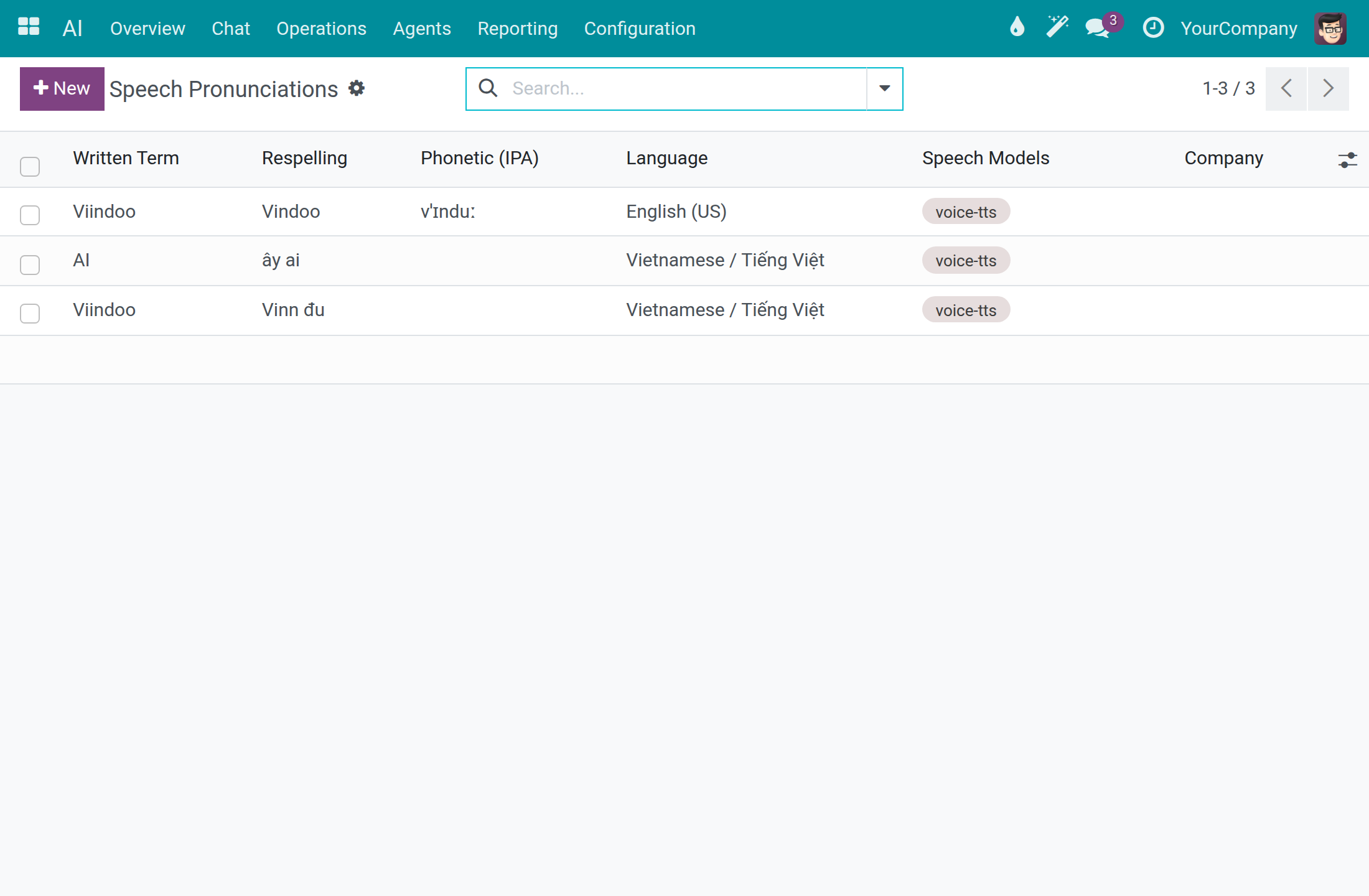
Teach the voice your company terms
Keep a list of written terms with the way a speech voice should say them, per language.
See Viindoo AI in Action
Tutorial video for administrators
6 minutes 45 seconds: connect an AI vendor, set spending limits and review the calls.
Tutorial video for employees
2 minutes 44 seconds: ask the AI assistant inside Odoo.
Frequently Asked Questions
Do I need my own AI vendor account to start?
No. A free Viindoo connection is included so you can try the assistant on day one, within a daily usage limit. It is meant for a quick start and evaluation, with small models. For production, connect your own vendor such as OpenAI, Anthropic or Google.
Can I cap what AI costs us?
Yes. Set hard limits per user per day, per company per day and per run, plus an alert threshold. A call that would exceed a daily limit is refused before the vendor is called, and the person sees a clear message. A daily token budget per user warns without blocking.
Can I check what was sent to the vendor?
Yes. Open any call from the AI dashboard to read the exact prompt and the reply. Users see their own calls; an AI operator sees the whole company's. The raw request record shows the Authorization header masked.
Who can change keys and limits?
Only system administrators open the Settings screen and edit a connection's API key and address.
How do I keep data in a region?
Each connection declares where the vendor processes data. A self-hosted connection without a private address refuses to call a public service. Answering through another connection when one fails is off by default and stays in the same region when you switch it on.
What happens when a vendor cannot answer?
The assistant says it could not answer and offers Try again and Check AI setup in one click.
Is it available in Vietnamese?
Yes. The interface and the assistant's answers work in Vietnamese and in English.
Can the assistant use our own documents and website?
Yes. Administrators add knowledge sources: typed text, PDF files, web pages, scanned documents or audio. Website pages can be refreshed on a schedule and limited to chosen user groups. An assistant can be set to answer only from the sources attached to it.
Does the assistant remember me?
It keeps notes of your working context in a memory that only you can see.
Can it connect to other tools?
Only to external tool services an administrator has approved. Each server must match an approved address pattern; nothing is sent to an address without a matching approval.
How do I know the answers are good?
People rate an answer as helpful, not helpful or flag it for review, and the Quality and Cost report groups cost, tokens and calls by rating.
Need help with Viindoo AI?
Pre-Sales & Partnership
viindoo.com/contactusTechnical Support
viindoo.com/ticketTechnical Requirement
- Odoo version: 17.0
- Editions: Odoo Community, Viindoo Cloud
- Required modules: base, bus, mail, to_base, viin_api_request_logger, web
- Database: PostgreSQL with the pgvector extension
- Python package: lingua-language-detector
- License: OPL-1
- Administration screens: AI administrators tune models and model lines, message adapters for each vendor protocol and the screen actions the assistant may use under AI → Configuration.
Viindoo AI
This guide is for system administrators, who connect Odoo to an AI vendor and keep spending, records and data location under control, and for employees, who ask the AI assistant questions while they work.
Overview
Viindoo AI connects your Odoo database to the AI vendor of your choice and puts an AI assistant inside Odoo. Administrators set spend limits, choose where data may be processed and can always find the record of what was sent to the vendor. Employees chat with the assistant from the AI app or from any screen.
A ready-to-use connection named Viindoo is available right after installation, so the assistant answers before any vendor is configured. It is meant for a quick start and evaluation: it has daily token limits and small models. For production, connect your own AI vendor, such as OpenAI, Anthropic or Google.
The work happens in four steps:
- The system administrator keeps the Viindoo connection or connects another AI vendor.
- The system administrator sets spend limits and checks where each vendor processes data.
- Employees chat with the assistant.
- The system administrator reviews what AI cost and opens the record of any call.
| Role | What they do | Access right to assign |
|---|---|---|
| System administrator | Installs the app, connects AI vendors, sets spend limits, chooses where data may go, reads the audit records. Only this role opens Settings, Knowledge Sources, Feedback and Feedback Categories, and changes skills, screen capabilities, approved services and external tool servers. | Administration: Settings |
| AI Administrator | Opens the AI ‣ Configuration menu and maintains AI Vendors, Providers, Models, Model Lines, Message Adapters and Speech Pronunciations. Sees skills, screen capabilities, approved services and external tool servers without changing them. The API key and the endpoint stay with the system administrator. | AI: AI Administrator |
| AI Operator | Sees the AI calls of the whole company, not only their own. | AI: AI Operator |
| AI Content Manager | Has write access to knowledge sources and website crawls. Reaches the crawl rules through AI ‣ Operations ‣ Website Crawls; the Knowledge Sources menu opens for system administrators only. | AI: AI Content Manager |
| API log reader | Opens the raw HTTP record of an AI call. | Technical: API Log Viewer |
| Employee | Chats with the assistant, sees their own AI calls and notes, and reads the AI Navigation Log of their own steps. | Internal user (no extra right) |
Setup (for the system administrator)
Watch the administrator video tutorial (6:45): www.youtube.com/watch?v=yQDJoYupmrQ
Install Viindoo AI
- Open Apps, search for Viindoo AI and click Install. The apps it needs, such as Discuss and API Request Logger, are installed with it.
- Make sure your database offers the pgvector extension of PostgreSQL, which Viindoo AI requires. Your hosting provider can confirm this.
Give people the right access
Every internal user can chat with the assistant. The extra rights of the table above are assigned per user.
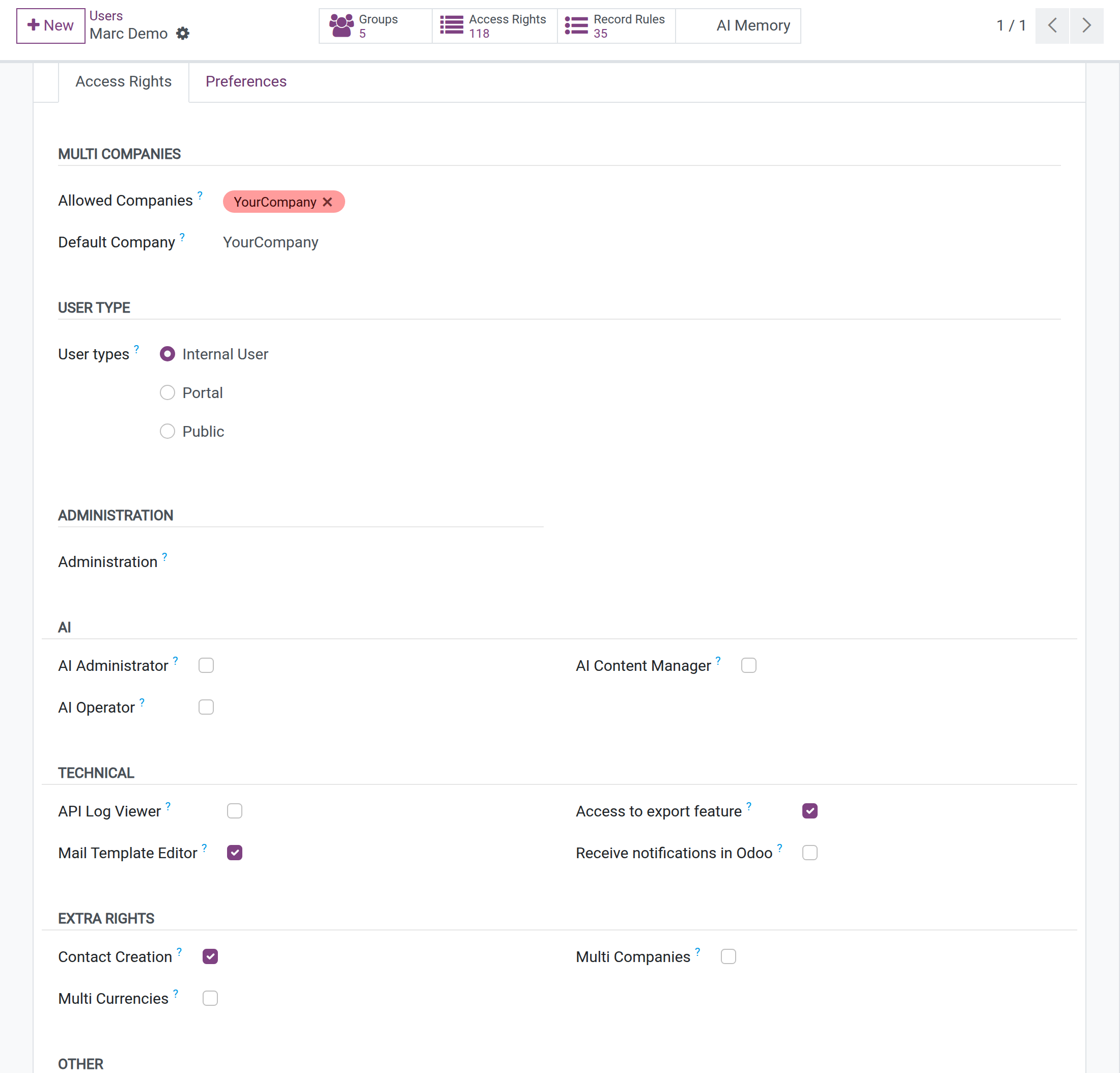
Open Settings ‣ Users & Companies ‣ Users and open the user.
Open the Access Rights tab. The AI section lists AI Administrator, AI Operator and AI Content Manager; API Log Viewer is under Technical. These sections appear when developer mode is active. Tick the right and save.
Find your way in the AI app
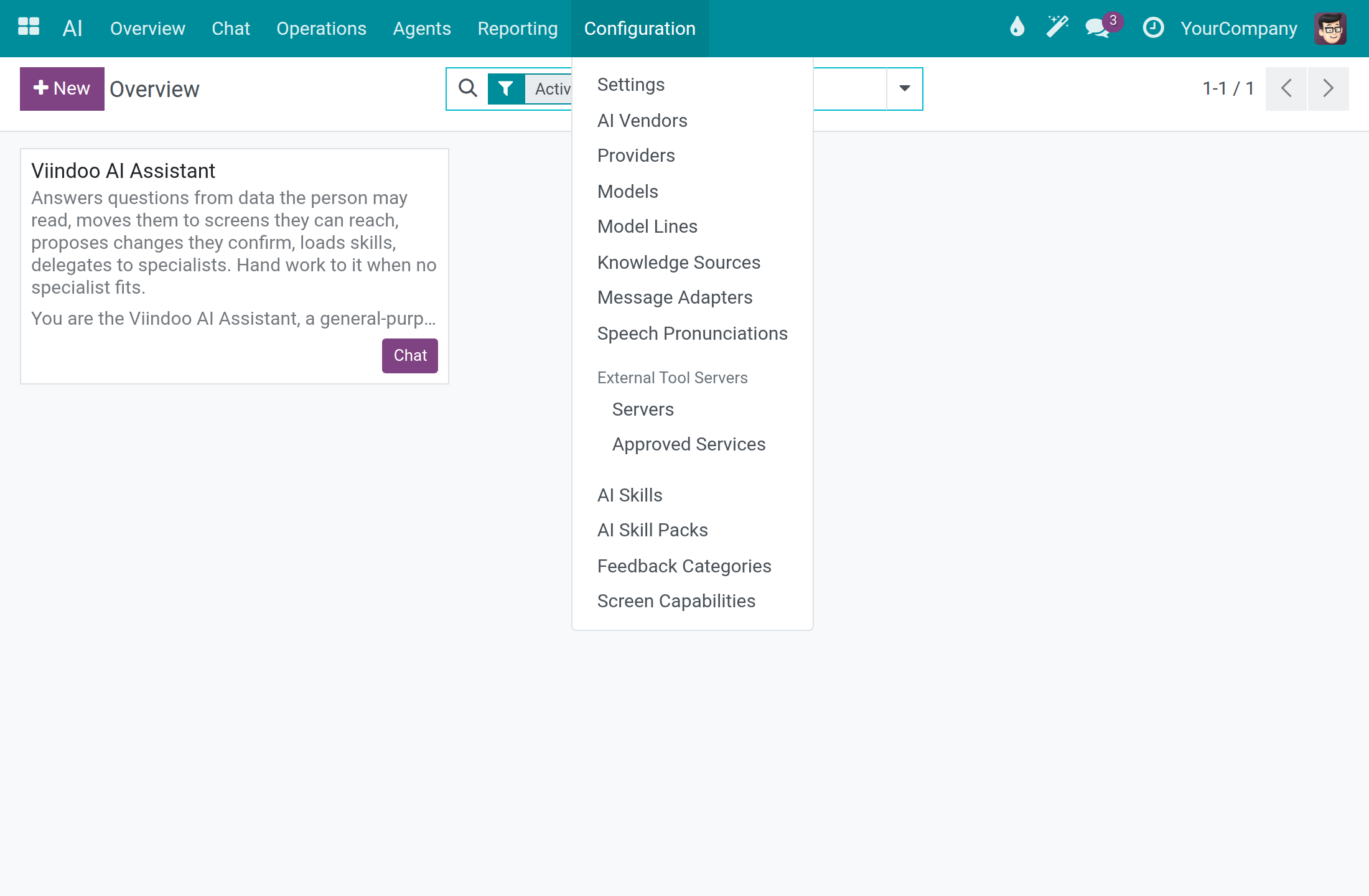
The AI app has the menus Overview, Chat, Operations, Agents, Reporting and Configuration. Everything an administrator configures lives under Configuration.
System administrator: connect and govern AI
Check the ready-to-use connection
Use this check any time you want to know whether a connection works.
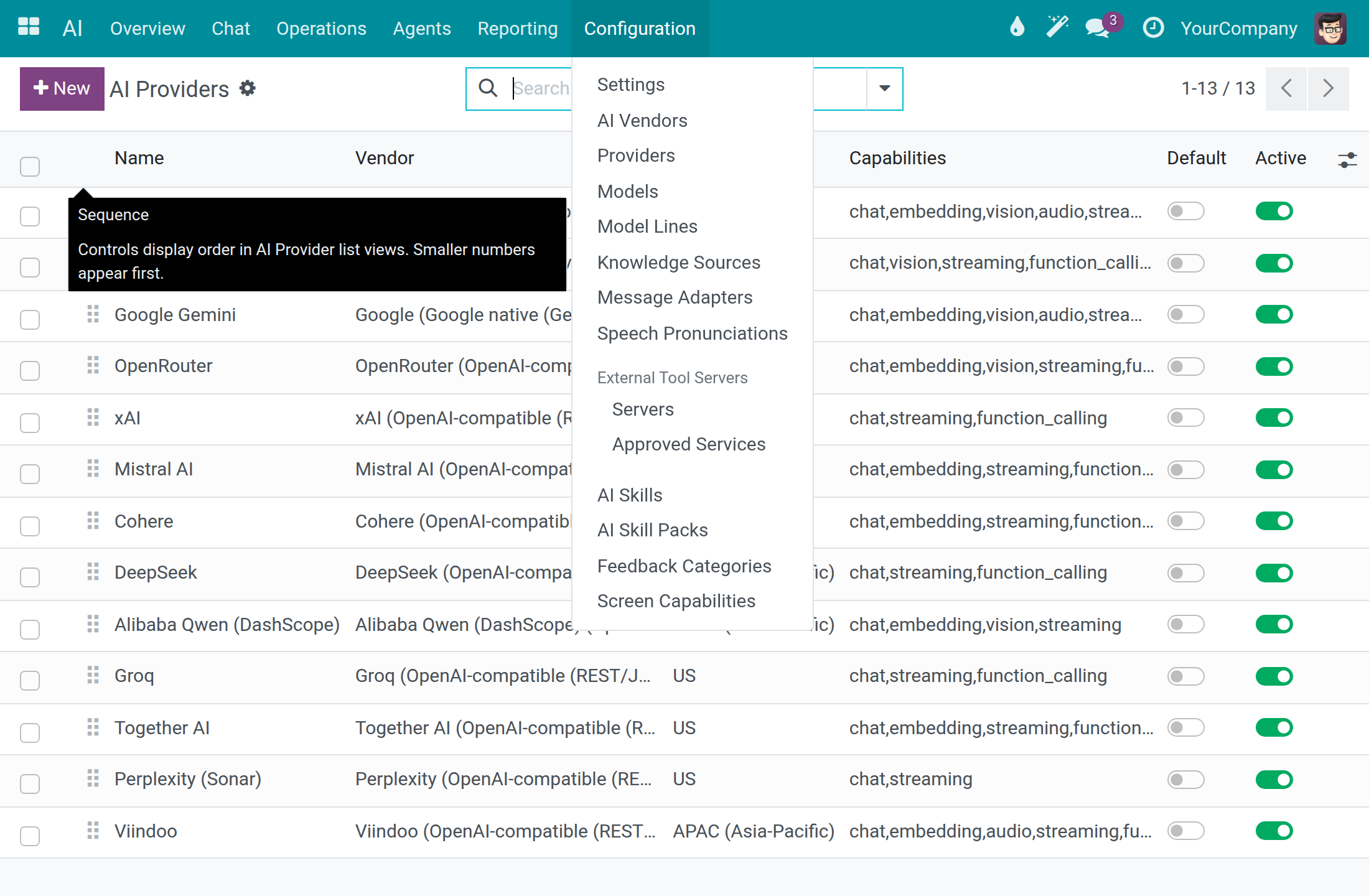
Open AI ‣ Configuration ‣ Providers. Each row is a connection to an AI vendor, with its Vendor, Data Residency and Capabilities.
Open the connection Viindoo.
Click Test Connection. A green Connection successful message shows the round-trip time and the models the vendor reports. The test sends a tiny request through the connection, which the vendor bills under that key (a negligible amount).
The API Key field shows dots instead of the key.
Connect your own AI vendor
Open AI ‣ Configuration ‣ Settings.
In the Connections section, open Chat Vendor and choose the connection of your vendor, for example OpenAI. Thirteen connections are listed ready to use: OpenAI, Anthropic, Google Gemini, OpenRouter, xAI, Mistral AI, Cohere, DeepSeek, Alibaba Qwen (DashScope), Groq, Together AI, Perplexity (Sonar) and Viindoo.
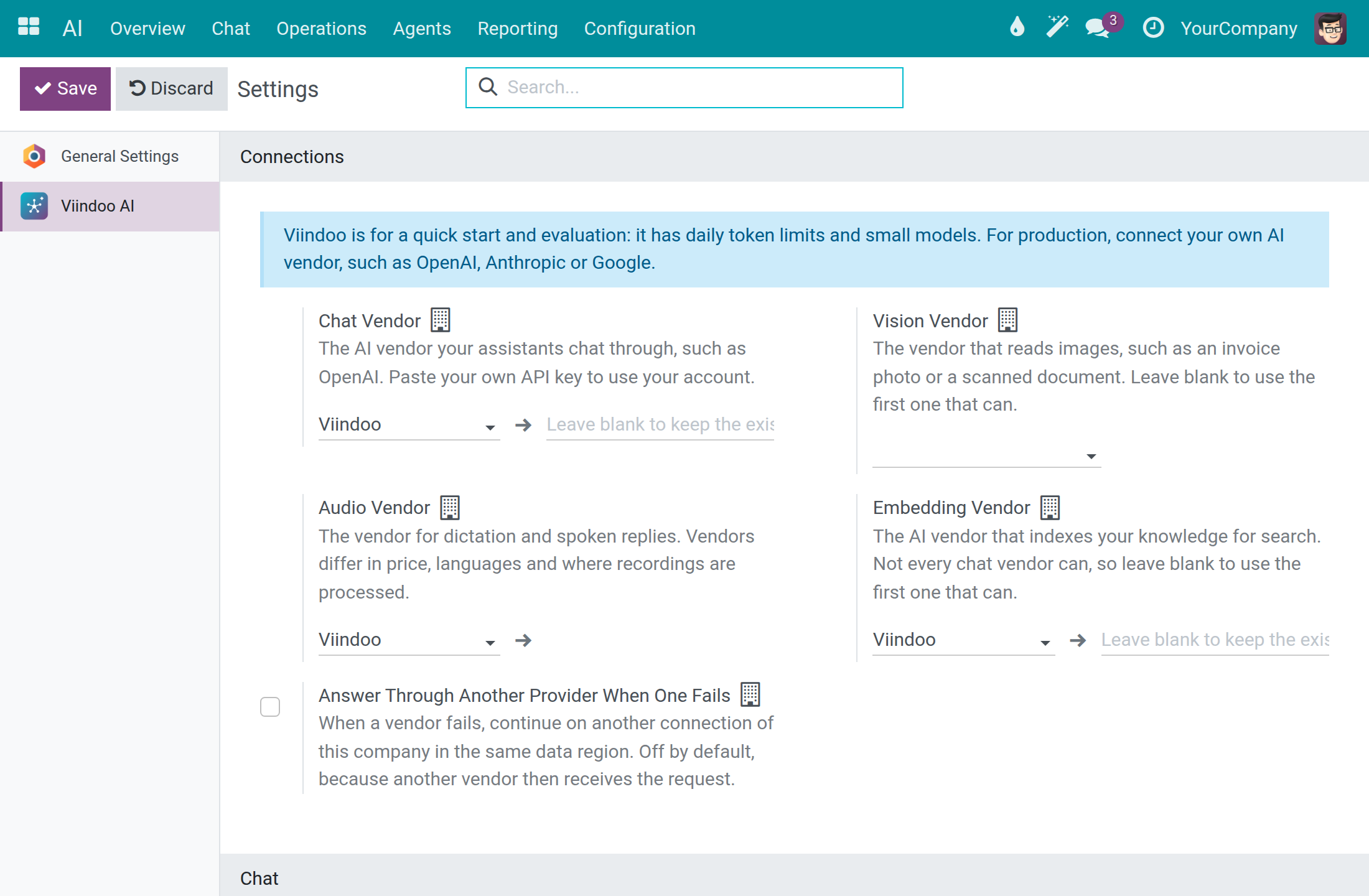
Paste your API key in the field to the right of Chat Vendor. When a key is already stored, leave the field empty to keep it.
Leave Vision Vendor empty to use the first vendor that can read images. Use Audio Vendor for dictation and spoken replies and Embedding Vendor for the search over your knowledge in the same way.
Click Save.
Open AI ‣ Configuration ‣ Providers, open your connection and click Test Connection to confirm that the key works.
Note
Fields marked with a small building icon apply to the current company, so each company of a multi-company database can use its own vendor. A vendor that has no ready connection, for example an Ollama server or Azure OpenAI, is added with New in AI ‣ Configuration ‣ Providers: pick the Vendor, fill in Base URL and the key.
Choose where data may go
Each connection declares where its vendor processes data. Use it to match your own policy, for example to keep data of European customers with a vendor in the EU, or to keep everything on your own servers.
Open AI ‣ Configuration ‣ Providers and read the Data Residency column: EU, US, APAC (Asia-Pacific) or Self-Hosted (on-premise). In the ready-made list Mistral AI is EU, OpenAI is US.
Open a connection to see its Data Residency. Picking a vendor fills it with the vendor's typical region; you can change it, and your choice is kept. Choose Self-Hosted (on-premise) only for a server on your own infrastructure.
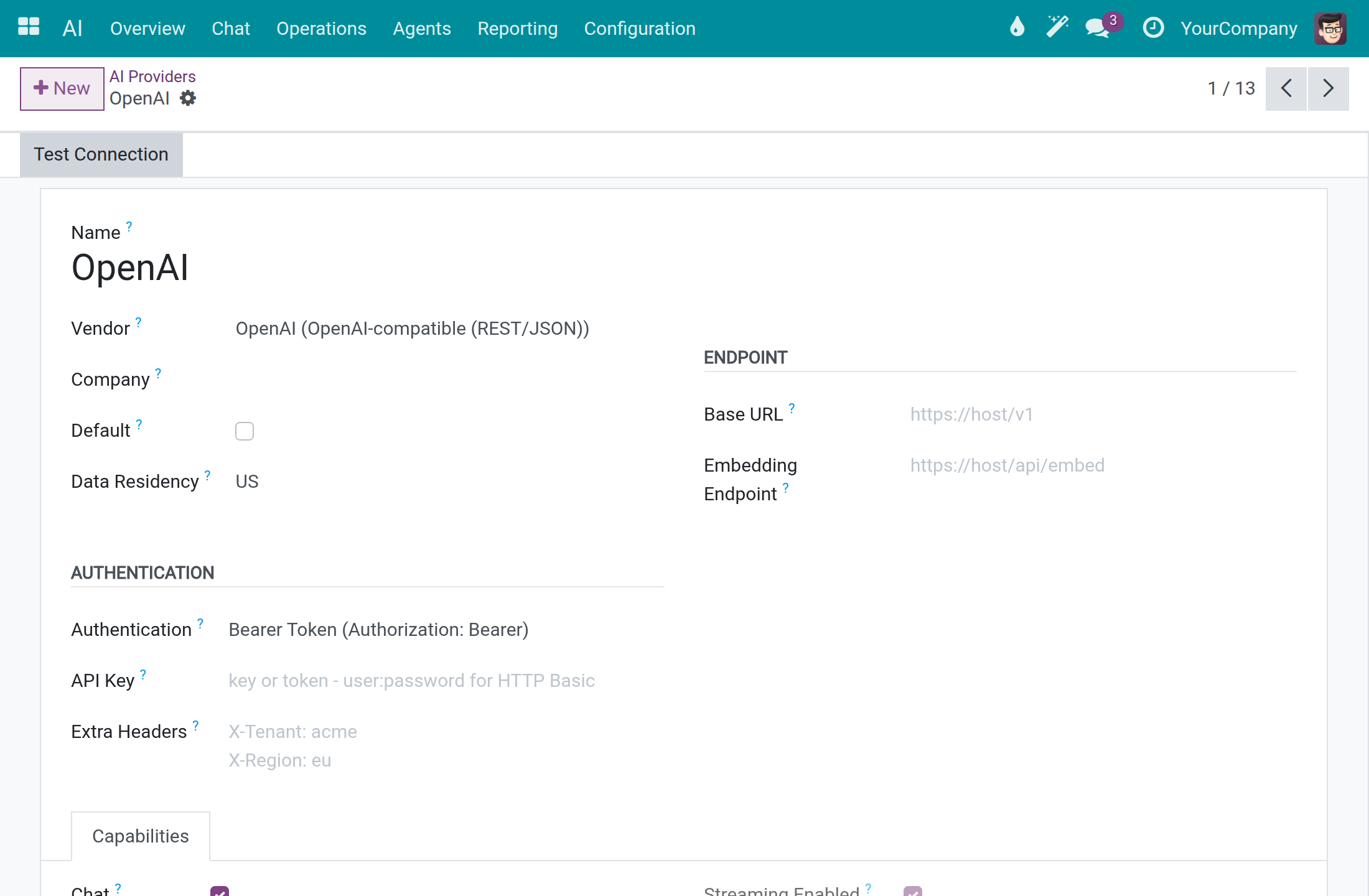
For a self-hosted server, fill in Base URL with your own endpoint. A connection set to Self-Hosted (on-premise) with no private endpoint refuses to send requests to the vendor's public service.
Choose the connection that fits your policy in Chat Vendor (see the previous section).
In AI ‣ Configuration ‣ Settings, Answer Through Another Provider When One Fails is off by default. Turn it on to let a failed request continue on another connection of the same company in the same data region; it stays off when you do not want another vendor to receive the request.
Allow External Provider for Memory Summarization, in the Privacy and Data section of the same screen, is off by default: the daily summary of assistant memory then uses only a self-hosted connection, and that data stays on your infrastructure.
Set spend limits
Open AI ‣ Configuration ‣ Settings.
Go to the Cost Control section and change a limit, for example Hard Cost Cap per User per Day (USD) to 5.00.
Click Save. The page reloads and shows the limits as saved.
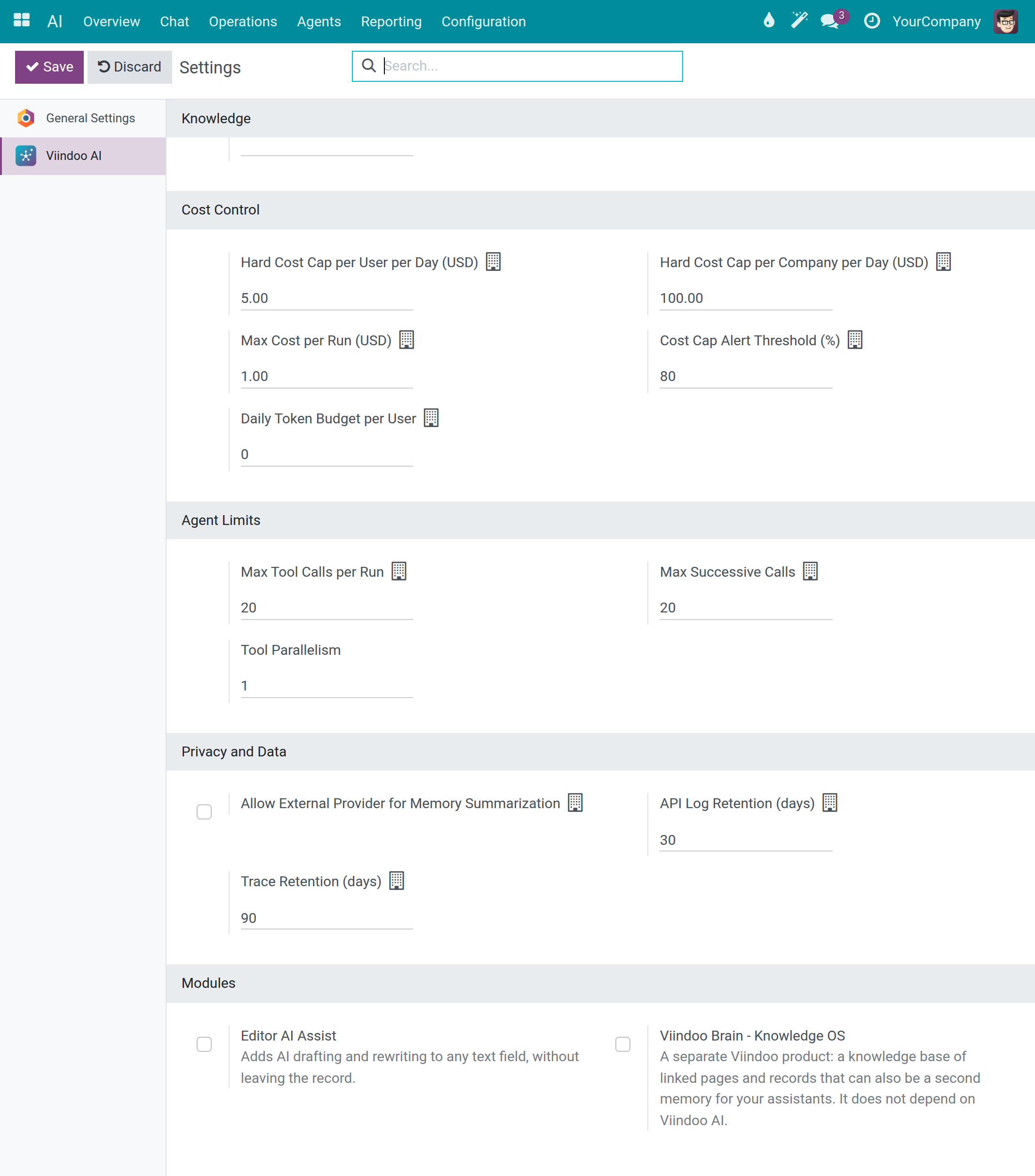
| Setting | What it does | Value on a fresh install |
|---|---|---|
| Hard Cost Cap per User per Day (USD) | Blocks requests above this daily spend of one person. | 10.00 |
| Hard Cost Cap per Company per Day (USD) | Blocks requests above this daily spend of the company. | 100.00 |
| Max Cost per Run (USD) | Most an assistant may spend in one run. | 1.00 |
| Cost Cap Alert Threshold (%) | Warns when spending reaches this percentage (0-100) of the hard cap. | 80 |
| Daily Token Budget per User | Warns once a person passes this many tokens in a day; never blocks. 0 turns it off. | 0 |
For the three hard limits, -1 means unlimited and 0 is not accepted. A request that would exceed a hard limit is refused before anything is sent to the vendor, and the person sees a clear message that the daily cost cap is exceeded. The Agent Limits section next to it caps the tool calls and consecutive AI calls of one run (20 each).
The Modules section at the bottom of the same screen offers the optional add-on apps Editor AI Assist and Viindoo Brain - Knowledge OS, which you can turn on from here.
See what AI costs and find the record of what was sent
Open AI ‣ Reporting ‣ Dashboard. The table shows tokens and Cost (USD) per month.
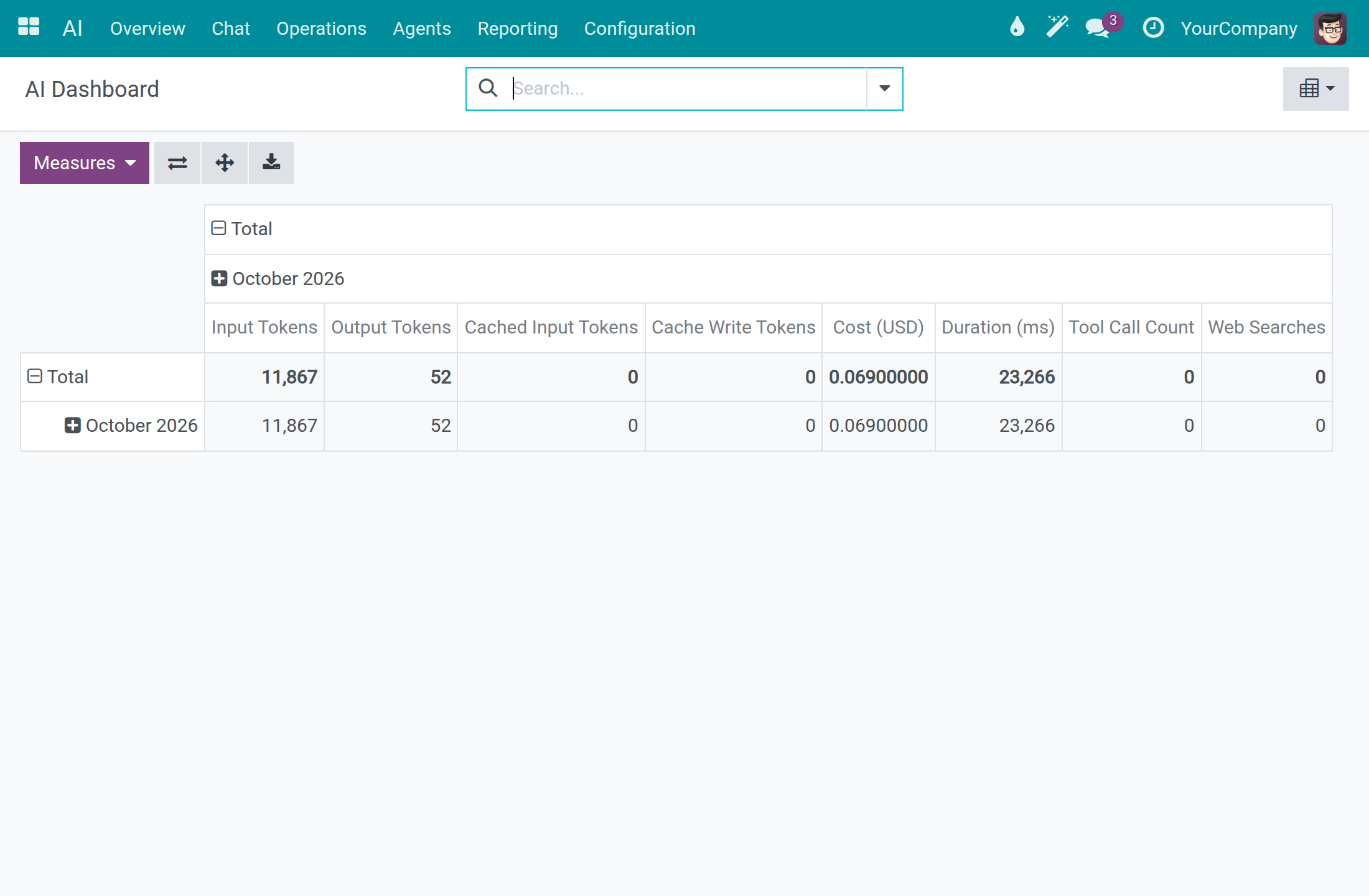
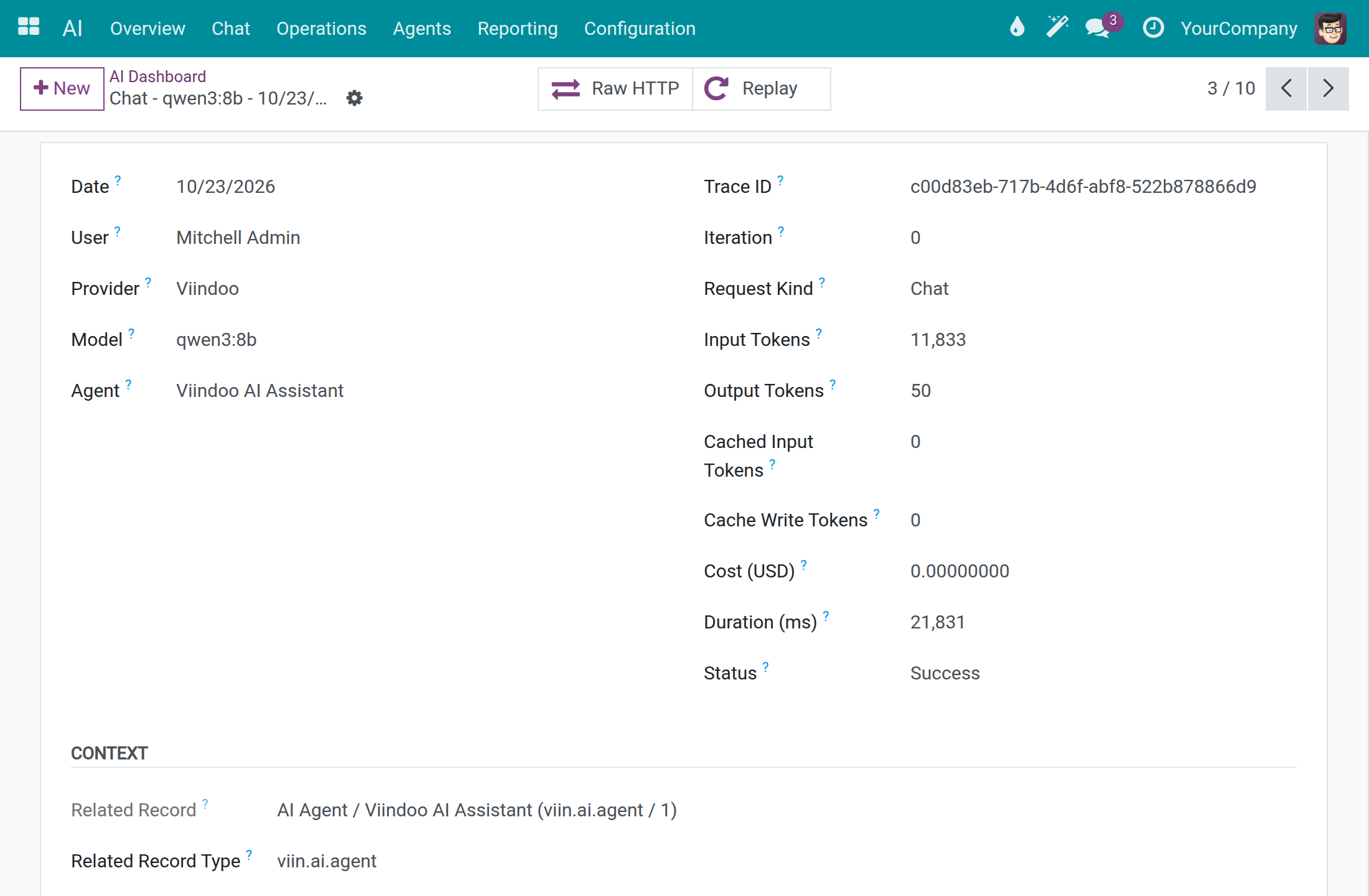
Switch to the List view with the view switcher at the top right and expand the month. Each row is one call to a vendor, with the date, user, provider, model, request kind, tokens, cost and Status (Success or Error).
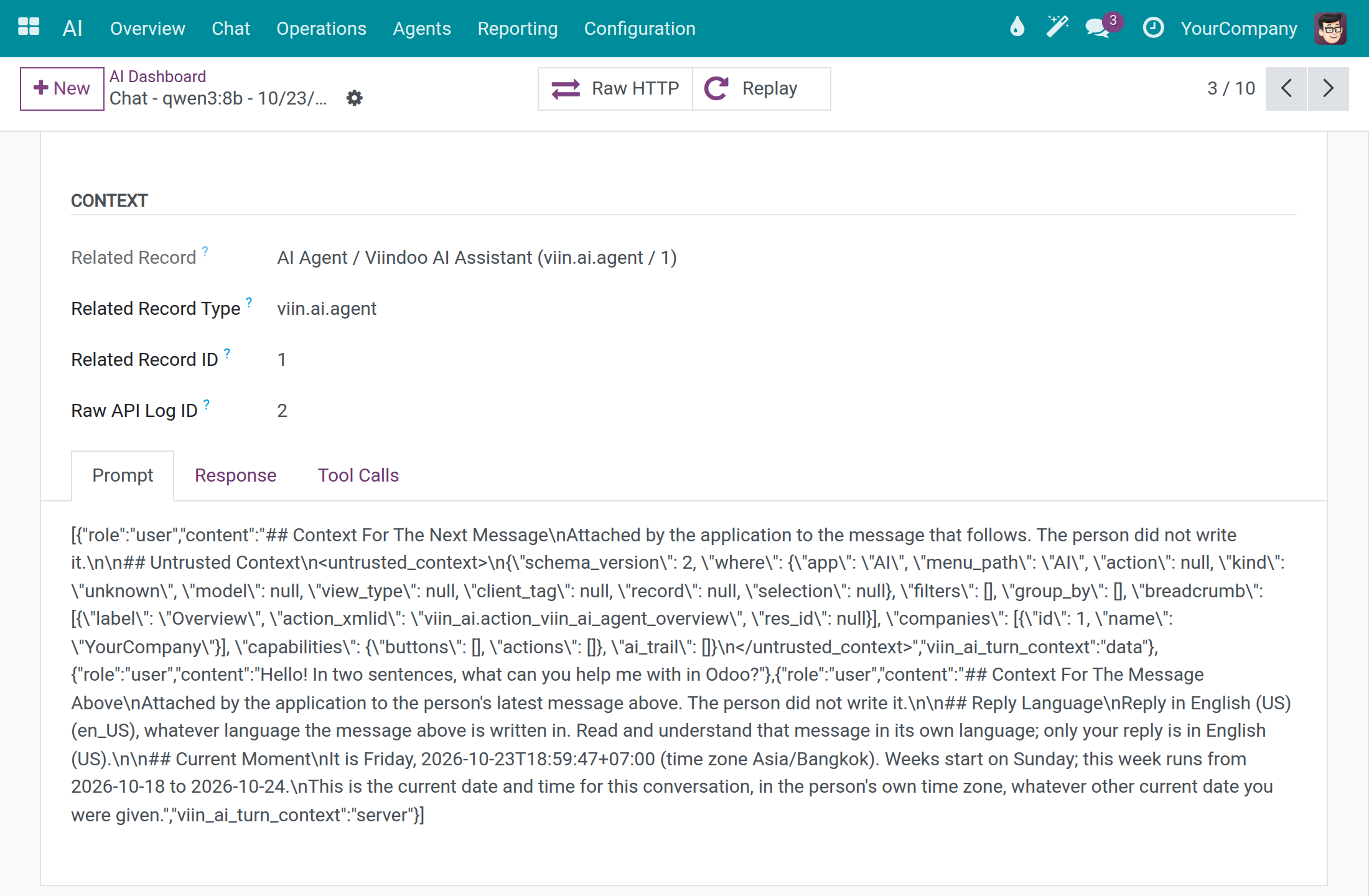
Open a row. The Prompt tab shows what was sent to the vendor, Response what came back and Tool Calls the actions the assistant ran.
Scroll to the notebook and open Prompt to read the exact messages of the call.
Click Raw HTTP to open the HTTP record of the call: method, URL, response status, duration, and in Request Details the headers and the body. The Authorization header shows ***MASKED***, so keys are never readable here.
Note
Raw HTTP opens for a system administrator or a user with API Log Viewer. The same records are listed in the API Logs app under API Request Logs. The Replay button sends the stored request to the vendor again and counts as a new request; only a system administrator sees it.
Every employee sees their own calls in the Dashboard; an AI Operator or a system administrator sees the calls of the whole company. In AI ‣ Configuration ‣ Settings, API Log Retention (days) (30 by default) and Trace Retention (days) (90 by default) set how long the records are kept before they are deleted.
Employee: talk to the assistant
Watch the employee video tutorial (2:44): www.youtube.com/watch?v=mFYPh89LG6c
Start a conversation
Open AI ‣ Chat. Discuss opens on your latest AI conversation. Your conversations are listed under AI ASSISTANT in the left column.
Click + next to AI ASSISTANT to start a fresh conversation.
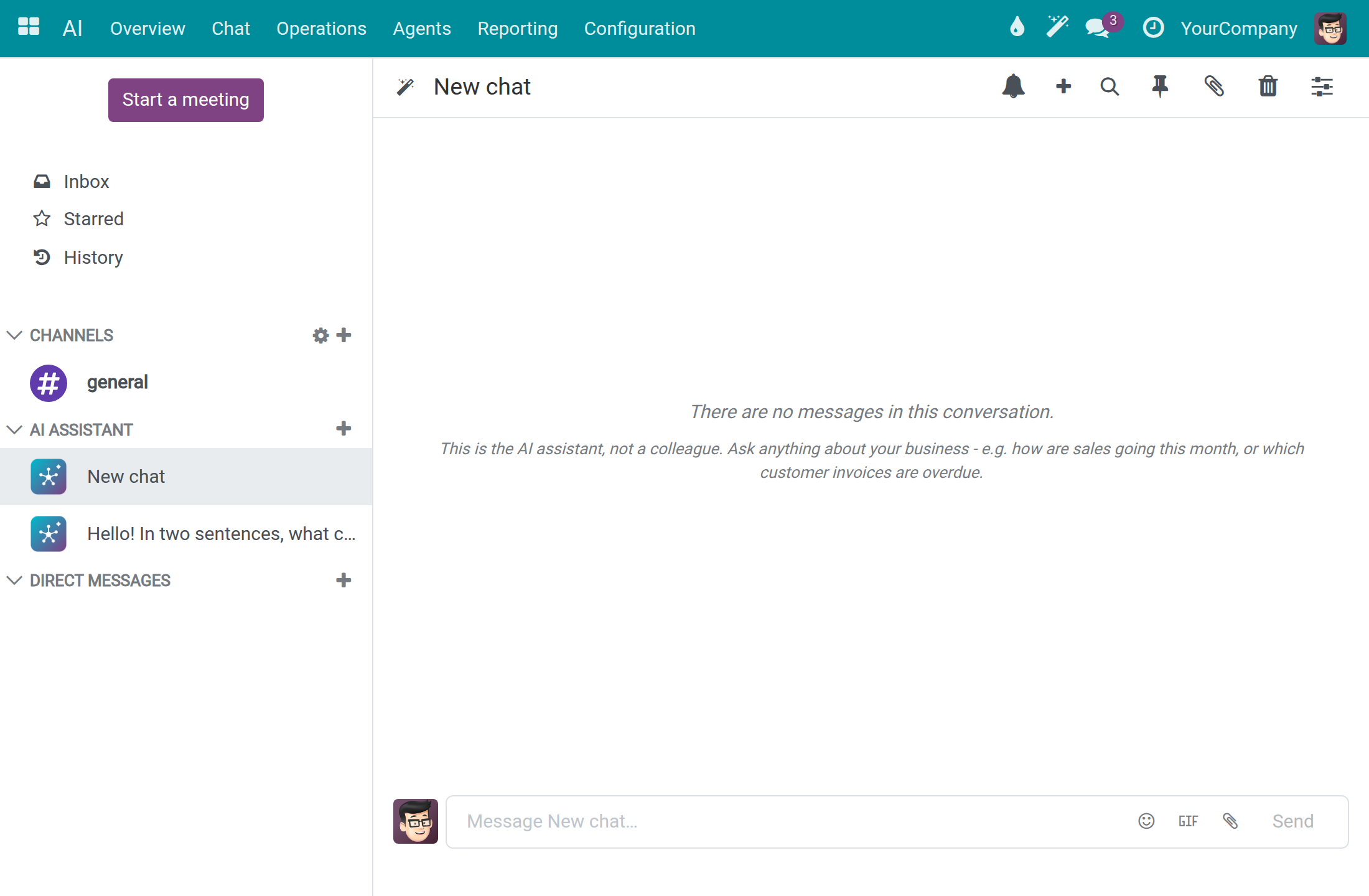
Type your question in the message box and press Enter. Generating... and AI Assistant is typing... show that the answer is being written.
The answer appears under your question. A line below it names the assistant, the connection and the model that answered, for example Viindoo AI Assistant - Viindoo - qwen3:8b. The conversation takes the title of your first question.
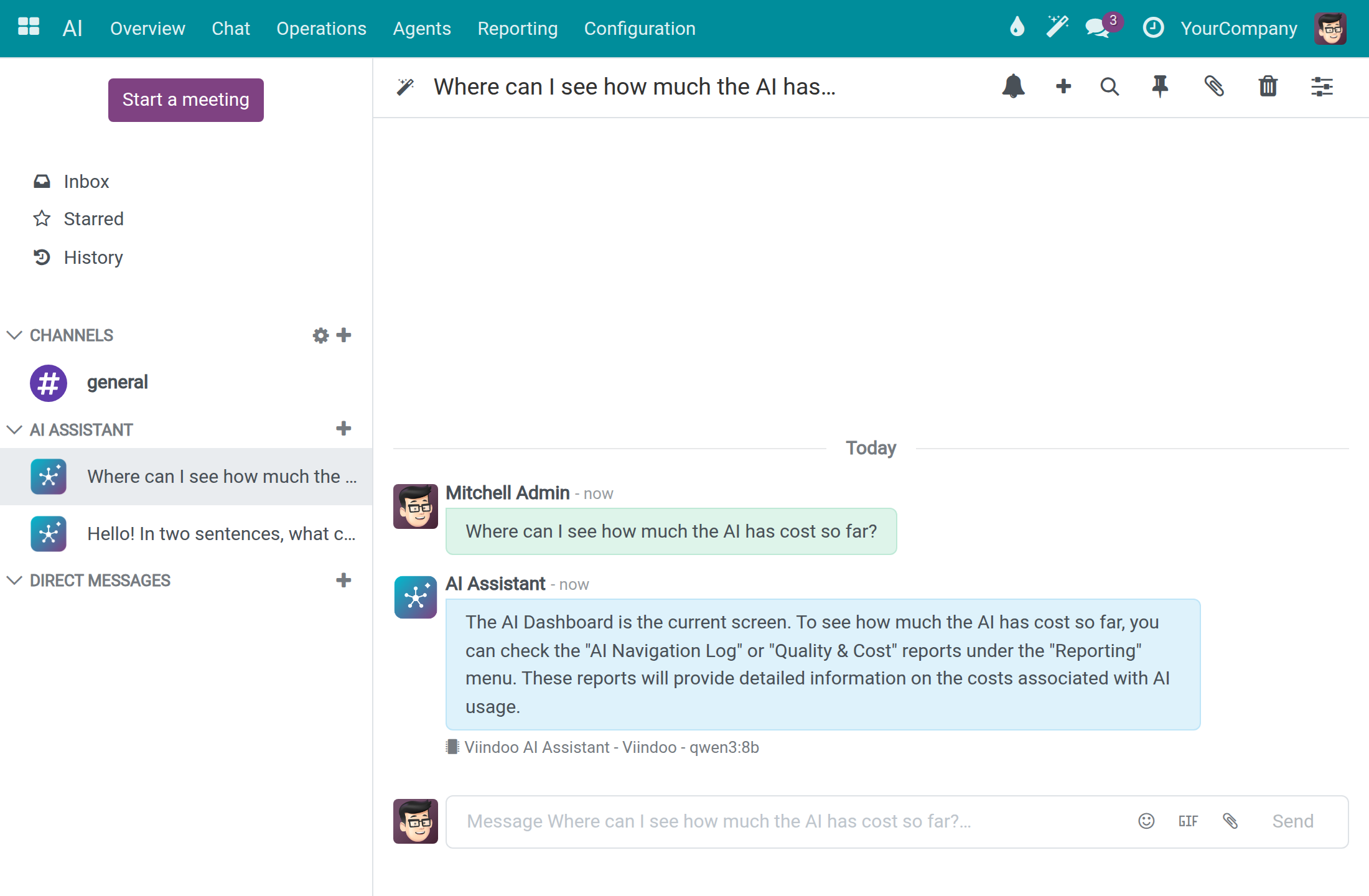
The assistant answers in the language of your question. The ready-to-use connection uses a small model, so check important answers.
Ask from any screen
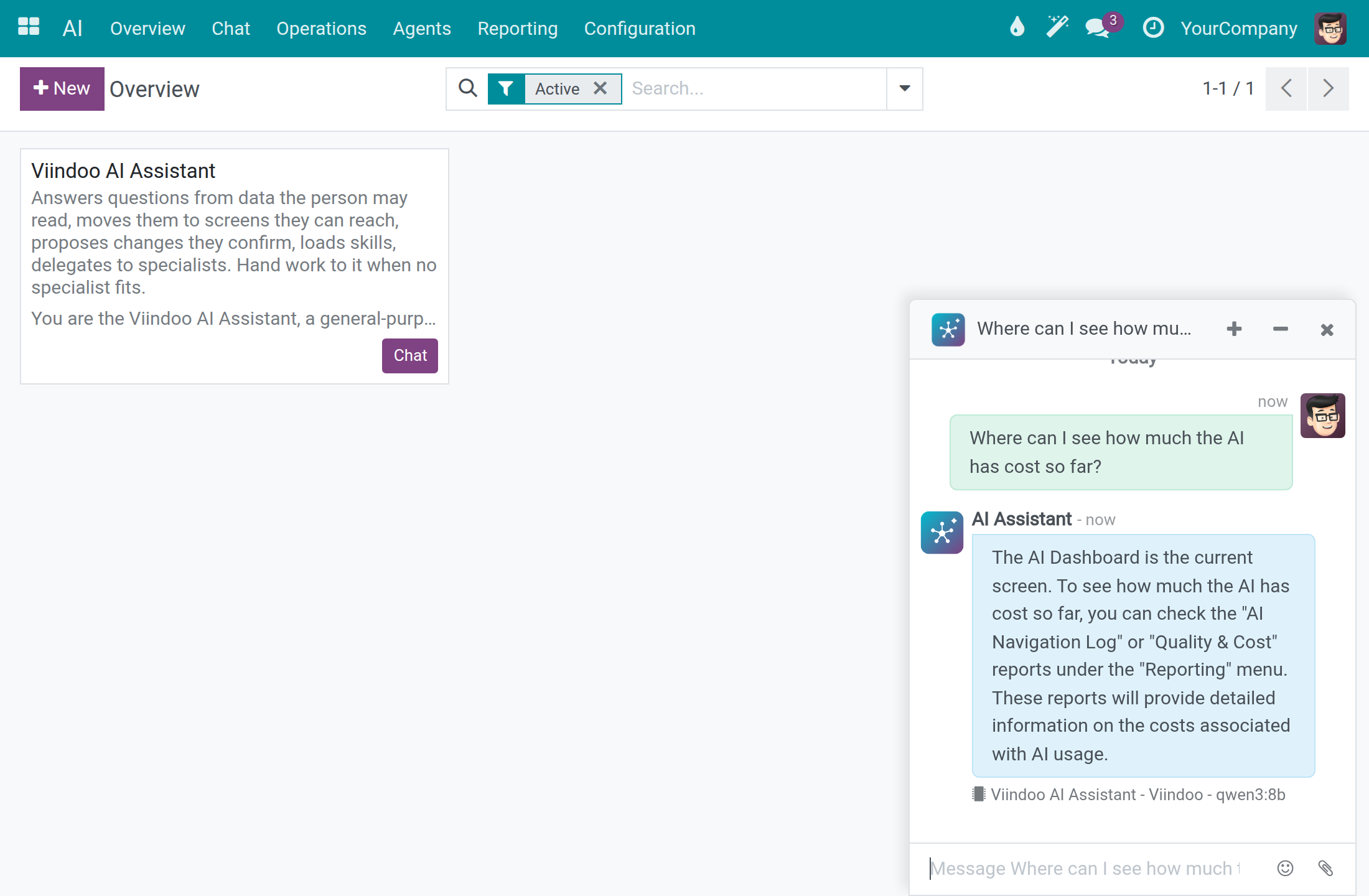
Click the wand button AI Assistant in the top bar of any screen.
A chat window opens at the bottom right with your latest conversation. Type your question there, minimise it with the minus button or close it with the cross.
Choose the model for one conversation
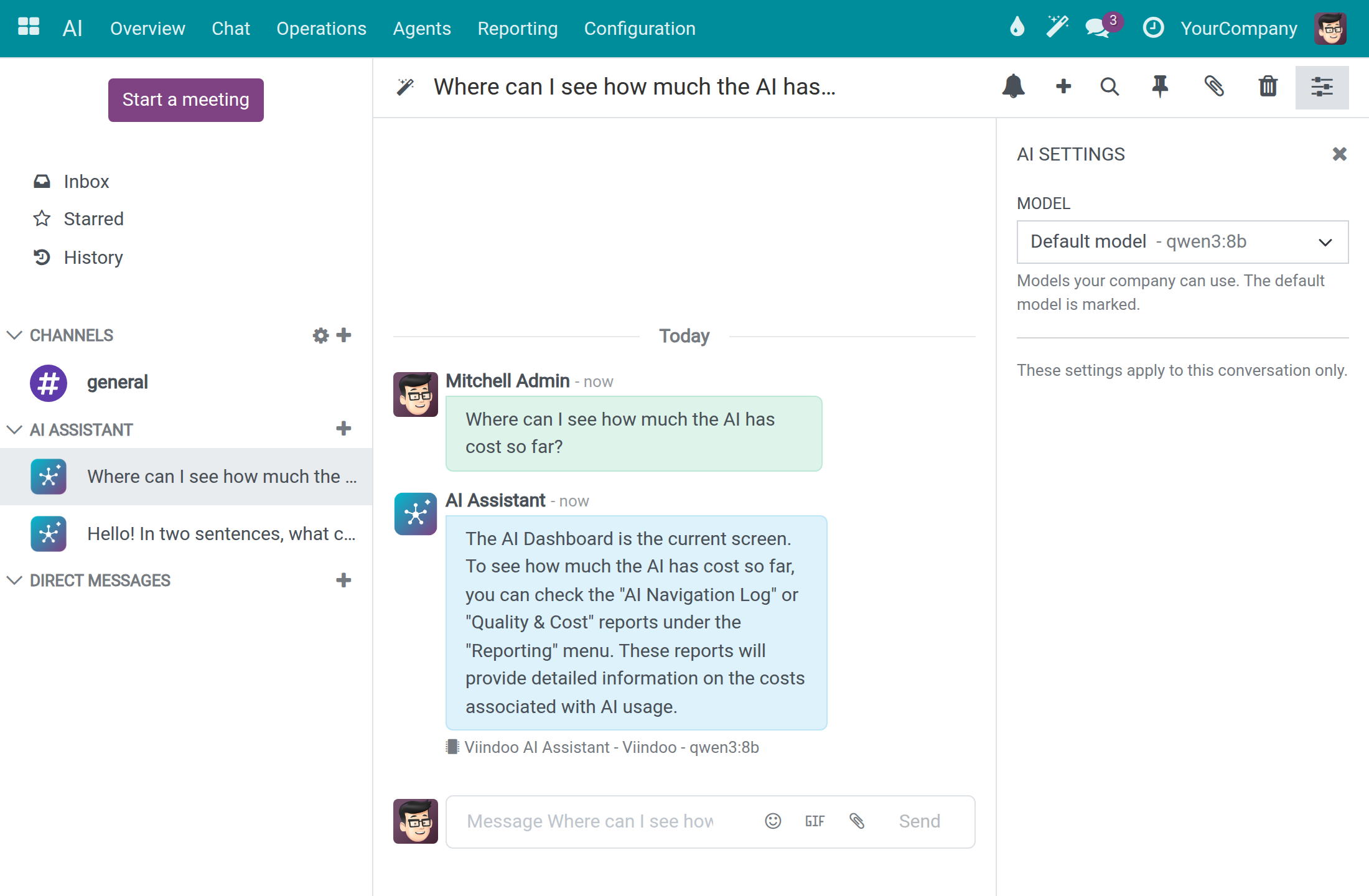
In a conversation, click AI Settings, the right-most icon of the header.
In Model, keep Default model or pick another of the models your company can use. The choice applies to this conversation only.
When no answer comes
When the assistant cannot answer, a red message and the card The assistant could not answer. appear under your question. A blue banner Finish setting up AI can also show at the top of the conversation; an employee reads in it: AI chat is not set up on this database yet, so the assistant cannot answer questions here. Nothing is wrong on your side: tell your administrator.
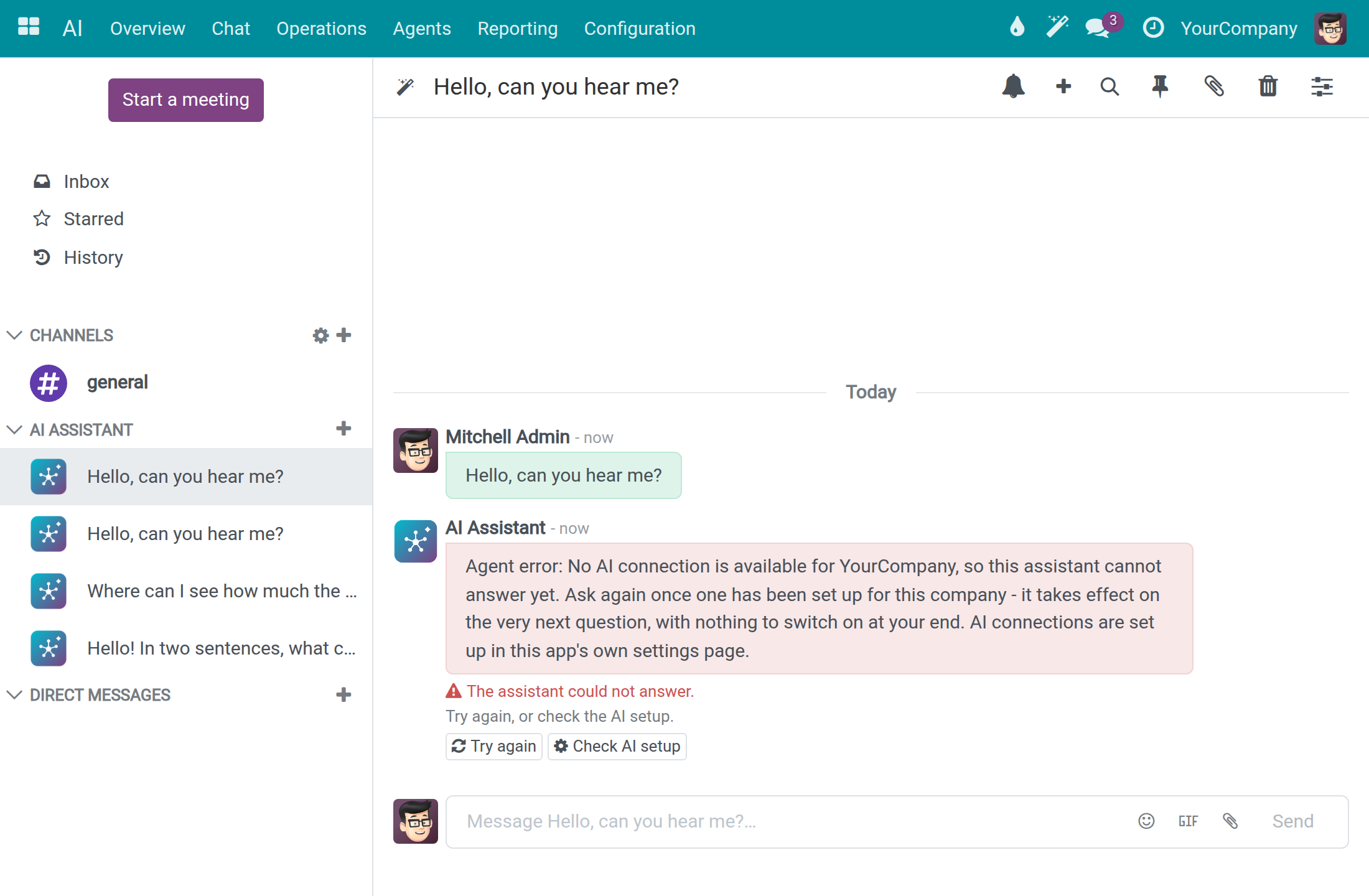
- Click Try again after a moment. The next question uses any connection that is available at that time.
- If it keeps failing, ask your system administrator to check the AI setup. Administrators also see Check AI setup, which opens the AI settings.
Choose an assistant
An assistant is a configured helper with its own mission and instructions. A fresh installation has one, Viindoo AI Assistant.
Open AI ‣ Agents to list the assistants, each with its Role and Mission, Preferred Model Line and Preferred AI Model.
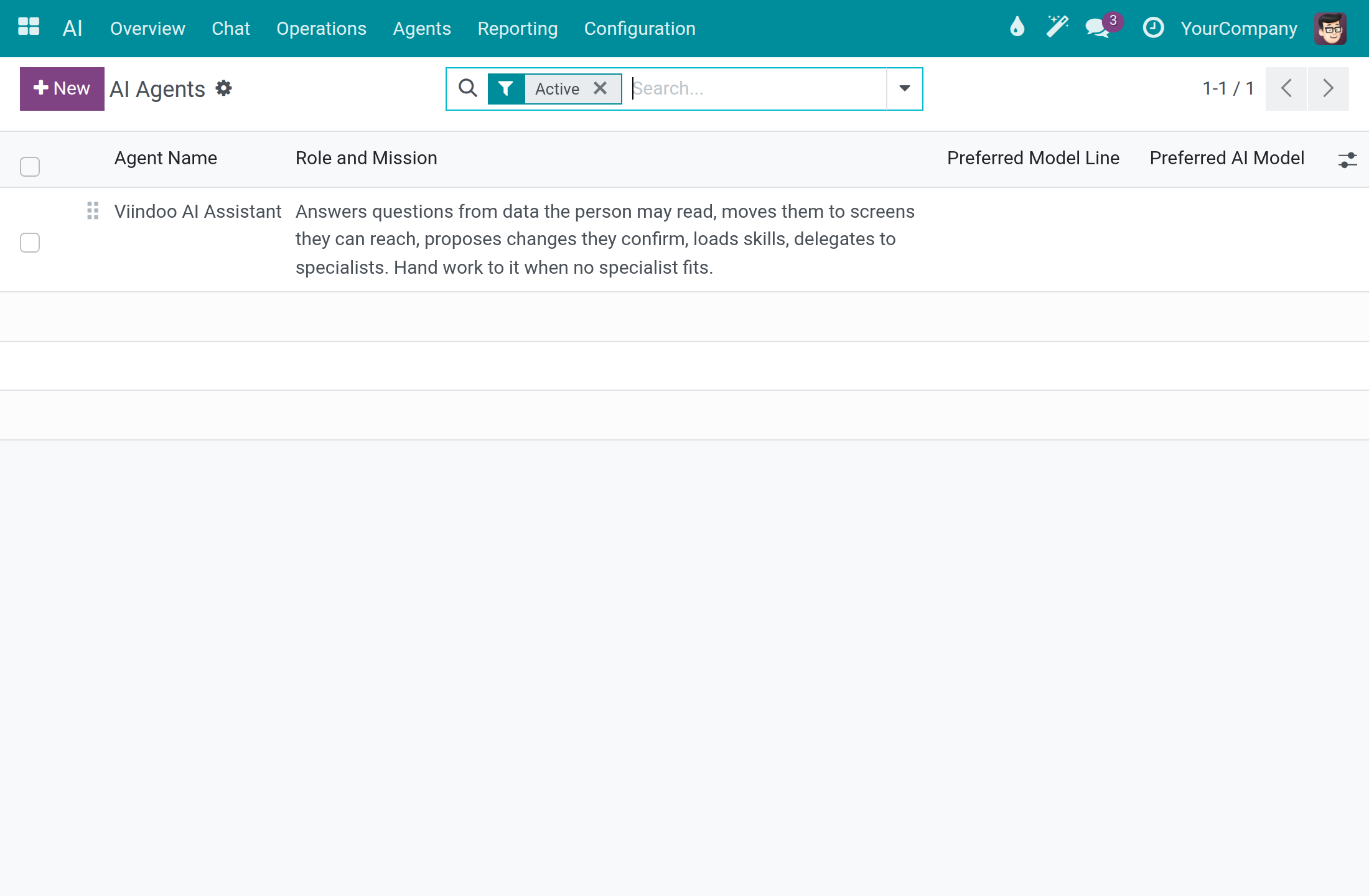
Open AI ‣ Overview to see the same assistants as cards, and click Chat on a card to start a conversation with that assistant.
See what the assistant remembers
The assistant keeps short notes about you, so you do not repeat yourself. They are private to you.
Open AI ‣ Operations ‣ AI Memory. Each line is one note, with its Layer, User, Topic, Summary and Last Referenced. Notes of the L0 Identity and L1 Essential layers are given to the assistant with every question.
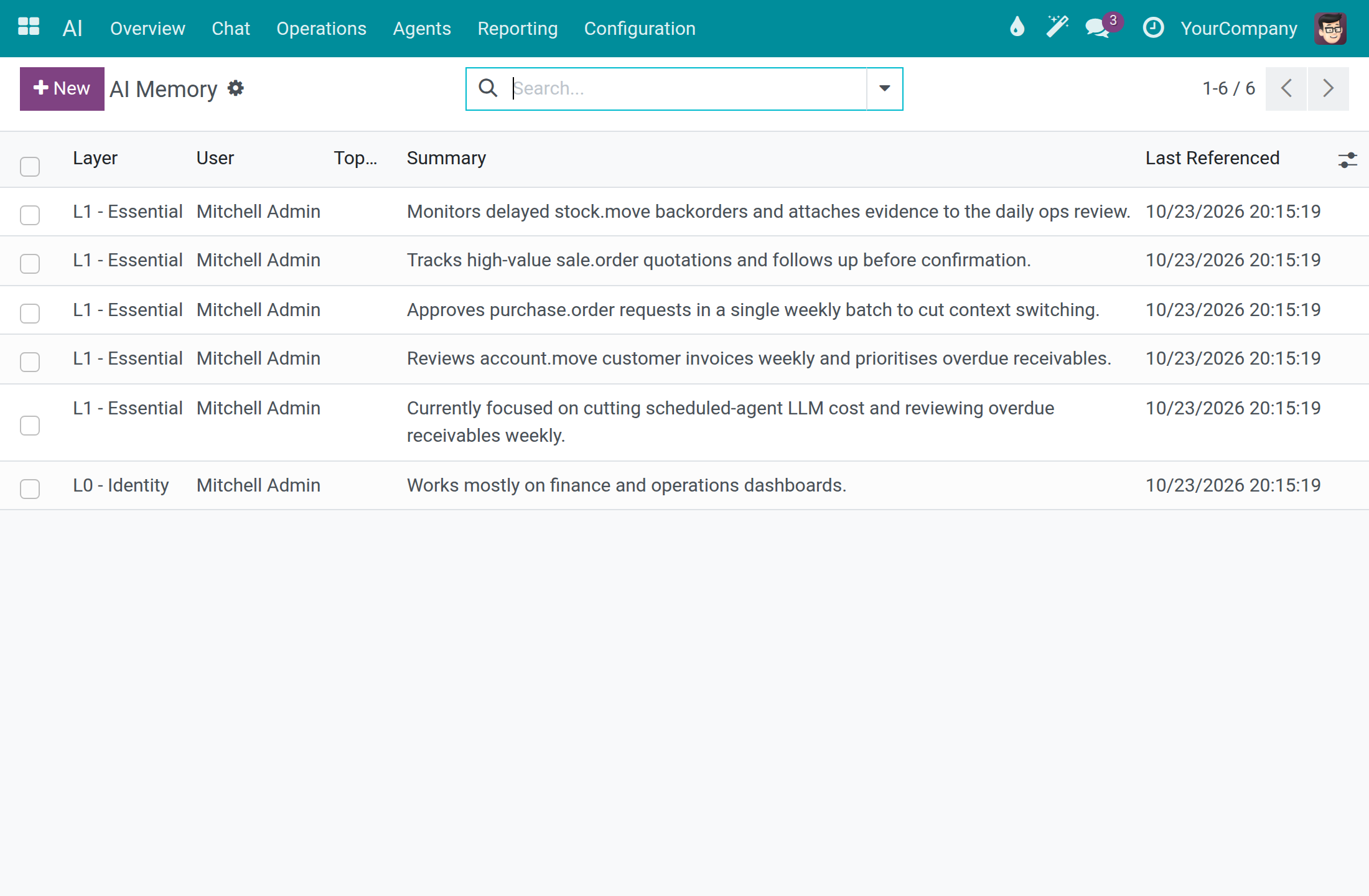
Open a note and edit its Summary when it is wrong, then save. When you have no notes yet, the list shows No AI memory yet; notes appear as the assistant recalls and summarizes your conversations.
To remove a note, tick it, then use Action ‣ Archive. The Archived filter brings archived notes back.
See what the AI read from a file
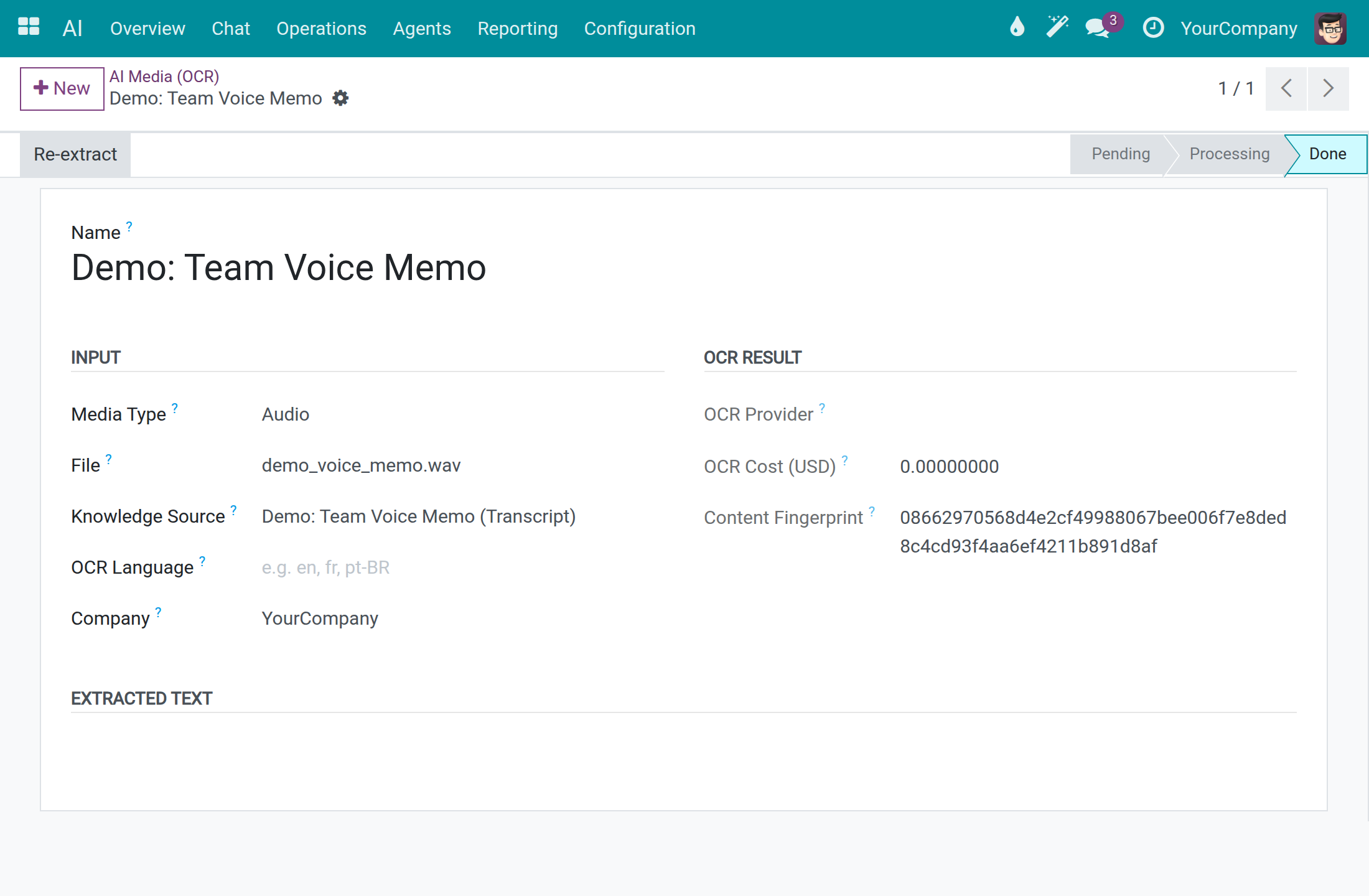
Open AI ‣ Operations ‣ AI Media. Each line is a file the AI read, with its Media Type, Knowledge Source, OCR Provider and Status: Pending, Processing, Done or Error.
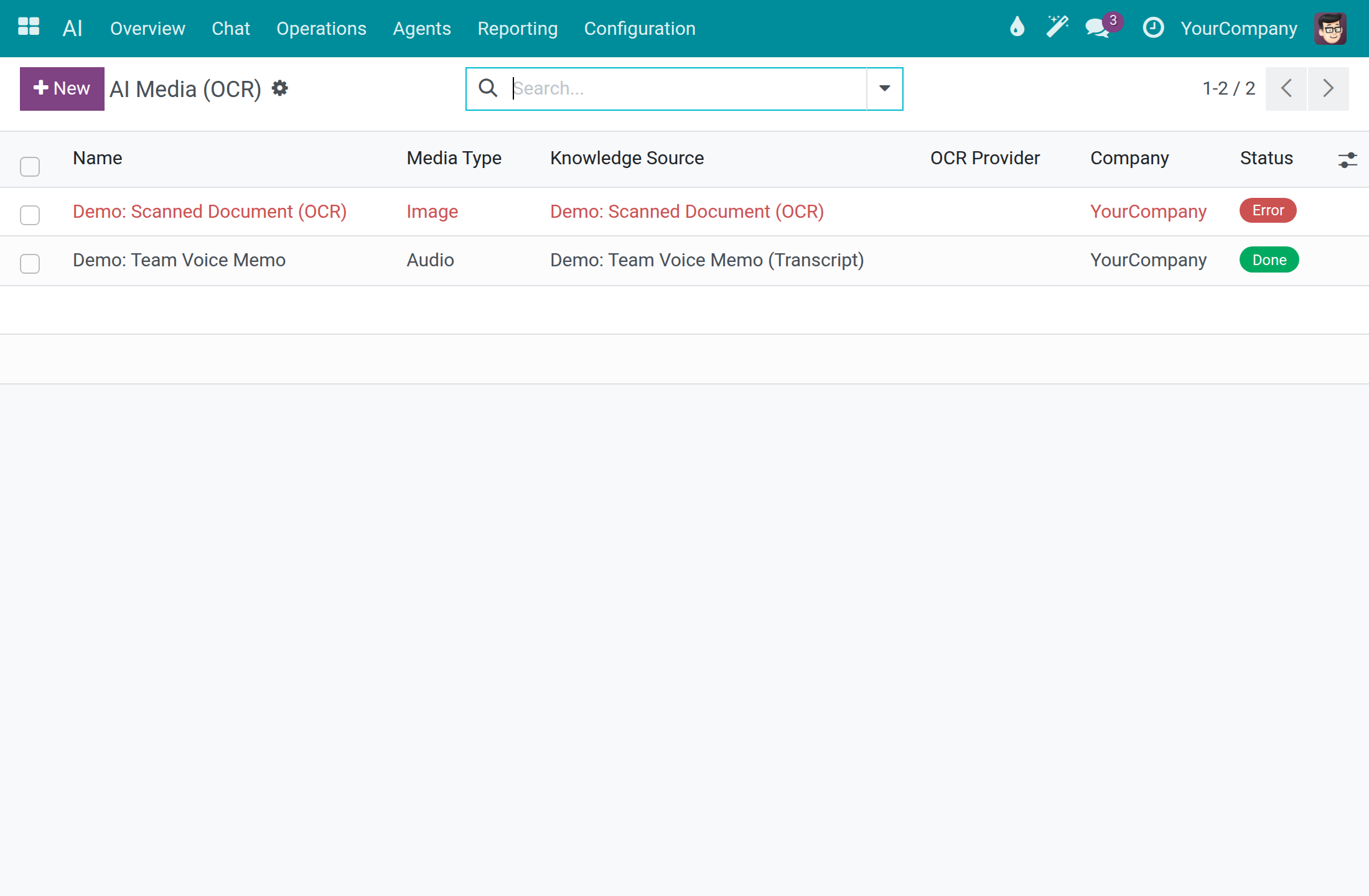
Open a line to see the File, the OCR Language, the OCR Cost (USD) and, under Extracted Text, the text the AI read. When the status is Error, click Re-extract after you fix the cause.
Review where the assistant took you
When the assistant opens a screen for you, it writes one line in a private log that only you can read.
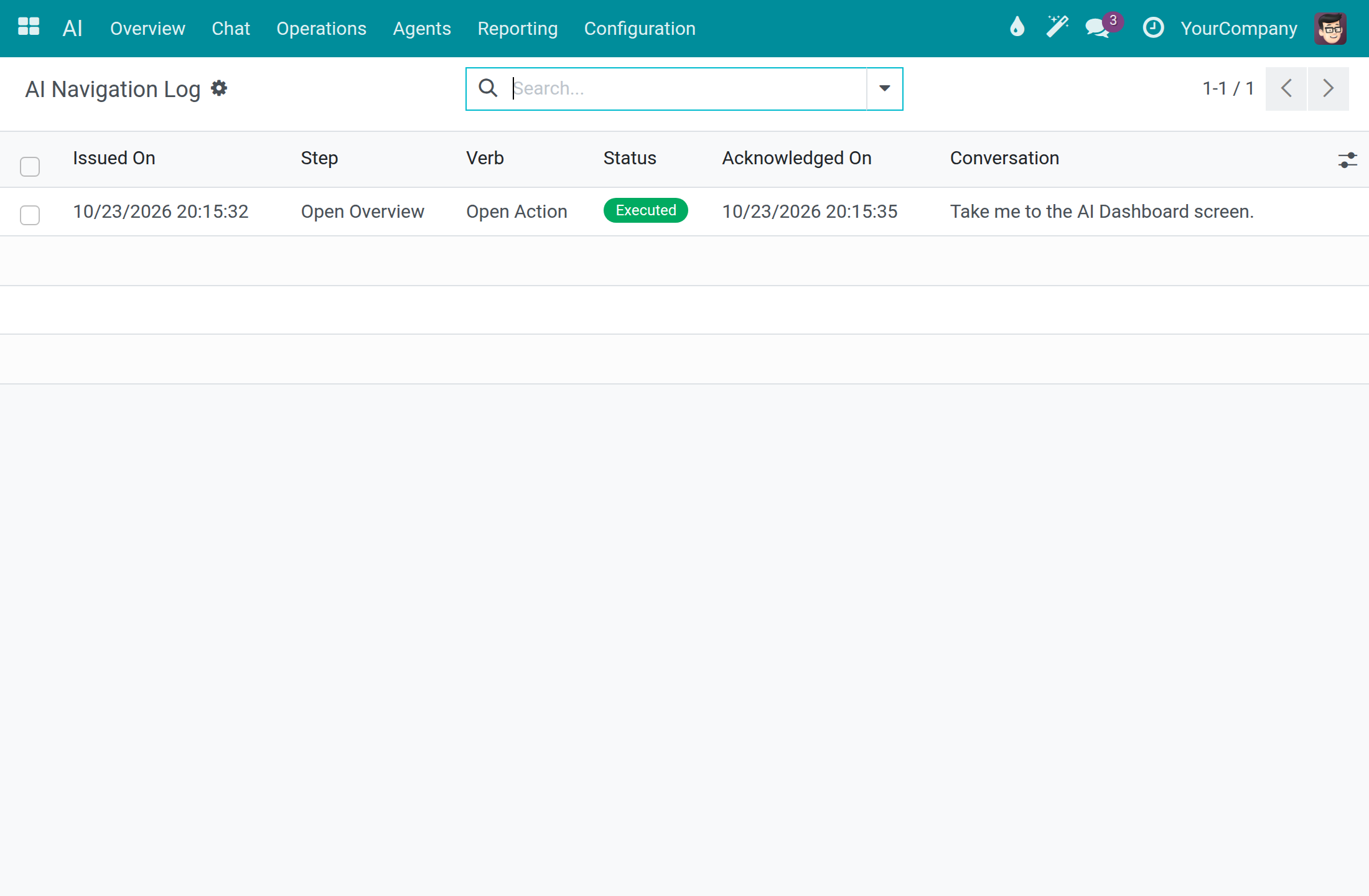
Ask the assistant to take you somewhere, for example Take me to the AI Dashboard screen.
Open AI ‣ Reporting ‣ AI Navigation Log. Each line shows Issued On, the Step, the Verb, the Status (for example Executed), Acknowledged On and the Conversation it came from.
Compare AI cost with how answers were rated
Open AI ‣ Reporting ‣ Quality & Cost. The table groups Cost (USD), Input Tokens, Output Tokens and LLM Calls of the last 30 days by Rating: Thumbs up (helpful), Thumbs down (not helpful), Flag for review (problematic content) or none.
You see your own interactions; an AI Operator or a system administrator sees the whole company.
System administrator: teach the assistant what your business knows
Add a knowledge source
A knowledge source is a document, page or recording the assistant may use to answer. Only system administrators see this menu.
Open AI ‣ Configuration ‣ Knowledge Sources. Each line shows the Source Name, the Source Type, the Status and the Company.
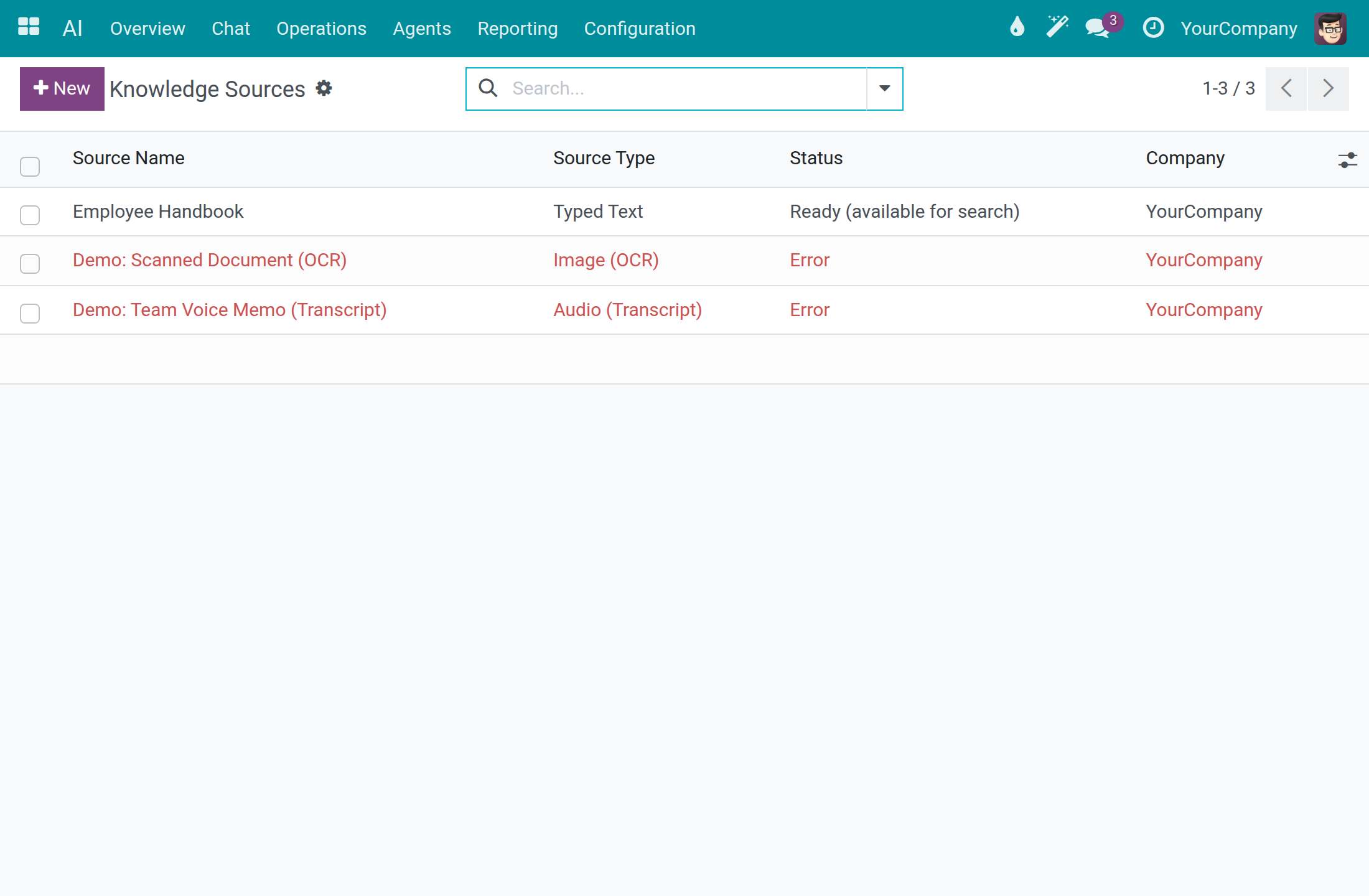
Click New and type the Source Name.
Choose the Source Type: PDF File, Web Page, Typed Text, Image (OCR), PDF (OCR) or Audio (Transcript). Then give the content: the Attached File, the Web Page URL or the Text Content.
Choose Text Cleaning: None (keep original) or Basic (clean). Set Restricted to User Groups when only some people may see answers drawn from the source.
Click Save. The status bar runs Draft (not yet indexed), Processing (chunking + embedding in progress), then Ready (available for search); indexing runs in the background. When it stops at Error, the Error section gives the reason.
Keep a website up to date
A system administrator or an AI Content Manager creates and changes crawl rules; every other internal user sees the list without changing it.
Open AI ‣ Operations ‣ Website Crawls and click New.
Type a Crawl Name and the URL Patterns, one per line. A * matches any text, so one pattern covers a whole site; a plain address is fetched alone.
Set Re-crawl Every (days), and Restricted to User Groups if needed. Leave Active on.
Click Save. Last Crawl and Last Crawl Status fill in after a crawl, and the pages found are listed under Crawled Pages.
The crawler is set in AI ‣ Configuration ‣ Settings, section Knowledge: Firecrawl URL (leave empty for the default) and Firecrawl API Key.
See and manage skills
A skill is a set of instructions the assistant loads when a task calls for it, such as a marketing brief or a month-end checklist. Skills come in packs. An AI Administrator and a system administrator open these lists; only a system administrator changes them.
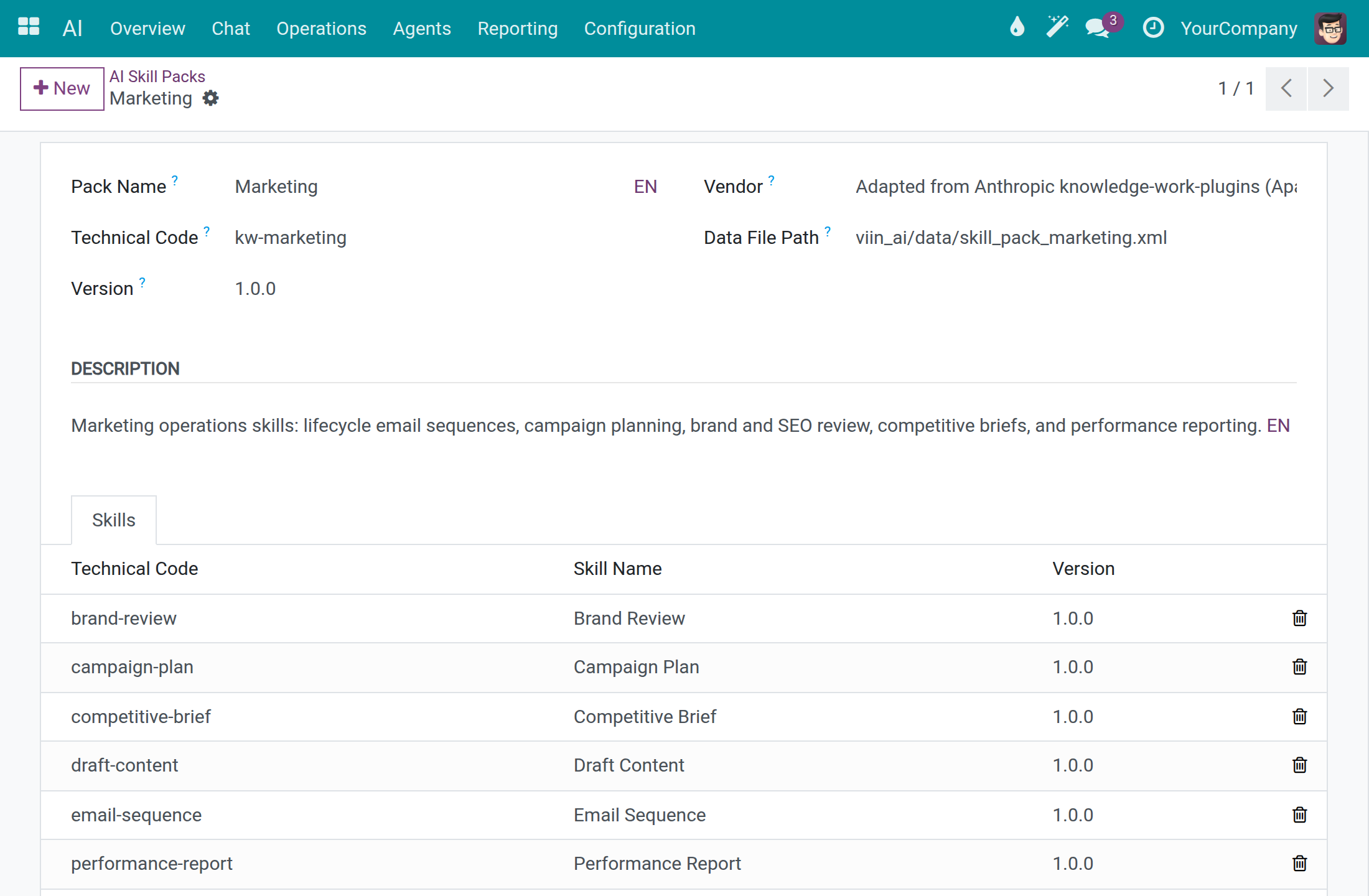
Open AI ‣ Configuration ‣ AI Skill Packs. Each pack shows its Technical Code, Pack Name, Version and Vendor.
Open a pack to see the skills it carries under Skills.
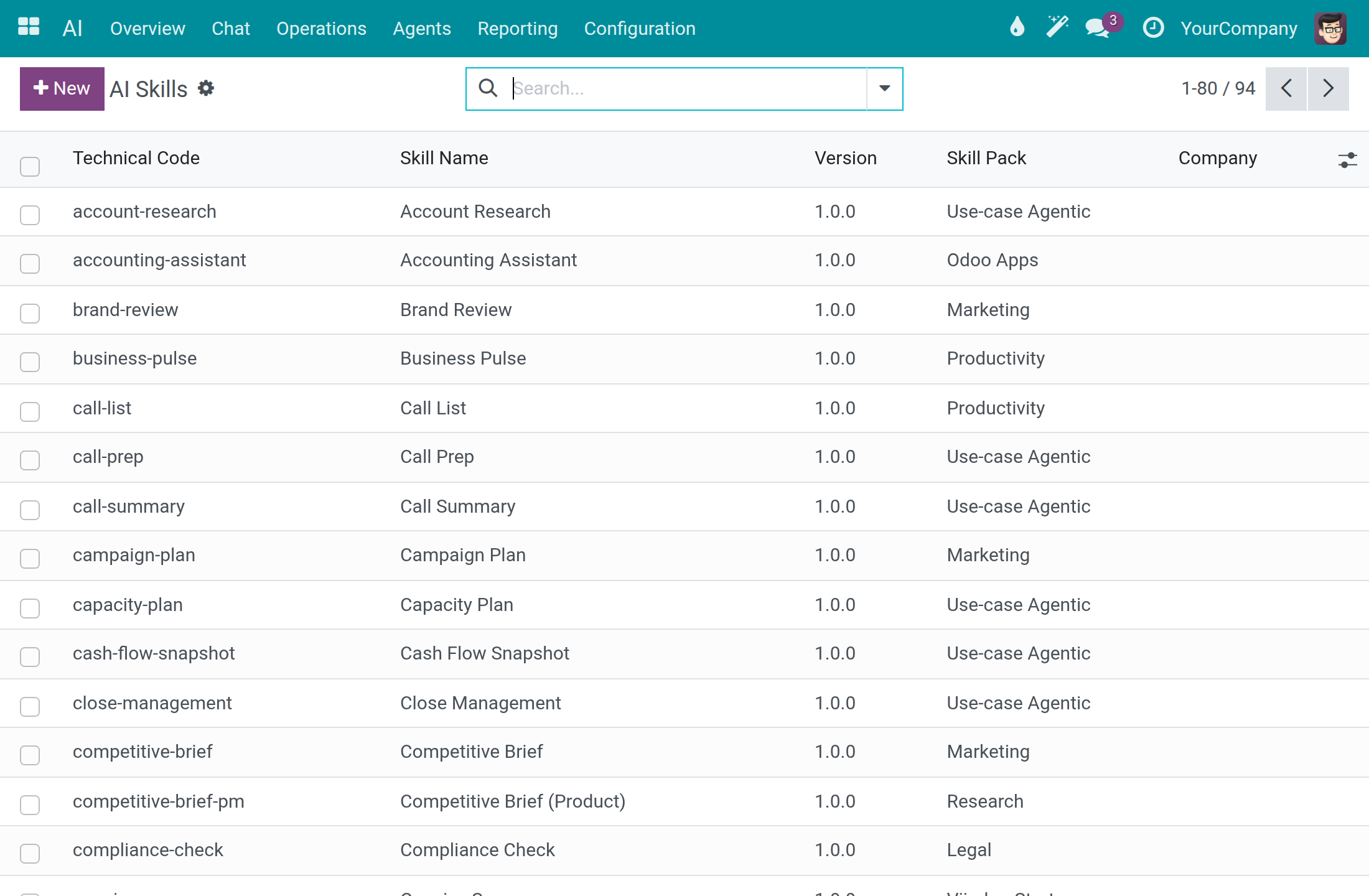
Open AI ‣ Configuration ‣ AI Skills to search every skill, with its Technical Code, Skill Name, Version, Skill Pack and Company. Use the Global, Archived and Pack filters to narrow the list.
Open a skill to read its instructions, tools and topics. Untick Active to retire a skill without deleting it.
Set up an assistant
Every internal user opens the Agents list and reads an assistant; only a system administrator changes one.
Open AI ‣ Agents and open the assistant.
Write what it is for in Role and Mission, and how it behaves in the system prompt.
Pick the Preferred Model Line or Preferred AI Model, the Reasoning Level, and untick Collect User Feedback if people should not rate its answers.
Tick Answer Only From Attached Sources for an assistant that must not use general knowledge, then attach sources under Knowledge Sources. Use the tabs Topics, External Tools and Skills for the rest.
Click Save. The button Traces lists the runs of this assistant.
System administrator: review answer quality
Define feedback categories
People rate an answer with a thumb or a flag. Categories let you group the reasons. Only system administrators see this menu.
Open AI ‣ Configuration ‣ Feedback Categories and click New. Type a Name such as Wrong answer or Tone issue and save.
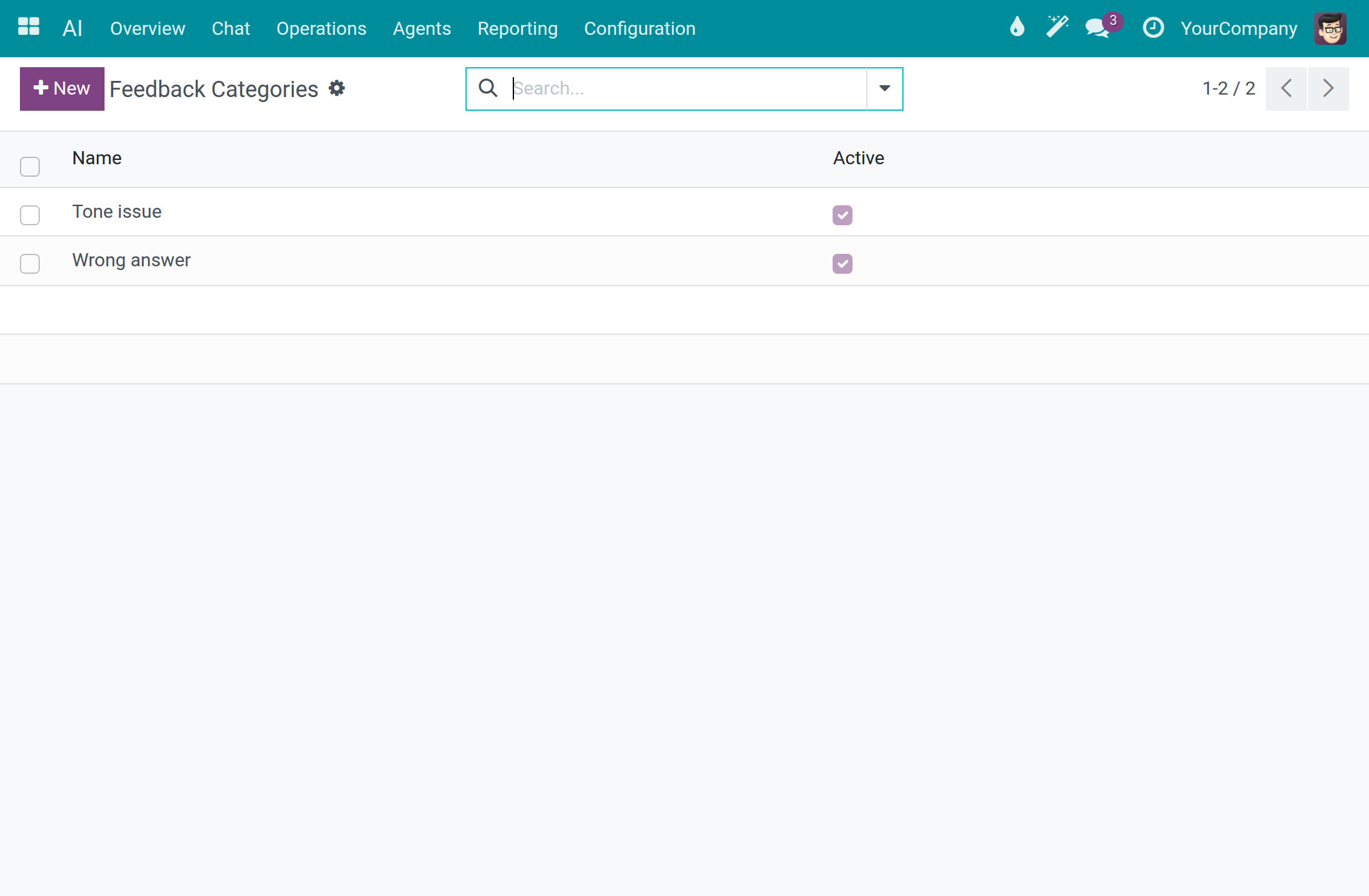
Untick Active to hide a category from the picker. The feedback already given keeps it.
Find answers that people rated badly
Only system administrators see the Feedback menu.
Open AI ‣ Reporting ‣ Feedback. Each line is one rating, with the Date, User, Trace ID, Rating and Comment.
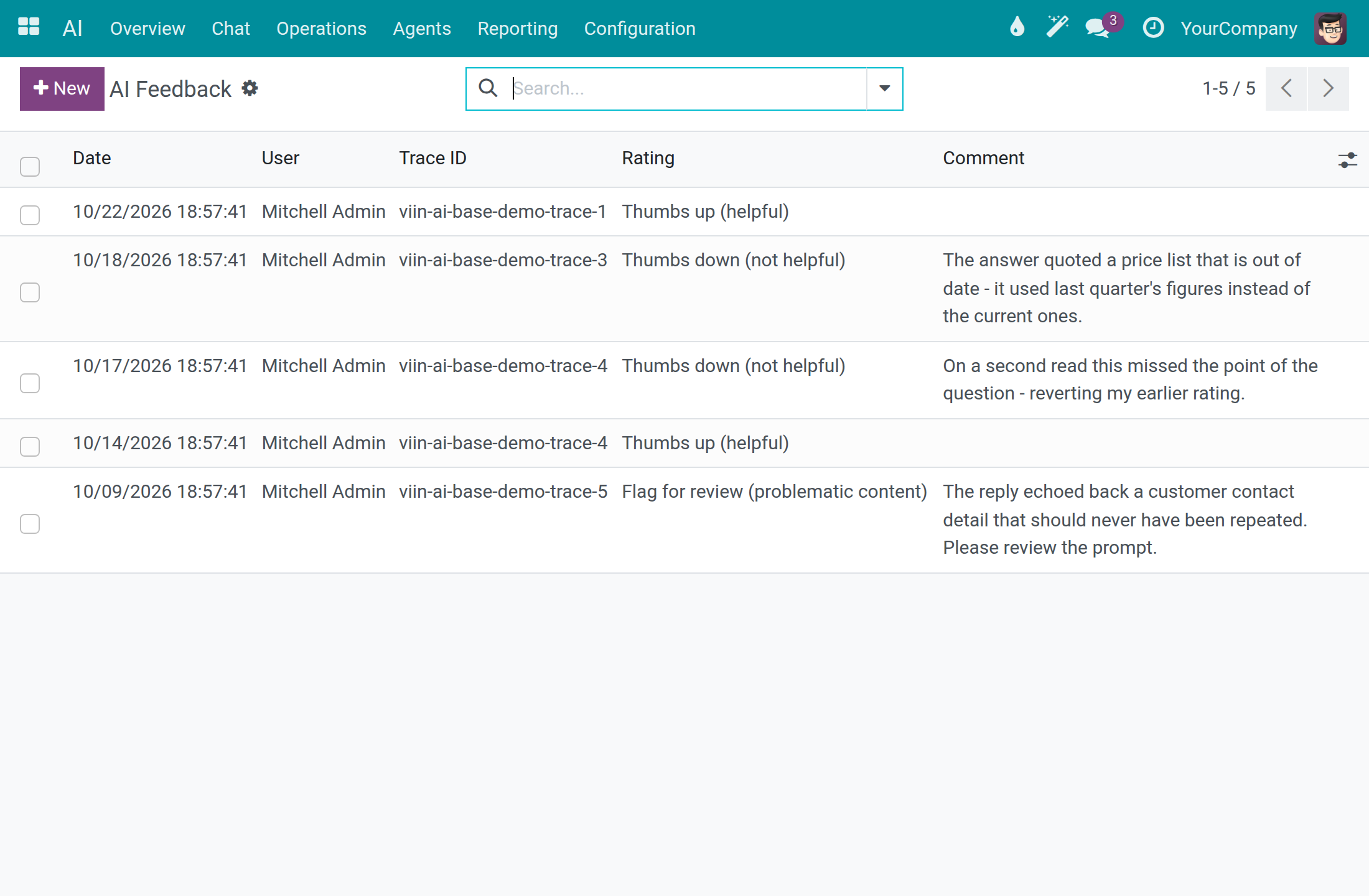
Use the filters Thumbs Up, Thumbs Down and Flagged, or group by Rating, User or Category.
Copy the Trace ID. In AI ‣ Reporting ‣ Dashboard, switch to the List view and tick Trace ID in the optional-columns menu at the right end of the header, then find the same value in that column to open the call behind the rating. The Dashboard has no search box for it. To go straight to the raw HTTP record of a call, type the Trace ID in the search box of API Logs ‣ API Request Logs and choose AI Trace ID.
System administrator: connect external tool servers
An external tool server gives the assistant extra actions from another service. Nothing is sent to a server until its address is approved. An AI Administrator sees these screens; only a system administrator creates or changes an approval or a server.
Approve a service
Open AI ‣ Configuration ‣ External Tool Servers ‣ Approved Services and click New.
Type the Service name and a Code, and put the exact address pattern in Approved URL Pattern. A connection is contacted only when its URL matches the pattern; a loose pattern approves every destination on the internet and inside your own network.
Fill Suggested URL, Authentication and Documentation to help whoever connects the service, then click Save.
Connect a server
Open AI ‣ Configuration ‣ External Tool Servers ‣ Servers and click New.
Type the Name and the URL, and choose the Approved Service that covers the URL. The Identifier fills in from the name; change it if you want another short name. Set Authentication to what the service expects.
Click Save, then Test Connection. The status bar goes from Not Yet Contacted to Contacting and Connected. When the URL is not approved, Approve This URL appears.
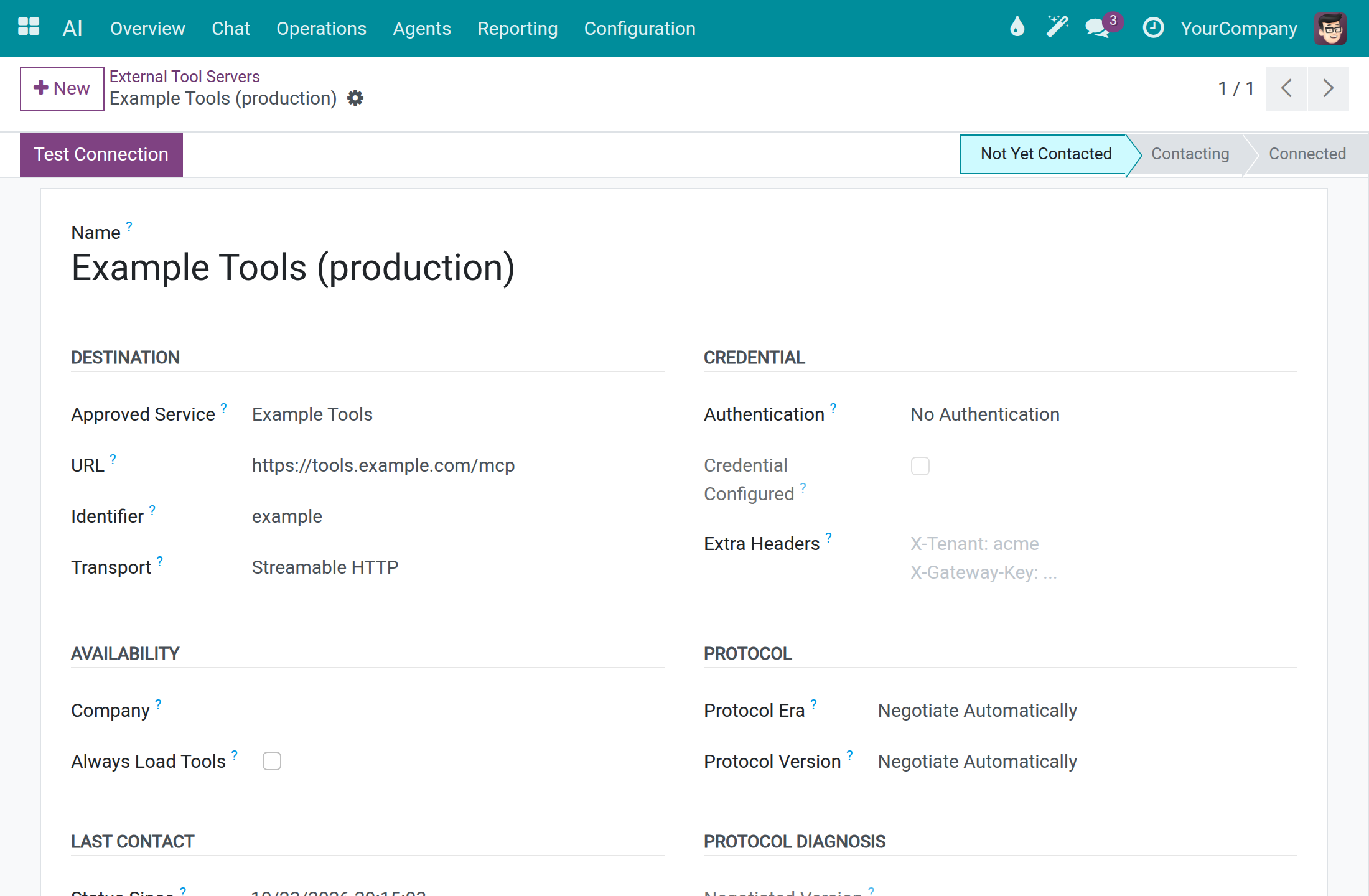
Credentials are typed once into the field of the chosen Authentication; Credential Configured only tells you that one is stored.
System administrator: advanced configuration
The screens below hold technical settings. The ready-made values work for the vendors of this guide, so leave them as they are unless a reason below applies. A system administrator or an AI Administrator changes Models, Model Lines, Message Adapters and Speech Pronunciations; an AI Administrator sees Screen Capabilities, and only a system administrator changes them. Before changing them, ask Viindoo support at https://viindoo.com/ticket.
Models
Open AI ‣ Configuration ‣ Models. Each line is a model of a connection, with its Model Type, Context Window (tokens), Line, Vendor Status, and the cost per 1,000 tokens that feeds the spend limits.
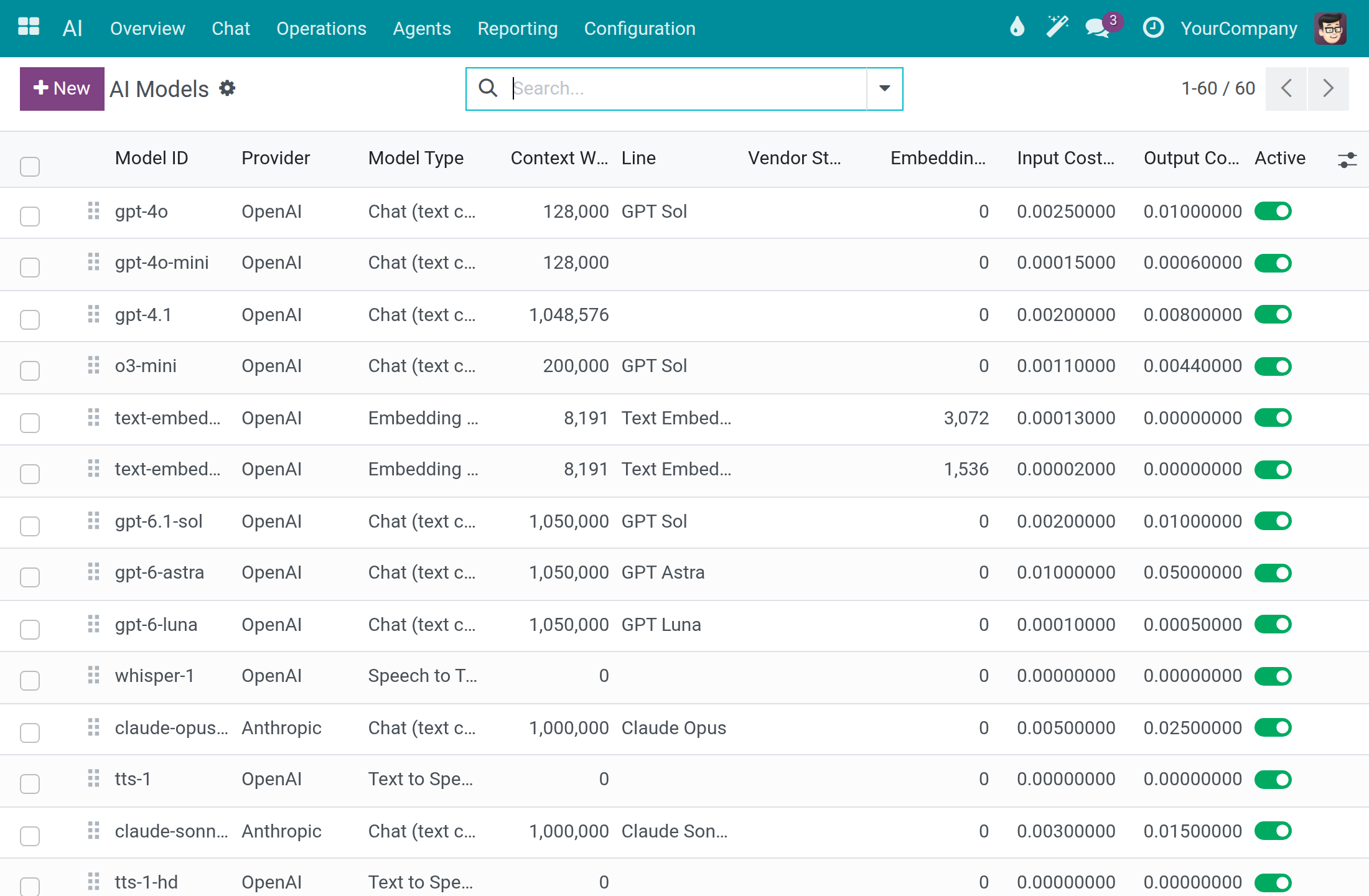
Touch it when a vendor releases a model that is not listed (click New, pick the Provider, type the exact Model ID of the vendor), when the prices of your contract differ, or to untick Active on a model nobody should pick.
Model Lines
Open AI ‣ Configuration ‣ Model Lines. A line is the vendor's family name, such as Claude Sonnet; a choice made on a line answers with the newest model of that line.
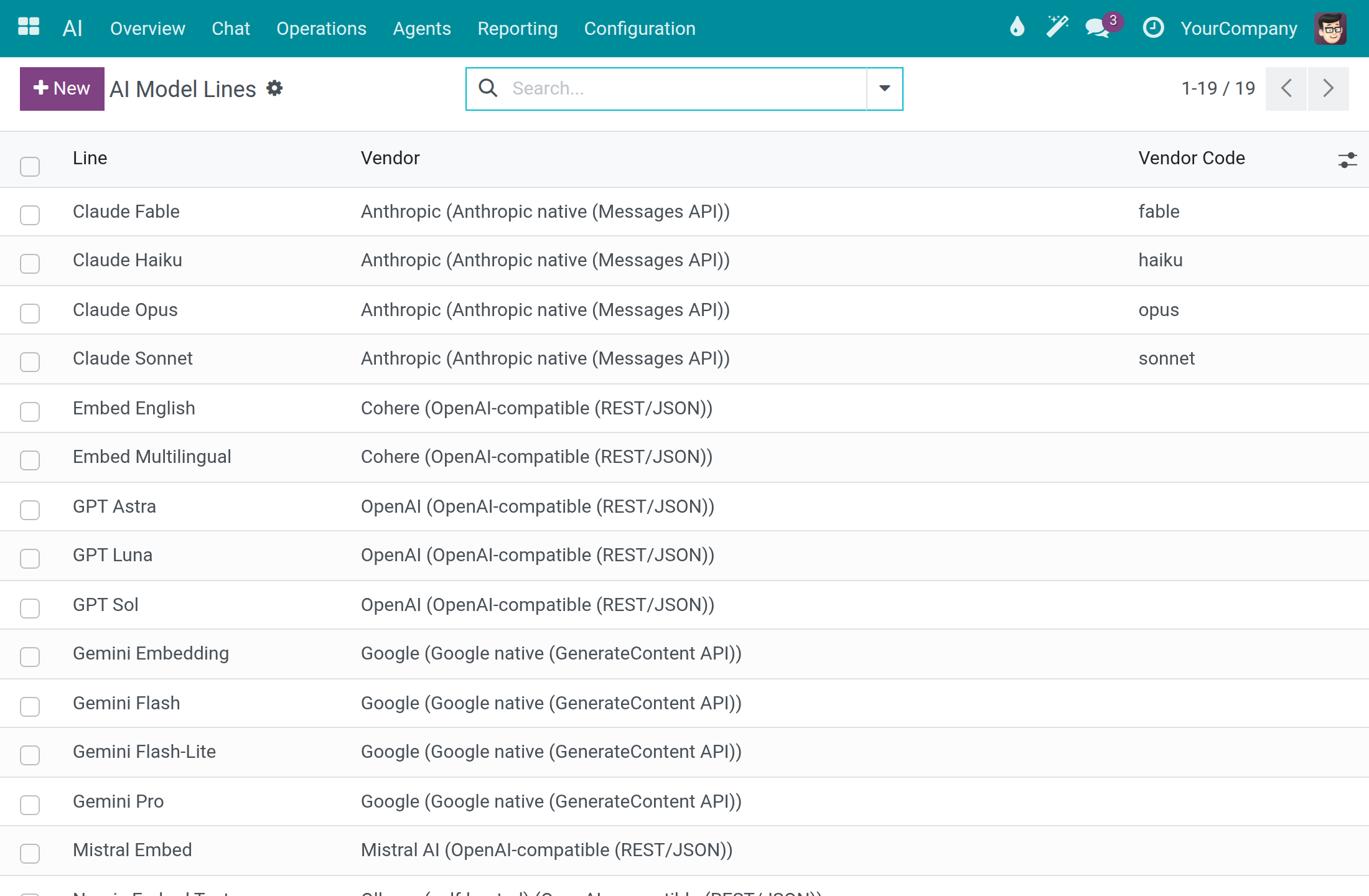
Leave it alone unless a vendor starts a new family that you want settings and assistants to follow.
Message Adapters
Open AI ‣ Configuration ‣ Message Adapters. Each line describes how messages are shaped for one vendor protocol, outgoing or incoming.
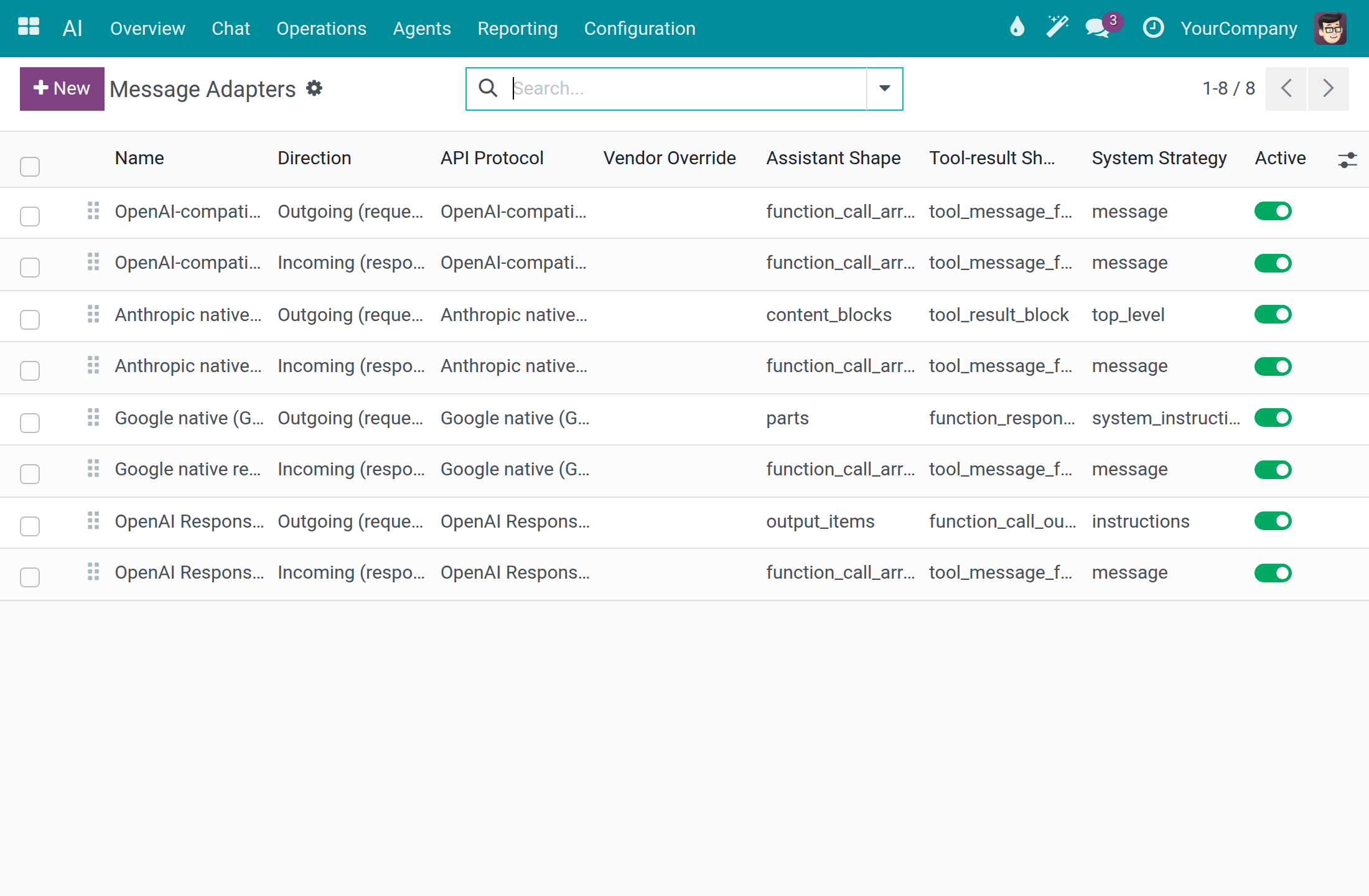
Keep them as they are. A change matters only for a vendor whose interface departs from its protocol, and a wrong value stops answers from that vendor.
Screen Capabilities
Open AI ‣ Configuration ‣ Screen Capabilities. Each line is something the assistant can do on a screen (Where Am I, Open Menu, Apply Filter and so on), with its API Name, Asks First and Offered On.
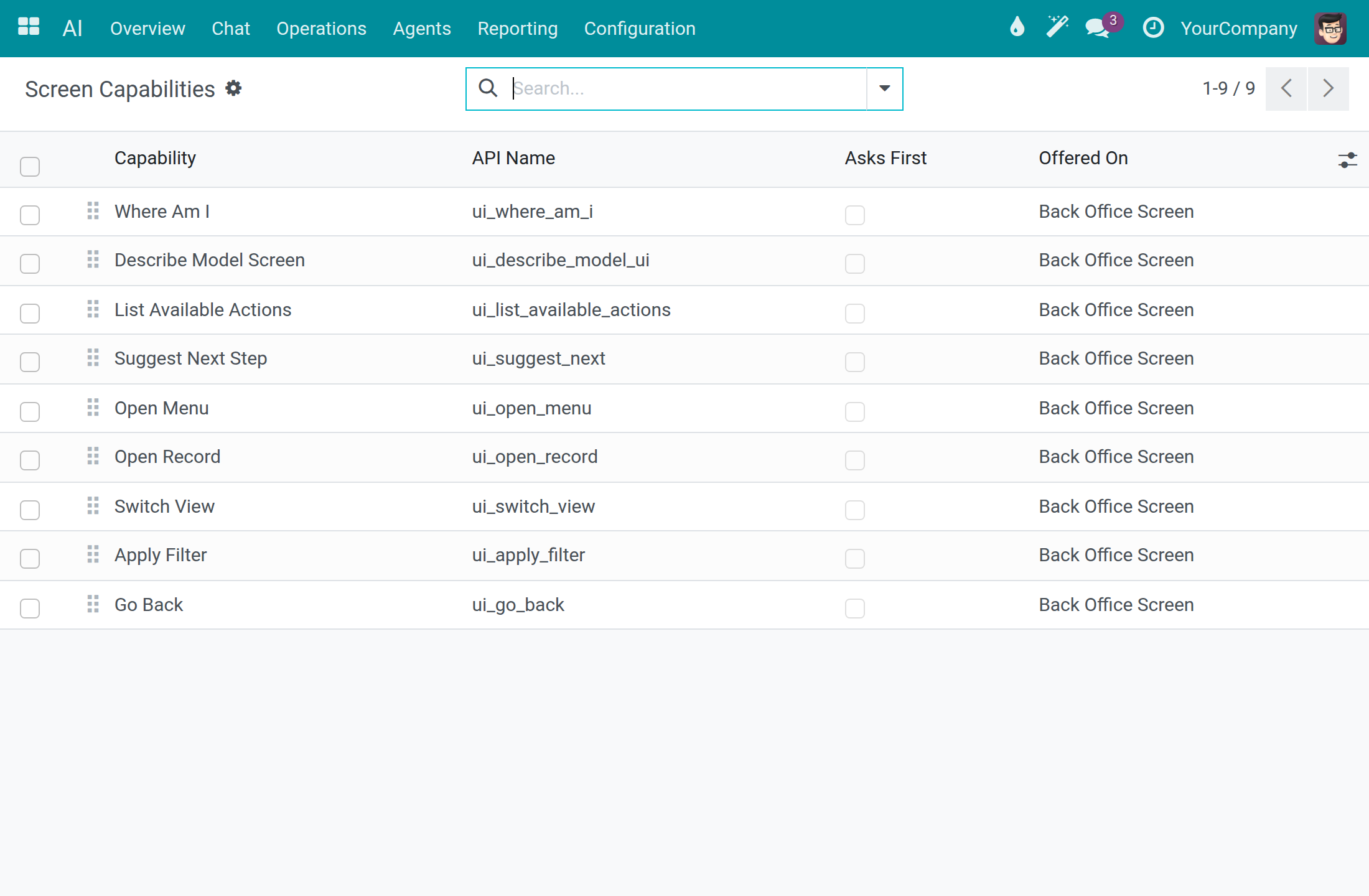
As a system administrator, open a capability and tick Ask User Before Running when you want a confirmation before the assistant uses it. The filters Asks Before Running and Runs Without Asking split the list.
Speech Pronunciations
Open AI ‣ Configuration ‣ Speech Pronunciations. Each line teaches the voice how to say a term, with the Written Term, a Respelling, the Phonetic (IPA) form, the Language and the Speech Models.
Click New when the voice says a company or product name wrongly. Type the Written Term exactly as written (the match is case-sensitive and whole-word), the Respelling, and the Language; leave Company empty to apply everywhere.
Troubleshooting
| What you see | What to do |
|---|---|
| The message says no AI connection is available for your company. | Open AI ‣ Configuration ‣ Settings and choose a Chat Vendor. It takes effect on the very next question. |
| Test Connection reports an error. | Check the API Key, the Base URL and the Authentication type of the connection in AI ‣ Configuration ‣ Providers. |
| A message says the connection is set to Self-Hosted data residency but has no private endpoint. | Fill in Base URL with your own endpoint, or change Data Residency if the connection is a cloud service. |
| A message says the daily cost cap is exceeded. | Raise the limit in Cost Control, set it to -1 for no limit, or wait for the next day. |
| Raw HTTP or API Request Logs is not available. | Ask a system administrator for the API Log Viewer right. |
| The AI section is missing in the Access Rights tab of a user. | Activate developer mode; the AI rights appear there. |
| A knowledge source stops at Error. | Read the Error section and fix the cause, such as an unlocked file or a corrected address. Then open the assistant in AI ‣ Agents, go to Knowledge Sources and click Retry failed sources. |
| An external tool server stays Not Yet Contacted or the message says its URL is not approved. | Click Approve This URL on the server, or approve the service first in AI ‣ Configuration ‣ External Tool Servers ‣ Approved Services, then click Test Connection. |
For other questions, contact support at https://viindoo.com/ticket. To buy or upgrade, see https://viindoo.com/contactus.
FAQ
Which AI vendors can I use? The thirteen connections listed in AI ‣ Configuration ‣ Providers, and any vendor you add with New, such as an Ollama server or Azure OpenAI.
Can anyone read my API key? No. The key field shows dots, and the audit trail shows ***MASKED*** in place of the key.
Does the Viindoo connection cost anything? The usage log records a cost of 0.00 for calls through it. It has daily token limits, which is why it suits a quick start.
Where is the record of what an employee asked? In the usage log of the Dashboard, on the Prompt tab of the call.
Can each company use its own vendor? Yes. The connection settings are kept per company.
This software and associated files (the "Software") may only be used (executed, modified, executed after modifications) if you have purchased a valid license from the authors, typically via Odoo Apps, or if you have received a written agreement from the authors of the Software (see the COPYRIGHT file).
You may develop Odoo modules that use the Software as a library (typically by depending on it, importing it and using its resources), but without copying any source code or material from the Software. You may distribute those modules under the license of your choice, provided that this license is compatible with the terms of the Odoo Proprietary License (For example: LGPL, MIT, or proprietary licenses similar to this one).
It is forbidden to publish, distribute, sublicense, or sell copies of the Software or modified copies of the Software.
The above copyright notice and this permission notice must be included in all copies or substantial portions of the Software.
THE SOFTWARE IS PROVIDED "AS IS", WITHOUT WARRANTY OF ANY KIND, EXPRESS OR IMPLIED, INCLUDING BUT NOT LIMITED TO THE WARRANTIES OF MERCHANTABILITY, FITNESS FOR A PARTICULAR PURPOSE AND NONINFRINGEMENT. IN NO EVENT SHALL THE AUTHORS OR COPYRIGHT HOLDERS BE LIABLE FOR ANY CLAIM, DAMAGES OR OTHER LIABILITY, WHETHER IN AN ACTION OF CONTRACT, TORT OR OTHERWISE, ARISING FROM, OUT OF OR IN CONNECTION WITH THE SOFTWARE OR THE USE OR OTHER DEALINGS IN THE SOFTWARE.
