


Viindoo AI - Voice Assistant
| Lines of Code | 4109 |
| Technical name | viin_ai_voice |
| License | OPL-1 |
| Website | https://viindoo.com/apps/app/17.0/viin_ai_voice |
| Read description for | |
| Required Apps | Discuss (mail) |
| Included Dependencies | Viindoo AI Viindoo Base API Request Logger |
| Extensions | Viindoo AI Suite |

Speak to the assistant and hear the answer, right in your Discuss conversation
Press the microphone on any AI conversation in Discuss, say what you need, and the assistant answers in writing and out loud. Your spoken question stays in the conversation as text, so the whole exchange can be read back tomorrow.
Viindoo AI - Voice Assistant is an Odoo 17.0 app for Odoo Community and Viindoo Cloud, for everyone who would rather speak to the AI assistant than type - and for the administrator who sets it up once.
At a Glance
The facts of Viindoo AI - Voice Assistant, version 1.0.4, in one place. Published by Viindoo.
How It Works
A microphone sits on the message box of every AI conversation in Discuss - in the chat window and in the Discuss app. There is no second window and no new menu to learn. The spoken language and the voice setup live in AI Settings of the conversation.
One row, the microphone beside what you type
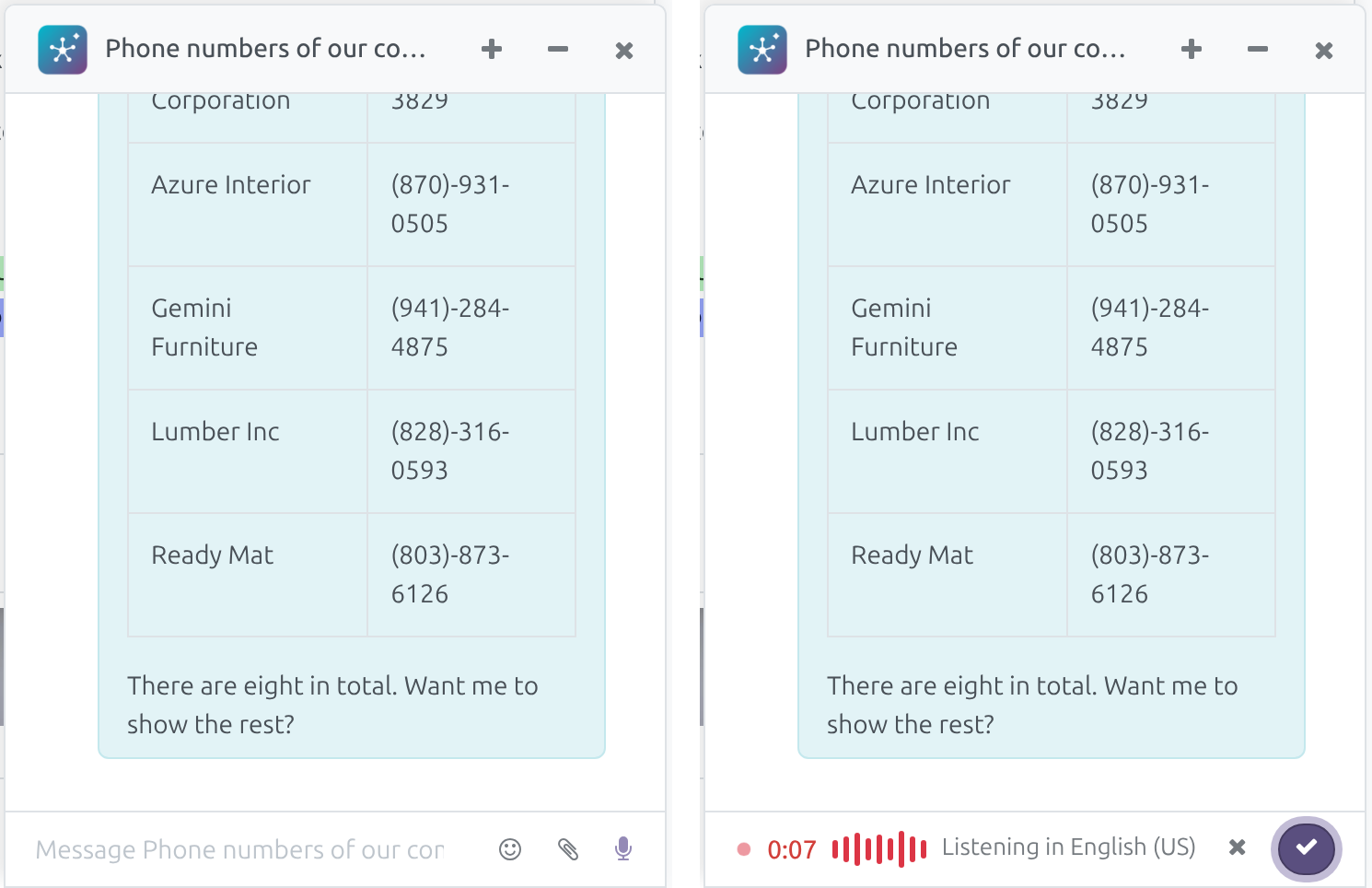
The message box of an AI conversation is the usual one-line row: the emoji and attachment buttons, a microphone and, where Discuss shows it, Send. Nothing else sits in the row - the spoken language and the voice setup are in AI Settings.

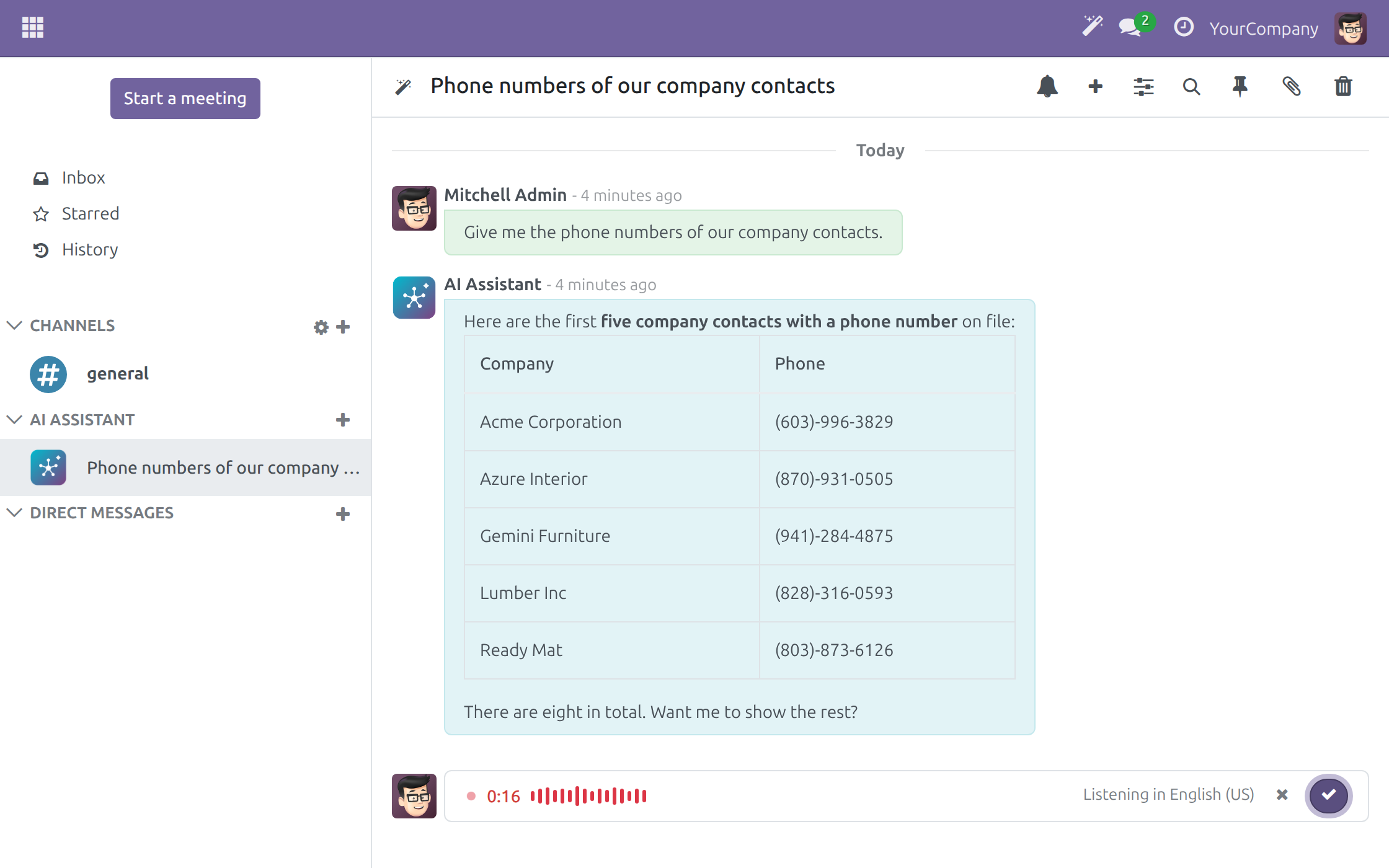
Press the microphone and speak
The row turns into a recording row in place: a timer, a level meter that moves with your voice and the language being listened in (Listening in English (US), for instance). Speak, then press the tick to send. The cross beside it throws the recording away and nothing is sent.

Your question is written down, the assistant answers
The row comes back while your words are written down - Transcribing your question... - and then while the answer is prepared - The assistant is answering... The microphone slot shows a Stop button for both, and Stop gives the turn up. Your spoken question lands in the conversation as text, like any message you type.


Hear the answer, read the details
When the answer is complete, the assistant reads a short spoken summary aloud and the full answer - tables and figures included - stays on screen. While it reads, the microphone slot shows a sound-wave Stop button that ends the voice; you can keep typing meanwhile.

Speak in the language of the conversation
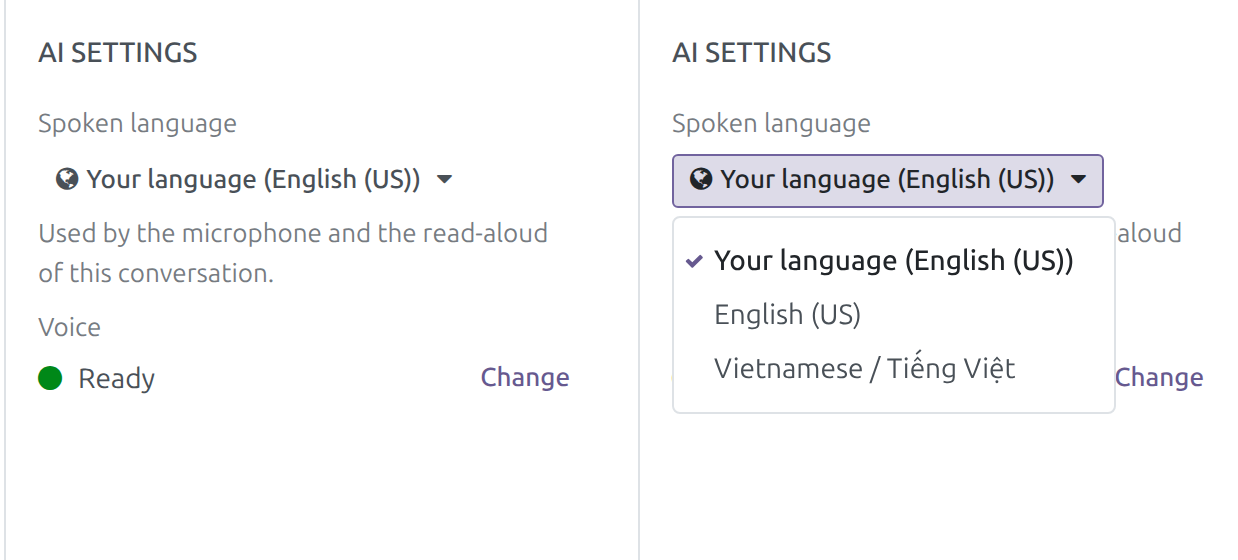
Open AI Settings from the conversation header. The Spoken language section offers Your language, which follows your own Odoo language, or any activated language, for this conversation only - the microphone then reads Speak your question in that language. The Voice section reads Ready, and an administrator also sees Change. A request in a language no configured voice reads aloud is understood and answered in English, aloud; only without an English voice either is it refused with a clear message, never answered in the wrong voice.
Approve a change by saying yes or no
When the assistant wants to change something, it reads the request back to you and shows the approval card in the conversation. Say yes or no, or click Approve or Reject - whichever comes first settles the card, and the step runs exactly once. An answer nobody understood is asked again once; if it is still unclear the request is cancelled and nothing changes.
Talk from any screen
The same row is in the chat window you open from the top bar, so you can speak while you work on a record. In the 360-pixel window the row stays one line, with the microphone beside the attachment button, and the recording row fits the same width.
Until voice is set up, only administrators see it
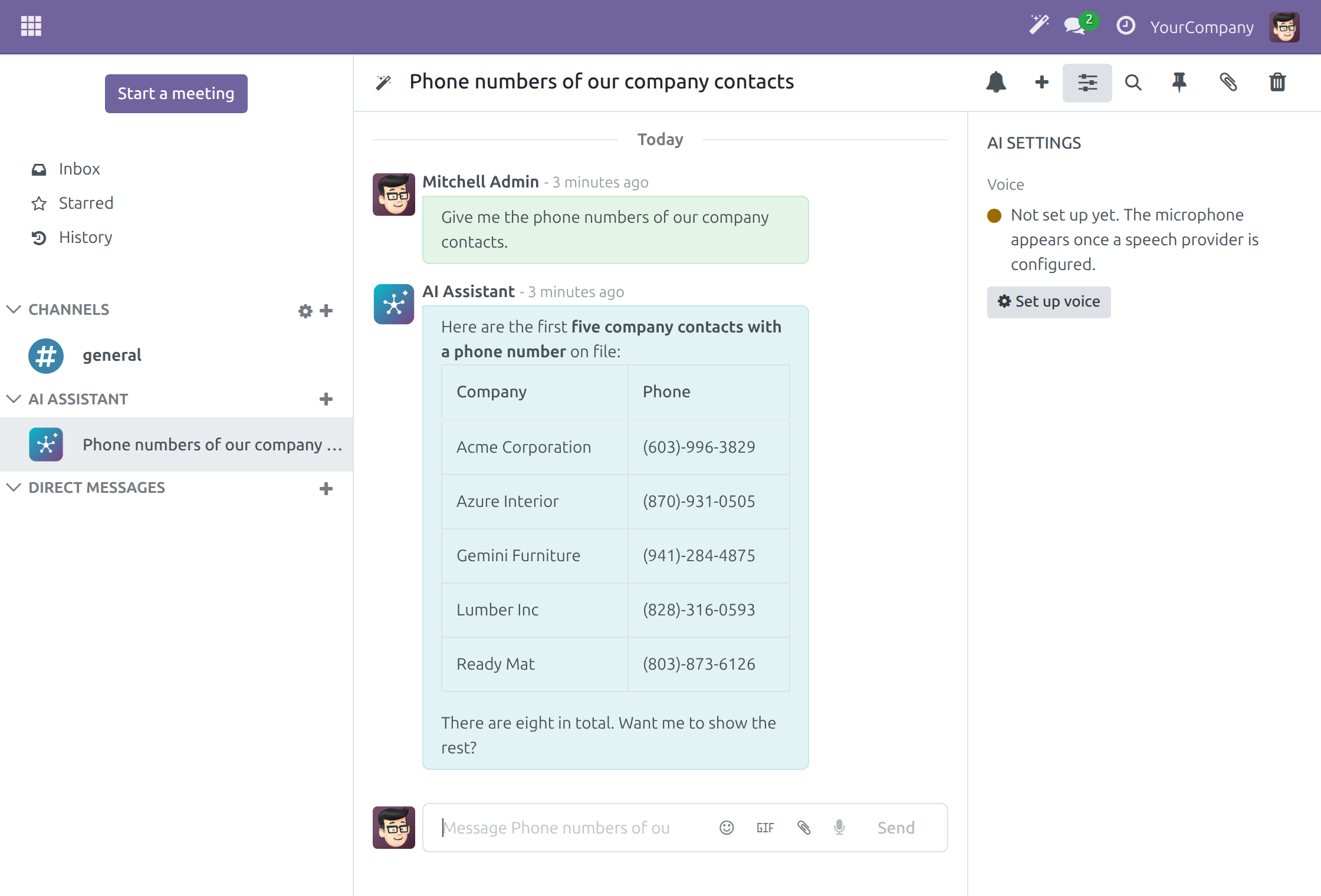
Until an administrator connects a speech provider, people who can configure it see a greyed microphone, and AI Settings shows a Voice section: Not set up yet. The microphone appears once a speech provider is configured. Its Set up voice button opens Settings > Viindoo AI. Everyone else sees no microphone and no voice section, and typing works as before.
Connect speech once, for everyone
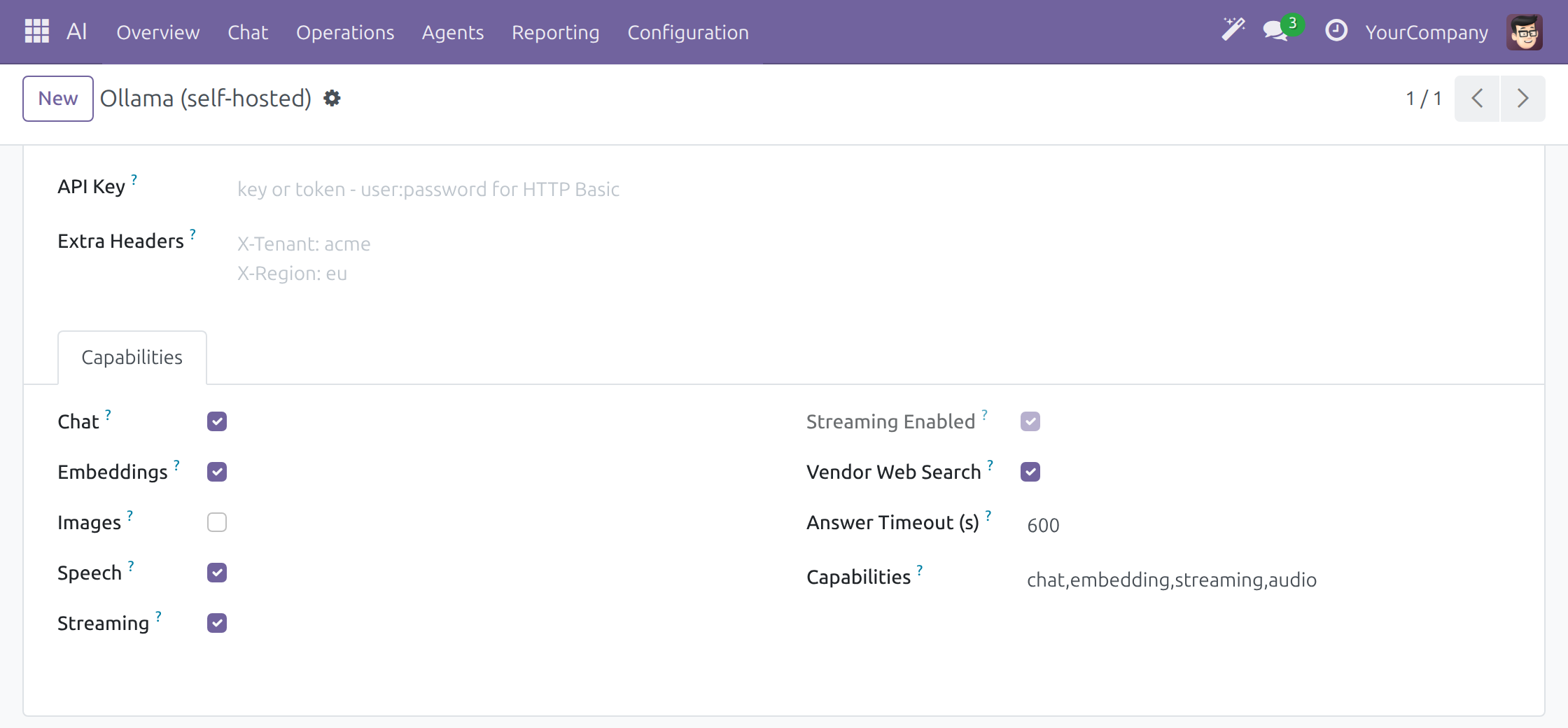
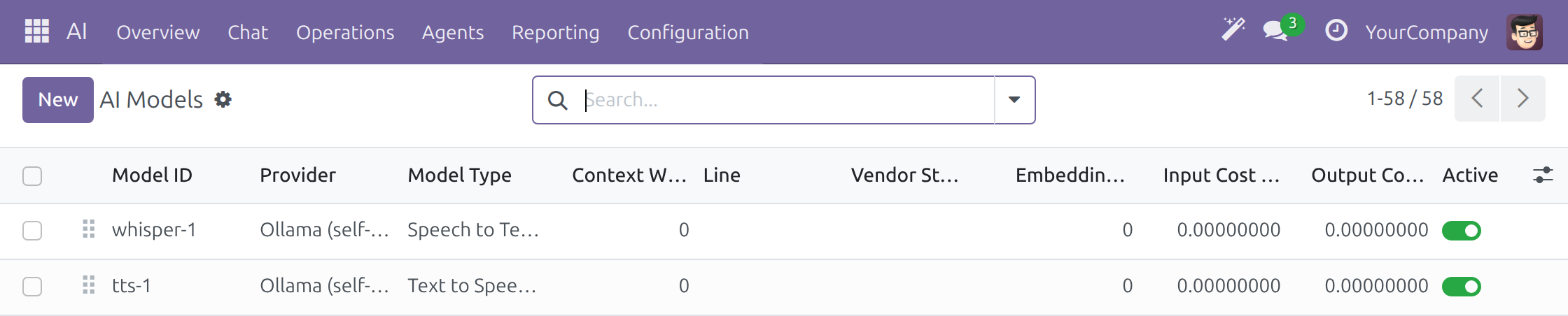
An administrator ticks Speech on a provider (AI > Configuration > Providers), adds one speech-to-text and one text-to-speech model with the languages they serve (AI > Configuration > Models), and picks the Audio Vendor in Settings > Viindoo AI.
What You Get
Talk instead of type: a microphone on every AI conversation in Discuss
A recording row with a timer and a live level in place of the message box; Discard throws the recording away
Your spoken question is kept as text in the conversation and answered in order
A short spoken summary of the answer; the tables and figures stay on screen
A spoken language per conversation, chosen in AI Settings, without touching your own Odoo language
Say yes or no to approve a change - or click; the step runs once
Stop ends the voice and the answer together
Nobody's voice is kept: the recording is transcribed and discarded
Only people who can set up voice see the microphone before it is ready
What This App Does Not Do
Read this before you buy. Everything below is something the app deliberately leaves to another app or to you.
The assistant replies in the screenshots are prepared to illustrate the shape of an answer, and the voice states are shown as they appear once a speech provider is connected; your assistant answers from your own data.
An administrator connects a speech provider with one speech-to-text and one text-to-speech model. Audio is sent to the provider you chose; data residency applies as for text.
Conversations with colleagues have no microphone, and the assistant never listens unless you press it.
If it does not, the conversation says so and you can still type your question.
Works Well With
Apps from the same stack, built to fit this one:
Viindoo AI
Required - the AI conversations in Discuss that the microphone speaks into, with the vendors, providers, agents, cost caps and the audit trail behind them.
Viindoo AIWho Should Use Viindoo AI - Voice Assistant?
Everyone who uses the AI assistant
Ask by voice when your hands are busy or your eyes are elsewhere, hear the point, and read the details on screen.
Approvers
Settle a proposed change by saying yes or no, or by clicking - and see in the conversation what you decided.
Administrator
Connect speech once, choose the languages each voice serves, and decide who gets a microphone by when you switch it on.
Frequently Asked Questions
What does Viindoo AI - Voice Assistant do?
It puts a microphone on every AI conversation in Discuss. You press it and speak; your question is written into the conversation, the assistant answers in order, and a short spoken summary of the answer is read aloud while the details stay on screen. AI Settings pins the spoken language per conversation, and you can approve a proposed change by saying yes or no.
What does it not do?
It cannot listen or speak until an administrator connects a speech provider, it works in AI conversations only, and audio is sent to the provider you chose.
Is my voice recorded or kept?
No. The recording is turned into text and discarded - it is not attached to the conversation and no copy is kept in any technical log. Only the written question stays.
Can I approve a change by voice?
Yes. The assistant reads the request back and shows the approval card; say yes or no, or click Approve or Reject. The first answer settles the card and the step runs once. An answer the assistant could not understand is asked again once; if it is still unclear the request is cancelled and nothing changes.
Does the language follow my Odoo language?
By default it follows the person speaking. The Spoken language section of AI Settings pins a language for one conversation without changing your Odoo language, and for a language none of the configured voices reads aloud the answer is given in English instead.
Who sees the microphone?
Once speech is set up, everyone in an AI conversation. Before that, only people who can configure it see a greyed microphone and, in AI Settings, a Voice section with a Set up voice button; everyone else sees nothing.
Who is Viindoo AI - Voice Assistant for?
Everyone who talks to the AI assistant - and the administrator who connects speech once.
Which Odoo version and editions does it support?
Odoo 17.0 - Odoo Community, Viindoo Cloud. Upgrades to a newer Odoo series are a separate purchase for that series.
What does it depend on?
It installs on top of: viin_ai.
How do I set it up?
Install it, then tick Speech on a provider, add a speech-to-text and a text-to-speech model, and pick the Audio Vendor in Settings > Viindoo AI. If you are an administrator you can start from the Set up voice button in AI Settings of any AI conversation.
What works well with it?
Viindoo AI (viin_ai): Required - the AI conversations in Discuss that the microphone speaks into, vendors, providers, agents, cost caps and the audit trail.
Can I try it before buying?
Yes - the Live Preview button at the top of this page opens the module's own screen on a working database.
How do I get support?
Write to apps.support@viindoo.com with your Odoo version and the technical name viin_ai_voice; pre-sales questions go to sales@viindoo.com.
See Viindoo AI - Voice Assistant in Action
Speak to the assistant and hear the answer, right in your Discuss conversation
Need help with Viindoo AI - Voice Assistant?
For questions, implementation support, or consulting services, contact Viindoo.
Pre-Sales & Partnership
sales@viindoo.comWhen contacting us, please include:
- Odoo/Viindoo version (Odoo CE / Viindoo Editions).
- Number of users and business scope.
- Other modules currently in use.
Technical Support
apps.support@viindoo.comFor faster troubleshooting, please provide:
- Order number or app reference.
- Odoo/Viindoo version & edition.
- Steps to reproduce the issue.
- Screenshots/logs if available.
Upgrades to a newer Odoo series are a separate purchase for that series.
Technical Requirement
Changes log
1.0.4 - Voice in Discuss
- The message box of an AI conversation in Discuss - in the chat window and in the Discuss app - stays one line, with the microphone beside the emoji and attachment buttons.
- Pressing the microphone swaps the row for a recording row with a timer, a live level, the language being listened in, Discard and Send.
- Transcribing and answering show in the message box with a Stop button; the answer read aloud has a sound-wave Stop button.
- AI Settings of the conversation holds the Spoken language and the Voice sections, with Set up voice for an administrator.
- A spoken question is stored in the conversation as text and answered in order; a spoken yes or no settles the approval card.
- People without configuration rights see no microphone until an administrator sets up voice.
1.0.2 - Spoken summaries
- The assistant speaks a short summary once the full answer is ready, never while it is still being written; Stop ends the voice and the answer together.
1.0.1 - Aligned with 17.0
- Aligned with the 17.0 models and views.
This software and associated files (the "Software") may only be used (executed, modified, executed after modifications) if you have purchased a valid license from the authors, typically via Odoo Apps, or if you have received a written agreement from the authors of the Software (see the COPYRIGHT file).
You may develop Odoo modules that use the Software as a library (typically by depending on it, importing it and using its resources), but without copying any source code or material from the Software. You may distribute those modules under the license of your choice, provided that this license is compatible with the terms of the Odoo Proprietary License (For example: LGPL, MIT, or proprietary licenses similar to this one).
It is forbidden to publish, distribute, sublicense, or sell copies of the Software or modified copies of the Software.
The above copyright notice and this permission notice must be included in all copies or substantial portions of the Software.
THE SOFTWARE IS PROVIDED "AS IS", WITHOUT WARRANTY OF ANY KIND, EXPRESS OR IMPLIED, INCLUDING BUT NOT LIMITED TO THE WARRANTIES OF MERCHANTABILITY, FITNESS FOR A PARTICULAR PURPOSE AND NONINFRINGEMENT. IN NO EVENT SHALL THE AUTHORS OR COPYRIGHT HOLDERS BE LIABLE FOR ANY CLAIM, DAMAGES OR OTHER LIABILITY, WHETHER IN AN ACTION OF CONTRACT, TORT OR OTHERWISE, ARISING FROM, OUT OF OR IN CONNECTION WITH THE SOFTWARE OR THE USE OR OTHER DEALINGS IN THE SOFTWARE.
