


Payroll Timesheet Integrator
| Lines of Code | 1002 |
| Technical name | to_hr_timesheet_payroll |
| License | OPL-1 |
| Website | https://viindoo.com/apps/modules/19.0/to_hr_timesheet_payroll?force_show=1 |
| Read description for | v 13.0 v 14.0 v 15.0 v 16.0 v 17.0 v 18.0 |
| Required Apps | Time Off (hr_holidays) Project (project) Discuss (mail) Calendar (calendar) Employees (hr) |
| Included Dependencies | Payroll Employee Relatives Viindoo Base Advanced HR Management HR Contracts (Viindoo) Work Entry Work Entry - Contract Viin Time-Off Base Addendum Viin - Holiday Work Entry Viindoo Holiday & WorkDay Manager Safe IR Metadata Proxies |
| Extensions | Payroll - Work From Home Timesheet Exclude Time off Timesheet records on Payslip |
Know what every hour of work really costs, straight from the payslip
For payroll officers, HR, project managers and finance teams who pay people and bill their time
Effortlessly integrate employee timesheets with Viindoo HR Payroll for accurate hourly cost.
Is this you?
Hours are logged in one place and salaries are computed in another, so someone re-keys numbers at month end.
Project reports use an estimated hourly rate that no longer matches what people are actually paid.
A timesheet gets changed after the payslip is confirmed and nobody tells payroll.
Part of the team is paid from timesheets and the rest is not, and the payroll process has to cope with both.
What changes
Hours are logged in one place and salaries are computed in another.
→ Load the period's project timesheets on the payslip with one button.
Project reports use an estimated hourly rate.
→ Recalculate each employee's hourly cost from the salary actually paid, every time a payslip is confirmed.
A timesheet changes after the payslip is confirmed.
→ Get a note on the payslip and an alert to the payroll team the moment it happens.
Only part of the team is paid from timesheets.
→ Switch timesheets on per contract, with the job position suggesting the default.
How it works
Set up
Payroll Administrator. Choose which pay categories count towards the hourly cost, the company's general overhead and which salary structures update it. The overhead is set, and all hourly costs refreshed, from Payroll > Configuration > Employee Hourly Cost.
Flag contracts
Payroll Officer. Tick Payroll Timesheet Enabled on the job position and on each contract that is paid with timesheets.
Log time
Employee. Employees log hours on projects as usual; hours land on the draft payslip of the period by themselves.
Confirm payslip
Payroll Officer. Load timesheets, compute and confirm. The employee's hourly cost and the cost of the period's timesheets follow the payslip.
Key Features
Timesheets on the payslip
One button loads the employee's project hours of the period, limited to the contract dates, and a counter opens the lines.
Timesheet cost per payslip
See the hourly cost multiplied by the hours of the period, next to the company cost, and add both as optional columns in the list.
Hourly cost from real pay
The cost of an hour comes from the pay categories you choose, the company's overhead coefficient and the hours the employee had to work.
Cost refreshed on confirmation
Confirming a payslip updates the employee's hourly cost and the cost of the period's timesheet lines. Invoiced lines and 13th-month pay are left alone.
Late changes do not go unnoticed
Timesheets logged, edited or deleted in a period whose payslip is already confirmed leave a note on the payslip, naming the employees and the fields edited by their labels, and alert payroll.
Recalculate in bulk
The Payroll Administrator updates the hourly cost of the whole company from existing payslips in one click from Payroll > Configuration > Employee Hourly Cost, and a Timesheet Administrator refreshes one employee from their form. Administrators of Settings who also hold the Payroll Administrator access right find the same field and button in the Payroll settings.
Who it is for
Payroll officer
Stops re-keying hours at month end and sees the timesheets behind each payslip.
HR
Decides per job position and contract who is paid from timesheets.
Project manager
Follows the whole team's timesheets while the cost per hour stays confidential.
Finance
Gets an hourly cost that follows the salary actually paid.
Best for: companies that pay some or all staff from recorded hours and want costed timesheets.
Costed timesheets on a payslip
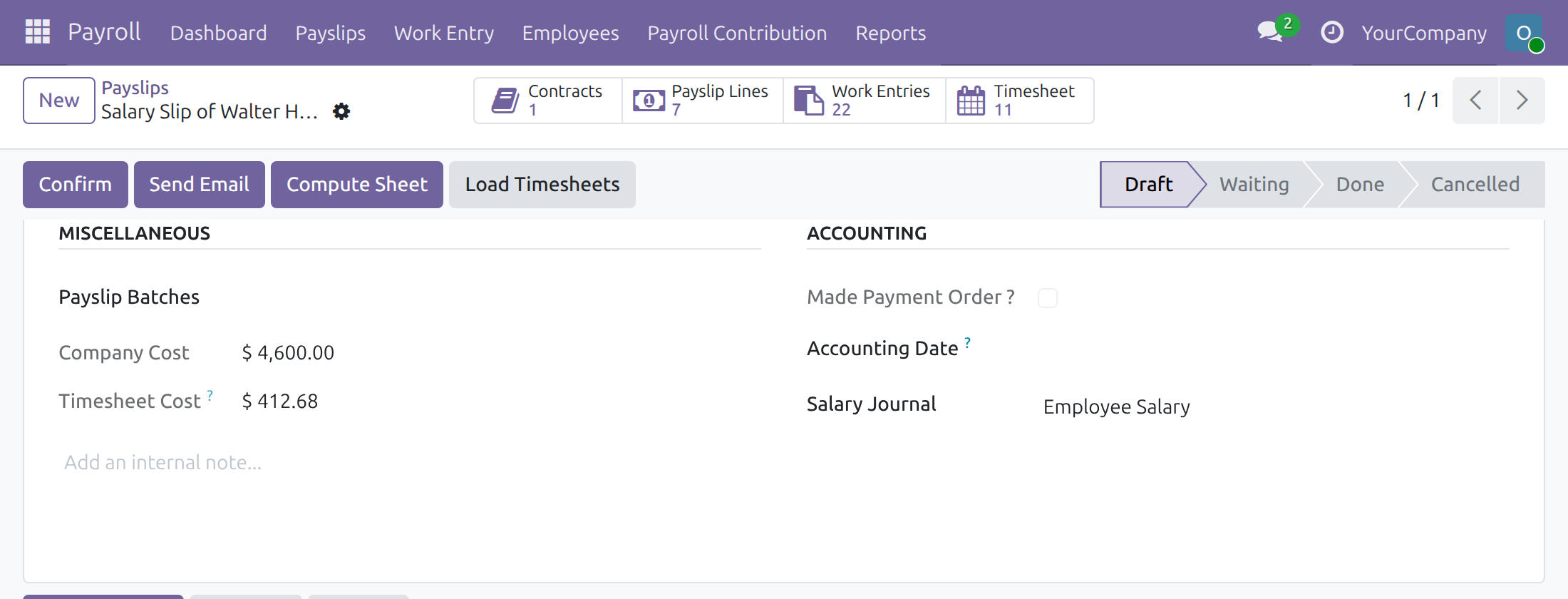
Load the period's timesheets
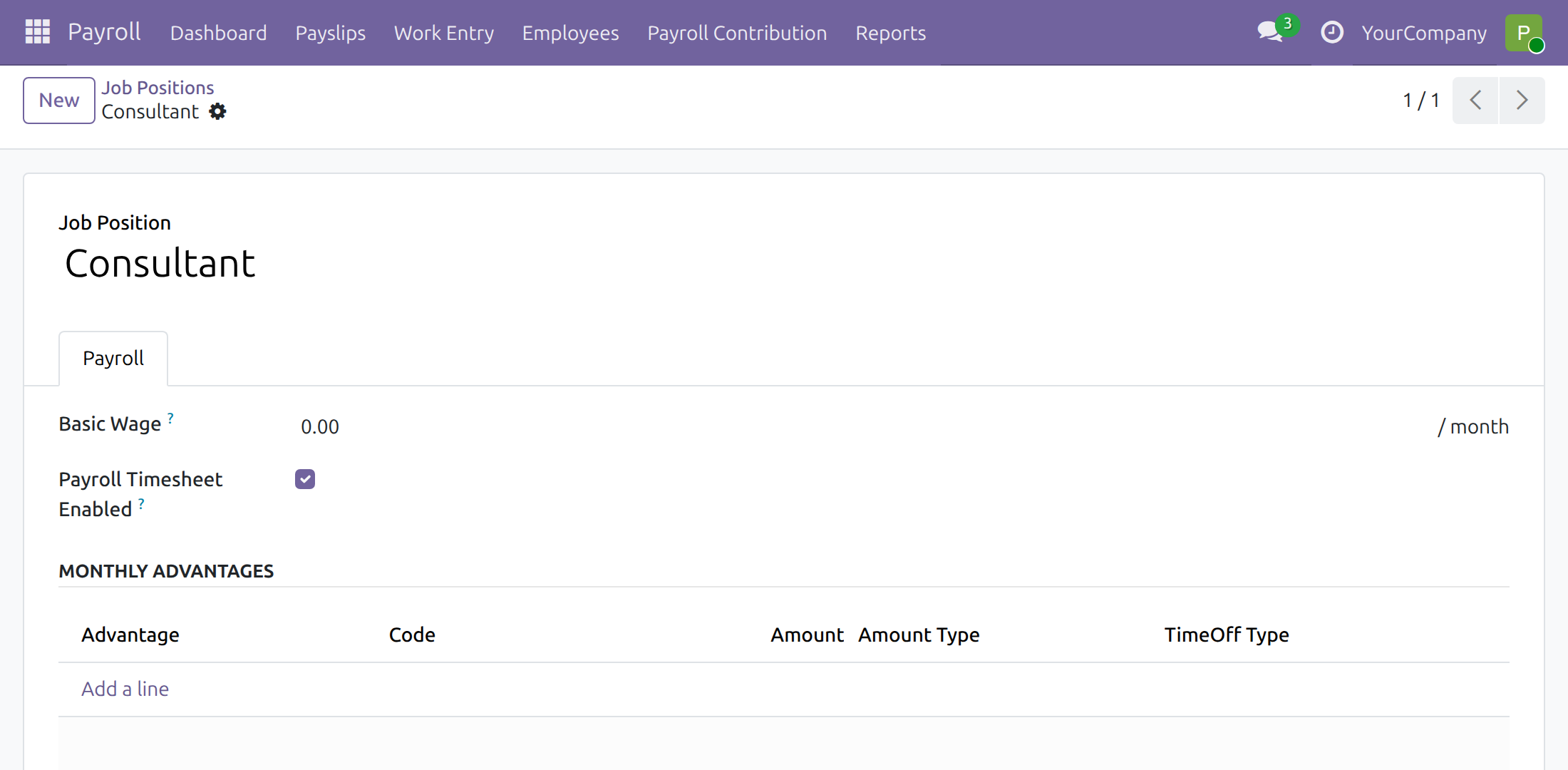
Switch timesheets on for a job position
Switch timesheets on for a contract
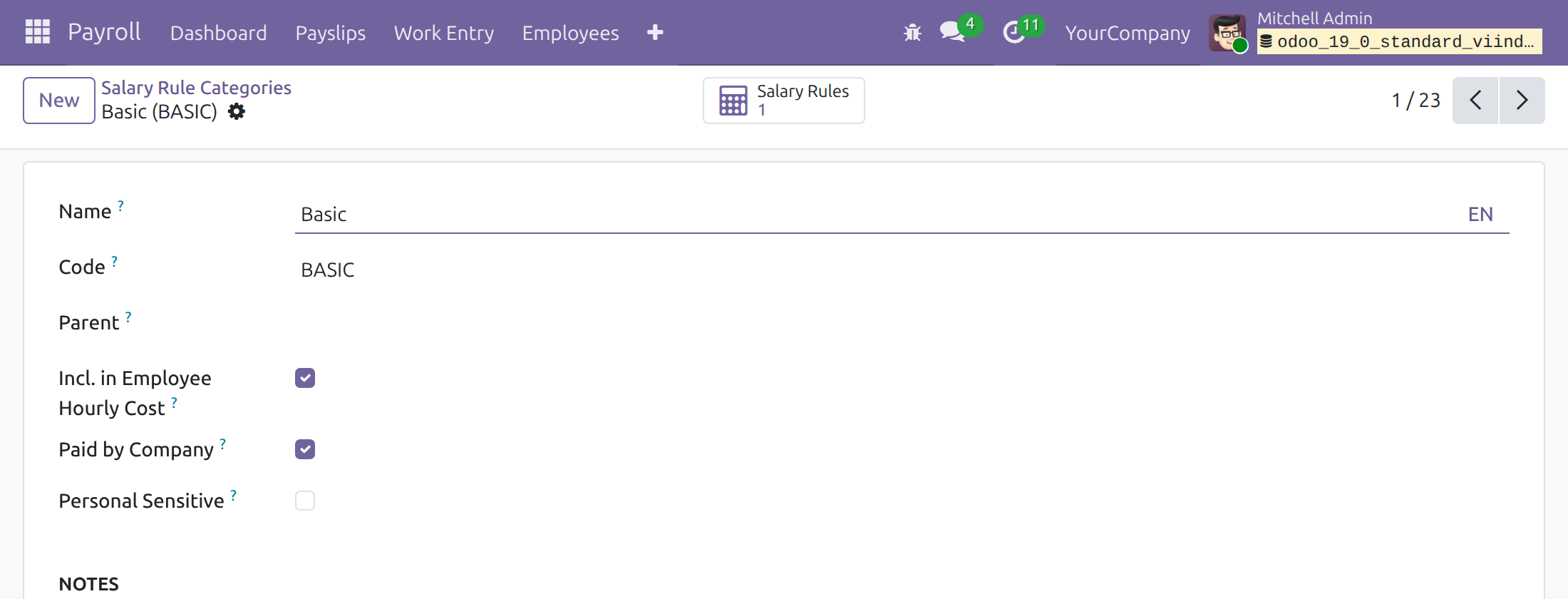
Choose the pay that counts towards hourly cost
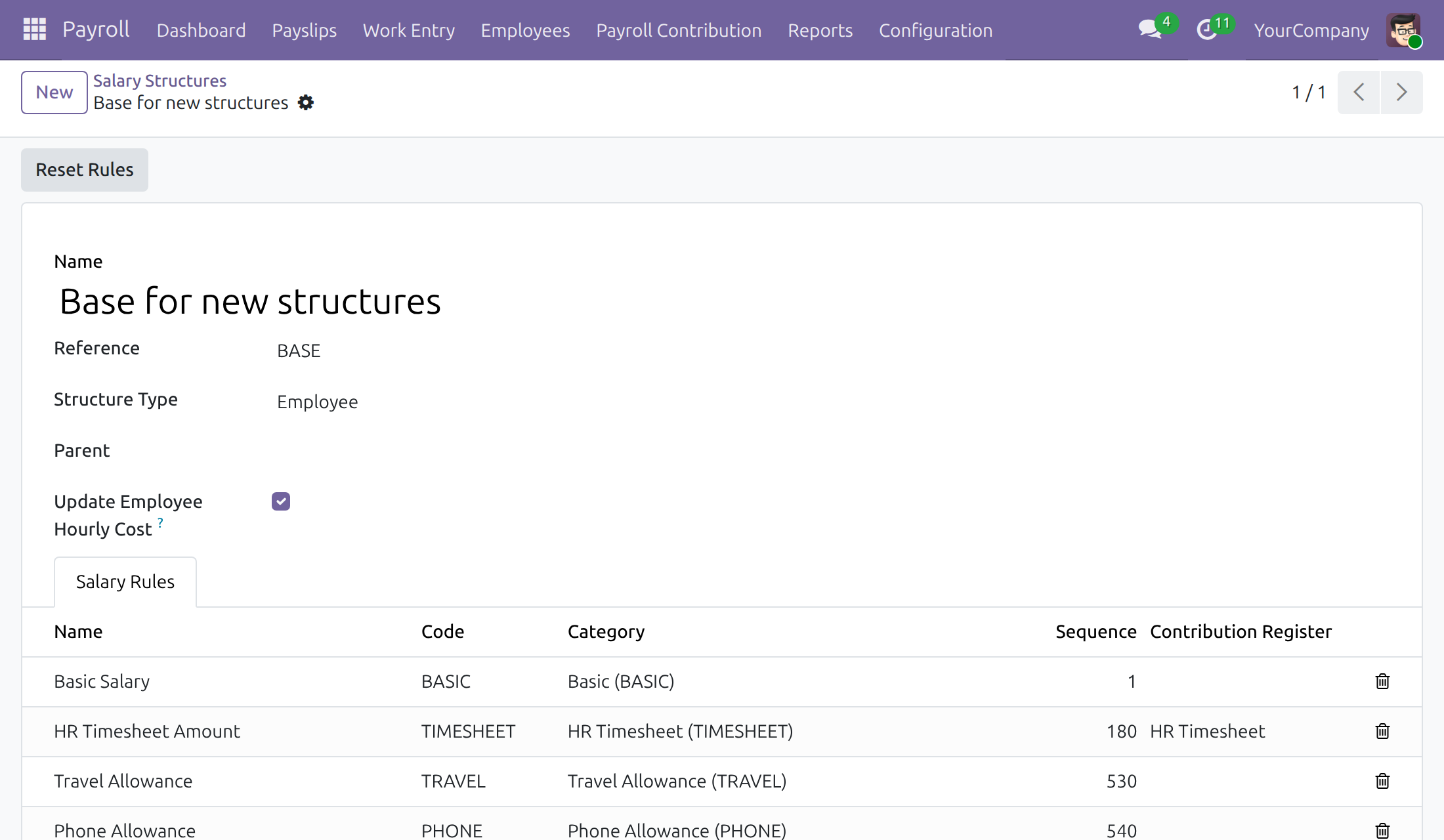
Choose which structures update the hourly cost
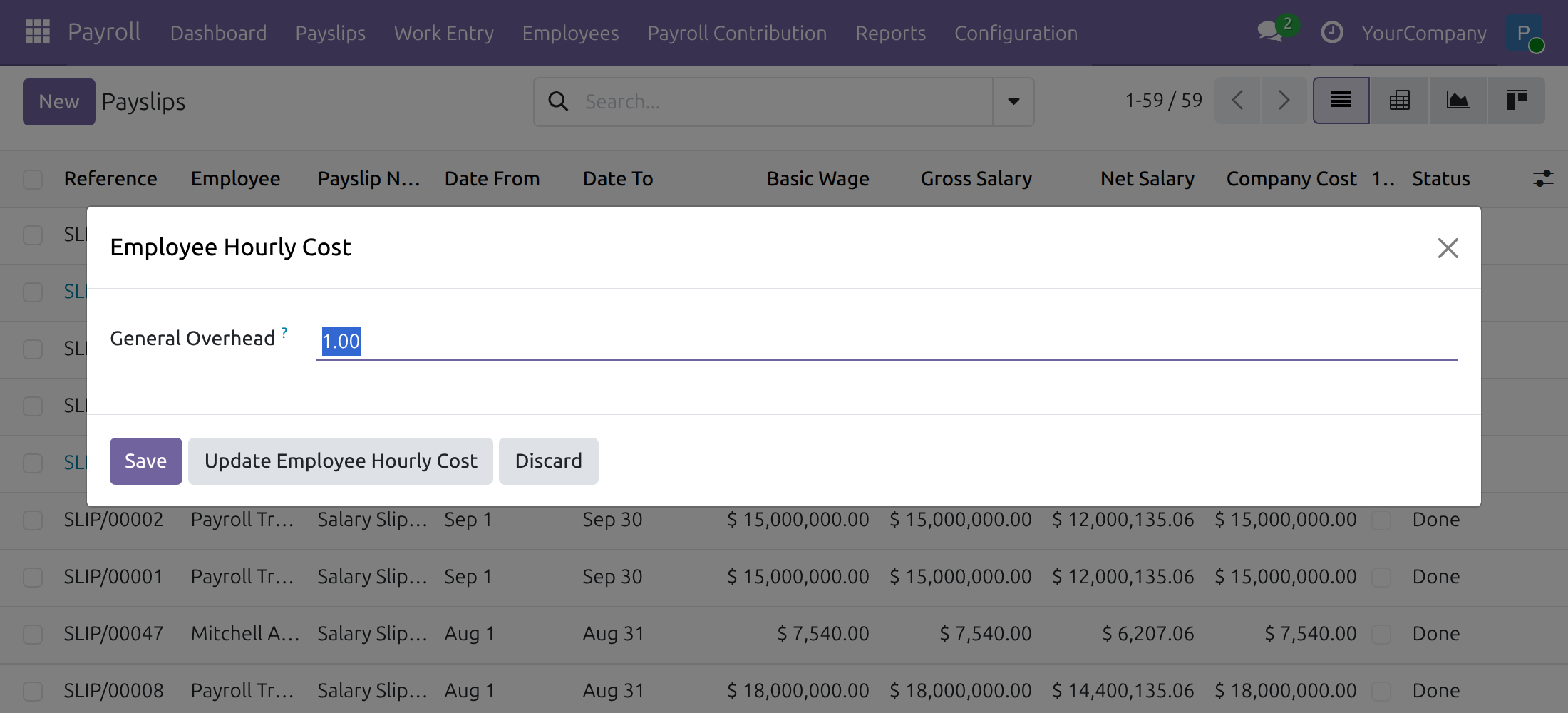
Set the general overhead and refresh every hourly cost
Refresh an employee's hourly cost
Log your time
See Payroll Timesheet Integrator in Action
Frequently Asked Questions
Does it approve timesheets?
No. It takes the timesheets as they are logged. Approval is a separate step.
Does it calculate pay from hours?
It supplies the hours and the cost. A salary rule named HR Timesheet Amount ships on the base structure, in the HR Timesheet category, a sub-category of Basic, with a zero amount. Once the Payroll Administrator writes the formula that fits the company's pay policy, the amount counts in gross pay, taxable income and net pay.
Will the hours be paid twice?
They would be if the structure also paid the wage. For a contract paid by timesheet, the Basic Salary rule of its structure must not also pay the wage; the Payroll Administrator adjusts that rule, or gives these contracts a structure of their own, so the hours are paid once, by HR Timesheet Amount.
Which timesheets reach a payslip?
Lines linked to a project, dated inside the payslip period and inside the contract dates of an employee whose contract has Payroll Timesheet Enabled.
What if timesheets change after confirmation?
The payslip receives a note, in the language of the person who made the change, naming the employees and the edited fields by their labels, or the deleted lines, and the payroll team is alerted. To take the change into account, cancel the payslip, set it back to Draft, load the timesheets, compute it and confirm it again.
Does it post accounting entries?
No. It only adds hours and costs to timesheets and payslips.
Which Odoo version and editions?
Odoo 19.0 for Odoo Community, Odoo Enterprise and Viindoo Cloud. Moving to a newer series is a separate purchase for that series.
Need help with Payroll Timesheet Integrator?
For questions, implementation support or a custom feature, contact Viindoo.
Pre-Sales & Partnership
Contact ViindooTechnical Support
Open a support ticketTechnical Requirement
- Odoo version: 19.0
- Editions: Odoo Community, Odoo Enterprise, Viindoo Cloud
- Required modules: Timesheets (hr_timesheet) and Payroll
- License: OPL-1
Payroll Timesheet Integrator
For: the employees who log their time, the Timesheet Administrators and project managers who follow it, the Payroll Officer who runs the monthly payslips, and the Payroll Administrator who sets up how working hours turn into labour cost.
Note
Extends Payroll - see its documentation: Payroll.
Overview
Payroll Timesheet Integrator connects the hours employees log on projects to their payslips. Each payslip shows the timesheets of its period, and when a payslip is confirmed the employee's hourly cost is recalculated from the salary actually paid, so every timesheet line carries a cost that follows real payroll instead of an estimate.
The process, stage by stage:
- Setup (Payroll Administrator). Choose which pay categories count towards the hourly cost, the general overhead coefficient of the company, and which salary structures update the hourly cost.
- Contracts (Payroll Officer). Mark the job positions and contracts whose payslips take timesheets into account.
- Logging time (Employee). Employees log hours on projects as usual.
- Payslips (Payroll Officer). The Officer loads the timesheets on the payslip, computes and confirms it. The employee's hourly cost and the cost of the period's timesheets are updated.
- Follow-up (Timesheet Administrator). Refresh an employee's hourly cost from the latest payslip when needed.
| Role | What they do | Access right to assign |
|---|---|---|
| Employee | Logs hours on projects and sees their own timesheets. | Timesheets / User: own timesheets only |
| Project manager | Sees the timesheets of the whole team. The hourly cost of employees stays hidden from this role. | Timesheets / User: all timesheets (included in Project / Administrator) |
| Timesheet Administrator | Sees the hourly cost of employees and refreshes it from the latest payslip. | Timesheets / Administrator |
| Payroll Officer | Flags job positions and contracts, loads timesheets on payslips, computes and confirms payslips. Also has the Timesheet Administrator rights. | Payroll / Officer |
| Payroll Administrator | Chooses the structures and pay categories that feed the hourly cost, sets the general overhead and refreshes all hourly costs at once from Payroll > Configuration > Employee Hourly Cost. | Payroll / Administrator |
Note
The Configuration menu of Payroll, and with it Employee Hourly Cost, is shown to Payroll Administrators only. A Payroll Officer does not see it and asks a Payroll Administrator to set the general overhead or to refresh the hourly costs.
Setup (for the Payroll Administrator)
Installation
The module installs itself when the Timesheets and Payroll apps are both installed. Open Apps, search for Payroll Timesheet Integrator and check it is installed; if not, click Install.
Choose which pay feeds the hourly cost
The hourly cost of an employee is the total of the pay categories marked for it, multiplied by the company's general overhead, divided by the hours the employee had to work in the period (unpaid leave excluded).
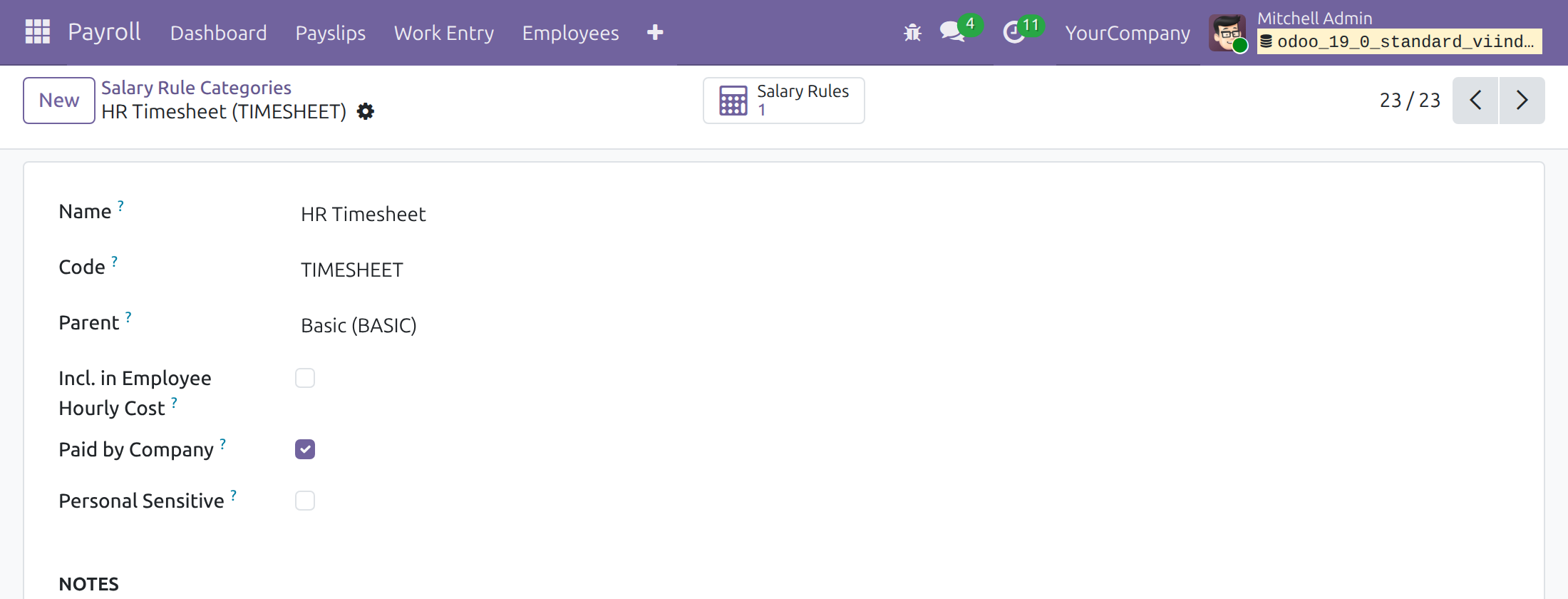
- Switch on the developer mode, then open Payroll > Configuration > Payroll Entry > Salary Rule Categories (this menu is shown in developer mode only).
- Open a category, for example Basic.
- Tick Incl. in Employee Hourly Cost for every category that counts towards the cost of an hour of work. Each category keeps its own setting.
The category HR Timesheet is a sub-category of Basic. Pay in this category is part of the basic salary, so it counts in the gross pay, in the taxable income and in the net pay. Its Incl. in Employee Hourly Cost box is not ticked, so the pay computed from timesheets does not feed the hourly cost; tick it only if that fits the company's costing policy.
Choose which structures update the hourly cost
- Open Payroll > Configuration > Payroll Entry > Salary Structures and open a structure.
- Tick or untick Update Employee Hourly Cost. When ticked, confirming a payslip of this structure refreshes the employee's hourly cost and the cost of the timesheets of the payslip's period. It is ticked by default.
Note
The structure ships with a salary rule called HR Timesheet Amount (Salary Rules tab), in the HR Timesheet category. It appears on payslips of contracts that take timesheets into account. Its amount is zero until the Payroll Administrator writes the calculation that fits the company's pay policy, for example paying by the hour from the timesheet hours of the payslip. Whatever amount it returns is added to the gross pay, the taxable income and the net pay.
Caution!
When a contract is paid by timesheet, the Basic Salary rule of its structure must not also pay the wage: otherwise the hours are paid twice, once by Basic Salary and once by HR Timesheet Amount. Open Payroll > Configuration > Payroll Entry > Salary Rules, adjust the Basic Salary rule of the structure, or use a separate structure for these contracts, so that the hours are paid once, by HR Timesheet Amount.
Set the general overhead and refresh the hourly costs
The general overhead is a coefficient for management expenses added on top of pay when computing the hourly cost. It is 1.00 by default, meaning no extra cost. It is set per company, and the company shown in the top bar is the one that changes.
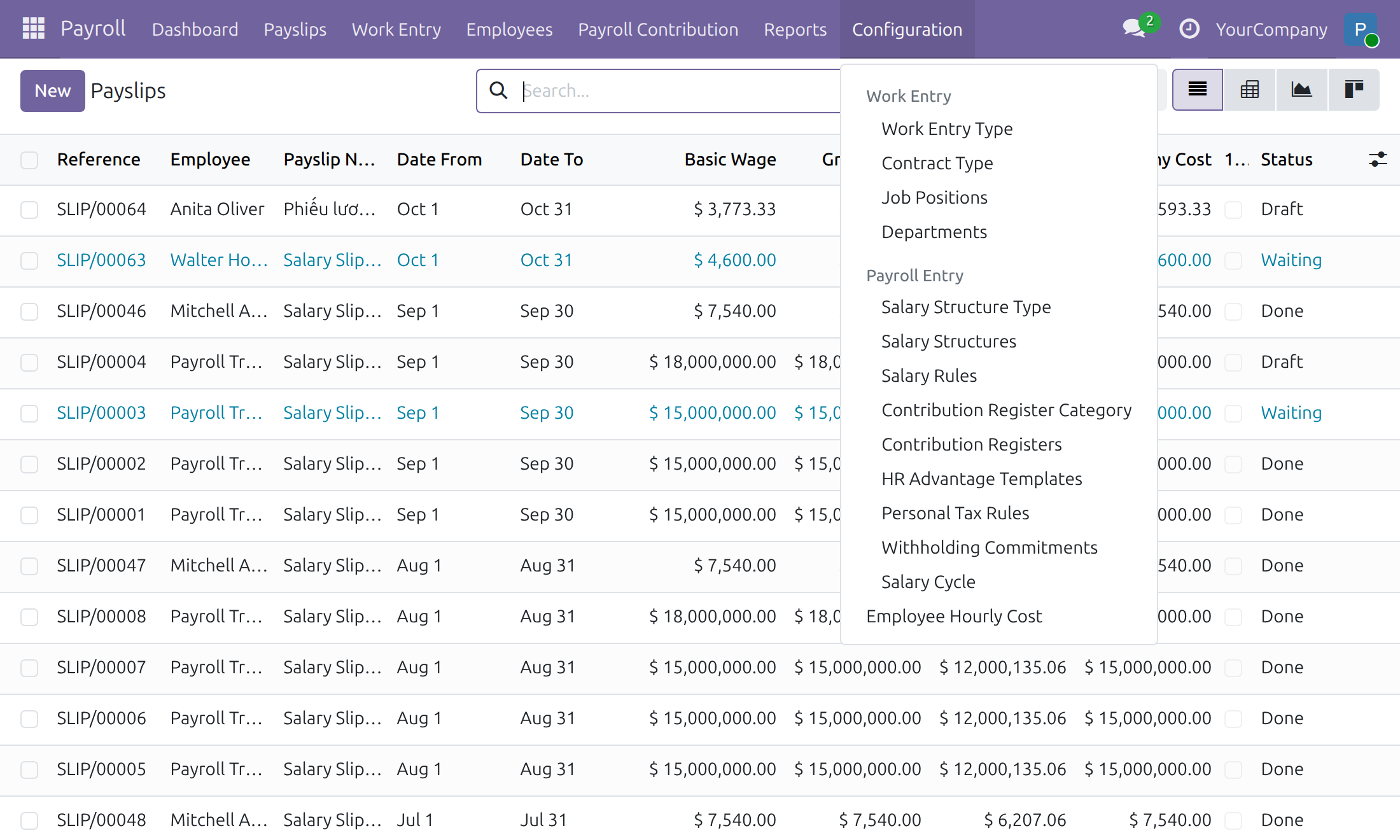
The Payroll Administrator opens Payroll > Configuration > Employee Hourly Cost:
- Enter the value in General Overhead.
- Click Save to keep the value and close the window, or click Discard to leave without changing anything.
- Click Update Employee Hourly Cost to keep the value and recalculate the hourly cost of every employee, and the cost of every timesheet line covered by a confirmed payslip, from the existing payslips of the company. Confirm the question that follows; the window closes when the update is done.
Use the update after changing the overhead or the pay categories above. It can be run again whenever a value needs correcting: correct the value, then run Update Employee Hourly Cost once more.
People who are both Payroll Administrators and Administrators of Settings find the same field and the same Update Employee Hourly Cost button in the Timesheets block of Payroll > Configuration > Settings.
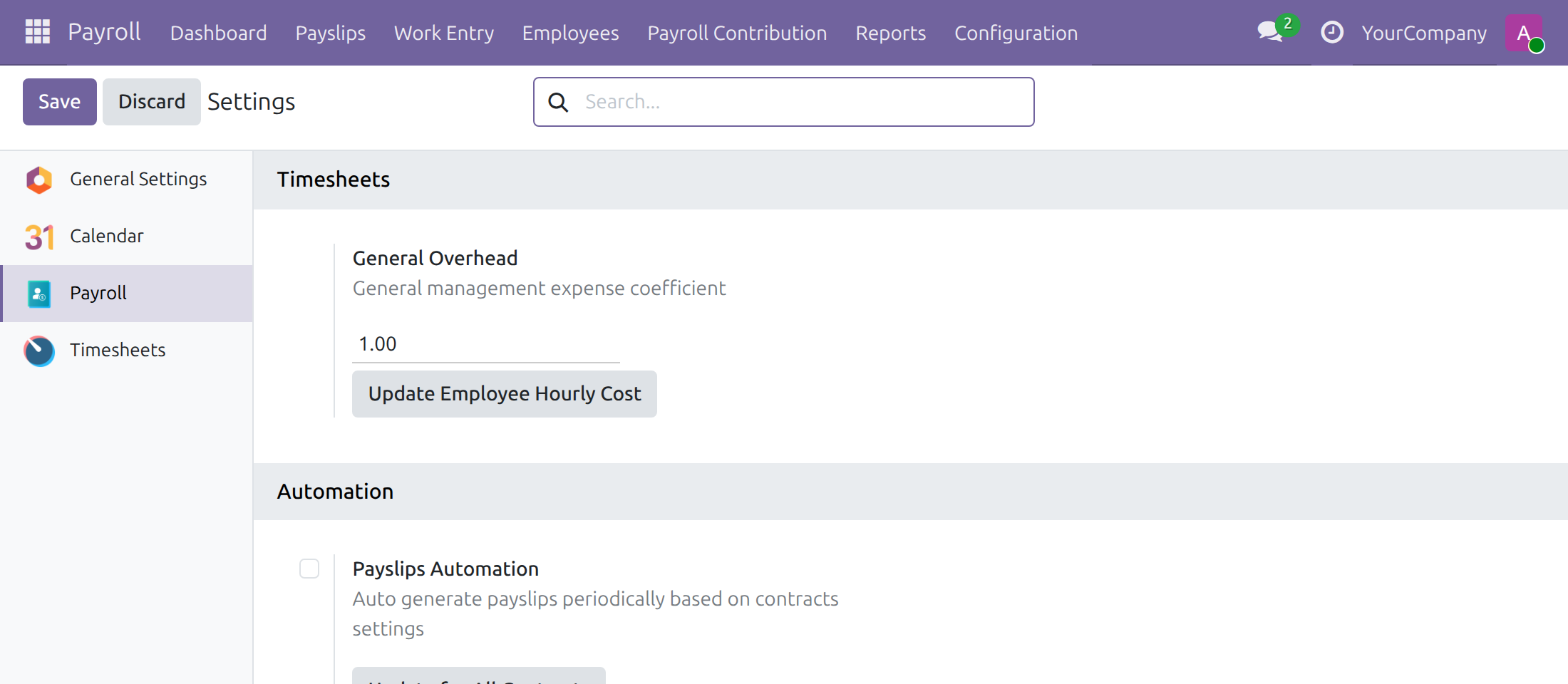
Who sees what:
- Payroll Administrator: Payroll > Configuration > Employee Hourly Cost.
- Payroll Administrator who is also Administrator of Settings: the same menu, plus the Timesheets block of Payroll > Configuration > Settings.
- Payroll Officer: the Configuration menu is not shown, as the picture below shows, and the general overhead cannot be changed. If the screen is opened from a saved link, an access error lists Payroll/Administrator as the group allowed and asks to contact the administrator. Ask a Payroll Administrator to make the change, or ask the company administrator to give you the Payroll Administrator access right.
- Administrator of Settings without a Payroll access right: the Payroll block is not shown in Settings. Ask the company administrator to add the Payroll Administrator access right to the user.

Employee: log your time
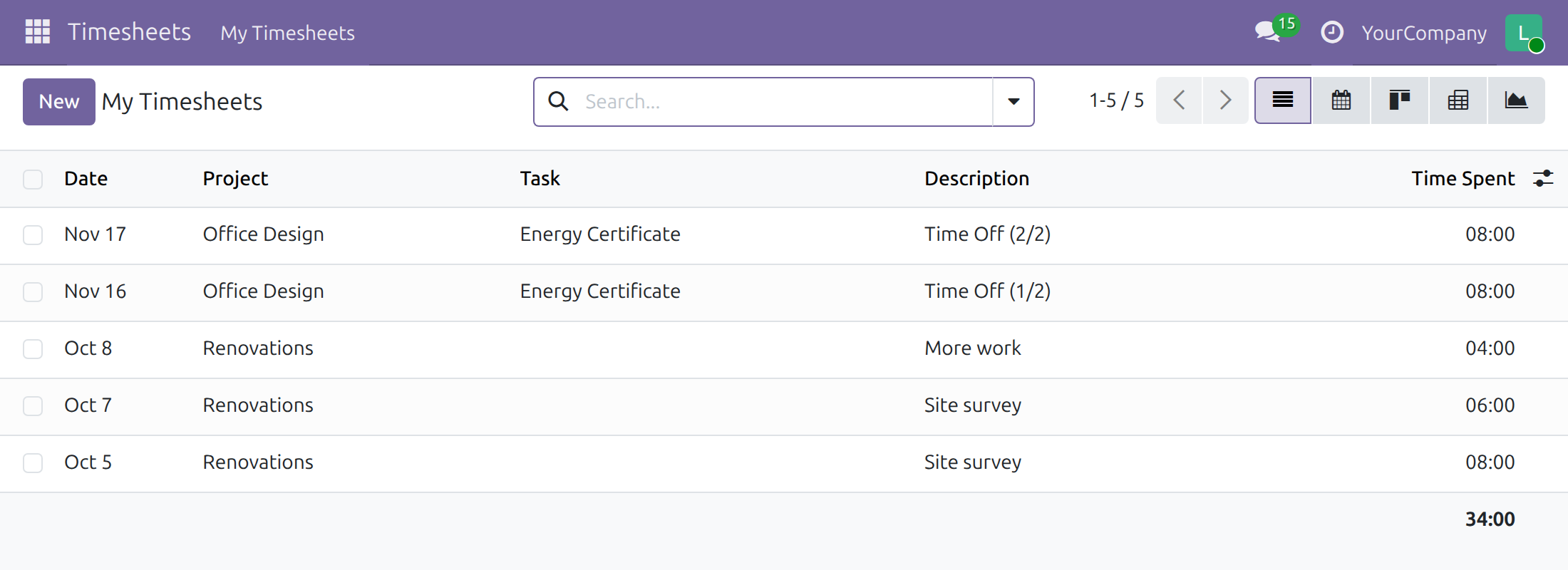
Log hours as usual in Timesheets > My Timesheets: pick the project (and task), describe the work and enter the time spent. You see only your own lines.
What happens next:
- Timesheets logged inside the period of a payslip that is still in Draft are added to that payslip automatically.
- If you add, change or delete hours in the period of a payslip that is already confirmed, the payslip receives a note and the payroll team is alerted so they can decide whether to recompute it. Your entry is still saved. The note names the employees concerned and lists the edited fields by their labels, or the deleted timesheet lines.
- Only lines linked to a project count towards a payslip.
Project manager and Timesheet Administrator
A project manager sees every timesheet in Timesheets > Timesheets > All Timesheets to follow the team. The employees' hourly cost is not shown to this role.
A Timesheet Administrator also sees the hourly cost and can refresh it:
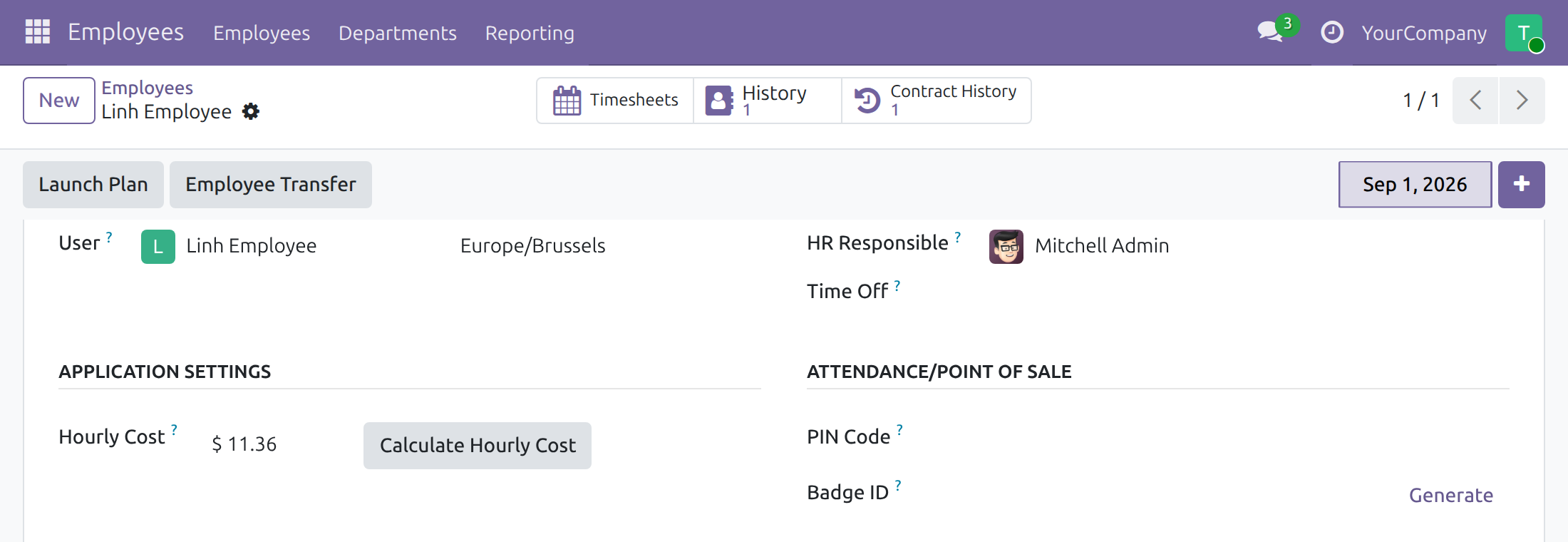
- Open Employees, open the employee and go to the Settings tab.
- Click Calculate Hourly Cost next to Hourly Cost and confirm. The value is recalculated from the employee's latest payslip.
Payroll Officer: from timesheets to payslip
Flag the job position
- Open Employees > Configuration > Recruitment > Job Positions (also reachable from Payroll > Configuration > Work Entry > Job Positions) and open the position.
- In the Payroll tab tick Payroll Timesheet Enabled. New contracts of this position start with the option ticked.
Flag the contract
- Open Payroll > Employees > Employees and open the employee.
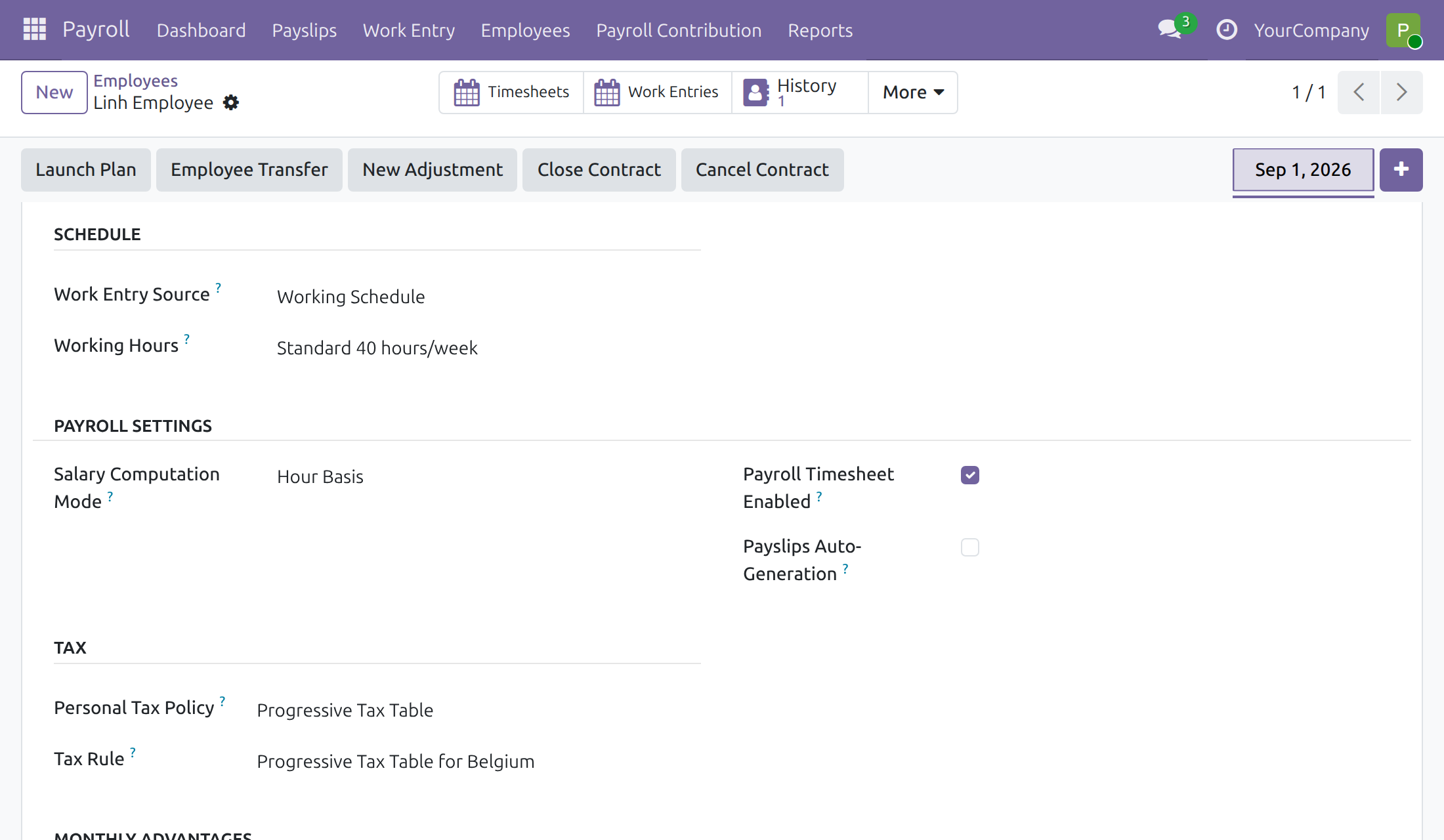
- In the Payroll tab, under Payroll Settings, tick or untick Payroll Timesheet Enabled. Only timesheets dated inside the contract period are taken into account.
Caution!
A contract flagged Payroll Timesheet Enabled is paid by timesheet, so the Basic Salary rule of its structure must not also pay the wage; otherwise the hours are paid twice. If the structure still pays the wage through Basic Salary, ask the Payroll Administrator to adjust that rule or to move these contracts to a structure of their own (see Choose which structures update the hourly cost above).
Load timesheets on a payslip
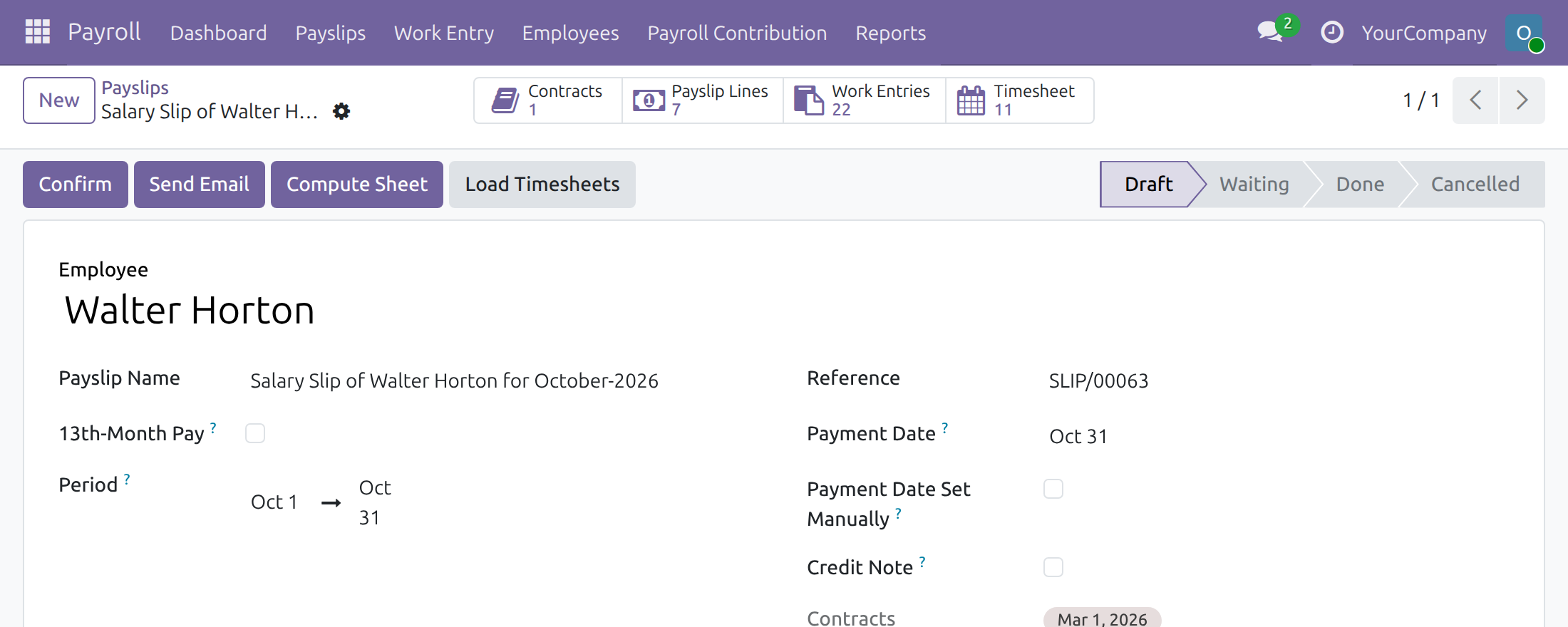
- Open Payroll > Payslips > Payslips and open a payslip in Draft, or create one for the employee and period.
- Click Load Timesheets to refresh the timesheets of the period, then Compute Sheet.
- The Timesheet button at the top shows how many lines were found. Click it to open them.
- In the Salary Computation tab, the payslip lines show HR Timesheet Amount (category HR Timesheet) right after Basic Salary. Its amount is part of the basic pay, so Gross, Personal Tax Base and Net Salary include it.
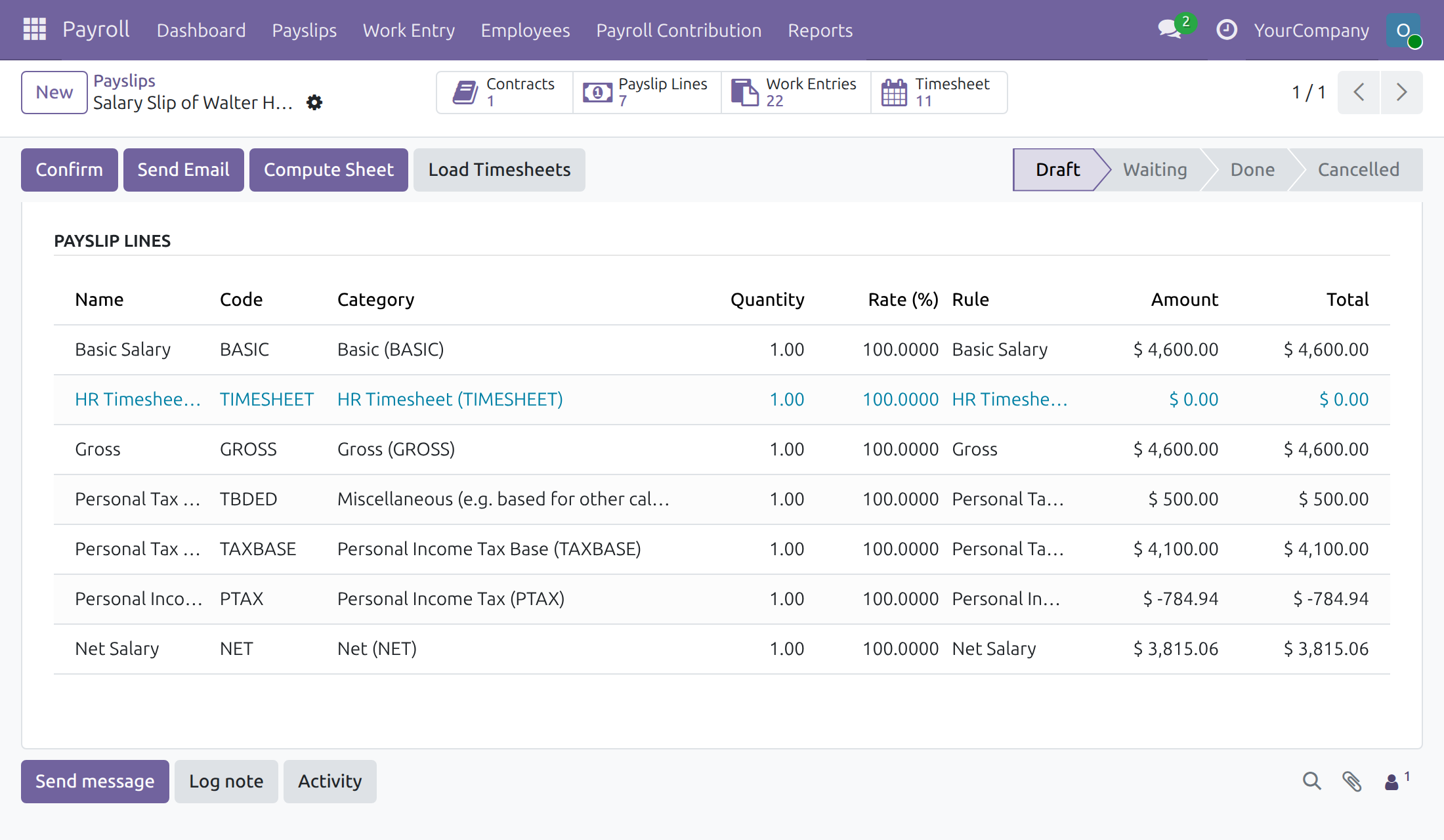
Read the timesheet cost
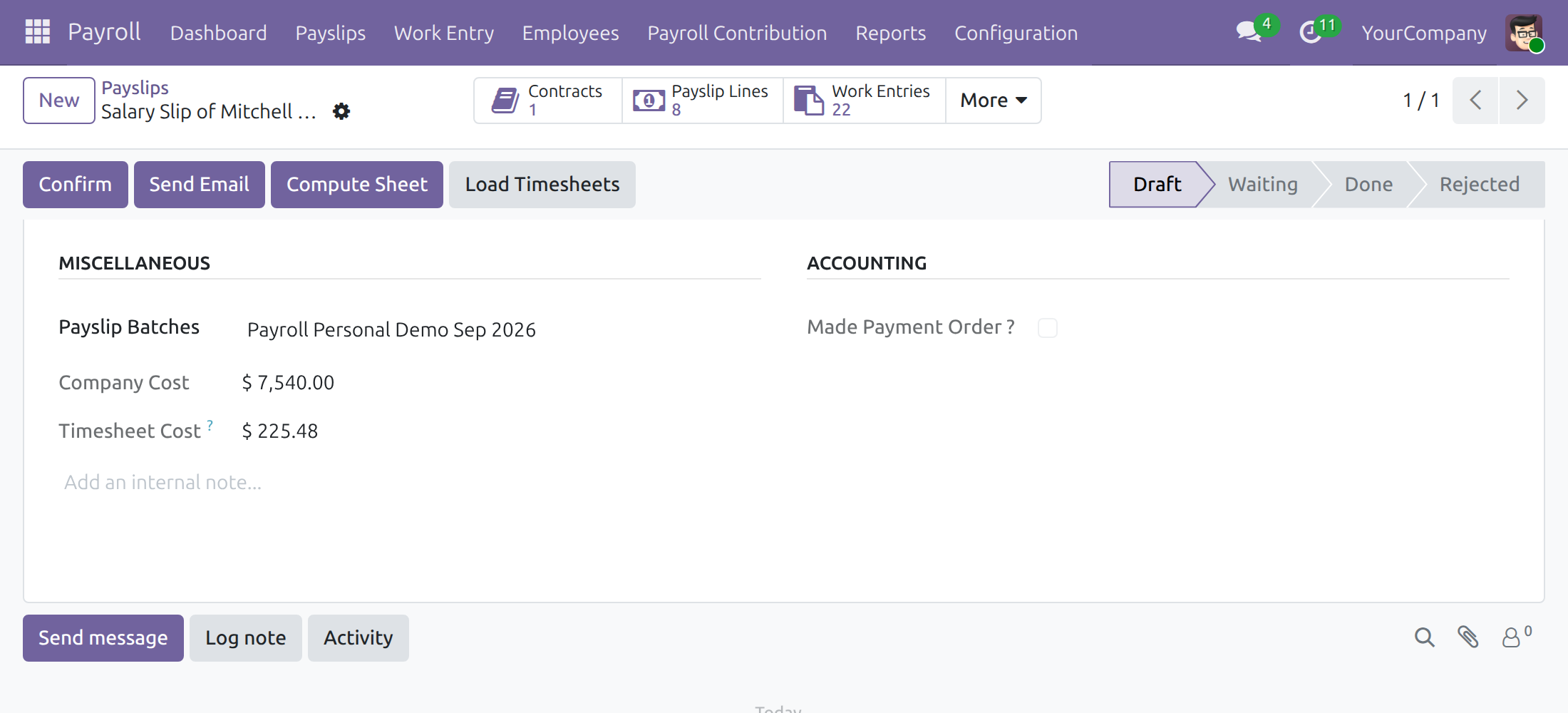
In the Accounting tab of the payslip, Timesheet Cost shows the hourly cost multiplied by the hours of the loaded timesheets. In the payslip list, the columns Total Timesheet Hours and Timesheet Cost can be switched on from the optional columns menu.
Confirm the payslip
Click Confirm. For payslips of a structure that updates the hourly cost, the employee's Hourly Cost is updated, and the cost of the timesheet lines inside the period is rewritten with it. Lines already invoiced to a customer are left unchanged. A 13th-month payslip never changes the hourly cost, and neither does a payslip older than the employee's latest one.
Timesheet changes after confirmation
When a timesheet of the payslip's period is edited or deleted while the payslip is Waiting or Done, the change is saved and a note is added to the chatter of the payslip. The note is signed by the person who made the change, reaches the payroll team, and is written in the language of the person who made the change. It reads:
- After an edit: Timesheets linked to this payslip have been edited while the payslip is not in Draft/Cancelled. followed by Employee(s): with the employees concerned and Edited fields: with the labels of the fields changed, for example Date, Task. Only the employee, amount, task, date and project of a timesheet line are watched.
- After a deletion: Timesheets have been deleted while the payslip is not in Draft/Cancelled. followed by Deleted timesheet line(s): with the project and task of each deleted line, for example Research & Development - Create new components.
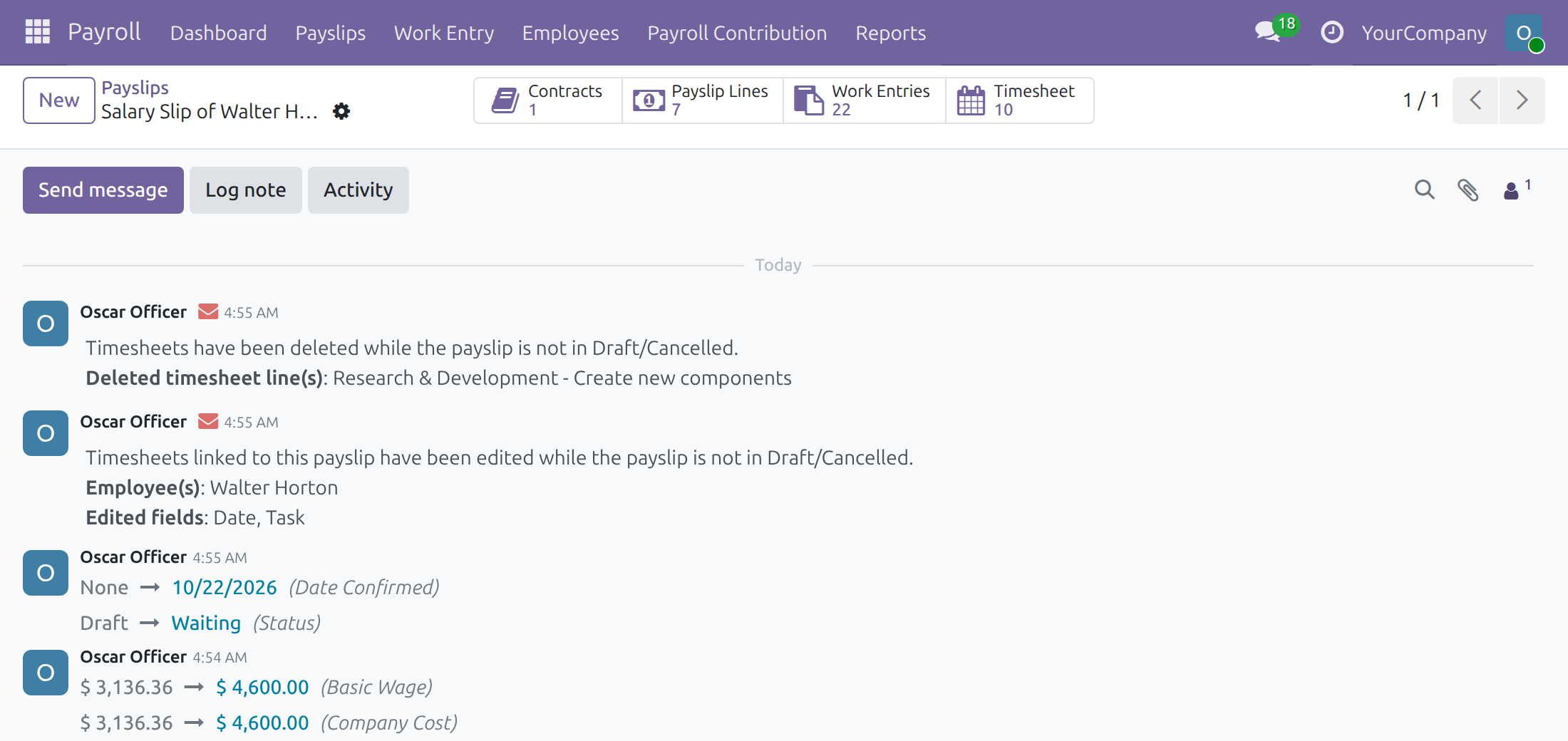
The payslip is not recomputed by itself. To take the change into account, open the payslip, click Cancel Payslip and then Set to Draft, click Load Timesheets, Compute Sheet and Confirm again. If the change is not wanted, ask the employee or the Timesheet Administrator to restore the timesheet line and leave the payslip as it is.
This software and associated files (the "Software") may only be used (executed, modified, executed after modifications) if you have purchased a valid license from the authors, typically via Odoo Apps, or if you have received a written agreement from the authors of the Software (see the COPYRIGHT file).
You may develop Odoo modules that use the Software as a library (typically by depending on it, importing it and using its resources), but without copying any source code or material from the Software. You may distribute those modules under the license of your choice, provided that this license is compatible with the terms of the Odoo Proprietary License (For example: LGPL, MIT, or proprietary licenses similar to this one).
It is forbidden to publish, distribute, sublicense, or sell copies of the Software or modified copies of the Software.
The above copyright notice and this permission notice must be included in all copies or substantial portions of the Software.
THE SOFTWARE IS PROVIDED "AS IS", WITHOUT WARRANTY OF ANY KIND, EXPRESS OR IMPLIED, INCLUDING BUT NOT LIMITED TO THE WARRANTIES OF MERCHANTABILITY, FITNESS FOR A PARTICULAR PURPOSE AND NONINFRINGEMENT. IN NO EVENT SHALL THE AUTHORS OR COPYRIGHT HOLDERS BE LIABLE FOR ANY CLAIM, DAMAGES OR OTHER LIABILITY, WHETHER IN AN ACTION OF CONTRACT, TORT OR OTHERWISE, ARISING FROM, OUT OF OR IN CONNECTION WITH THE SOFTWARE OR THE USE OR OTHER DEALINGS IN THE SOFTWARE.
