

Payroll - Work From Home Timesheet
by Viindoo
| Lines of Code | 1060 |
| Technical name | viin_hr_payroll_timesheet_wfh |
| License | OPL-1 |
| Website | https://viindoo.com/apps/modules/19.0/viin_hr_payroll_timesheet_wfh |
| Read description for | v 13.0 v 14.0 v 15.0 v 16.0 v 17.0 v 18.0 |
| Required Apps | Time Off (hr_holidays) Project (project) Discuss (mail) Calendar (calendar) Employees (hr) |
| Included Dependencies | Payroll Employee Relatives Viindoo Base Payroll Timesheet Integrator Advanced HR Management HR Contracts (Viindoo) Work Entry Work Entry - Contract Viin Time-Off Base Addendum Viin - Holiday Work Entry Time-Off Project Timesheet Viindoo Holiday & WorkDay Manager Safe IR Metadata Proxies |
Pay work-from-home days against proof of work
For HR managers, payroll teams and company owners with remote or hybrid staff
Work-from-home days need timesheet hours; payroll shows exactly what is missing.
Works on top of Payroll Timesheet Integrator.
Works on top of Time-Off Project Timesheet.
Is this you?
Remote employees tell you they worked, but when you pay the month there is no record to check it against.
Time-off approvals and timesheets live in different places, so someone compares them by hand before every payroll run.
Some people, such as managers, should not be held to the same rule as the rest of the team.
Payroll cannot see at a glance how many proof hours an employee still owes.
What changes
Remote employees tell you they worked, but when you pay the month there is no record to check it against.
→ Time off that counts as work asks for timesheet hours as proof.
Time-off approvals and timesheets live in different places, so someone compares them by hand before every payroll run.
→ Timesheets on the days of the time off are linked to the request automatically, and the request shows the hours recorded.
Some people, such as managers, should not be held to the same rule as the rest of the team.
→ You switch the requirement on or off for each employee, on top of each time-off type.
Payroll cannot see at a glance how many proof hours an employee still owes.
→ The payslip shows the hours required, recorded and missing, with a separate line for the missing-hours amount.
How it works
Time Off Administrator
Marks the time-off types, for example Work From Home, that require proof-of-work timesheets.
HR and payroll staff
Decide, employee by employee, whether the requirement applies, and keep each hourly cost current.
Employee and Time Off Officer
The employee requests the time off; the officer approves it.
Employee
Records timesheets on a project for the days of the time off.
Payroll Officer
Computes the payslip and reads the PoW summary and the Missing PoW Timesheet line.
Key Features
Proof required by time-off type
Tick one option on a time-off type and every request of that type asks for timesheet proof. Unpaid types are left out.
Per-employee switch
Exempt the people who do not need to prove their hours. A request needs proof only when its type and its employee both require it.
Hours linked automatically
Timesheets on a project, dated within the time off, are matched to the request. The hours counted never exceed the hours of the time off.
Checks for the approver
The approved request shows the proof hours, opens the timesheets counted and the candidates not yet counted, and lets Time Off Officers align it with the current settings.
Required, recorded, missing
The payslip summarizes, in hours and in days, the time off that needed proof, the proof recorded and what is missing.
Missing hours on the payslip
A Missing PoW Timesheet line shows the missing hours priced at the employee's hourly cost, as a separate negative line.
Who it is for
HR manager
Wants one rule for remote work that is applied the same way to everyone it concerns, with exceptions kept explicit.
Payroll officer
Wants the required, recorded and missing hours on the payslip instead of a hand-made comparison.
Time Off Officer
Wants to approve a request and see straight away how much proof has been recorded.
Employee
Knows from the request itself that timesheets are expected, and sees them linked to the time off.
Best for: Companies with remote or hybrid teams that pay work-from-home days against recorded timesheets.
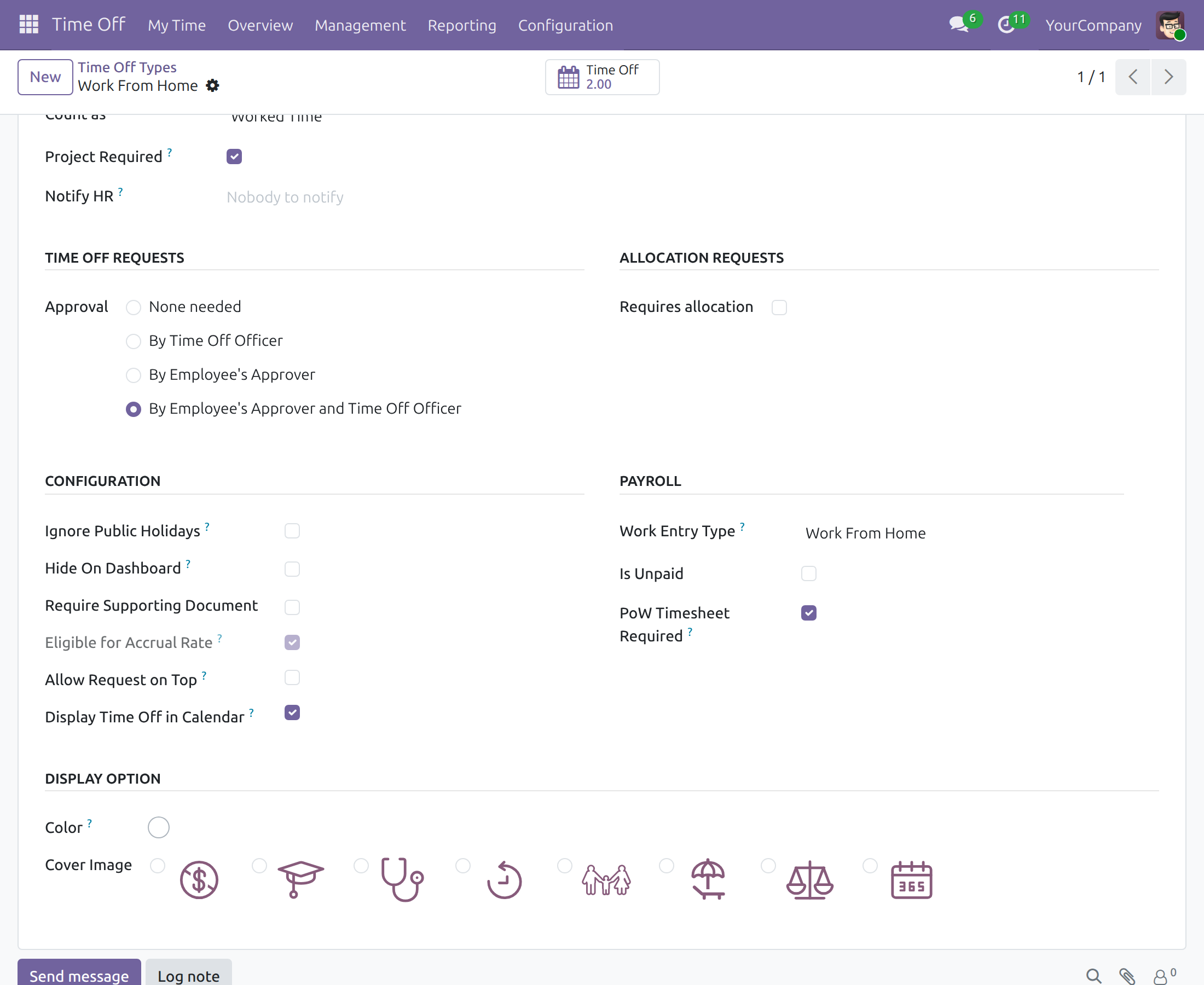
Choose which time off needs proof
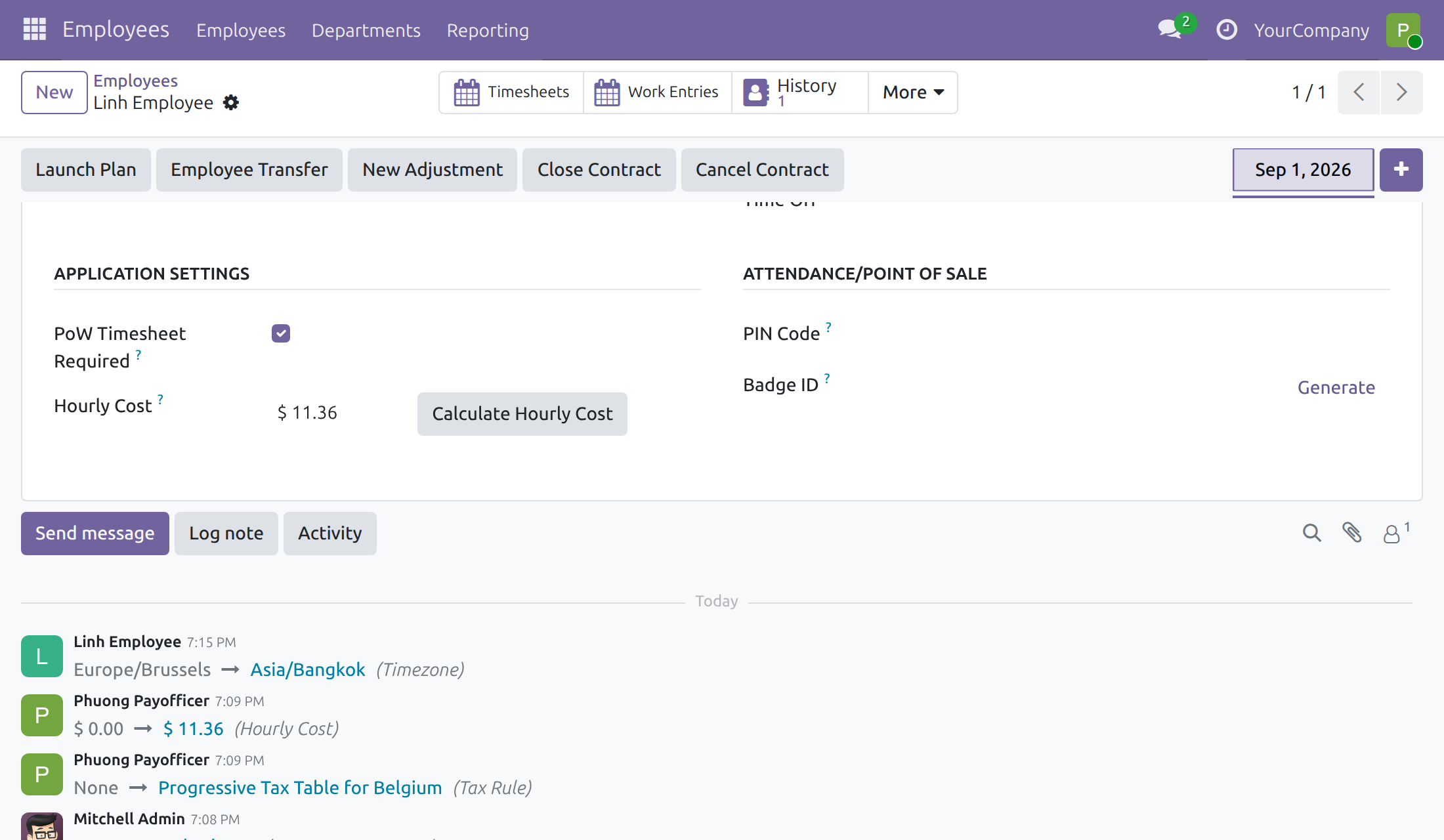
Apply the requirement employee by employee
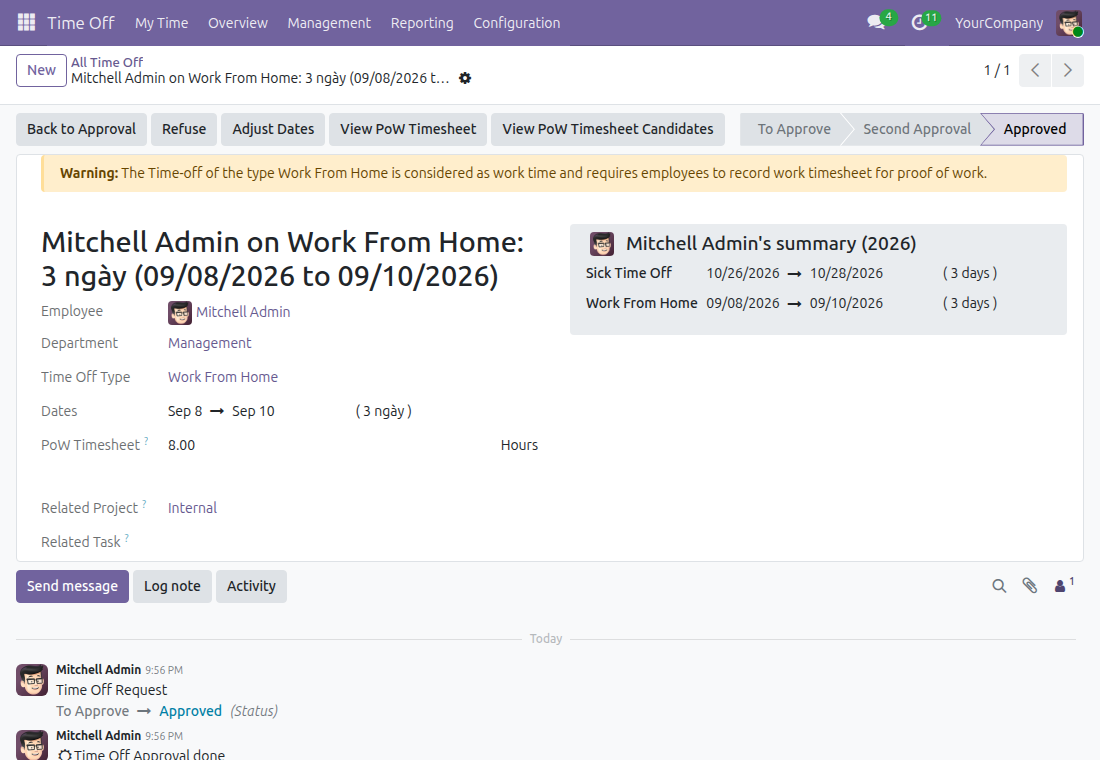
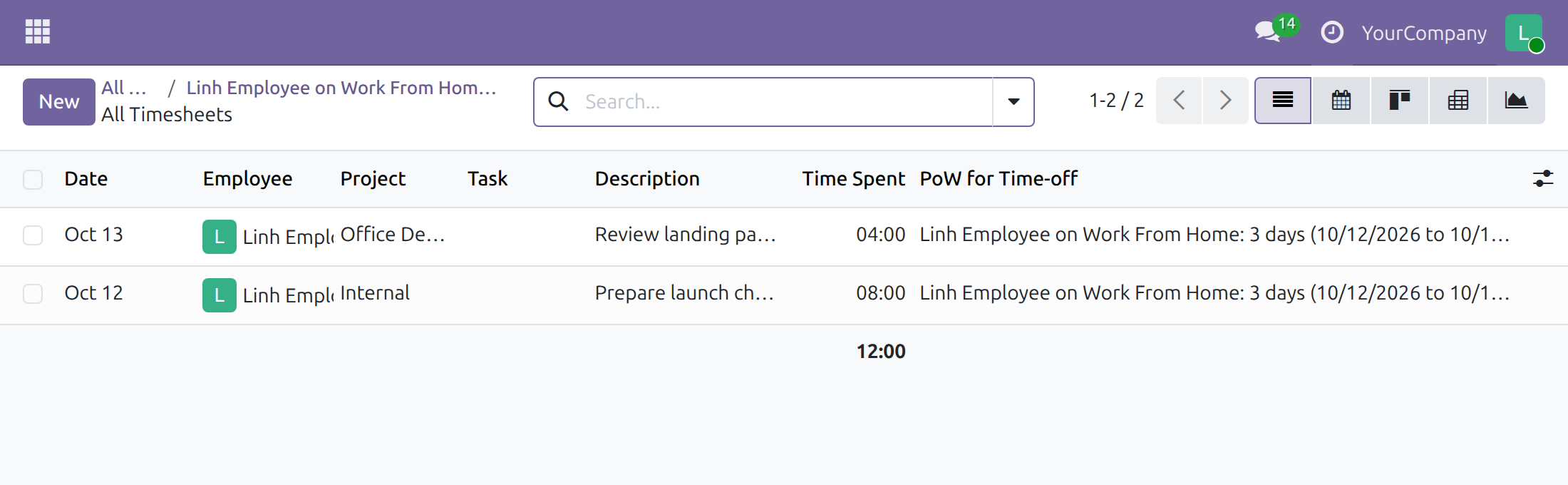
Approve a request and see the proof hours
Timesheets linked to the time off
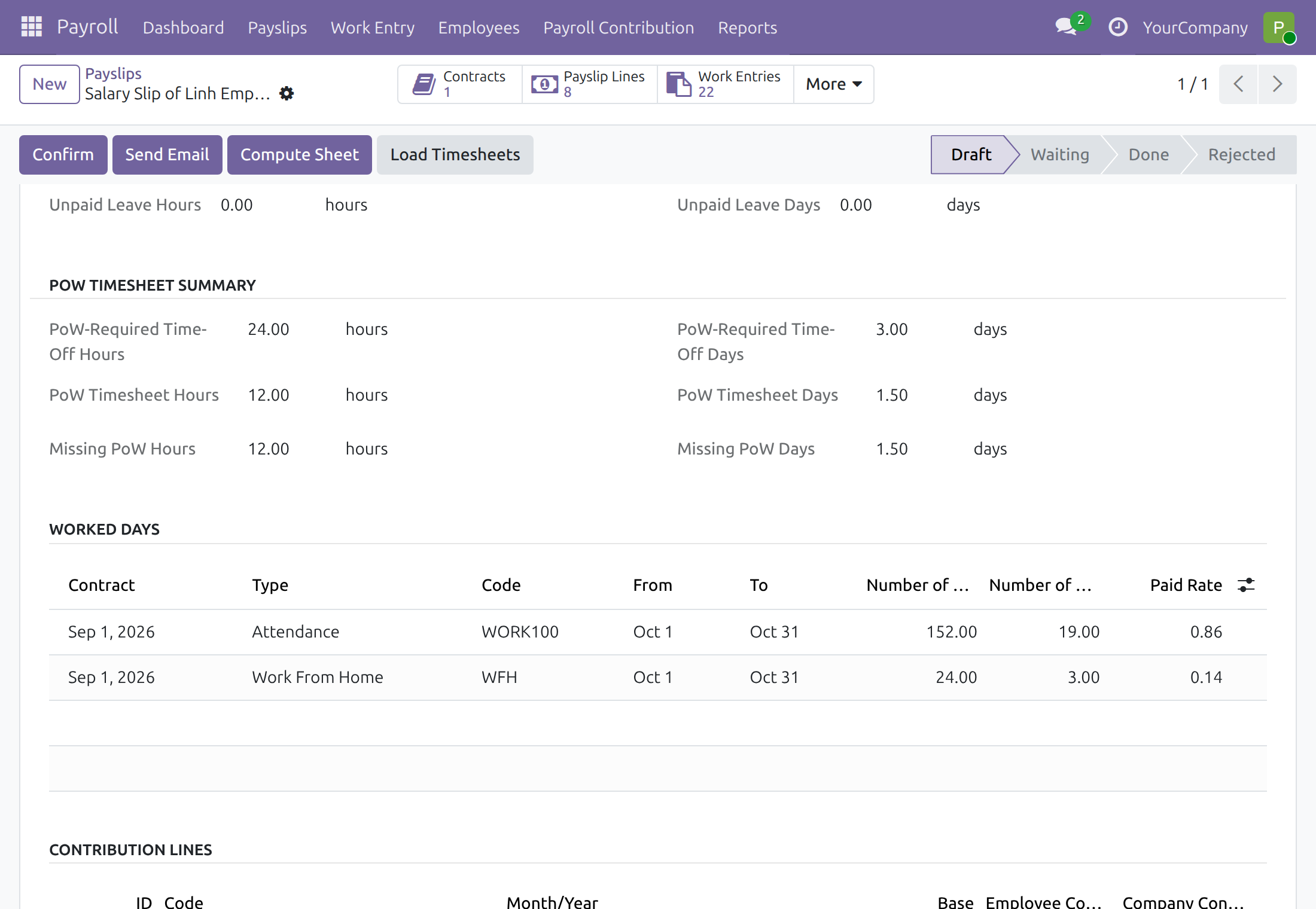
Required, recorded and missing hours on the payslip
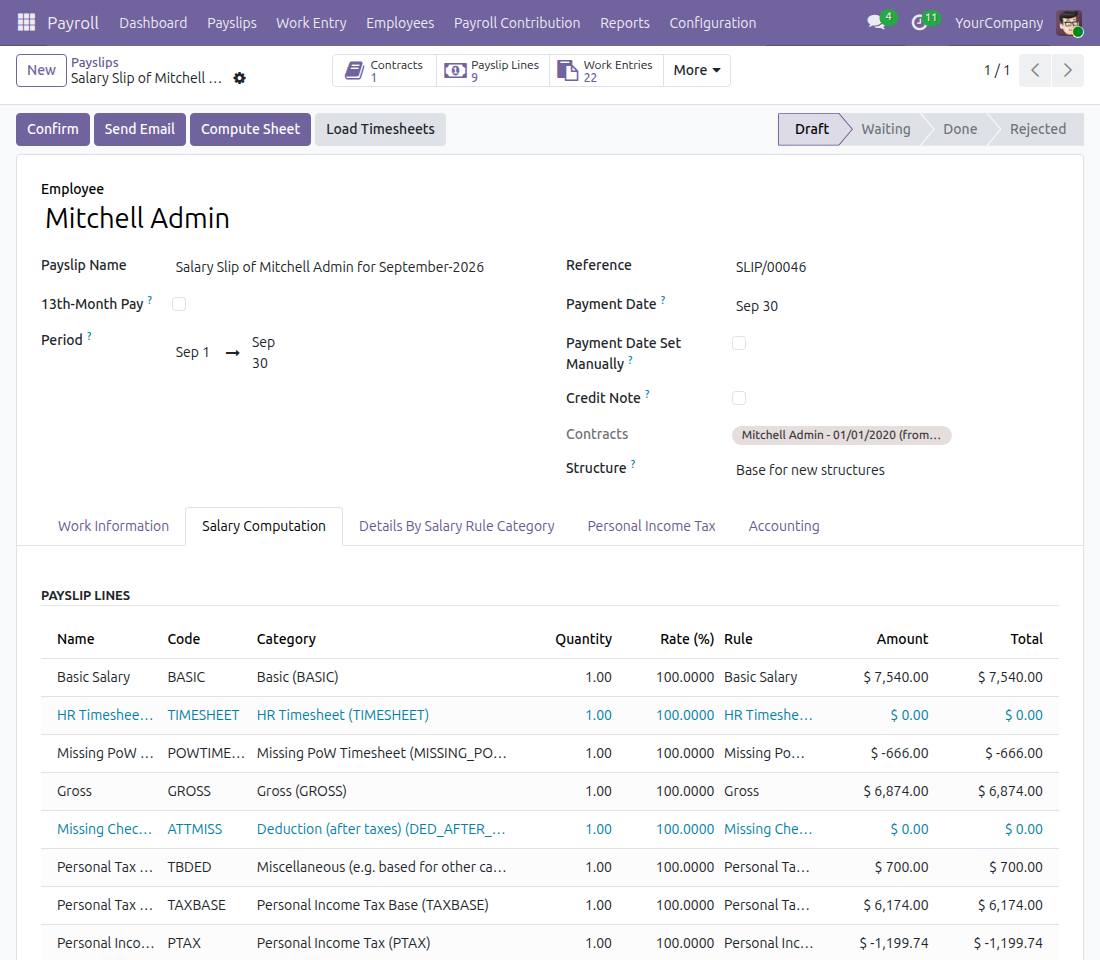
The Missing PoW Timesheet line
See Payroll - Work From Home Timesheet in Action
Frequently Asked Questions
Can I exempt some employees, such as managers?
Yes. Each employee has a PoW Timesheet Required option. A time off needs proof only when both its type and its employee require it.
Which time off needs proof?
The types you choose. A type marked unpaid cannot require proof.
What if an employee records more hours than the time off?
The hours counted for a request never exceed the hours of the time off, and on each day further entries beyond the hours of that day are refused.
What happens when a request is refused?
Its timesheets are released and do not count as proof.
Is the missing-hours amount taken off net pay?
It appears as a separate negative line on the payslip, priced at the employee's hourly cost. The line sits in the category Missing PoW Timesheet under Basic, so it lowers the basic salary, the gross pay, the taxable income and the net pay.
Which edition do I need?
The app is documented for Odoo Community.
Need help with Payroll - Work From Home Timesheet?
Technical Support
Open a ticket with your Odoo version and the technical name viin_hr_payroll_timesheet_wfh.
Open a ticketTechnical Requirement
- Odoo version: 19.0
- Editions: Odoo Community
- Required modules: Payroll Timesheet Integrator, Timesheet when on Time Off, Time-Off Project Timesheet
- License: OPL-1
Payroll - Work From Home Timesheet
Note
Who this guide is for: the Time Off Administrator who sets up the policy, the HR and payroll staff who apply it to employees and pay salaries, the Time Off Officers who approve requests, and the employees who work from home and have to prove it with timesheets.
Note
Extends Payroll Timesheet Integrator - see its documentation.
Note
Extends Time-Off Project Timesheet - see its documentation.
Overview
Some time off is not a day off: an employee on Work From Home or on a business trip is still working, and the company wants to pay the day only when there is proof of it. This app lets you mark such time-off types as requiring proof-of-work (PoW) timesheets. When an employee takes that kind of time off, the hours recorded on timesheets count as proof. On the payslip, payroll sees how many PoW hours were required, how many were recorded and how many are missing, and a Missing PoW Timesheet line shows the amount for the missing hours.
How the process runs:
- The Time Off Administrator marks the time-off type as requiring PoW timesheets.
- HR chooses, employee by employee, whether the requirement applies.
- The employee requests the time off; the Time Off Officer approves it.
- The employee records timesheets for the days of the time off.
- The Payroll Officer computes the payslip and reads the PoW summary and the Missing PoW Timesheet line.
| Role | What they do | Access right to assign |
|---|---|---|
| Time Off Administrator | Marks time-off types as requiring PoW timesheets. | Time Off: Administrator |
| HR / Payroll staff | Switches the requirement on or off for each employee and keeps each employee's hourly cost up to date. | Employees: Officer, or Payroll: Officer / Administrator |
| Time Off Officer | Approves the request, checks the PoW hours and can align a request with the current settings. | Time Off: Officer |
| Employee | Requests the time off and records timesheets on the days of the time off. | Timesheets: User: own timesheets only |
| Payroll Officer | Computes the payslip and reviews the PoW summary and the Missing PoW Timesheet line. | Payroll: Officer |
Setup (for the Administrator)
- Open Apps, search for Payroll - Work From Home Timesheet and press Install. The app comes together with the apps it builds on: Payroll, Payroll Timesheet Integrator, Time-Off Project Timesheet and Timesheet when on Time Off.
- Give each person the access right listed in the table of the Overview (Settings > Users & Companies > Users).
Time Off Administrator: choose the time-off types that require PoW
Go to Time Off > Configuration > Time Off Types and open the type, for example Work From Home (or create a new one). In the Payroll group, tick PoW Timesheet Required.
- The option is ticked by default for a type that is not unpaid.
- The option is hidden for a type marked Is Unpaid, and a type cannot be both unpaid and PoW-required: Odoo refuses to save that combination.
HR and payroll staff: apply the requirement employee by employee
Go to Payroll > Employees > Employees, open the employee, choose the Settings tab and look at Application Settings.
- PoW Timesheet Required is ticked by default. Untick it for people who do not have to prove their hours, for instance managers.
- Hourly Cost is the rate used to price the missing PoW hours on the payslip.
A time off requires PoW timesheets only when both its type and its employee require them.
Employee: request the time off and record timesheets
Request the time off
- Go to Time Off and create a new request.
- Choose the time-off type, for example Work From Home, and the dates.
- Submit it. A yellow warning at the top of the form reminds you that this time off counts as work time and that you must record timesheets as proof.
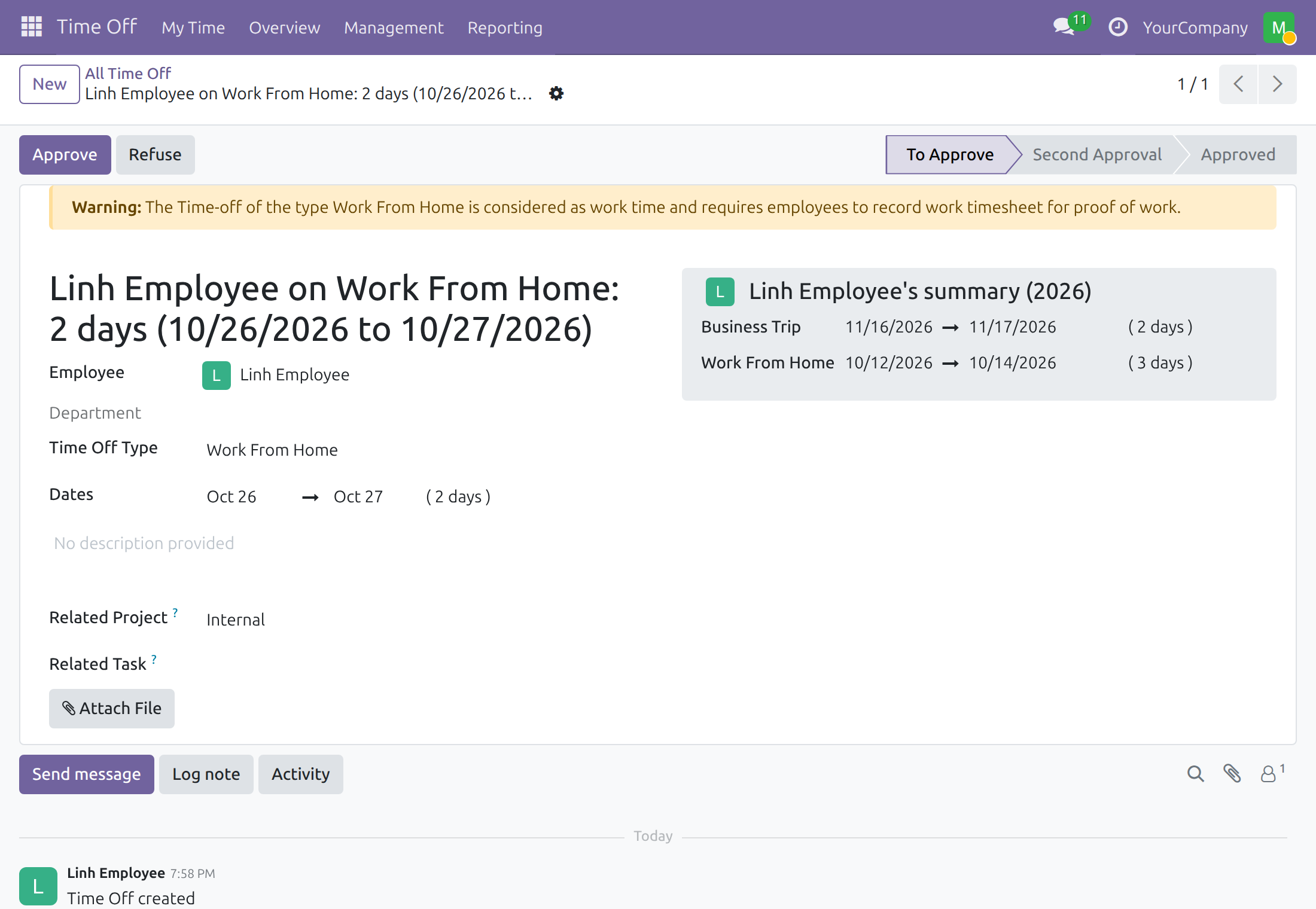
Time Off Officer: approve the request
Open the request from Time Off > Management > Time Off and press Approve (the type may need more than one approval). Once the request is approved the form shows:
- PoW Timesheet - the hours recorded as proof so far. It never exceeds the hours of the time off.
- View PoW Timesheet - the timesheets counted as proof for this time off.
- View PoW Timesheet Candidates - the employee's timesheets with a project that fall in the period and could be used as proof.
- PoW Timesheet Not Required / PoW Timesheet Required - for Time Off Officers. They align the request with the current settings of its type and employee. A button shows only when it can act: PoW Timesheet Not Required appears when the type or the employee is not PoW-required, PoW Timesheet Required appears when both are PoW-required. When the request matches the settings, neither button shows. Odoo asks you to confirm and explains the effect.
The PoW Timesheet hours are visible to every Time Off Officer, so the officer can check the proof on the request. The two View buttons are for users who have a Timesheets access right (User: own timesheets only or higher), because they open timesheet entries. A Time Off Officer without such a right sees the hours but not the buttons. A user with User: own timesheets only sees the entries of their own time off; to see the timesheets of other employees, the officer needs Timesheets: User: all timesheets or higher.
If the request is refused, the timesheets are released and do not count as proof.
Note
Payroll protects settled periods: a time off that covers days of a payslip in the Done state cannot be approved until payroll cancels that payslip. After the approval, payroll computes the payslip again.
Employee: record timesheets
Log your hours as usual in Timesheets on a project, on the days of the approved time off. Each entry on those days is attached to the time off automatically and shows in the PoW for Time-off column. Use the PoW Timesheets filter to list only these entries, or open them from the time-off form with View PoW Timesheet.
- Only entries on a project count. The entries Odoo creates by itself when the time off is approved do not count as proof.
- On each day, the proof cannot exceed the hours of the time off of that day. When the hours of the day are reached, further entries are refused with an explanation.
- An entry dated outside the time off cannot be linked to it.
- If two time-off requests overlap on one day, choose the right one in the PoW for Time-off field of the entry.
Payroll Officer: read the PoW figures on the payslip
Go to Payroll > Payslips > Payslips, open the employee's payslip and press Compute Sheet (or Load Timesheets). In the Work Information tab, the PoW Timesheet Summary group shows, in hours and in days:
- PoW-Required Time-Off Hours / Days - the time off that required proof in the period.
- PoW Timesheet Hours / Days - the proof recorded.
- Missing PoW Hours / Days - the difference.
A PoW Timesheet button with the number of entries appears in the button bar of the payslip and opens the entries counted.
In the Salary Computation tab, the Missing PoW Timesheet line shows the amount of the missing hours, priced at the employee's hourly cost, as a negative amount.
- The line applies only to employees who are PoW-required, and not to 13th-month payslips.
- The line belongs to the salary rule category Missing PoW Timesheet, which sits under Basic. Missing PoW hours are time that is not paid, so the line lowers the basic salary total, and with it the Gross salary, the Personal Income Tax base and the Net salary.
- The Missing PoW Timesheet rule is added to the base salary structure of every company when the app is installed, and to the structure of each new company. If you pay with another structure, add the rule to it.
- The Gross, tax base and Net totals include the line; they follow the formulas of your salary structure.
This software and associated files (the "Software") may only be used (executed, modified, executed after modifications) if you have purchased a valid license from the authors, typically via Odoo Apps, or if you have received a written agreement from the authors of the Software (see the COPYRIGHT file).
You may develop Odoo modules that use the Software as a library (typically by depending on it, importing it and using its resources), but without copying any source code or material from the Software. You may distribute those modules under the license of your choice, provided that this license is compatible with the terms of the Odoo Proprietary License (For example: LGPL, MIT, or proprietary licenses similar to this one).
It is forbidden to publish, distribute, sublicense, or sell copies of the Software or modified copies of the Software.
The above copyright notice and this permission notice must be included in all copies or substantial portions of the Software.
THE SOFTWARE IS PROVIDED "AS IS", WITHOUT WARRANTY OF ANY KIND, EXPRESS OR IMPLIED, INCLUDING BUT NOT LIMITED TO THE WARRANTIES OF MERCHANTABILITY, FITNESS FOR A PARTICULAR PURPOSE AND NONINFRINGEMENT. IN NO EVENT SHALL THE AUTHORS OR COPYRIGHT HOLDERS BE LIABLE FOR ANY CLAIM, DAMAGES OR OTHER LIABILITY, WHETHER IN AN ACTION OF CONTRACT, TORT OR OTHERWISE, ARISING FROM, OUT OF OR IN CONNECTION WITH THE SOFTWARE OR THE USE OR OTHER DEALINGS IN THE SOFTWARE.
