

Fleet Sale
by Viindoo
| Lines of Code | 1247 |
| Technical name | viin_fleet_sale |
| License | OPL-1 |
| Website | https://viindoo.com/apps/app/17.0/viin_fleet_sale |
| Read description for | v 13.0 v 14.0 v 15.0 v 16.0 |
| Required Apps | Invoicing (account) Discuss (mail) Employees (hr) Fleet (fleet) |
| Included Dependencies | Fleet Drivers Management Fleet Booking & Trip Management Fleet Loading Capacity Employee Documents QR Code Mixin Viindoo Base Advanced HR Management Viin Fleet |
| Extensions | Fleet Sale - Cargo Fleet Sale - Passenger (Commercial Fare) Fleet Sale - Sale Management Bridge |
Fleet Sale
Sell transport on a sales order - and let the booking create itself
Turn every fleet transport quotation into an operations-ready booking without re-keying a thing. Add your transport service to a sales order, confirm it, and Fleet Sale automatically generates one linked fleet booking — handing the job cleanly from your sales team to your operations team.
Powering Your Business Growth.
Extends Fleet Booking & Trip Management. Fleet Sale builds directly on the Fleet Booking app, connecting your Sales pipeline to the bookings your fleet operators already work from. It auto-installs as soon as both Sales and Fleet Booking are present.
Extends viin_fleet_booking -
see its documentation.
What Fleet Sale Does
Sell transport as a product
Flag any product as a Fleet Transport service with a single product-type choice. From then on, every sales order line that sells it is automatically recognised by the booking engine — no extra tagging, no manual steps.
A Fleet Transport panel right on the sales order
The moment a quotation carries a fleet transport line, a dedicated Fleet Transport tab and a Fleet Bookings smart button appear on the order. Your salespeople see everything they need without leaving the Sales app.
One booking, generated automatically on confirm
Confirming the sales order creates exactly one linked fleet booking, with one booking item per transport line. The booking is intentionally left in Draft, ready for operations to review and confirm — sales never over-commits the fleet.
Reuse an existing booking instead of creating a new one
Already have an unbooked fleet booking waiting? Attach a draft or sent quotation straight to it. The selector only offers genuine orphan bookings (those with no sales order yet), so you adopt the right one and never spawn a duplicate.
Two-way navigation between Sales and Fleet
Jump from the sales order to its booking with one click, and back from the booking to its originating order just as fast. The Sales Order and the Fleet Booking always point at each other, giving your teams full traceability.
Cancellation stays in sync, and billing stays clean
Cancel a sales order and its linked draft or confirmed booking is cancelled with it — with a warning if the transport was already invoiced, and a hard stop once the booking is in progress or completed. A built-in guardrail blocks ever linking two bookings to the same order, protecting billing traceability.
Why Teams Choose Fleet Sale
No double entry between sales and operations. The commercial handoff happens by itself. What your salesperson confirms becomes exactly what your fleet operators plan — one order, one booking, zero re-keying.
Billing you can always trace. One order maps to one booking by design. The one-booking-per-order guardrail and the invoice-aware cancellation rules keep every transport job accountable from quote to invoice.
Operations stays in control. Bookings arrive in Draft, not pre-confirmed. Your fleet team reviews each generated booking on its own terms before committing vehicles and drivers, while the standard Odoo sale-to-invoice flow keeps running underneath.
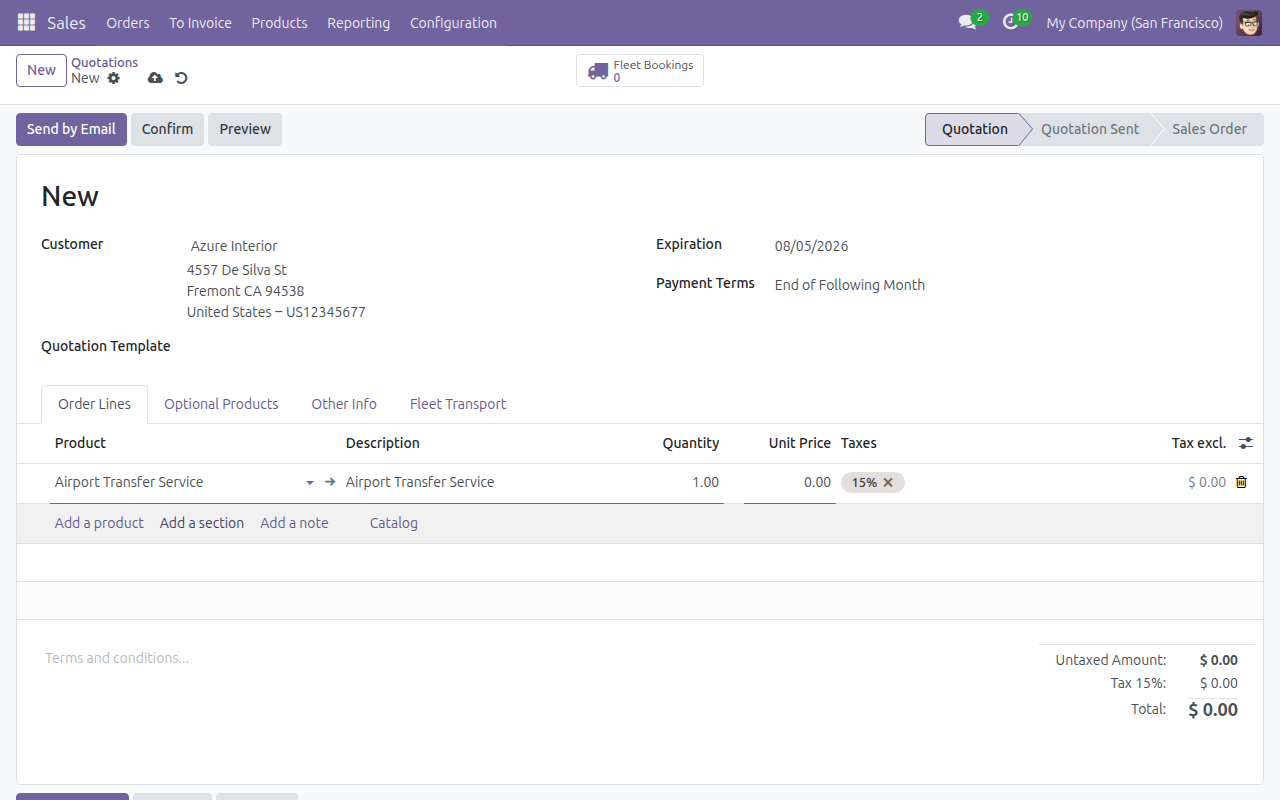
Add a transport line to a quotation
A quotation for a Fleet Transport service, showing the Fleet Transport tab and the Fleet Bookings smart button that appear once a transport line is added.
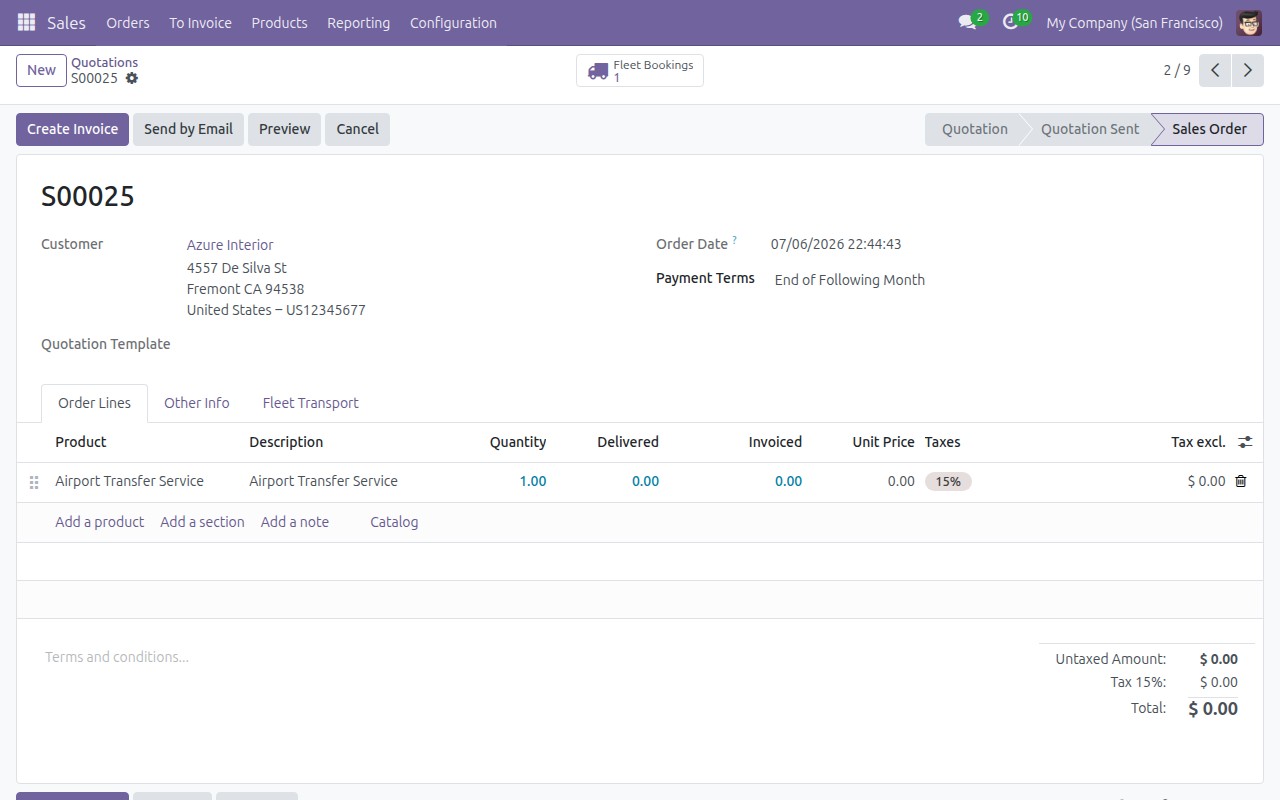
Confirm the order, get a draft booking
The fleet booking generated automatically on confirmation — in Draft status, auto-numbered, and already linked back to its sales order.
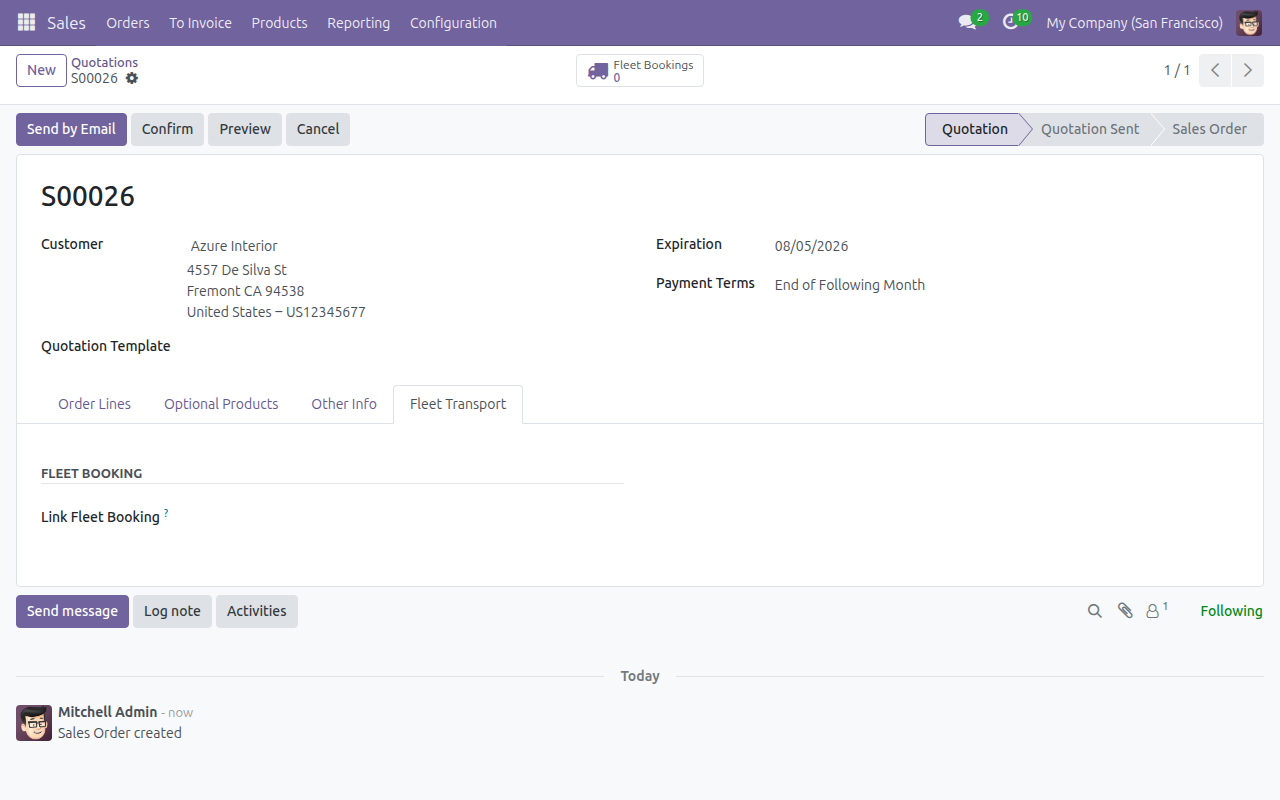
Link an existing orphan booking instead
Attaching a draft quotation to an existing orphan booking through the Link Fleet Booking selector, instead of generating a new one.
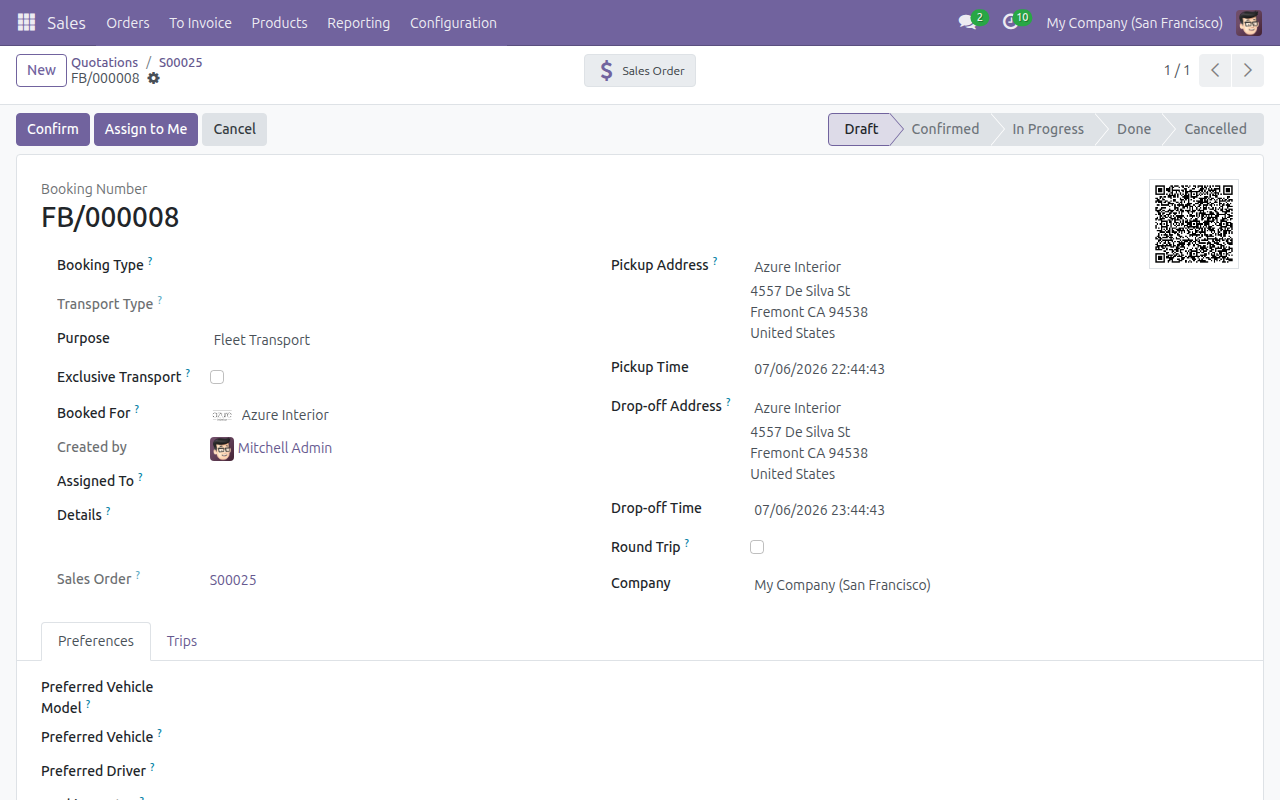
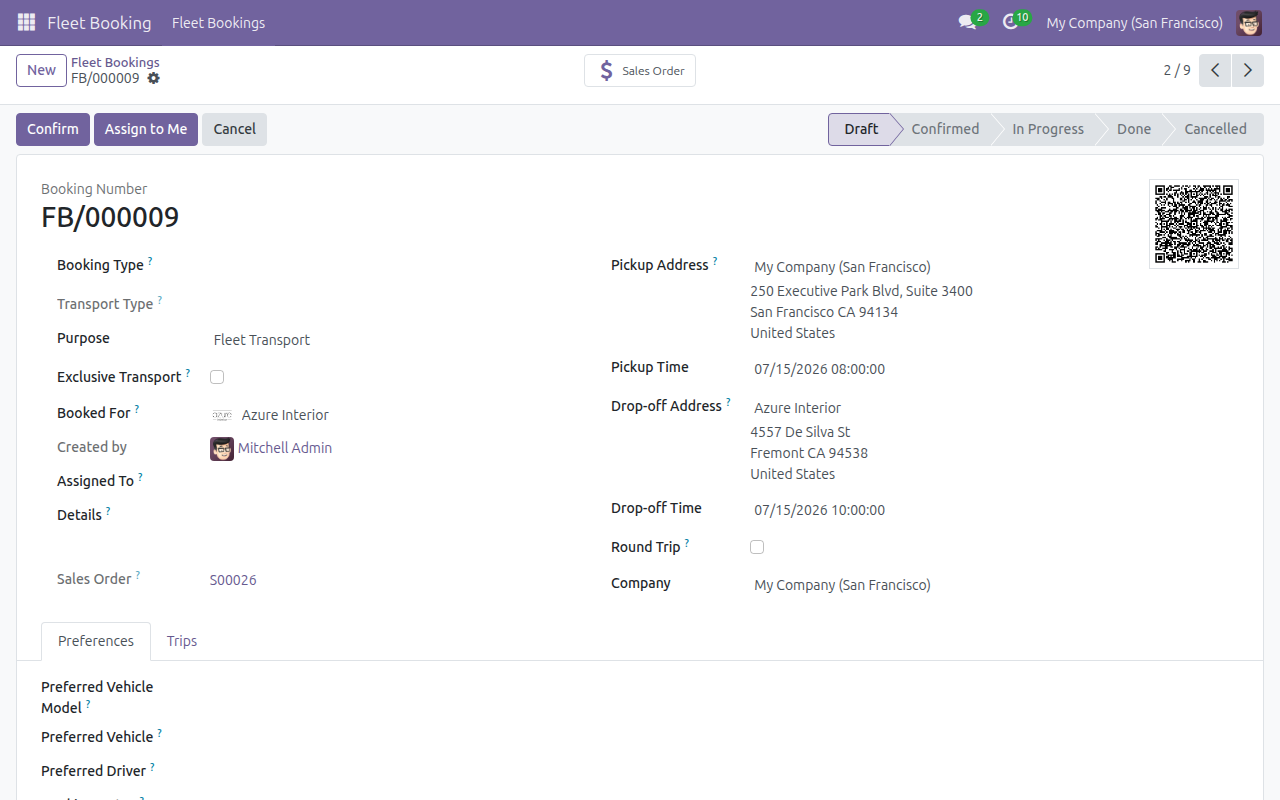
Jump straight back to the sales order
The Fleet Booking form with its Sales Order field and one-click Sales Order smart button, confirming full two-way traceability.
See Fleet Sale in Action
Add a transport line to a quotation and watch the booking appear for yourself on a live instance.
Try the Live DemoNeed help with Fleet Sale?
Pre-Sales & Partnership
apps.support@viindoo.comTechnical Support
apps.support@viindoo.comTechnical Requirement
- Odoo version: 17.0
- Editions: Community / Enterprise
- Required modules: Sales, Fleet Booking & Trip Management
- License: OPL-1
Who Should Use This Module?
Fleet & Transport Service Providers
Sell rides, transfers or cargo runs as a commercial service and need the sale to hand off to operations cleanly.
Sales Teams
Need to quote and confirm transport without learning the operations app.
Fleet Operators
Want every booking to arrive with its commercial context already attached.
Finance Teams
Need a clean, one-to-one trail from sales order to fleet booking to invoice.
Ready to connect sales to your fleet?
Install Fleet Sale and let every confirmed order become an operations-ready booking — automatically. It extends the Fleet Booking app you already run, so you are up and selling transport in minutes.
Try the live demo or add Fleet Sale to your Viindoo apps today.
Viindoo — Powering Your Business Growth.
Fleet Sale
Note
Extends viin_fleet_booking - see its documentation.
This guide shows how to sell a fleet transport service on a sales order. Confirming the order automatically generates a fleet booking so the operations team can plan and run the trip, and the sales order and the fleet booking stay cross-linked so either side can jump straight to the other.
Installation
- Go to Apps.
- Install Sales (if not already installed).
- Remove the default Apps filter, search for Fleet Booking, and click Install on the Fleet Booking & Trip Management card - see its own guide for what comes with it.
- Fleet Sale activates automatically as soon as both apps above are present. It has no separate card to search for or install in Apps - Odoo turns it on for you.
Configuration
Access rights
Nothing to configure by hand for a regular salesperson: anyone in the standard Sales / Salesperson or Sales / Administrator access group automatically gains the base Fleet app's Officer: Manage all vehicles role, which is what lets them see the Fleet Bookings smart button and the Fleet Transport tab on a sales order. For the fuller set of Fleet Booking roles (Fleet Booking User, Operator, Fleet Booking Administrator), see the Fleet Booking & Trip Management guide.
Booking purpose
This app ships a ready-to-use Fleet Transport booking purpose, used automatically whenever a booking is generated from a sales order confirmation. Go to Fleet Booking > Configuration > Booking Purposes if you want to add more purposes for manually created bookings.
Usage
Mark a product as a Fleet Transport service
Before a product's sales order lines can feed the booking-generation engine, set its Product Type to Fleet Transport.
Open Sales > Products > Products and click New.

A blank product form opens.

Set Product Name, for example Airport Transfer Service.

Set Product Type to Fleet Transport.

Click Save.

Quote a fleet transport service on a sales order
Open Sales > Orders > Quotations and click New.


Set Customer, for example Azure Interior.

Under Order Lines, click Add a product and set Product to your Fleet Transport product, for example Airport Transfer Service.

Leave or set Quantity, for example 1.

A Fleet Transport tab now appears on the notebook, because the order carries a fleet transport line.

The order is still a Quotation - nothing has been booked yet.
Confirm the order and open the generated fleet booking
Open the draft quotation that carries a Fleet Transport line.

Click Confirm. The statusbar moves to Sales Order and the Fleet Bookings smart button now shows a count of 1 - a fleet booking was generated automatically, with one booking item per fleet transport line.

Click Fleet Bookings. Because there is exactly one linked booking, it opens directly in form view: a Draft booking with its Booking #, the Sales Order it came from, and a chatter note recording the handoff.

Important
The booking is intentionally left in Draft for the operations team to review and confirm - confirming the sales order never auto-confirms the fleet booking itself.
Link an existing fleet booking to a quotation instead
If operations already created a booking for this customer before the quotation existed, you can attach the quotation to that booking instead of generating a new one.
Open the draft quotation for the same customer, carrying a Fleet Transport line.

Open the Fleet Transport tab.

Set Link Fleet Booking to the existing booking, for example FB/000009. Only bookings with no Sales Order set yet are listed, so you can only pick a true orphan booking.

Click Confirm.

The order becomes a Sales Order still pointing at the booking you linked - the Fleet Bookings smart button shows count 1 and opens that same booking directly. No second booking is created: one sales order can only ever serve one fleet booking.
Jump back to the sales order from a fleet booking
Open Fleet Booking > Fleet Bookings.

Open a booking that was generated from (or linked to) a sales order. Its Sales Order field and Sales Order smart button are both shown.

Click the Sales Order smart button.

You land directly on the sales order that generated (or was linked to) this booking, confirming the two-way navigation between the Sales app and the Fleet Booking app.
Troubleshooting
I don't see a Fleet Transport tab on my quotation
The tab, and the Fleet Bookings smart button, only appear once at least one order line sells a product whose Product Type is Fleet Transport. Add such a line, or check the product's Product Type on Sales > Products > Products.
The Fleet Bookings smart button is missing entirely
This is an access-rights issue, not a data issue: the smart button and the Fleet Transport tab are only visible to users who carry the base Fleet app's Officer: Manage all vehicles role. Any standard Salesperson or Sales Administrator gets this automatically; check the user's access group on Settings > Users & Companies > Users if it is still missing.
"Each sales order can only serve one fleet booking"
This error protects billing traceability: an order can never be linked to more than one fleet booking. If a second booking is genuinely needed, create a new sales order for it instead.
My fleet booking got cancelled when I cancelled the sales order
Cancelling a sales order automatically cancels its linked fleet booking while that booking is still Draft or Confirmed. If the booking is already In Progress or Done, Odoo blocks the sales order cancellation with an error asking you to resolve the booking first. If the fleet service was already invoiced, cancelling instead posts a chatter warning on the booking - it does not reverse the invoice; issue a credit note from that invoice if needed.
FAQ
Does confirming a sales order also confirm the fleet booking? No. The booking is generated (or adopted) in Draft on purpose, so the operations team can review it before confirming.
Can one sales order have two fleet bookings? No. This is enforced on both sides (the order and the booking) - one sales order serves exactly one fleet booking.
Can I use Fleet Sale without the full Fleet Booking & Trip Management app? No. Fleet Sale depends on it (and on Sales) and activates automatically once both are installed.
What happens to the sales price when I change the product or quantity on a fleet line? Nothing - the entered price is protected from the standard pricelist recompute, since it is the agreed rate for that transport service, not a catalog price.
This software and associated files (the "Software") may only be used (executed, modified, executed after modifications) if you have purchased a valid license from the authors, typically via Odoo Apps, or if you have received a written agreement from the authors of the Software (see the COPYRIGHT file).
You may develop Odoo modules that use the Software as a library (typically by depending on it, importing it and using its resources), but without copying any source code or material from the Software. You may distribute those modules under the license of your choice, provided that this license is compatible with the terms of the Odoo Proprietary License (For example: LGPL, MIT, or proprietary licenses similar to this one).
It is forbidden to publish, distribute, sublicense, or sell copies of the Software or modified copies of the Software.
The above copyright notice and this permission notice must be included in all copies or substantial portions of the Software.
THE SOFTWARE IS PROVIDED "AS IS", WITHOUT WARRANTY OF ANY KIND, EXPRESS OR IMPLIED, INCLUDING BUT NOT LIMITED TO THE WARRANTIES OF MERCHANTABILITY, FITNESS FOR A PARTICULAR PURPOSE AND NONINFRINGEMENT. IN NO EVENT SHALL THE AUTHORS OR COPYRIGHT HOLDERS BE LIABLE FOR ANY CLAIM, DAMAGES OR OTHER LIABILITY, WHETHER IN AN ACTION OF CONTRACT, TORT OR OTHERWISE, ARISING FROM, OUT OF OR IN CONNECTION WITH THE SOFTWARE OR THE USE OR OTHER DEALINGS IN THE SOFTWARE.
