

Fleet Booking & Trip Management
by Viindoo
| Lines of Code | 6475 |
| Technical name | viin_fleet_booking |
| License | OPL-1 |
| Website | https://viindoo.com/apps/app/17.0/viin_fleet_booking |
| Read description for | |
| Required Apps | Discuss (mail) Employees (hr) Fleet (fleet) |
| Included Dependencies | Fleet Drivers Management Fleet Loading Capacity Employee Documents QR Code Mixin Viindoo Base Advanced HR Management Viin Fleet |
| Extensions | Fleet Booking & Trip Management - Cargo Fleet Operations Fleet Booking & Trip Management - Passenger Fleet Trip Accounting Fleet Sale OmniApproval™ - Fleet Booking Approval Viin Fleet Booking Map |
Fleet Booking & Trip Management
Turn every vehicle request into a planned, tracked, on-time trip
From a VIP airport pickup to a full day of employee shuttles, capture the booking, assign the right vehicle on a visual board, run the trip from departure to arrival, and let your customers follow it online — all in one Odoo app.
Powering Your Business Growth.
Extends viin_fleet_loading_capacity -
see its documentation.
Key Features
Bookings from request to completion
Log every VIP or employee vehicle request with pickup and drop-off addresses, times, purpose and passenger, then move it through a clear Draft → Confirmed → In Progress → Done workflow. Bulk-confirm a whole list of draft bookings in a single click when the day’s plan is set.
Visual Kanban assignment board
Drag confirmed booking items onto the right vehicle — or the right trip — on a Kanban board grouped by vehicle or by trip. What used to be a spreadsheet juggling act becomes a quick, at-a-glance drag-and-drop.
Rule-based auto-assignment
Let the planning wizard allocate a day’s unassigned bookings for you using a simple, transparent rule — Even Distribution to spread load across vehicles, or Fill Vehicles to consolidate. Anything the rule cannot match stays flagged for a quick manual follow-up, so nothing slips through.
End-to-end trip execution
Start a confirmed trip with the actual driver, vehicle and starting odometer, then close it out with the ending odometer and fuel consumption. Actual duration and schedule deviation are computed automatically for every completed trip.
Trip-linked costs and odometer
Log fuel, tolls and service costs straight from the trip they belong to, and record odometer readings against the vehicle and trip. Every cost and reading is tied to its trip, so your fleet spend is finally traceable.
One calendar for every trip
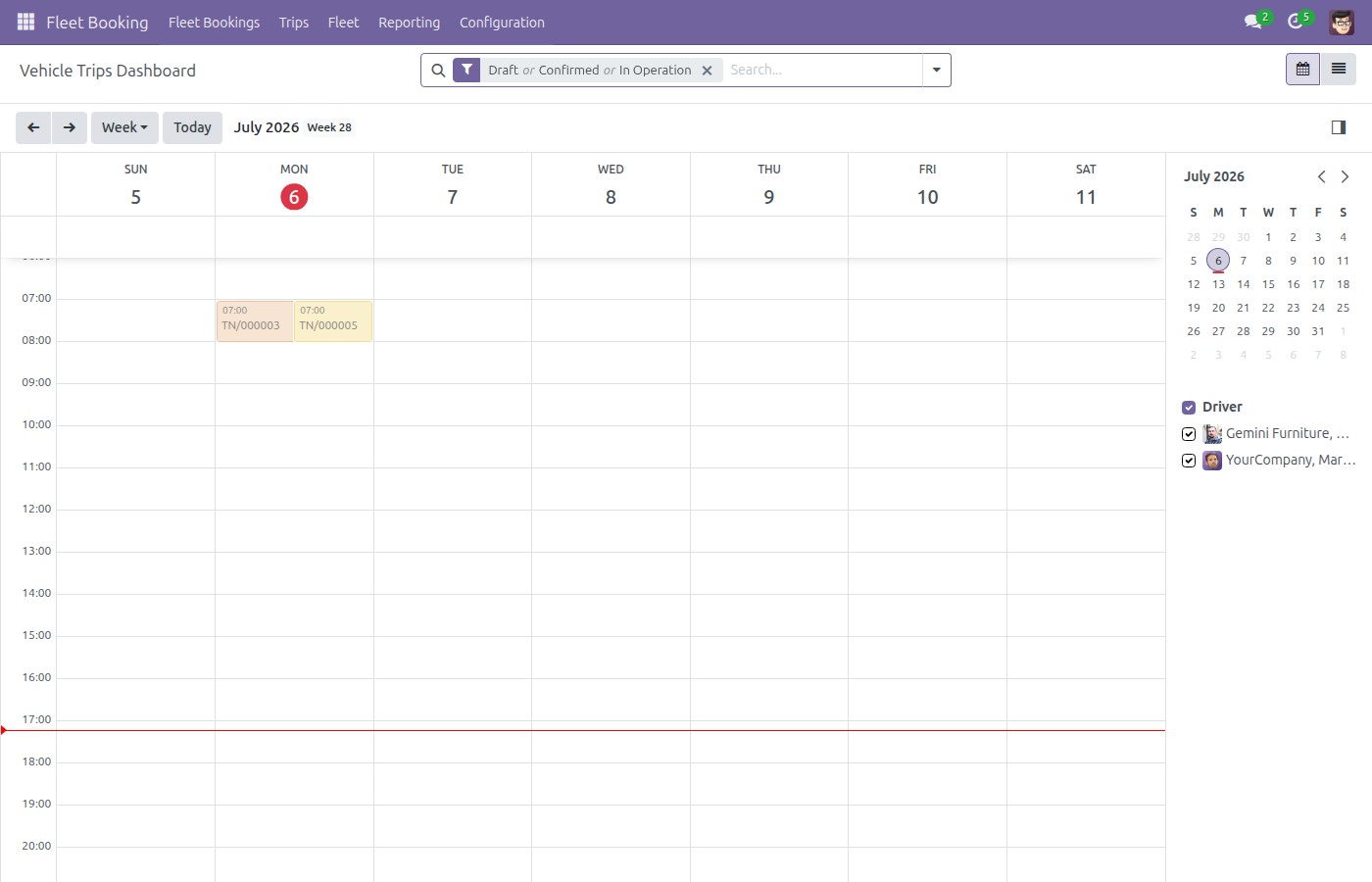
See upcoming, confirmed and in-operation trips on a single planning dashboard, with dedicated lists for Confirmed, In Operation and Done. Email the schedule to a driver from a mail template, or print a PDF trip sheet complete with QR code.
Analytics that close the loop
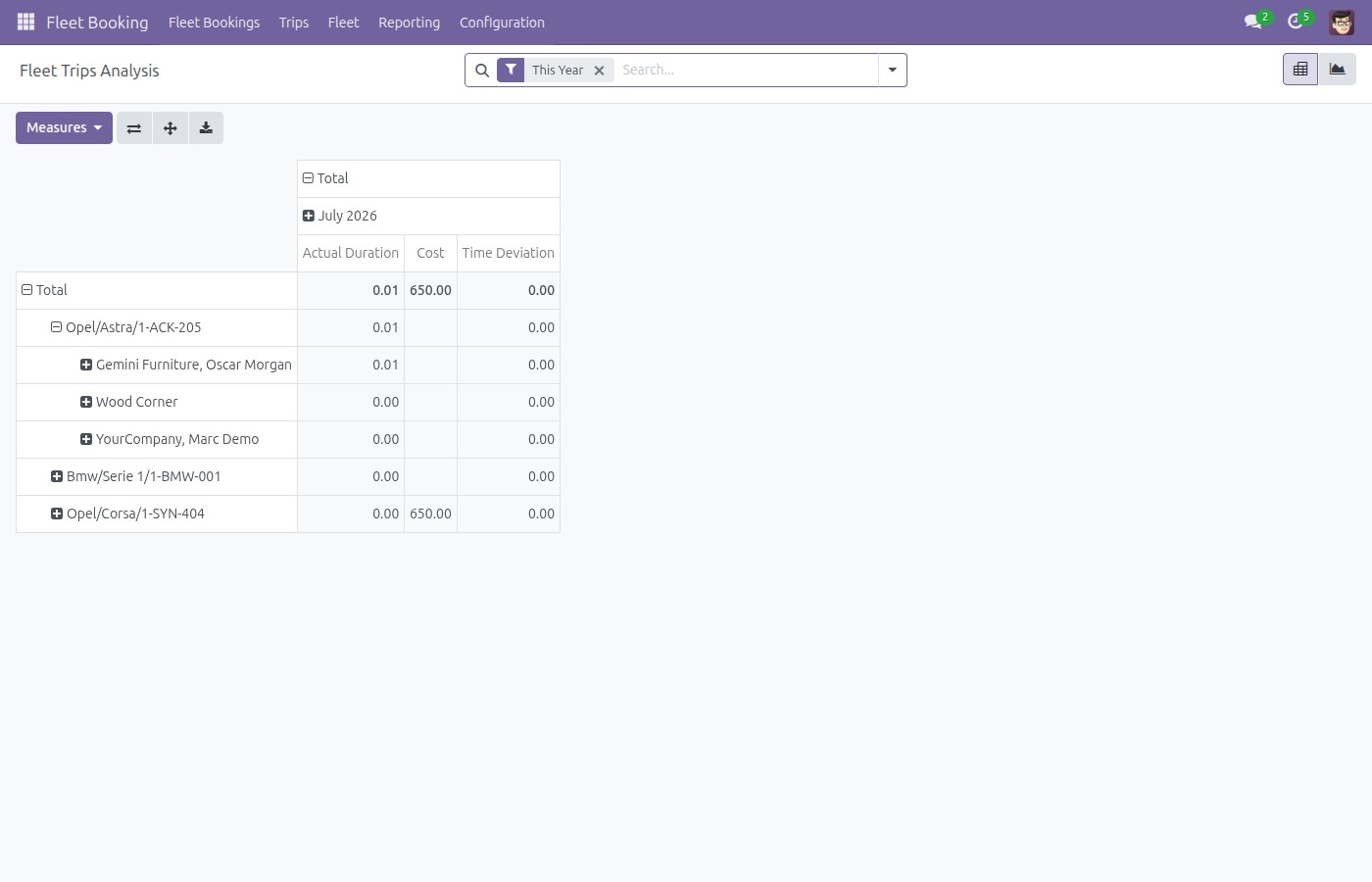
Analyze booking volume, weight and volume by purpose, state and company, and break trips down by duration, cost and schedule deviation across vehicle, driver and employee. Every finished trip feeds the next day’s plan.
Customer and employee self-service portal
Give customers and employees a portal to track their own bookings and trips — status, pickup and drop-off times, vehicle and driver — without a single phone call to your dispatch desk.
Benefits
Dispatch faster, with less guesswork. A visual assignment board plus rule-based auto-planning turns a morning of manual scheduling into a few minutes of drag-and-drop and review.
Every trip accountable end to end. Actual driver, odometer distance, fuel and time deviation are captured on the trip itself — so on-time performance and vehicle usage are measured, not estimated.
Fleet costs you can actually trace. Because services, fuel and odometer readings are logged against the trip that incurred them, cost-per-trip and non-trip overhead stop being a mystery.
Fewer status calls, happier passengers. Self-service portal access lets customers and employees check their own booking and trip status online, freeing your operators to run the fleet instead of answering the phone.
Decisions grounded in real data. Booking and trip analytics turn completed operations into insight on demand, purpose and deviation — so you right-size the fleet and tighten the schedule with evidence.
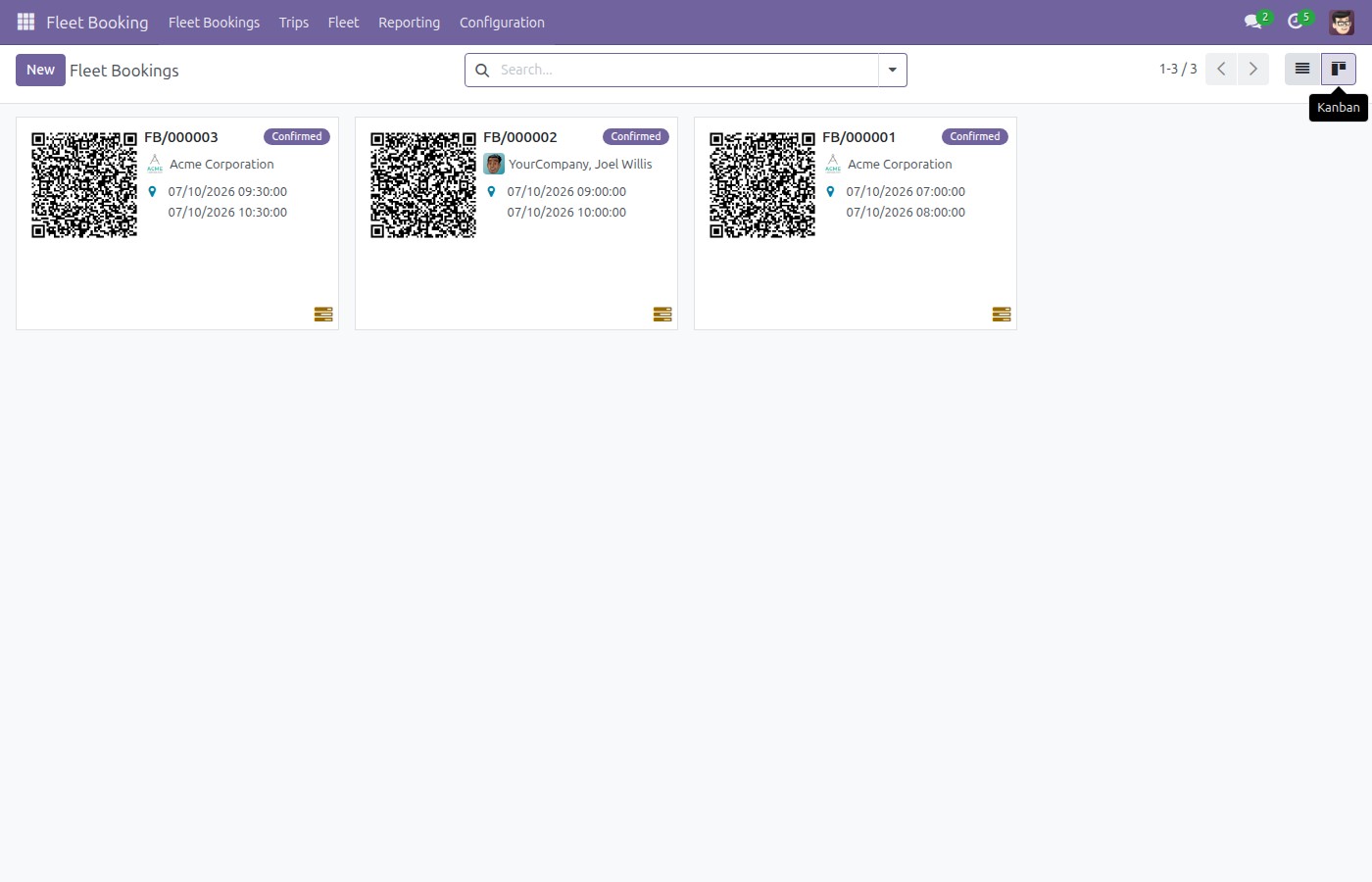
Create and confirm a VIP booking
Creating and confirming a VIP airport-pickup booking with purpose, passenger, and pickup/drop-off details.
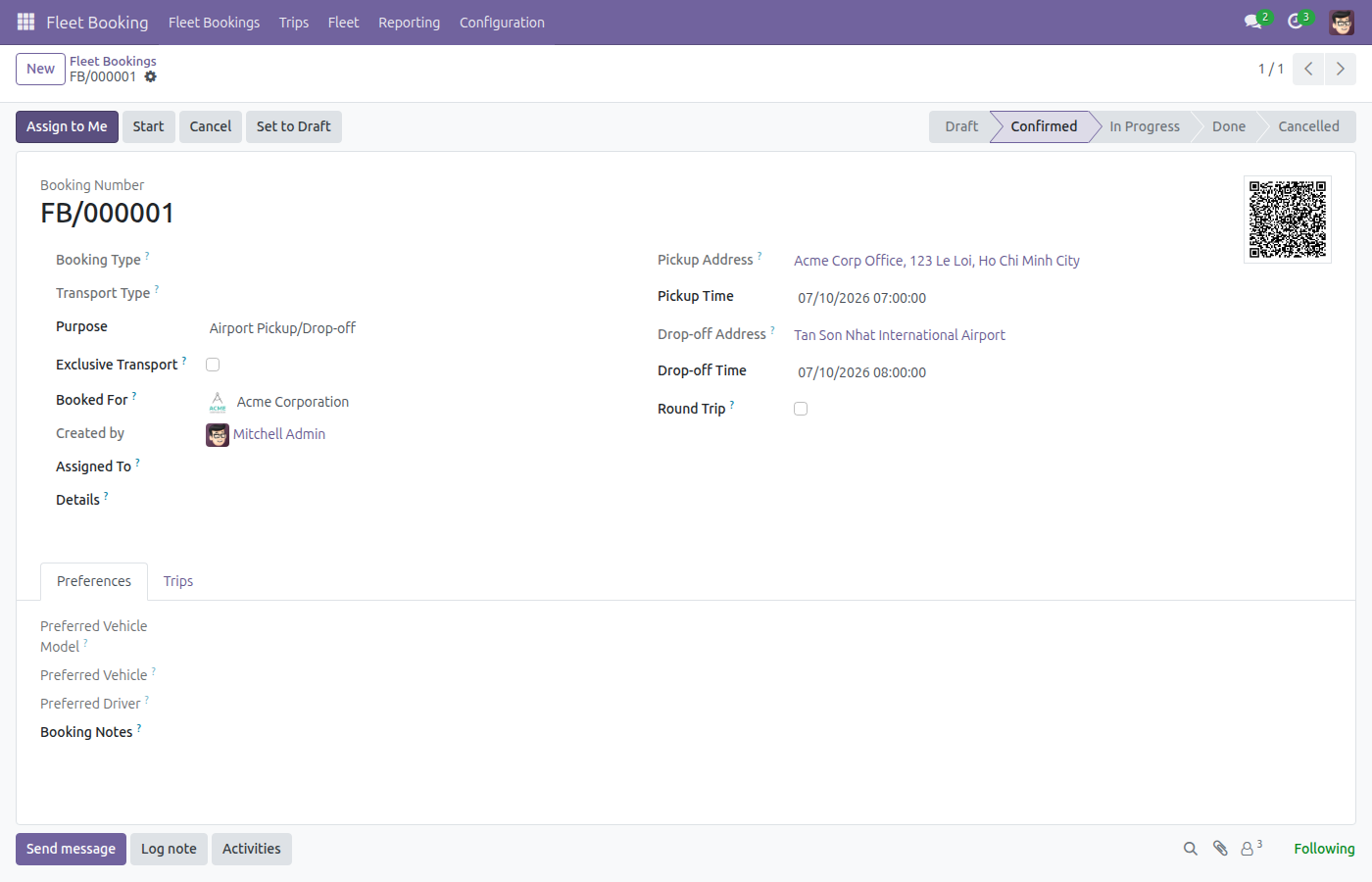
Assign bookings on the Kanban board
Launching the Vehicle/Trip Planning wizard to hand-assign a confirmed booking item onto a vehicle column on the Kanban assignment board.
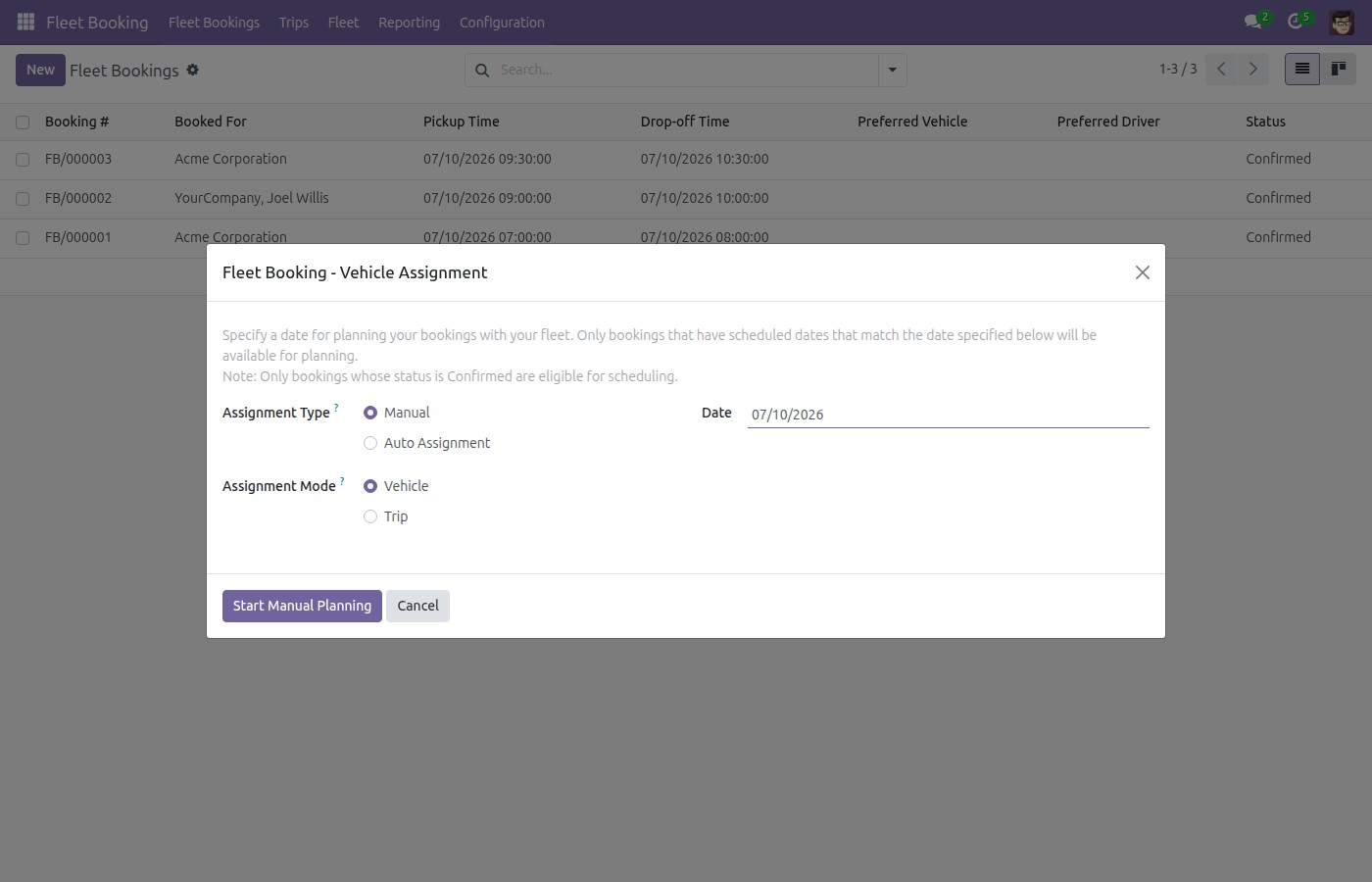
Auto-assign a day’s bookings by rule
Launching rule-based auto-assignment for a date from the Vehicle/Trip Planning wizard.
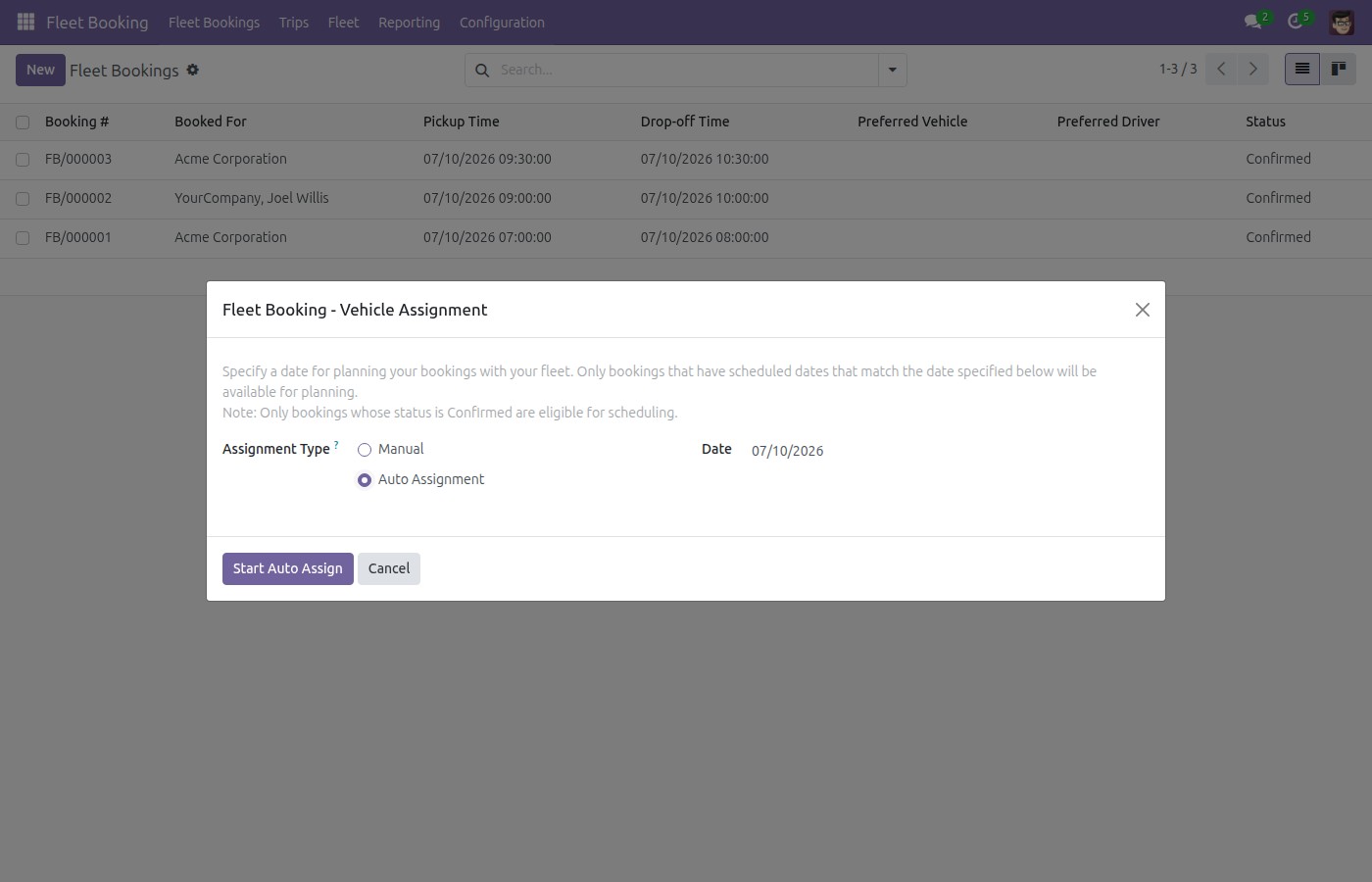
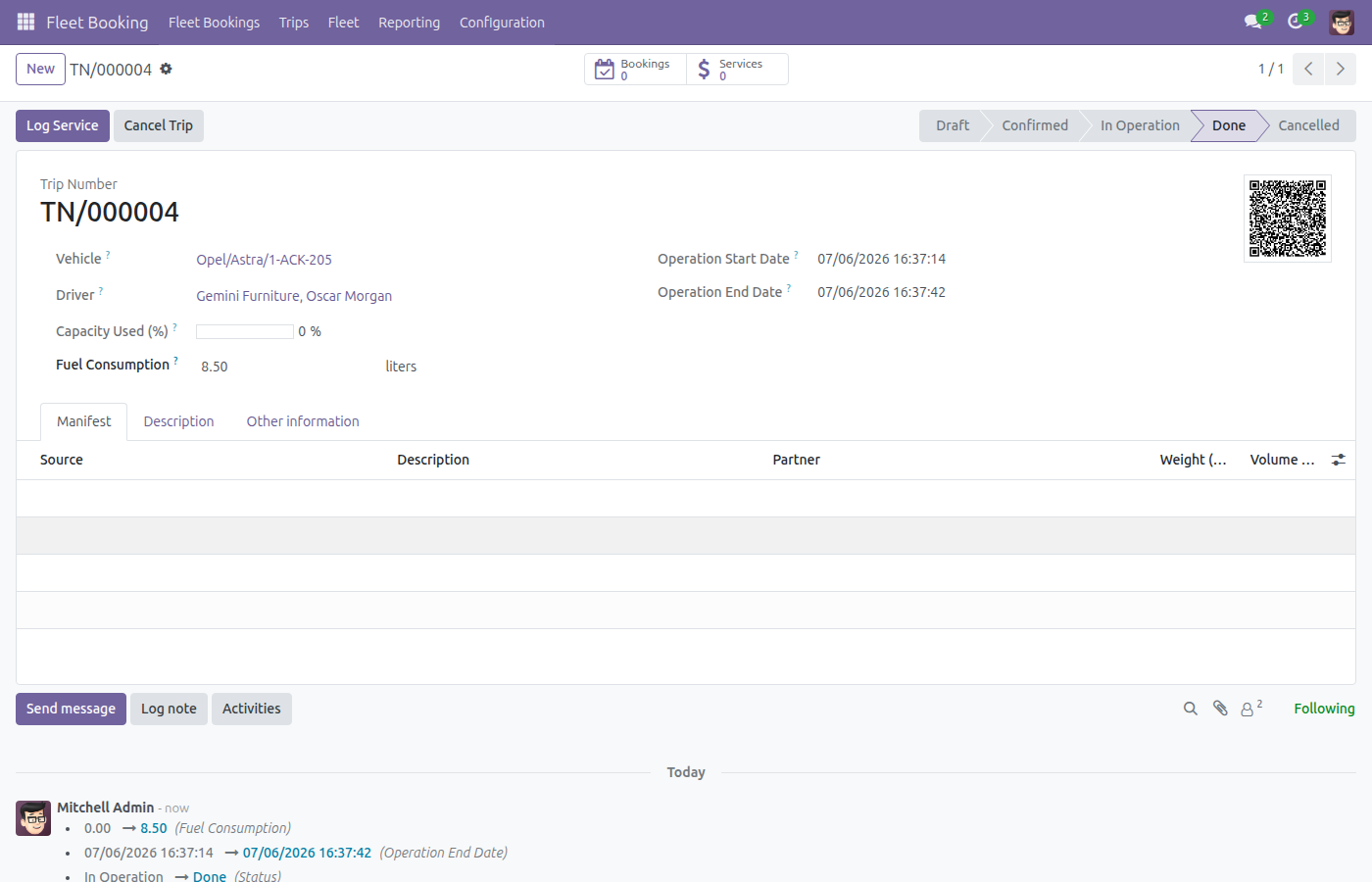
Run a trip from Start to Done
Running a trip from Start (odometer, driver) through Done (ending odometer, fuel consumption).
See every trip on one planning dashboard
The planning dashboard showing upcoming, confirmed and in-operation trips on one calendar.
Analyze trip cost, duration and deviation
Trip analysis pivot breaking down duration, cost and schedule deviation by vehicle and driver.
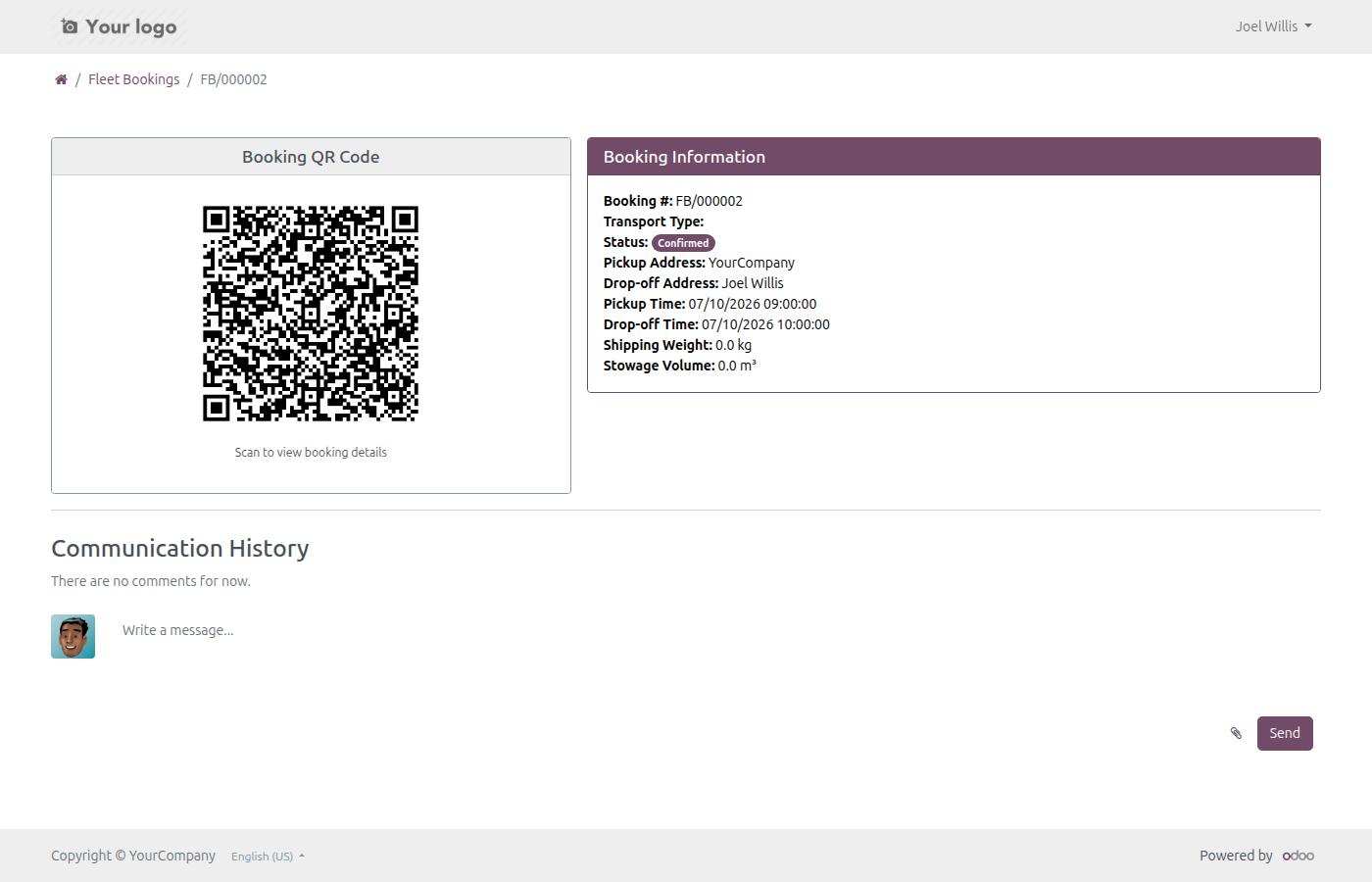
Let customers track bookings online
A portal customer self-checking their booking and trip status online.
See Fleet Booking & Trip Management in Action
Explore the booking, assignment and trip lifecycle for yourself on a live instance.
Try the Live DemoNeed help with Fleet Booking & Trip Management?
Pre-Sales & Partnership
apps.support@viindoo.comTechnical Support
apps.support@viindoo.comTechnical Requirement
- Odoo version: 17.0
- Editions: Community / Enterprise
- Required modules: QR Code Mixin, Fleet Loading Capacity (Volume & Payload), Advanced HR Management, Fleet Drivers Management
- License: OPL-1
Who Should Use This Module?
Fleet & Operations Managers
Own the schedule, the vehicles and the cost of running them; need faster dispatch and traceable spend.
Dispatchers & Fleet Operators
Assign bookings to vehicles, launch and close trips, and log costs on the ground.
Drivers
Receive the trip schedule by email or printed sheet, and record start/end odometer and fuel.
Executive & VIP Administrative Staff
Book vehicles for guests, employees and business trips and confirm them in bulk.
Customers & Employees (Portal Users)
Track their own bookings and trips online without contacting dispatch.
HR Teams
See an employee’s completed driving trips right from their HR profile.
Ready to plan, dispatch and track your fleet in one place?
Install Fleet Booking & Trip Management and turn every vehicle request into an on-time, fully accounted trip.
Viindoo — Powering Your Business Growth.
Fleet Booking & Trip Management
Note
Extends viin_fleet_loading_capacity - see its documentation.
This guide shows how to book a vehicle for an employee or a VIP guest, assign that booking to a vehicle and driver, run the resulting trip from start to finish, and let the customer track it online.
Installation
- Go to Apps.
- Remove the default Apps filter, search for Fleet Booking, and click Install on the Fleet Booking & Trip Management card.
- Odoo automatically installs everything this app is built on, so you do not need to look for these separately: Fleet Loading Capacity (Volume & Payload) (vehicle volume/payload - see its own guide), QR Code Mixin, Advanced HR Management, and Fleet Drivers Management. The base Fleet app comes along with these as well.
Configuration
Access rights
Open Settings > Users & Companies > Users, pick a person, and grant one of these roles under the Human Resources/Fleet access group:
- Fleet Booking User - create and manage their own day-to-day bookings.
- Operator - plan vehicle trips and record vehicle costs for every booking, not just their own.
- Fleet Booking Administrator - full access to the whole app, including Fleet management.
A portal contact (a customer or an employee who only has portal access) can see their own bookings and trips online once they are set as Booked For on a booking - no extra group is needed for that.
App settings
Go to Fleet Booking > Configuration > Settings and open the Fleet Booking tab.

Enforce Load Capacity (on by default) - trips enforce the combined weight and volume limit of the assigned vehicle.
Fleet Logistics Auto Plan Trips - schedules pickups and deliveries automatically every day instead of by hand. Turning this on reveals Fleet Logistics Trip Allocation Mode, with two choices:

- Even Distribution - spreads bookings evenly across every available vehicle.
- Fill Vehicles - fills one vehicle before moving on to the next.
Advanced Trip Planning - turns on waypoint, distance and duration support (needs the companion Fleet Planning app).
Under Fleet Suite Integration you can activate companion apps as needed: Fleet Sale, Fleet Sale - Cargo, Fleet Sale - Passenger (Commercial Fare), Fleet Booking - Passenger, Fleet Pickup and Delivery Planning, and Fleet Loading Capacity (Volume & Payload) (already active once this app is installed).
Important
Booking Type on a booking form only offers a choice (for example VIP or Employee transport) once you activate Fleet Booking - Passenger or a similar companion app above. Without it, leave Booking Type blank and classify the booking with Purpose instead - that is all this guide's steps below rely on.
Booking purposes
Go to Fleet Booking > Configuration > Booking Purposes to add the reusable purposes shown in the Purpose field when booking a trip, for example Business Trip, Client Meeting, Employee Transportation, Event Support, Delivery of Goods, Airport Pickup/Drop-off, Team Building or Medical Transport. Each purpose can default whether its bookings are Exclusive Transport (no other passenger or cargo shares the vehicle).
Usage
Create and confirm a booking
Open Fleet Booking > Fleet Bookings > Bookings and click New.

Set Purpose, for example Airport Pickup/Drop-off.

Set Booked For to the customer or employee this trip is for, for example Acme Corporation.

Set Pickup Address - type a new address and click Create if it is not an existing contact yet.

Set Pickup Time.

Set Drop-off Address the same way.

Set Drop-off Time.

Click Confirm. The statusbar moves from Draft to Confirmed, and Assign to Me and Start become available.

Assign a confirmed booking to a vehicle
Once a companion app such as Fleet Booking - Passenger has split a confirmed booking into individual items (one per passenger or cargo line), you assign those items to a vehicle from a Kanban board.
Open Fleet Booking > Fleet Bookings > Vehicle/Trip Planning.

Set Date to the day you want to plan, keep Assignment Type on Manual and Assignment Mode on Vehicle.

Click Start Manual Planning. Odoo opens the Booking Items board for that date, grouped by vehicle.

Drag a booking item card from the unassigned column onto the column of the vehicle you want to use. Its Vehicle field is set and a vehicle trip is created (or reused) to carry it.
Note
On a freshly installed Fleet Booking without a passenger/cargo companion app, this board stays empty (Odoo shows a faded preview of the layout) because no booking item has been split out yet - see Troubleshooting below.
Auto-assign bookings across your fleet
Open Fleet Booking > Fleet Bookings > Vehicle/Trip Planning and set Date.
Switch Assignment Type to Auto Assignment.

Click Start Auto Assign. Odoo spreads every unassigned booking item for that date across the available vehicles following the Fleet Logistics Trip Allocation Mode you configured (Even Distribution or Fill Vehicles), then opens the same Booking Items board so you can review the result.

Important
This is a rule-based allocator, not a route optimizer. It decides which vehicle gets each booking; it does not compute the best driving route or order of stops. Full route optimization (VRP) is a separate app, Fleet Planning.
Run a trip from Start to Done
Open Fleet Booking > Trips > Planning (or Trips Confirmed) and open a confirmed trip. Click Confirm Trip first if it is still in Draft.

Click Start Trip. Check the Odometer Value and Driver, adjusting them if needed.

Click Start. The trip moves to In Operation.

When the trip is finished, click Done. Fill in the ending Odometer Value and Fuel Consumption.

Click Done to confirm. The trip moves to Done and now shows under Trips > Trips Done, with its actual duration and fuel use recorded.

Let customers track their booking and trip online
Any contact set as Booked For on a booking can follow it from the customer portal once they have portal access.
The customer logs in and opens My Account, then clicks My Fleet Bookings.

The list shows every booking made for them, with its Booking #, Pickup Time, Drop-off Time and Status.

Opening a booking shows its Booking QR Code and Booking Information - pickup/drop-off address and time, status, shipping weight and stowage volume.

Once the booking has a trip running, My Fleet Trips (reachable at the same portal URL pattern) shows the trip's vehicle, driver and status; before that it reads "No trips found for your account."

Troubleshooting
Booking Type has nothing to select
Booking Type is only populated by companion apps such as Fleet Booking - Passenger (for passenger-style bookings) or a cargo companion app. If none of those are installed, leave Booking Type empty and use Purpose and Exclusive Transport to classify the booking instead.
A confirmed booking never shows up on the Booking Items board
Booking Items are created by a companion app when it splits a booking into passenger or cargo lines. On a Fleet Booking install without one of those apps, a confirmed booking has no items yet, so the Vehicle/Trip Planning board stays empty for it. Activate Fleet Booking - Passenger (or the matching cargo app) in Configuration > Settings to enable this step.
I do not see "Fleet Logistics Trip Allocation Mode" in Settings
This choice only appears once you turn on Fleet Logistics Auto Plan Trips right above it on the same Fleet Booking settings tab.
The portal customer cannot find their booking
Check that the customer's contact (or their commercial parent company) is set as Booked For on the booking, and that they have portal access (Settings > Users & Companies > Contacts, then grant portal access from the contact's action menu).
FAQ
Does Fleet Booking optimize driving routes for me? No. Manual assignment and Auto Assignment (Even Distribution / Fill Vehicles) only decide which vehicle carries each booking. Route and waypoint optimization is handled by the separate Fleet Planning app.
What is the difference between Booking Type and Purpose? Purpose (for example Airport Pickup/Drop-off or Employee Transportation) is always available and is the main way to classify a booking. Booking Type is an extra classification that only has choices when a companion app (such as Fleet Booking - Passenger) contributes them.
Can a portal customer create their own booking? The portal pages documented here (My Fleet Bookings, My Fleet Trips) are read-only status pages. Creating a booking is done by an internal Fleet Booking user or operator.
Do I need the Fleet Loading Capacity app? It is installed automatically as a dependency and lets you record how much volume and weight each vehicle can carry, which trips can then respect when Enforce Load Capacity is on. See its own guide for details.
This software and associated files (the "Software") may only be used (executed, modified, executed after modifications) if you have purchased a valid license from the authors, typically via Odoo Apps, or if you have received a written agreement from the authors of the Software (see the COPYRIGHT file).
You may develop Odoo modules that use the Software as a library (typically by depending on it, importing it and using its resources), but without copying any source code or material from the Software. You may distribute those modules under the license of your choice, provided that this license is compatible with the terms of the Odoo Proprietary License (For example: LGPL, MIT, or proprietary licenses similar to this one).
It is forbidden to publish, distribute, sublicense, or sell copies of the Software or modified copies of the Software.
The above copyright notice and this permission notice must be included in all copies or substantial portions of the Software.
THE SOFTWARE IS PROVIDED "AS IS", WITHOUT WARRANTY OF ANY KIND, EXPRESS OR IMPLIED, INCLUDING BUT NOT LIMITED TO THE WARRANTIES OF MERCHANTABILITY, FITNESS FOR A PARTICULAR PURPOSE AND NONINFRINGEMENT. IN NO EVENT SHALL THE AUTHORS OR COPYRIGHT HOLDERS BE LIABLE FOR ANY CLAIM, DAMAGES OR OTHER LIABILITY, WHETHER IN AN ACTION OF CONTRACT, TORT OR OTHERWISE, ARISING FROM, OUT OF OR IN CONNECTION WITH THE SOFTWARE OR THE USE OR OTHER DEALINGS IN THE SOFTWARE.
