


Logistics Shipment
by Viindoo
| Lines of Code | 8520 |
| Technical name | viin_logistics |
| License | OPL-1 |
| Website | https://viindoo.com/apps/app/17.0/viin_logistics |
| Read description for | |
| Required Apps | Discuss (mail) |
| Included Dependencies | Logistics Package Type Tracking Location QR Code Mixin Viindoo Base |
| Extensions | Logistics Sales Team Logistics Cargo Template Logistics Accounting Logistics Routes Integration |
Logistics Shipment
One shipment record, from booking to delivery - across every transport mode
Plan multi-leg road, sea, air and rail journeys, track cargo, packages and containers, and give customers live self-service visibility - all on a single, neutral shipment data model that works for fleet, trucking, freight forwarding and warehousing alike.
Powering Your Business Growth.
Extends viin_logistics_package_type - see its documentation.
Key features
One unified shipment record
Track every shipment from Draft to Confirmed, In Transit and Done in one place, whatever the transport mode. Direction (Import, Export, Domestic), customer, ETD/ETA and actual dates all live on the same record.
Multi-leg, multimodal routing
Build the full journey as an ordered route table - a road leg, an ocean leg, an air leg, a rail leg - each with its own mode, pickup and drop-off address, and planned versus actual departure and arrival times.
Cargo, packages and containers - no stock or product dependency required
Record cargo content, weight, volume and HS classification directly on the shipment; group items into packages with shipping marks; and manage container-level units with seal numbers and automatic weight and volume rollups.
Dangerous-goods ready
Classify hazardous cargo by DG class and UN Number, with proper shipping name, packing group and flash point captured against reusable master data - so compliance detail travels with the shipment.
Live tracking timeline and customer portal
Log location and status events (On Track, At Risk, Off Track, On Hold) against each shipment's own color-coded stage timeline, then publish them so customers follow progress on a self-service portal - no backend access needed.
Templates and scenario bootstrapping
Reuse an archived shipment as a template, or apply a scenario template to pre-populate a new shipment's stage timeline in one click - standardising recurring shipment patterns and cutting manual setup.
Ports, cargo and configuration master data
Maintain dedicated directories of sea ports and airports, cargo types, HS codes, package and container profiles, shipment stages, shipment types and color-coded tags - so every new shipment is created from consistent, codified data.
Built-in analytics and delay detection
Surface delayed shipments the moment they run behind schedule, and analyse volume and performance by month, by trade lane (origin/destination) and by delivery status to catch problems early.
Business outcomes
A single source of truth for every shipment. Replace scattered spreadsheets and email threads with one unified record spanning all transport modes and directions.
React to delays before customers complain. The Delayed Shipments view and live tracking updates flag at-risk shipments early, so operations act first.
Fewer "where is my shipment?" calls. Self-service portal visibility, complete with tracking timeline and shareable QR link, cuts inbound customer inquiries.
Faster, more consistent shipment creation. Templates, shipment types and scenario templates standardise repetitive work and remove re-keying.
A neutral foundation that scales with your business. Business-agnostic by design, it becomes the base you extend with Sales quoting, Fleet Booking and Cargo Templates when you need them.
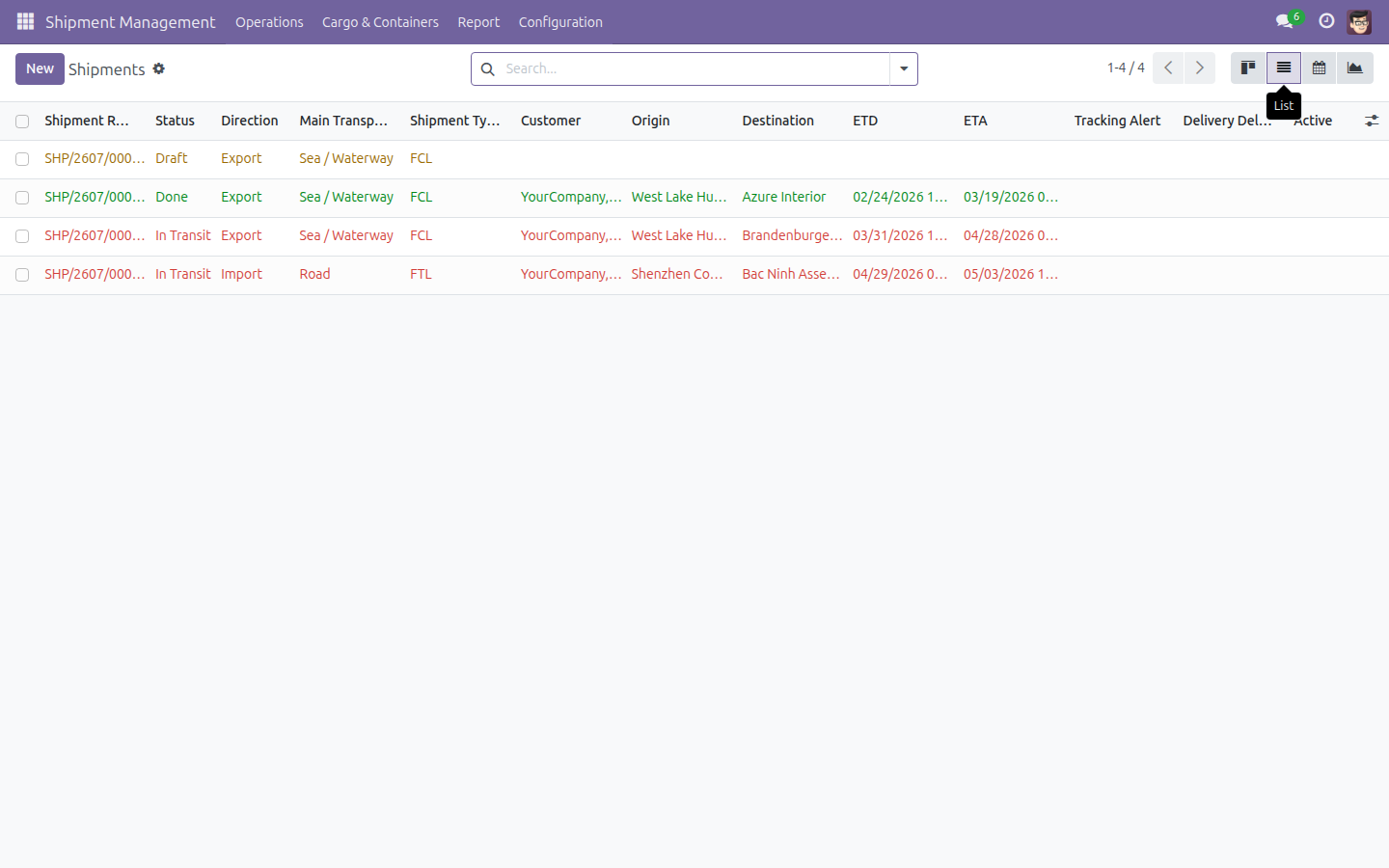
All Shipments In One List
All shipments in one list - filter by direction, status or delay, whatever the transport mode.
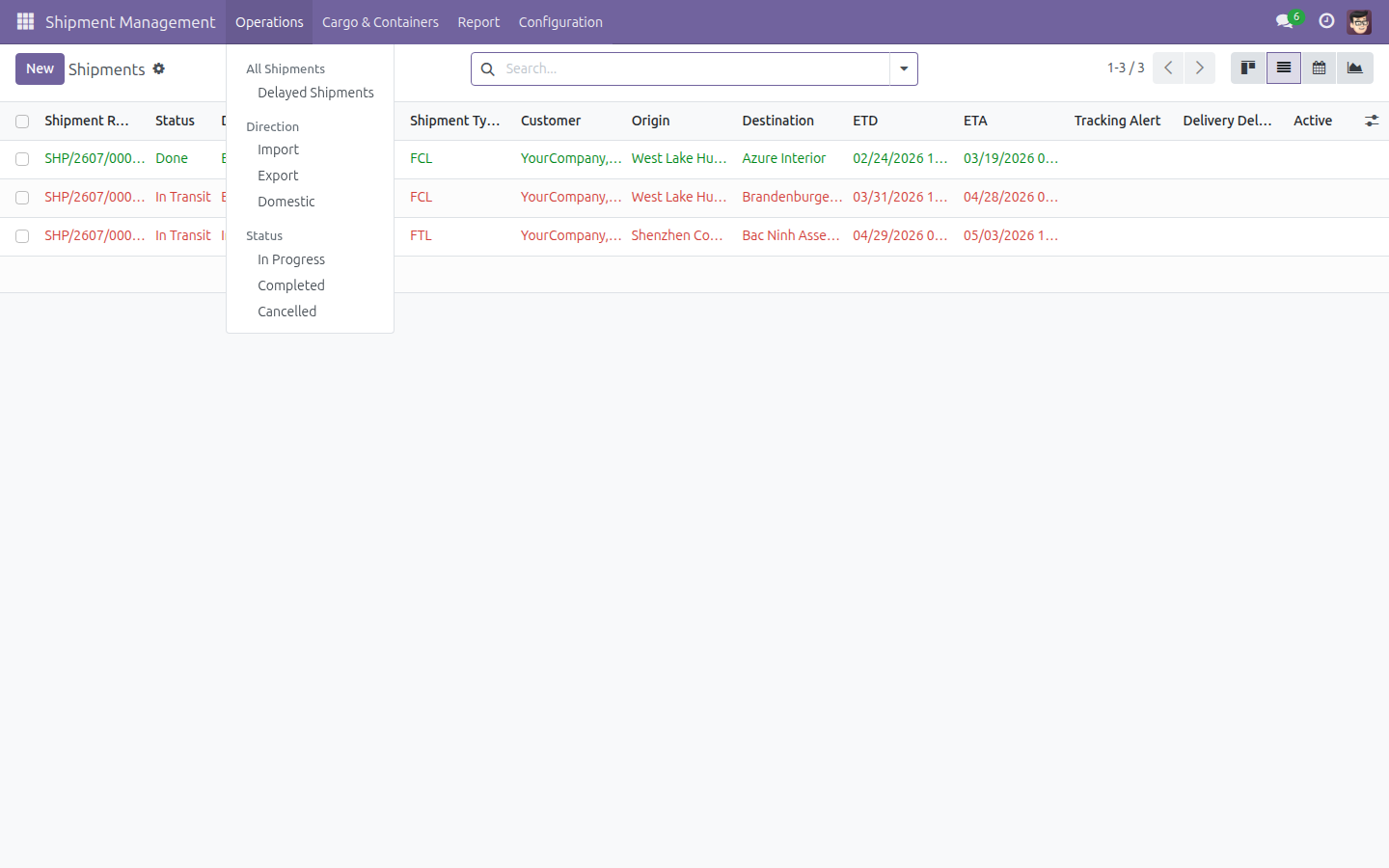
One Record, Draft Through Done
A single shipment record carries direction, customer, transport mode, the multi-leg route table and its planned versus actual dates from Draft through to Done.
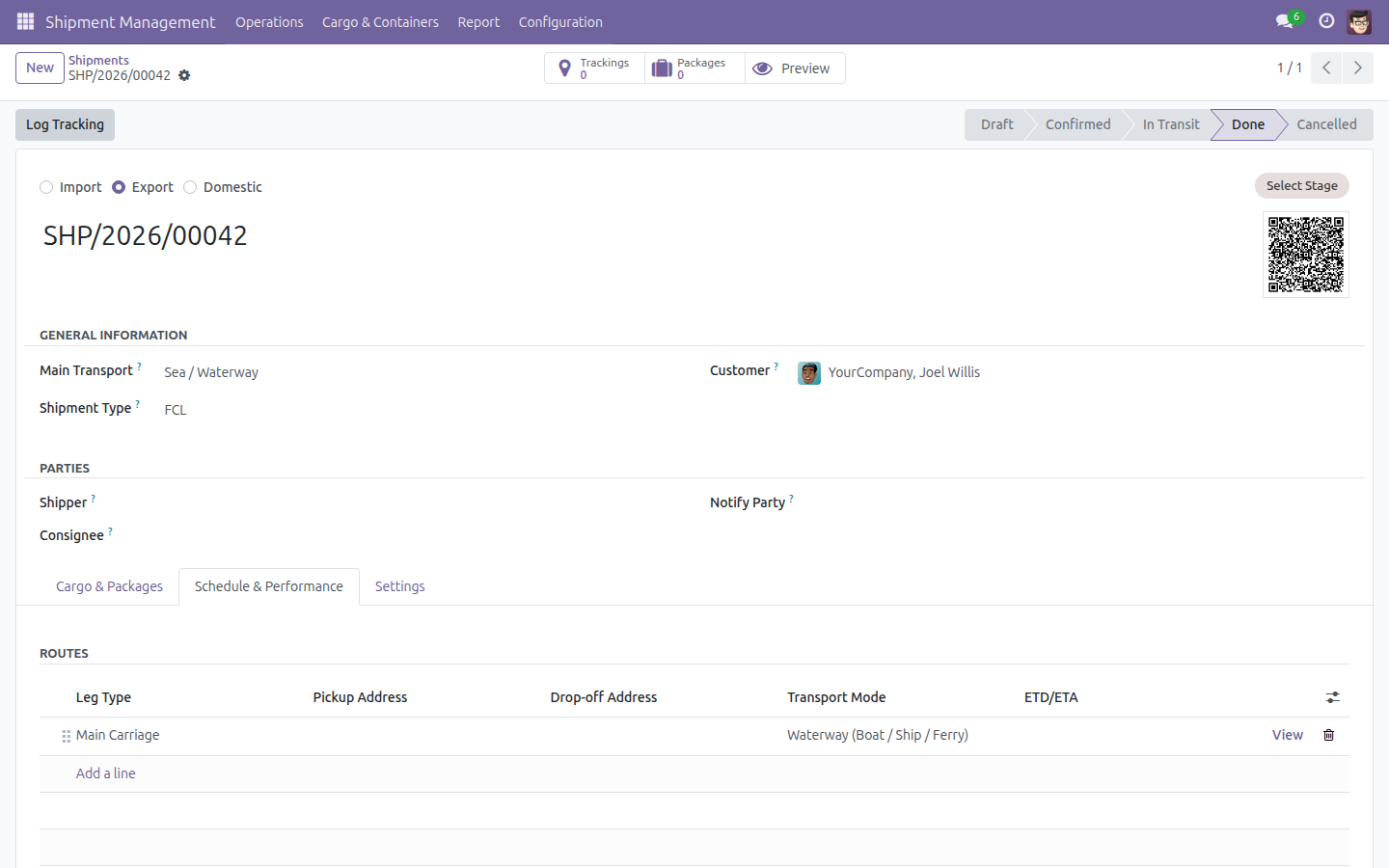
Pack Cargo Into a Container
Pack cargo into a container - record the container and seal number, add packages, and watch total weight and volume roll up automatically.
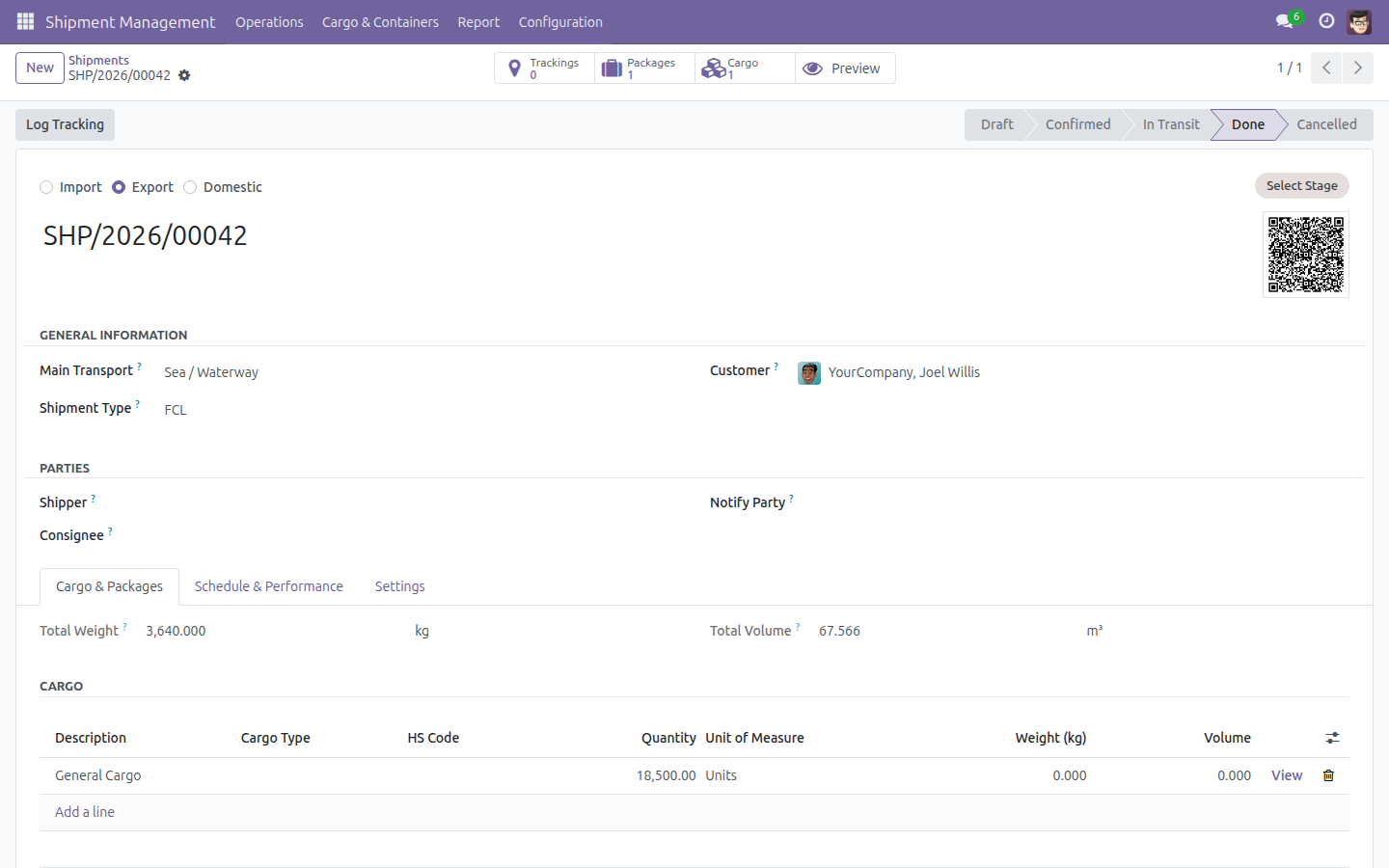
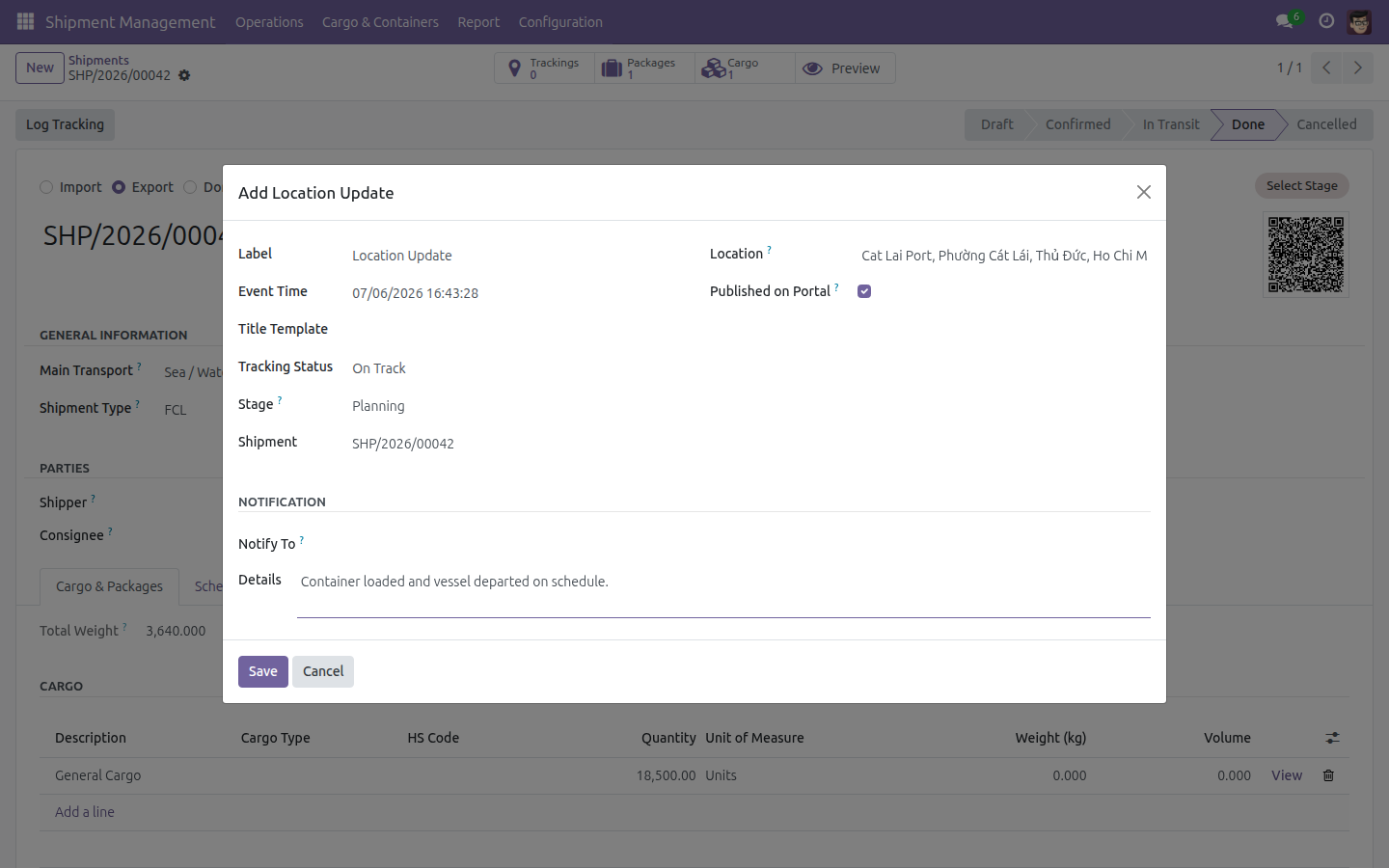
Log and Publish a Tracking Update
Log a tracking event against the shipment's stage timeline and publish it to the customer in the same step.
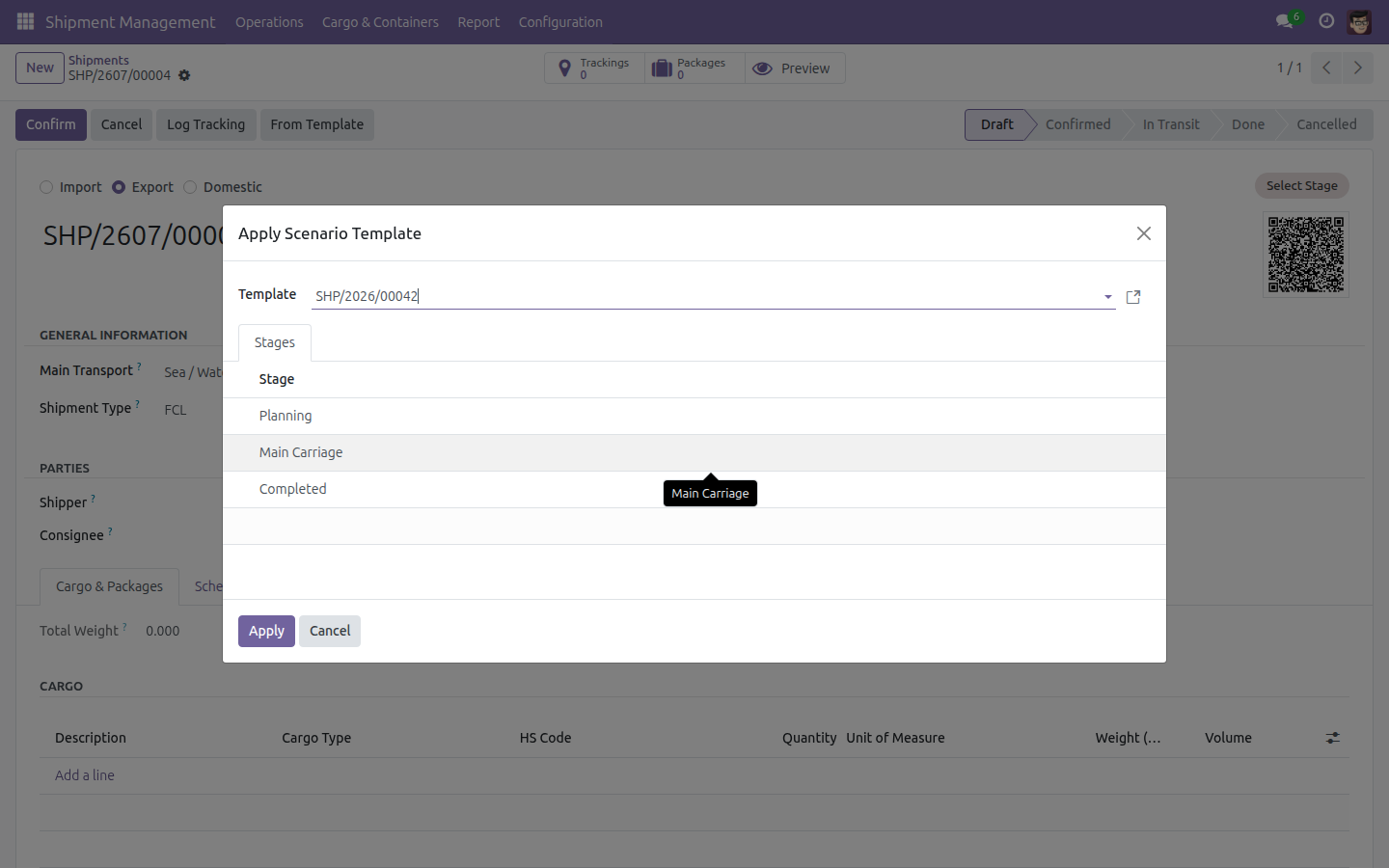
Bootstrap a Stage Timeline from a Template
Bootstrap a new shipment's ordered, color-coded stage timeline from a reusable template in one click.
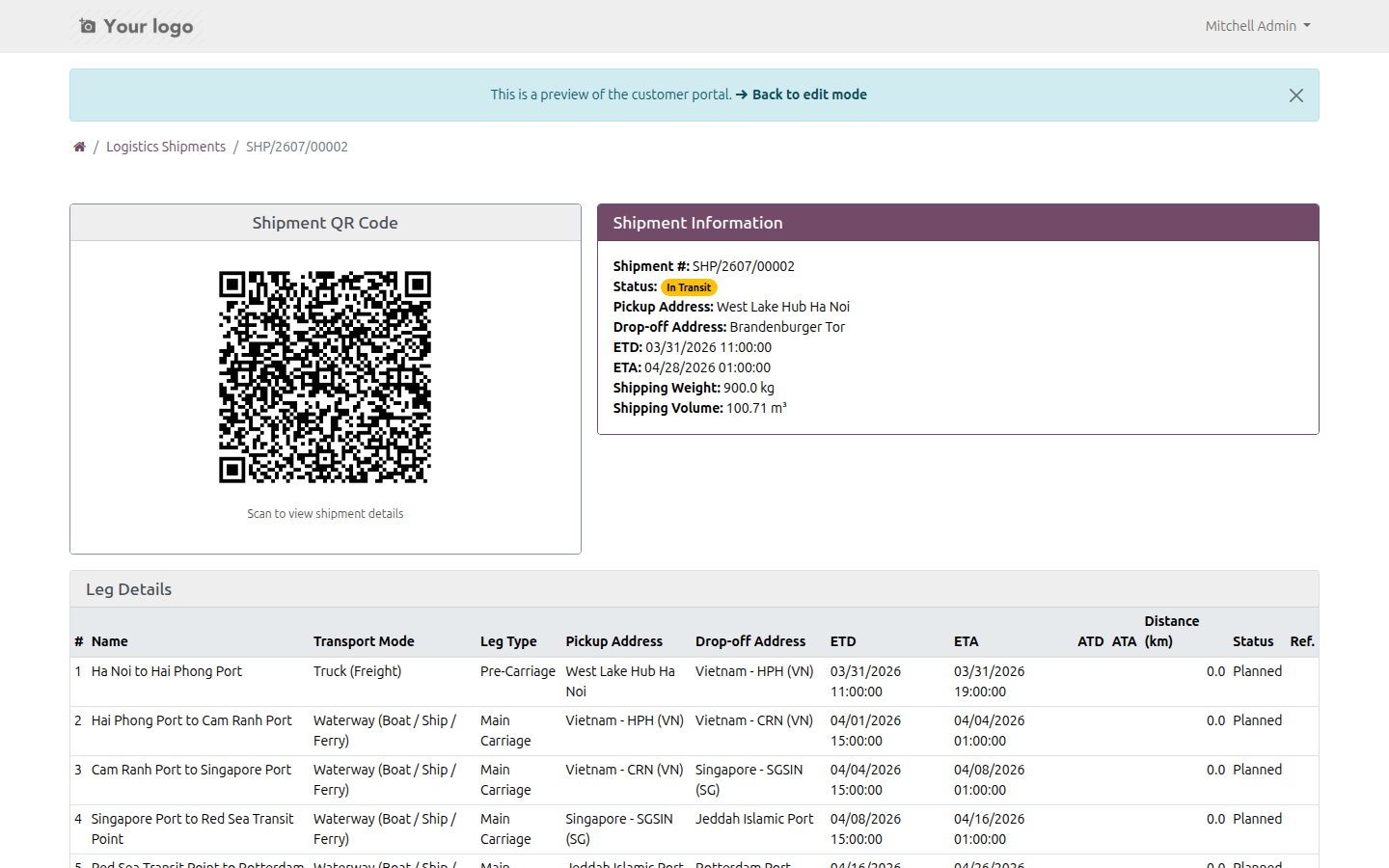
Customers Self-Track on the Portal
Customers self-track on the portal - current status, schedule and the full published tracking history, with no backend access.
Need help with Logistics Shipment?
Viindoo Support
Questions, pre-sales or technical support - our team is one email away.
apps.support@viindoo.comTechnical Requirement
- Odoo version: 17.0
- Editions: Community, Enterprise
- Required modules: viin_logistics_package_type, viin_qrcode, base_automation, viin_tracking_location, base_setup
- License: OPL-1
Who it's for
Logistics and operations managers
who need one view of every shipment across modes and directions.
Freight forwarders, 3PL and warehouse teams
coordinating multi-leg, multimodal journeys and container handling.
Dispatchers and operators
running shipments day to day - booking, routing, packing, tracking.
Customer-service teams
who resolve status queries fast and let customers self-serve on the portal.
Customers and partners
who want live, self-service visibility of their own shipments.
Implementers and product teams
who want a neutral shipment, leg, cargo, package and container data model to build fleet, trucking, freight and warehousing solutions on.
Get started
Give your team one home for every shipment - and your customers a live window into theirs. Install Logistics Shipment today and power your business growth.
Try the Live Demo Learn MoreLogistics Shipment
Note
Extends viin_logistics_package_type - see its documentation.
This module gives you a single Shipment Management app to run any transport job - trucking, sea freight, air freight, rail, or a mix of these - from booking to delivery. One shipment record carries the customer, the route (one or more legs), the cargo or packages/containers being moved, a live tracking timeline your customers can follow, and the full lifecycle status (Draft, Confirmed, In Transit, Done, Cancelled).
Installation
- Open the Apps app.
- Remove the default "Apps" filter from the search bar and search for "Logistics Shipment".
- Click Install on the module's card.
Installing this module automatically pulls in the small supporting components it relies on - the shared Package Types library, the QR Code Mixin and the Tracking Location component - there is nothing to install beforehand.
Configuration
Access rights. Under Settings > Users & Companies > Users, open a user's Access Rights tab. In the Industry/Logistics category, choose one of:
- User: Own Shipments - can only see and work on shipments where they are the Customer, Shipper, Consignee or Responsible.
- User: All Shipments - can see and manage every shipment.
- Administrator - also manages the configuration screens described below (Shipment Types, Stages, Tags, Templates, Package Types, dangerous-goods master data, and the Settings screen).
Settings. Go to Shipment Management > Configuration > Settings. From here an administrator can turn on optional extensions:

- Logistics Shipment Sale Integration - automatically create shipments from confirmed sales orders.
- Logistics Cargo Template - reuse predefined cargo configurations on new shipments.
- Fleet Booking & Trip Management - let employees book company vehicles for business transport.
Master data. Before creating your first shipment, review the reference lists under Shipment Management > Configuration: Shipment Types (combination of transport mode, load mode and package input mode), Shipment Stages and Shipment Tags, plus the cargo reference data (Cargo Types, HS Codes, DG Classes, UN Numbers) and location directories (Sea Ports, Airports). Sensible defaults ship with the module, so most teams can start creating shipments right away and refine these lists later.
Usage
Run a shipment from booking to delivery
Go to Shipment Management > Operations > All Shipments.

Click New. A blank shipment opens in Draft with sensible defaults already filled in - Direction is Export, Main Transport is Sea / Waterway and Shipment Type is FCL; change any of these to match your job.

Type a working reference in Shipment Reference.

Select the Customer for this shipment.

Open the Schedule & Performance tab. This is where the shipment's Routes table lives - each row is one leg of the journey.

Click Add a line to add a leg. A row is created with a Leg Type (Main Carriage, Pre-Carriage, On-Carriage...) and a Transport Mode already proposed; adjust the Pickup/Drop-off Address, ETD and ETA as needed.

Click Confirm to move the shipment from Draft to Confirmed.

Click Start Transit once the shipment is actually moving. The ATD (Actual Time of Departure) is stamped automatically.

Click Set Done once the shipment has arrived. The ATA (Actual Time of Arrival) is stamped and the Delivery Status is evaluated automatically (On Time, in this example).

Record cargo and pack it into a package or container
Two related screens work together here: Cargo & Containers > Containers is a cross-shipment library of container/equipment profiles (reference, type, number, seal), useful to look up equipment currently in use across all your shipments -

- while the Packages smart button on a shipment's own form is where you record what is actually packed for that shipment, using any package or container profile from the shared library.
Open the shipment and click the Packages smart button (it shows the current package count, starting at 0).
Click New, then fill in a Package Reference, choose a Package Type (for example one of the ISO container profiles) and, optionally, a Shipping Mark. Weight and Volume are filled in automatically from the package type you picked - adjust them if the actual load differs.

Click Save. The package now appears in the shipment's package list.

Back on the shipment form, the Packages smart button now shows the updated count, and Total Weight / Total Volume in the header roll up automatically from every package you have recorded.

Log a tracking update and publish it to the customer
Open the shipment and click Log Tracking in the header.
In the Add Location Update window, fill in a Label, type or pick a Location (start typing an address and choose the suggestion), set the Tracking Status (On Track, At Risk, Off Track or On Hold) and, if your shipment has more than one stage available, choose the matching Stage. Add a note under Details. Leave Published on Portal checked so the customer can see it.

Click Save. The shipment's Trackings counter increases by one.
Click the Trackings smart button to see every tracking event for this shipment as cards, each with a colored status badge.

Bootstrap a shipment's stage timeline from a template
Any shipment you Archive automatically becomes available as a reusable template - its own Stage Timeline (built under the Settings tab > Stages) is what gets copied onto new shipments.
Archive a shipment whose stage timeline you want to reuse (open it, click the gear icon, then Archive). It now appears under Shipment Management > Configuration > Other > Shipment Templates.

Create a new, blank Draft shipment.

Click From Template in the header (only visible on a Draft shipment). Pick the archived shipment as the Template; a preview shows the ordered, color-coded stages that will be copied.

Click Apply. Go to the Settings tab to see the shipment's own Stage Timeline now pre-populated with the same ordered stages, ready to drive the status dropdown at the top of the form without re-entering them by hand.

Customer self-tracking on the portal
Once a shipment is Confirmed or In Transit and has at least one tracking update published, the customer can follow it without any backend access.
From My Account, the customer opens My Logistics Shipments - a list of their own shipments with Status, ETD, ETA, ATD and ATA.

Opening one shipment shows its QR code (to re-share the tracking link), full shipment information, leg-by-leg schedule, packages, cargo, and the Tracking Timeline with every published tracking event grouped by stage and colored by status.

Troubleshooting
I can only see some of the shipments
Your access rights limit you to shipments where you are the Customer, Shipper, Consignee or Responsible ("User: Own Shipments"). Ask your administrator to grant "User: All Shipments" if you need to see every shipment.
The Shipment Type I expect is not in the list
Shipment Types are configured per transport mode and load mode combination under Configuration > Other > Shipment Types. Ask an administrator to add the missing combination, or double check the Main Transport you selected on the shipment.
My tracking update is not showing on the customer portal
Open the tracking event and make sure Published on Portal is checked - it is checked by default, but it can be unchecked for internal-only notes.
A package or container I created is not linked to the shipment I expected
Always open the Packages (or a similar) list from inside the shipment itself (its own smart button), rather than the general Cargo & Containers menu - that way the new record is automatically tied to the shipment you are working on.
"From Template" only shows a few shipments to pick from
Only archived shipments are offered as templates. Archive a completed shipment first if you want to reuse its stage timeline.
FAQ
What do the shipment statuses mean? Draft (being prepared) -> Confirmed (booked) -> In Transit (moving) -> Done (delivered). A shipment can be Cancelled from Draft, Confirmed or In Transit.
What is the difference between the workflow Status and the Stage Timeline? Status is the fixed lifecycle every shipment follows (Draft/Confirmed/In Transit/Done/Cancelled). The Stage Timeline is an optional, customizable sequence (for example Planning, Pre-Carriage, Main Carriage, Completed) you can track alongside it and copy from a template.
Can a shipment have more than one leg? Yes - the Routes table on the Schedule & Performance tab supports any number of legs, each with its own transport mode, addresses and planned/actual dates, so you can model multimodal, multi-stop journeys.
Can a customer track a shipment without an Odoo account? Yes - the portal detail page is reachable with a secure link (and QR code) generated for that shipment, no login required.
What happens when I archive a shipment? It stops appearing in the regular Shipments list and becomes available as a reusable template under Shipment Templates, so its stage timeline can be applied to future shipments.
This software and associated files (the "Software") may only be used (executed, modified, executed after modifications) if you have purchased a valid license from the authors, typically via Odoo Apps, or if you have received a written agreement from the authors of the Software (see the COPYRIGHT file).
You may develop Odoo modules that use the Software as a library (typically by depending on it, importing it and using its resources), but without copying any source code or material from the Software. You may distribute those modules under the license of your choice, provided that this license is compatible with the terms of the Odoo Proprietary License (For example: LGPL, MIT, or proprietary licenses similar to this one).
It is forbidden to publish, distribute, sublicense, or sell copies of the Software or modified copies of the Software.
The above copyright notice and this permission notice must be included in all copies or substantial portions of the Software.
THE SOFTWARE IS PROVIDED "AS IS", WITHOUT WARRANTY OF ANY KIND, EXPRESS OR IMPLIED, INCLUDING BUT NOT LIMITED TO THE WARRANTIES OF MERCHANTABILITY, FITNESS FOR A PARTICULAR PURPOSE AND NONINFRINGEMENT. IN NO EVENT SHALL THE AUTHORS OR COPYRIGHT HOLDERS BE LIABLE FOR ANY CLAIM, DAMAGES OR OTHER LIABILITY, WHETHER IN AN ACTION OF CONTRACT, TORT OR OTHERWISE, ARISING FROM, OUT OF OR IN CONNECTION WITH THE SOFTWARE OR THE USE OR OTHER DEALINGS IN THE SOFTWARE.
