


Logistics Routes Integration
by Viindoo
| Lines of Code | 1663 |
| Technical name | viin_logistics_route |
| License | OPL-1 |
| Website | https://viindoo.com |
| Read description for | |
| Required Apps | Discuss (mail) |
| Included Dependencies | Logistics Shipment Tracking Location Route Extension Logistics Package Type Viindoo Unified Routing Framework Tracking Location QR Code Mixin Viindoo Base API Request Logger |
| Extensions | Logistics Shipment Sale Integration Freight Dashboard |
Logistics Routes Integration
Turn every shipment leg into a mapped, reusable route - automatically
Stop retyping pickup points, drop-off addresses, transport modes, and distances on every shipment. Each leg auto-fills from a trusted library of geo routes, plots on an interactive map, and feeds a route-level analytics report.
Powering Your Business Growth.
Extends viin_logistics - see its documentation.
Key Features
Route-linked shipment legs with auto-sync
Link any shipment leg to a predefined geo route and watch the pickup address, drop-off address, transport mode, and distance fill in on their own. No matching route yet? The module auto-creates one, so no leg is ever left without one.
Predefined geo routes under Locations
Manage a clean library of reusable routes right under Configuration > Locations > Routes. Add waypoints, set the transport mode, and let the route provider compute total distance, estimated time, and the map polyline.
Generate freight products from routes
Select one or more routes and bulk-generate Freight Service products in a single action. Each product arrives with its freight legs pre-filled - pickup address, drop-off address, transport mode, and leg sequence - all carried from the route.
Interactive route map on the shipment
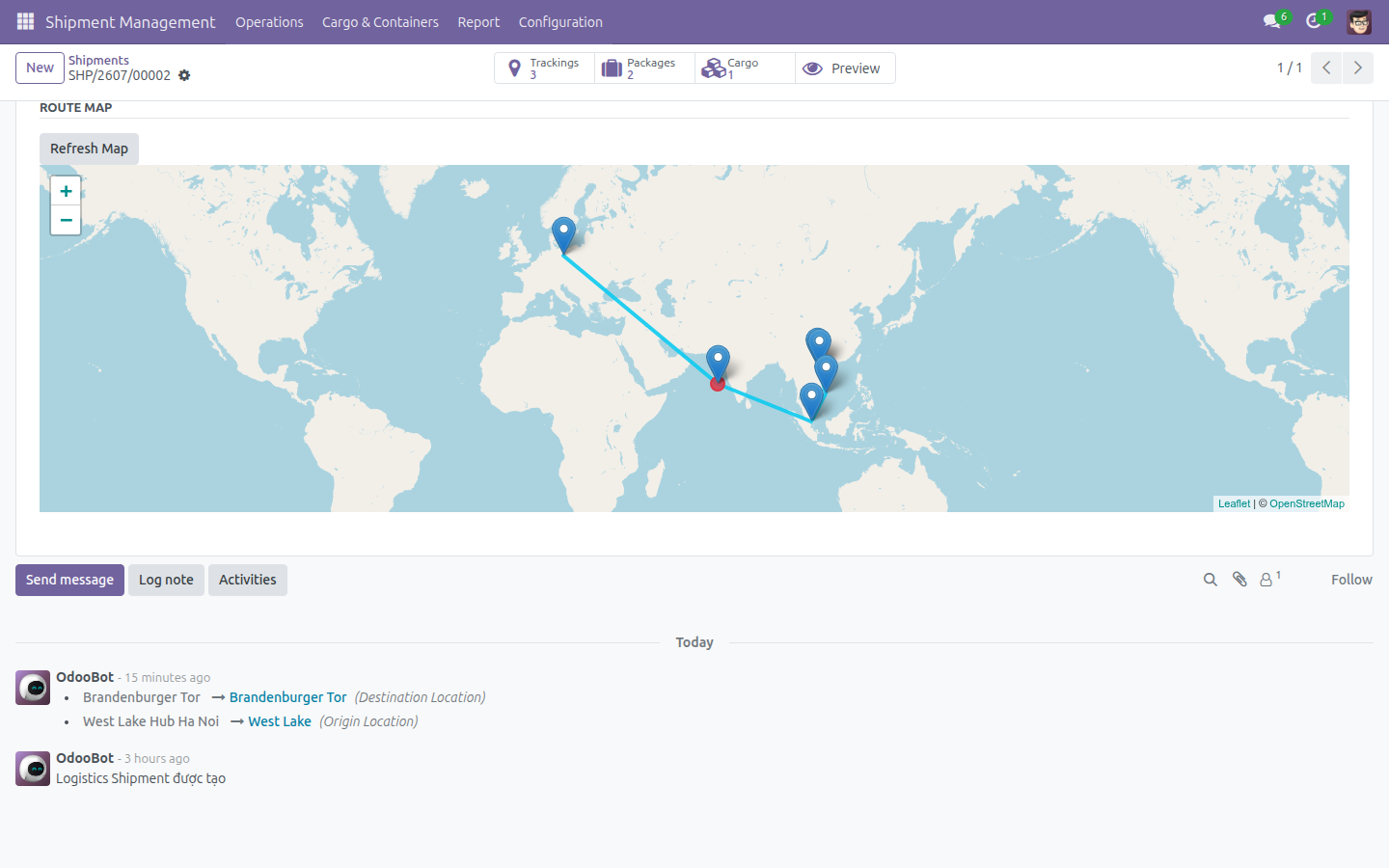
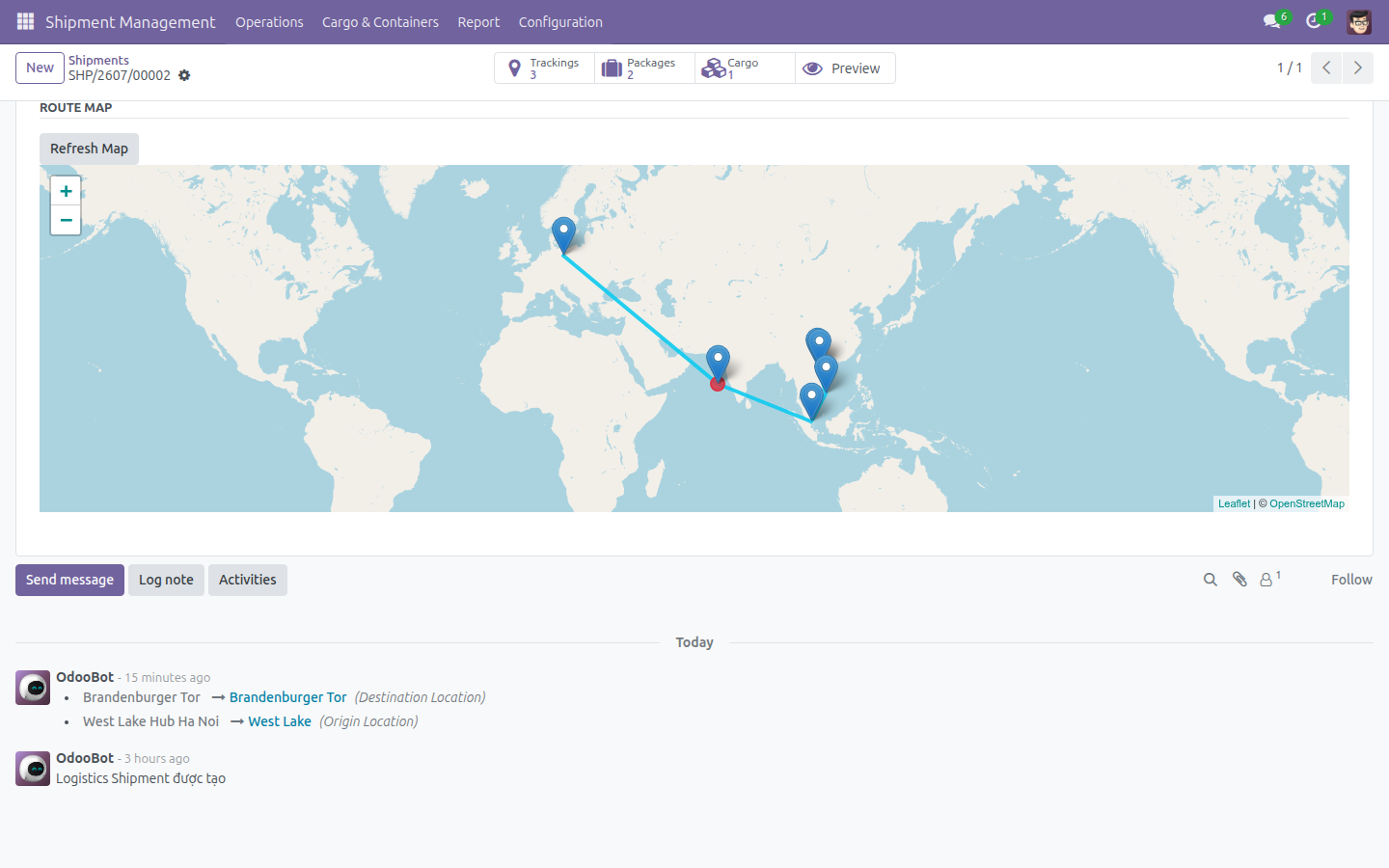
See a shipment's full multi-leg journey plotted on an interactive map, directly on the shipment form. One click on Refresh Map redraws every leg's pickup and drop-off points and connects them end to end.
Route map in the customer portal
Let your customers open their shipment's route map from the online portal - full visibility into where their goods are heading, without a single support call.
Shipment Routes analytics report
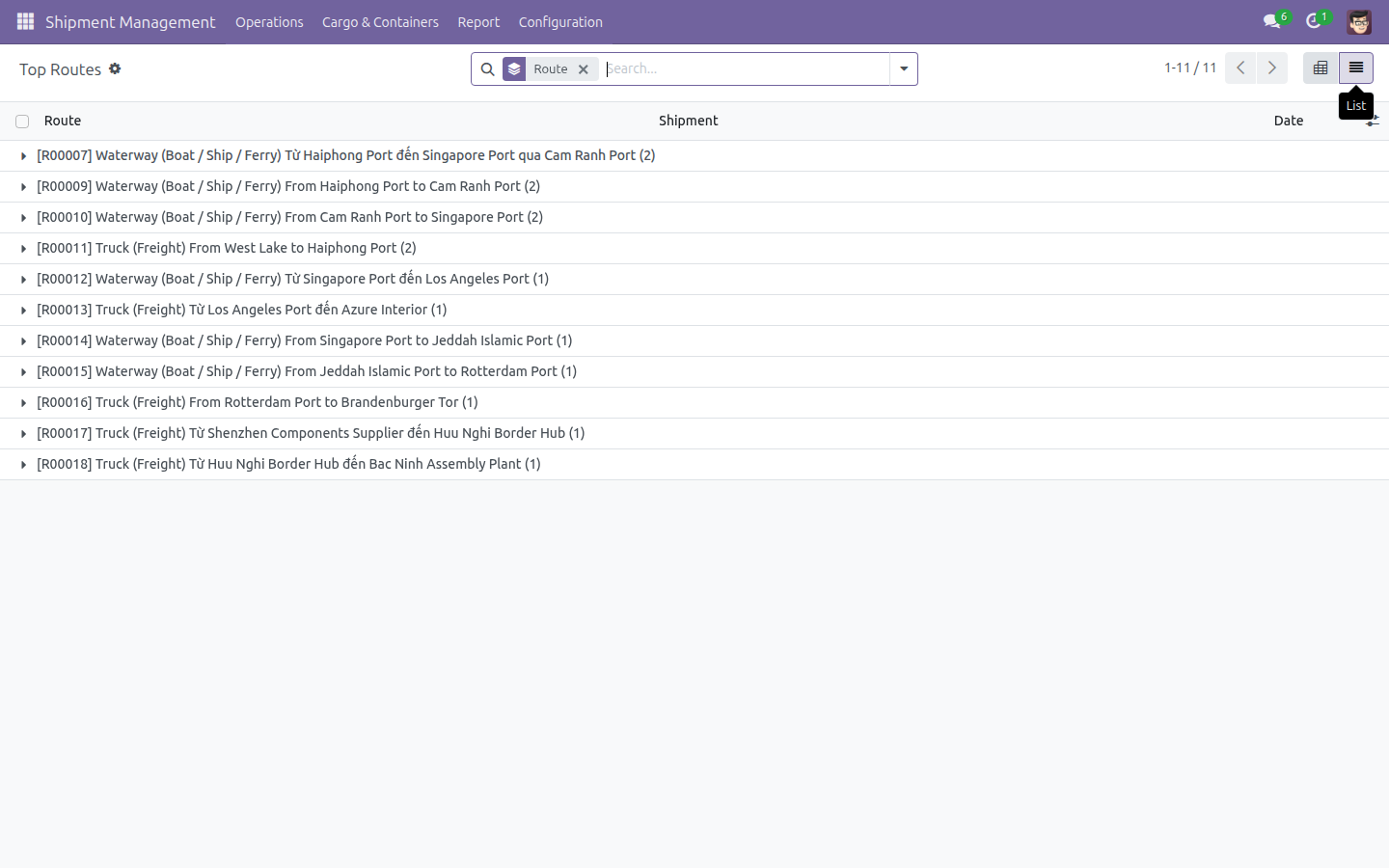
Analyze shipment volume by route in a dedicated pivot and list report. Pre-grouped by route and drillable by month, it surfaces your most-traveled lanes and how their usage trends over time.
Benefits
Eliminate repetitive data entry. Addresses, transport mode, and distance flow automatically from the route to the leg - and to newly generated freight products - so your team keys in data once and reuses it everywhere.
One source of truth for every lane. Predefined routes standardize how your shipments, legs, and freight products describe the same journey. Update a route once, and every shipment that links to it speaks the same language.
Give customers self-service visibility. The portal route map answers "where is my shipment going?" before customers ever ask, cutting support load while raising trust.
Decide with route-level data. The Shipment Routes report turns day-to-day operations into insight - which lanes carry the most volume, and how that shifts month over month - so you plan capacity and pricing on evidence, not guesswork.
Auto-Fill a Leg from a Route
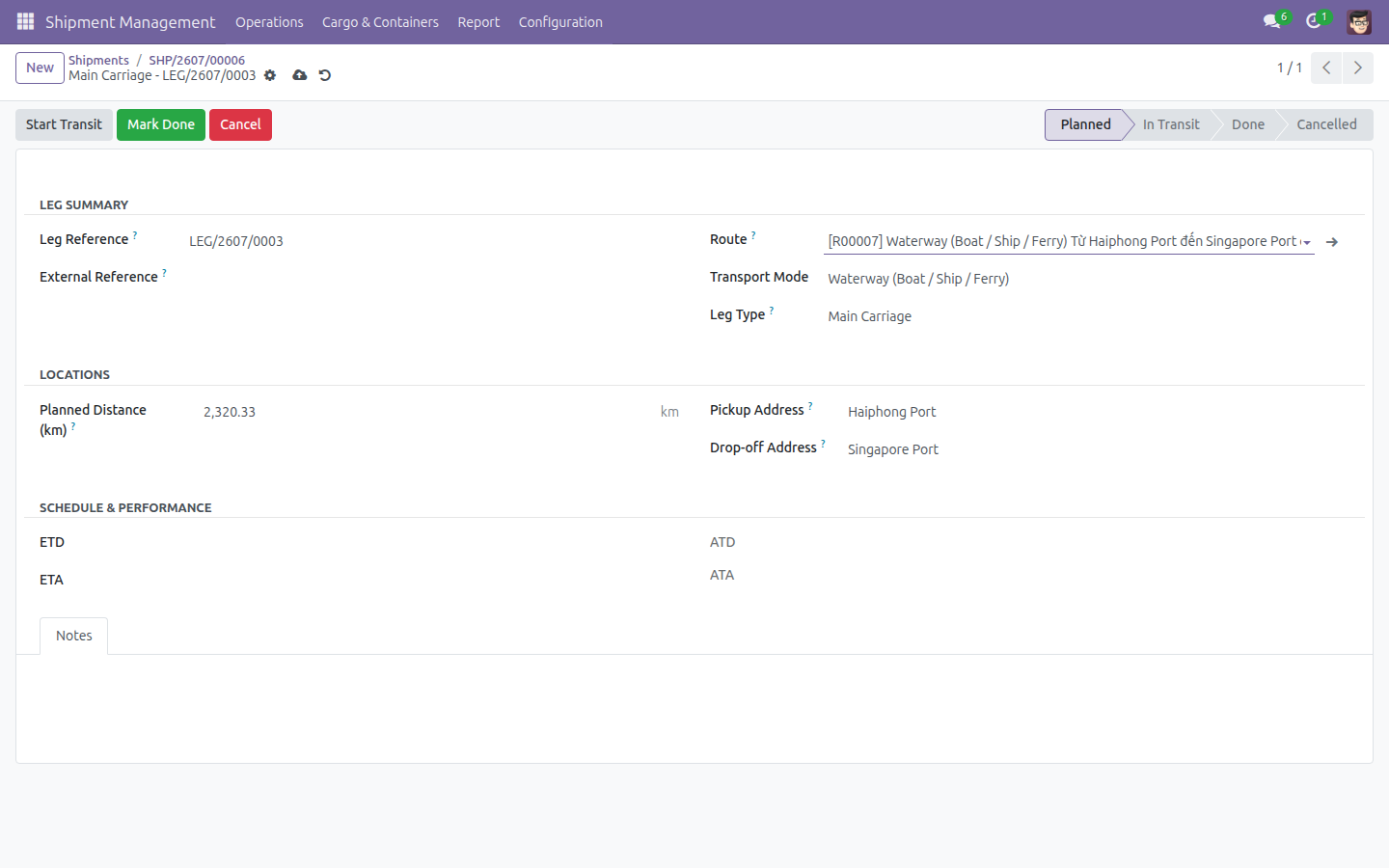
Adding a leg to a shipment: selecting a predefined route auto-fills the pickup address, drop-off address, transport mode, and distance - the user never types them manually.
Configure a Predefined Route
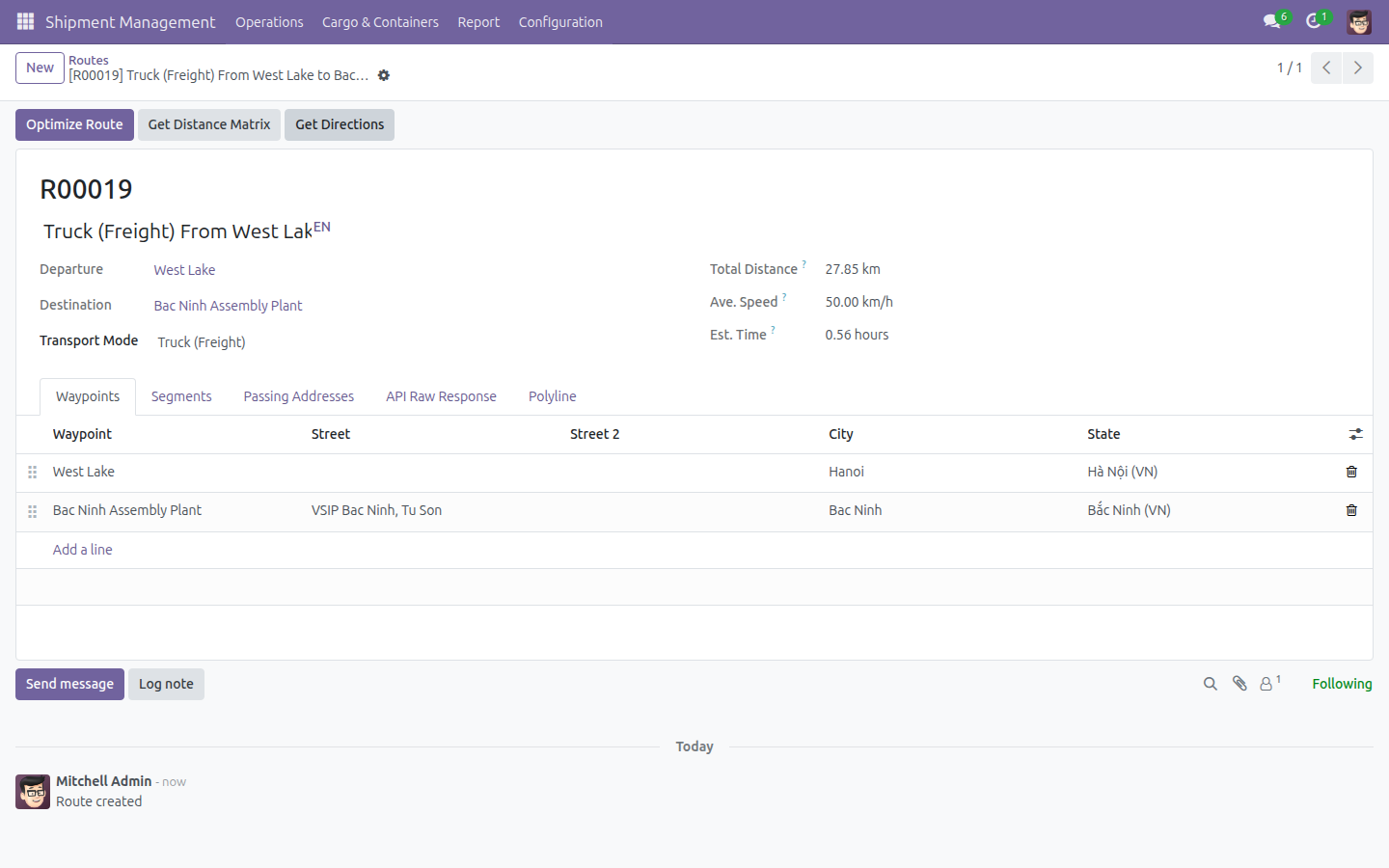
Configuring a predefined geo route under Locations: order the waypoints, pick the transport mode, and click Get Directions to compute departure, destination, total distance, and estimated time.
Generate Freight Products from Routes
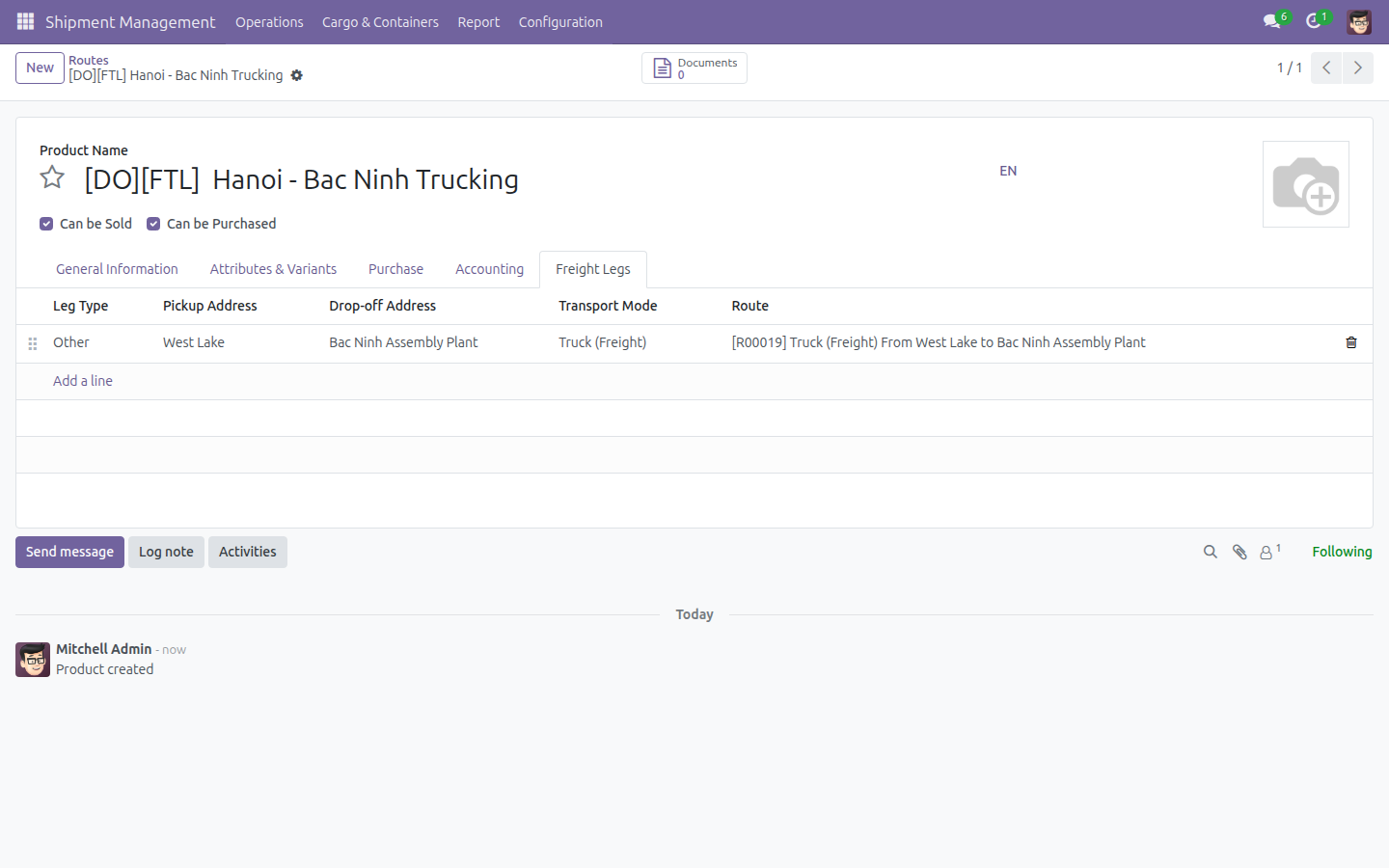
Selecting routes and running Generate Freight Products: a new Freight Service product opens with its freight legs pre-filled from the source route.
Visualize the Full Route Map
The interactive Route Map on a shipment form, plotting each leg's pickup and drop-off points and connecting the full multi-leg journey end to end.
Analyze the Shipment Routes Report
The Shipment Routes report, pre-grouped by route, showing how many shipments traveled each lane and how usage trends over time.
Need help with Logistics Routes Integration?
Viindoo Support
Questions, pre-sales or technical support - our team is one email away.
apps.support@viindoo.comTechnical Requirement
- Odoo version: 17.0
- Editions: Community, Enterprise
- Required modules: viin_logistics, to_geo_routes, viin_tracking_location_route
- License: OPL-1
Who It's For
Freight forwarders and logistics providers
managing multi-leg shipments across recurring lanes who want routes defined once and reused everywhere.
Shipment administrators
who maintain the master library of geo routes and transport modes under Locations.
Shipment users and operators
who build shipments leg by leg and generate freight products, and want addresses, modes, and distances filled in for them.
Reporting and planning users
who need route-level volume analytics to guide capacity and pricing decisions.
Their customers
who gain a self-service map of exactly where their goods are traveling.
Get started
Bring route and geo intelligence to your logistics shipments today. Install Logistics Routes Integration on top of Logistics Shipment Management, and give every leg a mapped, reusable, auto-filled route.
Try the Live Demo Learn MoreLogistics Routes Integration
Note
Extends viin_logistics - see its documentation.
This module links your Logistics shipments and Freight Service products to predefined geo Routes. Once a shipment leg or a Freight Service leg is linked to a Route, its pickup address, drop-off address, transport mode and distance fill in automatically - you no longer type them by hand. You also get a ready-made Route Map on every shipment and a Shipment Routes report to see which routes your shipments use most.
Installation
- Open the Apps menu.
- Search for Logistics Routes Integration.
- Click Install.
This module is installed automatically as soon as its three required apps are all present, so in most cases you will never need to install it by hand:
- Logistics Shipment (viin_logistics)
- Viindoo Unified Routing Framework (to_geo_routes)
- Tracking Location Route Extension (viin_tracking_location_route)
Configuration
No extra settings screen is added by this module. The only configuration step is managing the predefined Routes that shipments and Freight Service products will link against - see Configure a route for shipments and freight products below. Access to the Routes menu and to the Generate Freight Products action requires the Shipment Administrator / Shipment User access levels already used across Shipment Management.
Usage
Link a shipment leg to a route
Instead of typing a leg's pickup address, drop-off address, transport mode and distance by hand, pick a predefined Route and let the leg fill itself in.
Open Shipment Management > Operations > All Shipments and open a shipment.

Click the Schedule & Performance tab, where the shipment's legs are listed under ROUTES.

Click Add a line to start a new leg row.

The Route field is not shown on this row directly - click the small arrow icon at the end of the row (Open in form view) to open the leg's full detail form.

In the Route field, pick a predefined route (for example, a route from Haiphong Port to Singapore Port).

Pickup Address, Drop-off Address, Transport Mode and Planned Distance (km) are filled in automatically from the route you picked.

Configure a route for shipments and freight products
Set up the predefined routes that shipment legs and Freight Service products link against.
Open Shipment Management > Configuration > Locations > Routes and click New.

Set the Transport Mode (for example, Truck) for the new route.

Under the Waypoints tab, click Add a line and pick the first address (this becomes the Departure).

Add a second waypoint (this becomes the Destination). Total Distance is already computed as soon as both waypoints are set.

Click Get Directions to (re)compute the route's Total Distance, Ave. Speed and Est. Time from the mapping provider. The route also receives an auto-generated Code.

Note
Get Directions, Get Distance Matrix and Optimize Route need a Geo-Direction Provider configured for your company. Without one, these buttons report an error instead of a distance.
Generate Freight Products from routes
Turn one or more existing Routes directly into ready-to-sell Freight Service products, without re-entering the pickup/drop-off addresses.
Open Shipment Management > Configuration > Locations > Routes, tick the checkbox of one or more routes, then open the Actions menu (the gear icon) above the list and click Generate Freight Products.


Fill in Name Base, Shipment Type, Direction and Product Category for the product(s) to create. The Freight Legs table is already pre-filled with one leg per selected route (pickup/drop-off address and transport mode inherited from the route).

Click Generate. A new Freight Service product opens, its Freight Legs tab already carrying the leg copied from the route.

Visualize a shipment's route map
See a shipment's full multi-leg journey plotted on an interactive map.
Open a shipment whose legs are already linked to routes and click the Schedule & Performance tab. Scroll down to the ROUTE MAP section.

The map plots every leg's pickup and drop-off point and connects them end to end.

If you add or change a leg afterwards, click Refresh Map to recompute the map from the shipment's current legs.

Customers can see the same map from their online portal, on the shipment's tracking page.
Analyze the Shipment Routes report
See which routes your shipments use most, and how usage changes over time.
Open Shipment Management > Report > Shipment Statistics > Shipment Routes. The report opens as a pivot, already grouped by Route.

Switch to the List view (top-right toggle) for a row-by-row read of each shipment/route pair.

Open the search filters and add Group By > Date > Month to see route usage trend month over month.

Troubleshooting
- A shipment leg's Route field is empty on the Legs list.
- The Route field only appears on the leg's own detail form, not on the inline row in the shipment's Legs list. Add the leg first, then click the row's small arrow icon (Open in form view) to reach the Route field.
- Clicking Get Directions / Optimize Route / Get Distance Matrix shows an error instead of a distance.
- These actions call an external mapping/Geo-Direction Provider. Make sure at least one provider is enabled for your company before using them. Ask your administrator to configure one under the Geo-Routes settings.
- The Route Map says "Map is not available yet because coordinates are missing."
- At least one leg needs a resolved pickup or drop-off address with geographic coordinates. Link the leg to a Route (see Configure a route for shipments and freight products above) or set its addresses directly, then click Refresh Map.
- Generate Freight Products fails with a validation error about Product Category.
- Product Category is a required field on the product being created. Set it in the wizard before clicking Generate.
FAQ
- Can I still fill in the pickup address, drop-off address and distance by hand?
- Yes. Linking a leg to a Route is optional and only saves you the manual entry - you can still edit any auto-filled field afterwards.
- What happens if no existing Route matches my pickup and drop-off addresses?
- Create a new Route for that pair of addresses (see Configure a route for shipments and freight products above), then link your leg or freight product leg to it.
- Does the Shipment Routes report include shipments that have no leg linked to a route?
- No. Only shipment legs that carry a Route are counted in the report.
This software and associated files (the "Software") may only be used (executed, modified, executed after modifications) if you have purchased a valid license from the authors, typically via Odoo Apps, or if you have received a written agreement from the authors of the Software (see the COPYRIGHT file).
You may develop Odoo modules that use the Software as a library (typically by depending on it, importing it and using its resources), but without copying any source code or material from the Software. You may distribute those modules under the license of your choice, provided that this license is compatible with the terms of the Odoo Proprietary License (For example: LGPL, MIT, or proprietary licenses similar to this one).
It is forbidden to publish, distribute, sublicense, or sell copies of the Software or modified copies of the Software.
The above copyright notice and this permission notice must be included in all copies or substantial portions of the Software.
THE SOFTWARE IS PROVIDED "AS IS", WITHOUT WARRANTY OF ANY KIND, EXPRESS OR IMPLIED, INCLUDING BUT NOT LIMITED TO THE WARRANTIES OF MERCHANTABILITY, FITNESS FOR A PARTICULAR PURPOSE AND NONINFRINGEMENT. IN NO EVENT SHALL THE AUTHORS OR COPYRIGHT HOLDERS BE LIABLE FOR ANY CLAIM, DAMAGES OR OTHER LIABILITY, WHETHER IN AN ACTION OF CONTRACT, TORT OR OTHERWISE, ARISING FROM, OUT OF OR IN CONNECTION WITH THE SOFTWARE OR THE USE OR OTHER DEALINGS IN THE SOFTWARE.
